
Personalizing your laptop is about expressing who you are—your style, profession, or personality—without compromising its integrity or aesthetics. While stickers were once the go-to method, they often leave residue, degrade over time, and can make devices look cluttered or unprofessional. The good news? There are far more elegant, durable, and creative alternatives that enhance both function and form.
From custom skins to ambient lighting and thoughtful accessory pairings, modern personalization blends technology with self-expression in seamless ways. Whether you're a student, remote worker, designer, or tech enthusiast, these methods let you stand out while preserving your device’s value and appearance.
1. Use High-Quality Laptop Skins for Custom Designs
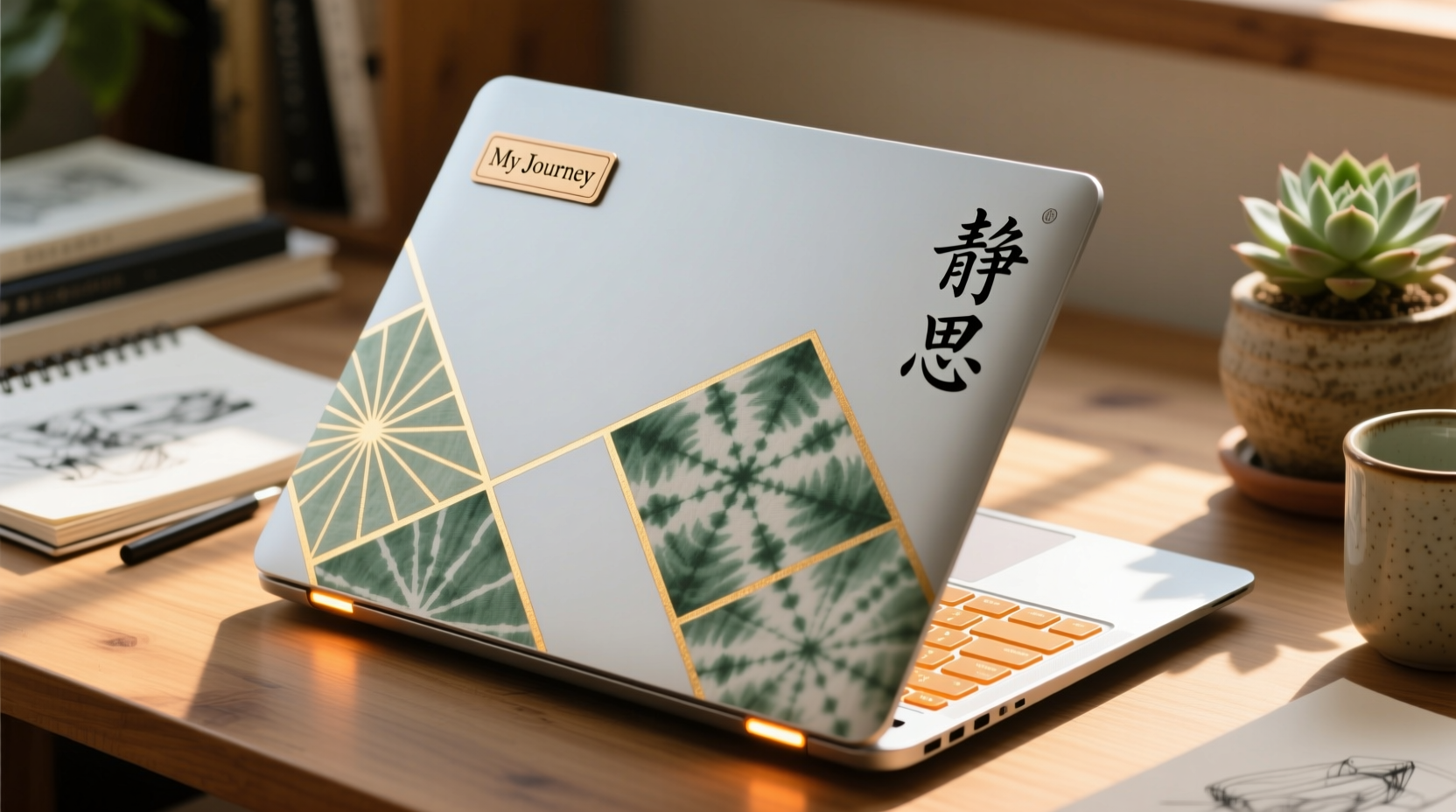
Laptop skins are thin vinyl wraps designed to adhere precisely to your device's surface. Unlike stickers, they cover large areas smoothly, resist peeling, and can be removed cleanly. They come in thousands of pre-designed patterns—from minimalist gradients to bold artwork—or can be fully customized with your own images, logos, or typography.
The best skins use matte, gloss, or textured finishes that not only look premium but also provide minor protection against scratches and daily wear. Brands like dbrand, Skinit, and DecalGirl offer precise templates for most laptop models, ensuring perfect alignment around ports, hinges, and cameras.
When choosing a design, consider themes that reflect your identity: abstract art for creatives, subtle geometric patterns for professionals, or nature-inspired visuals for those who value calm and balance. A well-chosen skin transforms your laptop into a statement piece without looking chaotic.
2. Customize Keyboard Lighting and Layout
If your laptop supports RGB or customizable backlighting, this is one of the most dynamic ways to personalize it. Modern keyboards allow per-key color control, animated effects (like wave, ripple, or breathing), and even synchronization with music or system activity.
For example, you might set your keyboard to glow in your favorite color during work hours, shift to a cooler tone at night, or pulse gently when receiving notifications. Some software, like Razer Synapse or ASUS Aura, lets you save multiple profiles based on usage—gaming, typing, or presentations—each with distinct lighting schemes.
Even if your laptop doesn’t have RGB, many external mechanical keyboards offer deep customization and double as stylish desk accessories. Pairing a sleek wireless keyboard with a matching mouse creates a cohesive aesthetic that elevates your entire workspace.
“Lighting isn't just functional—it sets the mood. A warm amber glow can make late-night work feel less harsh.” — Jordan Lee, UX Designer & Workspace Consultant
Step-by-Step Guide: Setting Up Custom Keyboard Lighting
- Check if your laptop or peripheral supports customizable lighting via manufacturer software.
- Download and install the appropriate app (e.g., Logitech G Hub, Corsair iCUE).
- Open the lighting settings and select a preset or create a custom profile.
- Assign colors to individual keys or zones based on layout or preference.
- Save the profile and set triggers (e.g., launch specific apps, switch modes).
- Test under different lighting conditions to ensure visibility and comfort.
3. Upgrade Your Accessories Thoughtfully
Your laptop rarely travels alone. The accessories you pair with it—cases, bags, stands, docks, and cables—offer rich opportunities for personalization without altering the device itself.
A leather sleeve in deep burgundy or forest green conveys sophistication. A woven fabric case adds bohemian flair. Choose materials and colors that align with your wardrobe or interior design preferences. Similarly, a minimalist bamboo laptop stand or a brushed aluminum riser introduces warmth or industrial elegance to your setup.
Cables are often overlooked, but braided nylon cords in navy, copper, or charcoal gray can unify your aesthetic. Consider magnetic cable organizers or color-coded labels for USB drives and adapters to maintain order and style.
| Accessory Type | Stylish Options | Avoid |
|---|---|---|
| Case/Sleeve | Vegetable-tanned leather, recycled canvas, quilted fabric | Plastic-heavy designs, loud logos |
| Stand | Bamboo, walnut wood, powder-coated metal | Flimsy plastic, overly futuristic shapes |
| Cables | Braided nylon, fabric-wrapped, color-matched sets | Frayed ends, mismatched colors |
| Dock/Hub | Sleek aluminum with minimal branding | Bulk units with blinking LEDs |
4. Personalize Software and Interface Elements
The digital experience matters just as much as the physical one. Customizing your desktop background, icons, fonts, and even terminal appearance allows for deep personal expression that follows you across devices.
Start with a high-resolution wallpaper that inspires you—a city skyline, abstract digital art, or a serene landscape. Use icon packs like \"Papirus\" on Linux or third-party tools like IconChamp on macOS to replace default app icons with cleaner, themed versions. Change system accent colors to match your preferred palette.
For developers or power users, customizing the command-line interface adds both personality and efficiency. Tools like Oh My Zsh (with themes such as Powerlevel10k) let you design prompts with emojis, git status indicators, and color gradients that reflect your workflow.
“Your desktop should feel like a room you enjoy spending time in—not a generic office space.” — Lena Torres, Digital Minimalism Advocate
Mini Case Study: Maria, Freelance Illustrator
Maria wanted her MacBook to reflect her artistic identity without resorting to stickers. She applied a matte-finish skin featuring an original watercolor design she created. On the software side, she customized her desktop with hand-drawn icons representing her favorite apps and set her terminal to display a soft peach-and-sage theme. She paired her laptop with a terracotta-colored leather case and rose-gold stylus holder. The result was a unified, professional yet deeply personal setup that clients consistently compliment during video calls.
5. Integrate Ambient Lighting and Desk Aesthetics
Your laptop doesn’t exist in isolation—it’s part of a larger workspace. Integrating ambient lighting enhances both functionality and ambiance. LED strips placed behind your monitor or under your desk cast a soft halo that reduces eye strain and highlights your gear subtly.
Choose addressable RGB strips controlled via smartphone apps or voice assistants. Set static colors that complement your skin or accessories, or use dynamic modes that shift with the time of day. For instance, warm white in the evening promotes relaxation, while cool daylight tones boost alertness in the morning.
Pair lighting with intentional desk decor: a small plant in a ceramic pot, a minimalist clock, or a framed print of your favorite quote. These elements frame your laptop within a curated environment, making the entire setup feel personalized—even if the device itself appears clean and understated.
Checklist: How to Create a Cohesive, Sticker-Free Laptop Setup
- ✅ Select a high-quality, removable laptop skin in a design that reflects your taste
- ✅ Customize keyboard backlighting with consistent, comfortable colors
- ✅ Choose a case or sleeve made from premium, tactile materials
- ✅ Match your peripherals (mouse, stand, hub) in finish and color
- ✅ Use braided or fabric-covered cables in coordinated hues
- ✅ Design a digital workspace with personalized wallpapers and icons
- ✅ Add ambient lighting that complements your natural environment
- ✅ Style your desk with meaningful, non-cluttering accessories
FAQ
Can laptop skins damage my device?
No, high-quality skins are made from thin, adhesive vinyl that’s specifically engineered to stick securely without harming surfaces. When removed properly (often with gentle heat), they leave no residue and do not scratch the finish. Always choose reputable brands and follow application instructions carefully.
Are there professional settings where personalized laptops are inappropriate?
In highly formal environments—such as law firms, finance, or government roles—excessive personalization may be seen as unprofessional. In these cases, subtle touches like a neutral-toned skin, matching accessories, or discreet lighting are preferable. The goal is to express individuality tastefully, not distractingly.
How do I remove a skin without damaging the laptop?
Use a hairdryer on low heat to gently warm the skin, which softens the adhesive. Slowly lift one corner with a plastic card or fingernail and peel back at a 45-degree angle. Avoid pulling too quickly. If any residue remains, wipe it with a cloth dampened with isopropyl alcohol (70% or less).
Conclusion
Personalizing your laptop doesn’t require stickers or permanent alterations. With thoughtful choices in skins, lighting, accessories, and digital customization, you can create a device that feels uniquely yours—while remaining polished, functional, and easy to maintain. These methods respect your investment, adapt to changing tastes, and reflect a deeper level of intentionality than slapping on decals ever could.




 浙公网安备
33010002000092号
浙公网安备
33010002000092号 浙B2-20120091-4
Comments
No comments yet. Why don't you start the discussion?