
Your phone’s lock screen is more than just a gatekeeper—it’s the first thing you see every time you pick up your device. It sets the tone for your digital experience, balancing functionality, privacy, and personal expression. While many users leave their lock screens on default settings, a well-personalized setup can enhance both security and aesthetic appeal. With thoughtful customization, you can create a lock screen that reflects your personality while safeguarding your data from unauthorized access.
The key lies in finding equilibrium: too much information exposed, and you risk privacy; too little personalization, and the interface feels sterile. This guide walks through practical strategies to tailor your lock screen effectively—whether you're using an iPhone or Android device—so it becomes both a secure barrier and a meaningful extension of your digital identity.
Why Lock Screen Personalization Matters
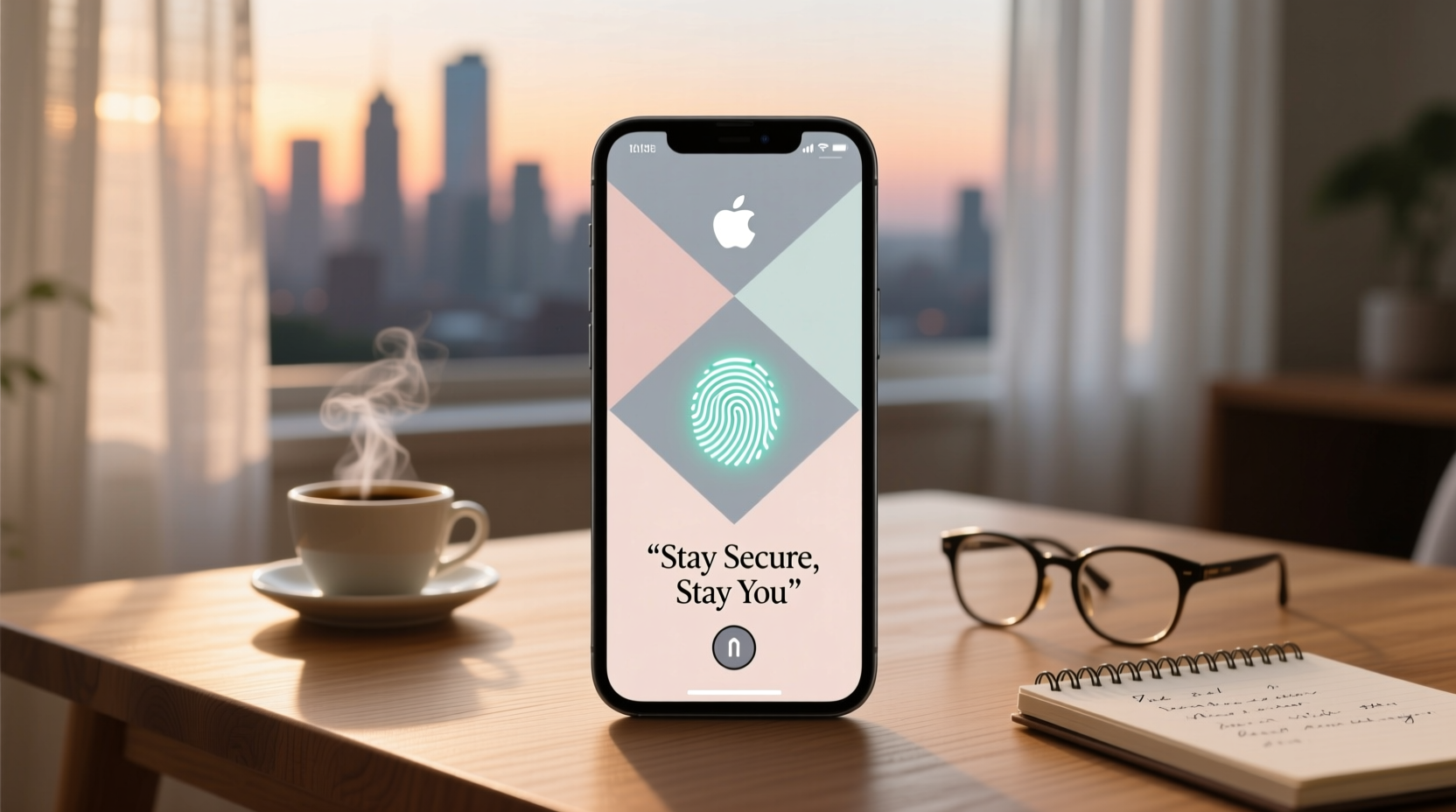
At first glance, the lock screen might seem like a minor detail. But its role extends beyond simply unlocking your phone. It acts as a frontline defense against casual snooping, a notification hub, and a daily touchpoint for motivation or inspiration. A thoughtfully designed lock screen improves usability by showing only what you need, when you need it, without compromising sensitive data.
Consider this: if someone picks up your phone while you’re distracted, what do they see? Full message previews? Calendar details? The answer could reveal more than intended. On the flip side, a lock screen with a favorite photo, motivational quote, or minimalist design can elevate your mood and reinforce digital mindfulness.
Personalization isn’t just about aesthetics—it's about intentionality. When you control what appears and how it’s displayed, you shape not only your own experience but also who gets access to your information.
Step-by-Step Guide to Customizing Your Lock Screen
Customizing your lock screen doesn’t require technical expertise. Both iOS and Android offer intuitive tools to modify appearance and functionality. Follow these steps based on your device type:
For iPhone (iOS 16 and later)
- Open Settings → Tap “Wallpaper” → Choose “Add New Wallpaper.”
- Select from options like Photo, Emoji, Astronomy, or Weather. You can also use your own image.
- Tap “Customize” to adjust font, color, and clock style under “Lock Screen.”
- Add widgets by swiping left on the preview and tapping “Edit Widgets.” Choose from battery level, calendar events, or fitness stats.
- To manage notifications, go to Settings > Notifications > Show Previews and select “When Unlocked” for maximum privacy.
- Save your configuration and set it as your lock screen.
For Android (Samsung, Pixel, and other major brands)
- Long-press the home screen and tap “Wallpapers & style” or navigate to Settings > Display > Wallpaper.
- Browse built-in themes or select a photo from your gallery.
- Use third-party apps like Zedge or Backdrops for advanced designs and dynamic wallpapers.
- Access “Lock Screen” settings to enable/disable shortcuts, such as camera or dialer access.
- Adjust notification visibility under Settings > Apps & Notifications > Notifications > Lock Screen. Choose “Hide sensitive content” or “Don’t show notifications.”
- Some devices allow adding lock screen widgets (e.g., Samsung’s “Info Shelf”) for weather, music controls, or calendar snippets.
Security Best Practices for a Stylish Lock Screen
Styling your lock screen shouldn't come at the cost of security. In fact, the two can coexist seamlessly. Here are essential practices to maintain protection while expressing yourself:
- Limit visible notifications: Disable message previews or hide sender names and content until the device is unlocked.
- Avoid displaying personal info: Never include your address, phone number, or emergency contact details visibly on the lock screen.
- Use strong authentication: Pair biometrics (Face ID, fingerprint) with a complex passcode instead of simple patterns or PINs.
- Disable lock screen shortcuts: Turn off quick access to apps like the camera or voice assistant if you frequently lend your phone.
- Enable auto-lock: Set your phone to lock within 30 seconds of inactivity to minimize exposure.
“Your lock screen should act as a filter—not a billboard. Only essential, non-sensitive elements belong there.” — Lena Park, Mobile Security Analyst at CyberShield Labs
Design Tips to Enhance Style Without Sacrificing Function
A visually appealing lock screen enhances user satisfaction and can even promote digital well-being. However, cluttered or overly busy designs defeat the purpose. Focus on clarity, contrast, and consistency.
| Design Principle | Do | Avoid |
|---|---|---|
| Visual Hierarchy | Use high-contrast fonts and minimal overlays so time/date remain readable. | Placing text over busy parts of images (e.g., skies or crowds). |
| Color Scheme | Match wallpaper tones with system accent colors for cohesion. | Using neon or flashing animations that distract or drain battery. |
| Content Density | Add one widget max (e.g., weather or next event). | Cramming multiple widgets or redundant clocks. |
| Personal Touch | Incorporate meaningful photos (pets, travel memories) subtly. | Using images with identifiable location metadata still embedded. |
For those who value minimalism, consider monochrome themes with clean typography. If you prefer vibrancy, opt for seasonal rotations—spring florals, winter landscapes—to keep the interface feeling fresh without overwhelming it.
Real Example: Transforming a Default Lock Screen into a Secure, Expressive Interface
Sophia, a freelance designer in Portland, used her iPhone’s default gradient lock screen for years. After accidentally leaving her phone at a café, she realized how much information was exposed: full email previews, upcoming appointments, and even her fitness stats. Though the phone was returned, the incident prompted a redesign focused on discretion and joy.
She chose a serene forest photo from her last hiking trip as her wallpaper. Using iOS customization, she selected a delicate serif font in soft white to display the time, ensuring readability without intrusion. She disabled all message previews and restricted widgets to only show the current temperature. For added flair, she created a second lock screen with a motivational quote (“Create with heart”) that she cycles to during work hours.
The result? A lock screen that feels uniquely hers—calming, intentional, and secure. “It’s like having a personal space in my pocket,” she says. “I don’t worry about others seeing too much, and I start each unlock with a moment of calm.”
Checklist: Optimize Your Lock Screen in 7 Steps
Follow this concise checklist to ensure your lock screen is both stylish and secure:
- ✅ Choose a high-quality, personally meaningful wallpaper.
- ✅ Adjust clock font and color for optimal readability.
- ✅ Limit lock screen widgets to one useful element (e.g., weather).
- ✅ Disable message and email previews in notification settings.
- ✅ Remove unnecessary shortcuts (camera, Siri, etc.) if privacy is a concern.
- ✅ Enable biometric authentication + strong passcode.
- ✅ Review settings monthly to adapt to changing needs or seasons.
Frequently Asked Questions
Can I have multiple lock screens and switch between them?
Yes. iOS allows multiple lock screen configurations that you can swipe between. Android users can achieve similar results using third-party launchers or manufacturer-specific features (e.g., Samsung’s Good Lock). This lets you have different themes for work, personal use, or special occasions.
Will customizing my lock screen slow down my phone?
Generally, no. Static wallpapers and basic widgets have negligible impact. However, animated or live wallpapers—especially on older devices—can consume extra battery and memory. Stick to static or lightly animated options for best performance.
Is it safe to use personal photos on my lock screen?
Yes, as long as they don’t contain sensitive context (e.g., documents in the background, geotagged locations). Before setting a photo, review its metadata and crop out any identifying details. Avoid images that reveal your face, home, or routine if you're concerned about privacy in public settings.
Final Thoughts: Make Your Lock Screen Work for You
Your lock screen is one of the most interacted-with interfaces in your digital life. It deserves more attention than a default wallpaper and generic clock. By combining smart security habits with thoughtful design choices, you transform it from a passive barrier into an active part of your daily rhythm.
Whether you prioritize minimalism, inspiration, or utility, remember that personalization isn’t just about looks—it’s about creating an environment that supports focus, protects privacy, and reflects who you are. Small changes, consistently applied, lead to meaningful improvements in both function and feeling.




 浙公网安备
33010002000092号
浙公网安备
33010002000092号 浙B2-20120091-4
Comments
No comments yet. Why don't you start the discussion?