
Selecting a monitor that excels in both gaming and graphic design is a balancing act. Gamers demand high refresh rates, low input lag, and vibrant visuals to keep up with fast-paced action. Designers, on the other hand, require precise color reproduction, wide color gamuts, and consistent brightness across the screen. Finding a single display that satisfies both needs isn’t easy—but it’s possible with the right criteria.
The ideal dual-purpose monitor merges performance and precision. It must deliver smooth gameplay without sacrificing the color fidelity essential for photo editing, digital illustration, or video production. This guide breaks down the key specifications, explains trade-offs, and provides actionable insights to help you make an informed decision—whether you're a freelance designer who loves competitive shooters or a developer who dabbles in visual art after hours.
Understanding Core Monitor Specifications
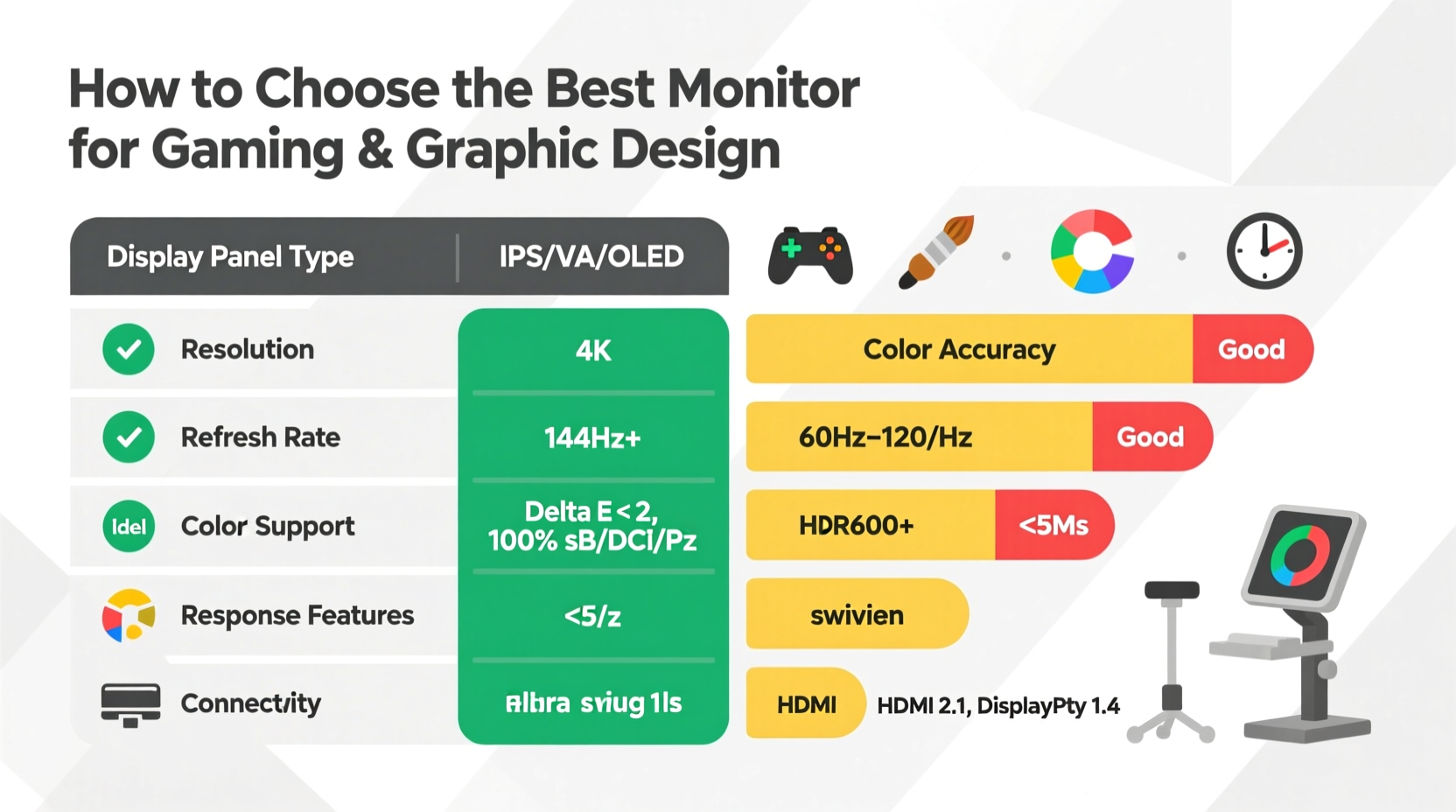
Before comparing models, you need to understand the technical aspects that define a monitor’s capabilities. These specs determine whether a display will serve your dual needs effectively.
- Resolution: Higher resolutions like 1440p (QHD) and 4K offer sharper images and more screen real estate—critical for detailed design work. For gaming, higher resolutions require more GPU power but provide immersive clarity.
- Refresh Rate: Measured in Hz, this indicates how many times the screen updates per second. A 60Hz monitor is standard, but 144Hz or 240Hz is preferred for gaming to reduce motion blur and improve responsiveness.
- Response Time: Expressed in milliseconds (ms), this measures how quickly pixels change color. Lower response times (1ms–5ms) minimize ghosting during fast movements in games.
- Panel Type: The three main types—TN, IPS, and OLED—each have strengths and weaknesses. IPS panels are widely favored for design due to superior color accuracy and viewing angles, while TN panels prioritize speed over color quality. OLED offers deep blacks and excellent contrast but can be prone to burn-in with static UI elements common in design software.
- Color Accuracy and Gamut: Designers need monitors that cover sRGB, Adobe RGB, or DCI-P3 color spaces. Look for Delta E values under 2, which indicate near-perfect color representation. Calibration support is also crucial.
- Brightness and HDR: Measured in nits, brightness affects visibility in well-lit environments. HDR (High Dynamic Range) enhances contrast and color depth, beneficial for both cinematic games and professional media workflows.
Striking the Balance: Gaming vs. Design Needs
No monitor is perfect for every use case, but the goal is to find one where neither function compromises the other too severely. Here’s how to align priorities:
Gamers benefit from high refresh rates and low input lag, especially in genres like first-person shooters or racing games. However, most creative professionals spend hours staring at static interfaces, toolbars, and layered compositions—where flicker-free operation and accurate colors matter far more than frames per second.
A 144Hz IPS monitor with good factory calibration, such as those labeled “designer-grade” or “creative pro,” often hits the sweet spot. While not quite as fast as top-tier 240Hz TN gaming monitors, they still deliver fluid gameplay while ensuring that skin tones, gradients, and shadows appear true-to-life.
“Hybrid users shouldn't chase extremes. A 144Hz IPS panel with >99% sRGB and hardware calibration support gives 90% of gaming performance and 100% of design reliability.” — Marcus Tran, Display Engineer at ColorLabs Studio
Additionally, consider adaptive sync technologies like AMD FreeSync or NVIDIA G-Sync. They reduce screen tearing during variable frame rates, enhancing gaming experience without affecting color output—a feature compatible with most modern creative GPUs.
Key Features Checklist for Dual-Use Monitors
To simplify your search, here’s a checklist of essential features to look for when evaluating monitors for both gaming and graphic design:
- IPS or OLED panel type for accurate colors and wide viewing angles
- Resolution of at least 2560x1440 (QHD); 4K recommended for large-format design
- Refresh rate of 120Hz or higher (144Hz ideal)
- Response time of 5ms or lower (GTG)
- Coverage of 100% sRGB and at least 90% Adobe RGB or DCI-P3
- Delta E < 2 (out-of-the-box color accuracy)
- Support for hardware calibration (via built-in LUTs)
- HDR support (HDR400 or higher for meaningful impact)
- Adjustable stand (height, tilt, pivot) for ergonomic flexibility
- Multiple connectivity options (DisplayPort 1.4, HDMI 2.0+, USB-C with DP Alt Mode)
Comparison Table: Top Monitor Types for Hybrid Use
| Panel Type | Gaming Performance | Design Suitability | Lifespan & Risks | Best For |
|---|---|---|---|---|
| TN | Excellent (up to 240Hz, 1ms) | Poor (limited color range, narrow viewing angles) | Long lifespan, no burn-in risk | Competitive gamers only |
| IPS | Good (up to 165Hz, ~4ms) | Excellent (wide gamut, stable colors) | Long lifespan; slight backlight bleed possible | Balanced gaming/design users |
| VA | Fair (up to 165Hz, slower response) | Good (deep blacks, decent gamut) | Moderate; potential halo effect in dark scenes | Media consumption + casual design |
| OLED | Excellent (120–240Hz, 0.1ms) | Excellent (perfect blacks, infinite contrast) | Risk of burn-in with static UIs; shorter life under heavy use | Premium hybrid users willing to manage risks |
While OLED technology is advancing rapidly, its susceptibility to image retention remains a concern for designers using docked toolbars or persistent menus. Many professionals mitigate this by enabling screen savers, auto-hiding panels, or limiting brightness in static areas.
Real-World Example: A Freelancer’s Setup Evolution
Jess Lin, a Vancouver-based UX designer and indie game enthusiast, spent years juggling two monitors: a 27\" 4K IPS for design work and a 24\" 144Hz TN panel for gaming. The clutter and constant switching frustrated her workflow.
After researching hybrid displays, she invested in a 27-inch 1440p IPS monitor with 165Hz refresh rate, 99% sRGB, and hardware calibration. Though slightly more expensive than entry-level gaming screens, it eliminated the need for dual setups. She now uses the same screen for client presentations, photo retouching, and weekend sessions of *Apex Legends*.
“It’s not the fastest gaming monitor out there,” she admits, “but I don’t miss the extra 75Hz. What I gained was consistency—knowing my colors are reliable and my posture improved with a single centered display.”
Her experience underscores a growing trend: integrated, high-quality single-monitor solutions are replacing niche-specific hardware for multi-role creators.
Step-by-Step Guide to Choosing Your Monitor
Follow this practical sequence to ensure you select a monitor that meets both gaming and design demands:
- Assess Your Primary Use Case: Determine whether you lean more toward gaming or design. If design dominates, prioritize color accuracy. If competitive gaming is central, don’t sacrifice refresh rate entirely.
- Set a Budget: High-performance hybrid monitors typically range from $500–$1,200. Allocate funds based on long-term value, not short-term savings.
- Narrow Panel Options: Eliminate TN panels unless FPS gaming is your top priority. Focus on IPS or carefully evaluated OLED models.
- Verify Color Coverage: Check manufacturer specs for sRGB, Adobe RGB, and DCI-P3 percentages. Look for third-party reviews confirming claims.
- Check Refresh Rate and Sync Support: Ensure the monitor supports at least 120Hz and includes FreeSync or G-Sync compatibility.
- Review Ergonomics and Connectivity: Confirm the stand allows height adjustment and pivoting. Verify you have the correct ports for your GPU and peripherals.
- Read User Feedback: Search forums like Reddit, CreativePro, or TechSpot for long-term user experiences, especially regarding backlight stability and durability.
- Consider Calibration Tools: Some monitors come with built-in calibration sensors or support external devices like X-Rite i1Display Pro. Factor in these advantages if color-critical work is part of your routine.
Frequently Asked Questions
Can I use a gaming monitor for professional photo editing?
Yes, but only if it has strong color accuracy metrics. Many so-called “gaming monitors” emphasize flashy specs like 240Hz but skimp on color calibration. Look for models explicitly rated for color work—even if marketed to gamers.
Is 4K necessary for graphic design?
Not always, but highly beneficial. 4K (3840x2160) provides more canvas space, finer detail rendering, and better pixel density for zoomed-in work. At 27 inches, 1440p is sharp enough for most tasks, but 4K becomes noticeable above that size.
Do I need HDR for design or gaming?
HDR enhances realism in supported content. For gaming, HDR improves visual immersion in titles like *Cyberpunk 2077* or *Horizon Forbidden West*. In design, HDR-capable monitors help preview HDR video and photography accurately. However, avoid cheap HDR implementations (like HDR10 without local dimming)—they add little value.
Final Recommendations and Action Plan
The best monitor for both gaming and graphic design doesn’t exist in a one-size-fits-all form—but the convergence of technologies has never been closer. Your ideal choice will likely be a 27-inch IPS display with QHD or 4K resolution, 144Hz refresh rate, robust color coverage, and solid build quality.
Brands like LG (UltraFine series), Dell (UltraSharp and Alienware), ASUS (ProArt and ROG Swift), and BenQ (DesignVue and PD series) offer compelling hybrid models. For example, the Dell UltraSharp U2723QE combines 4K resolution, 99% sRGB and 98% DCI-P3, and a 60Hz refresh rate—ideal for design-heavy users who play casually. Meanwhile, the ASUS ROG Swift PG27UQX delivers 144Hz 4K with HDR1000 and quantum dot enhancement, appealing to enthusiasts who want premium performance across domains.
Ultimately, your decision should reflect your workflow intensity, hardware capabilities, and willingness to manage trade-offs. Investing in a well-rounded monitor pays dividends in productivity, comfort, and creative confidence.




 浙公网安备
33010002000092号
浙公网安备
33010002000092号 浙B2-20120091-4
Comments
No comments yet. Why don't you start the discussion?