
Listening to music while browsing, texting, or working is a common habit for millions of people. Yet, YouTube doesn’t allow audio to continue playing in the background by default on most devices unless you have a Premium subscription. For those who want uninterrupted music without paying, there are several workarounds—some official, others creative but effective. This guide walks through reliable methods across Android, iOS, and desktop platforms, so you can enjoy your favorite tracks without limitations.
Why Background Playback Is Restricted
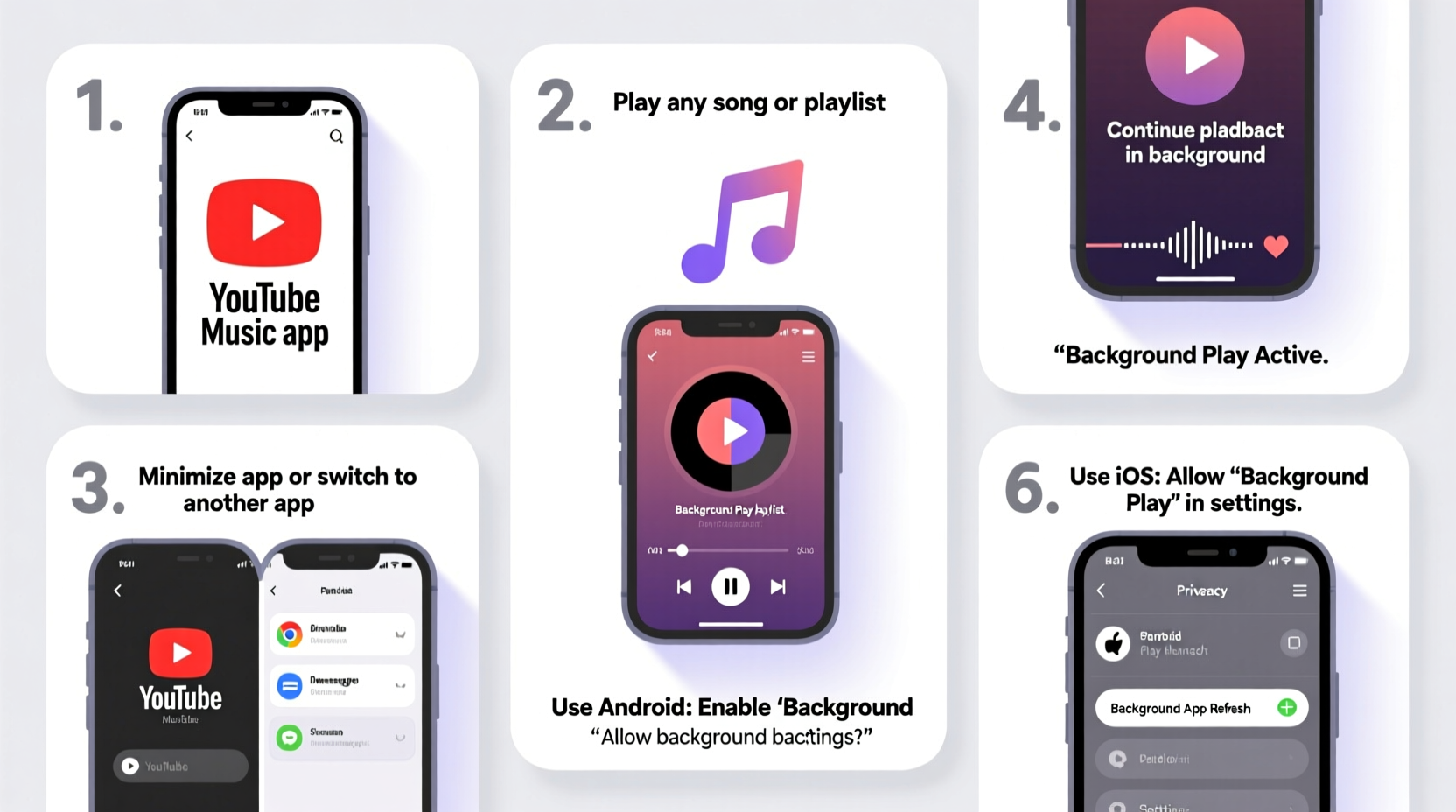
YouTube limits background playback to encourage subscriptions to YouTube Premium. On mobile apps, closing the app or switching to another screen pauses the video. This restriction applies whether you're using the official YouTube app on iPhone or Android. However, alternatives exist that don’t require jailbreaking or violating terms of service.
“While YouTube’s design prioritizes ad revenue and premium conversions, users still have legitimate needs for multitasking—like listening during commutes or workouts.” — Dana Liu, Digital Experience Analyst
Understanding these limitations helps frame the solutions: either use permitted features (like Picture-in-Picture), leverage third-party tools within legal boundaries, or switch to approved platforms such as YouTube Music with proper settings.
Method 1: Use YouTube Premium (Official Solution)
The simplest and fully supported way to play YouTube music in the background is by subscribing to YouTube Premium. It removes ads, enables offline downloads, and allows audio to continue when the screen is off or you’re using other apps.
Steps to Enable Background Play via YouTube Premium:
- Open the YouTube app on your Android or iOS device.
- Tap your profile picture and select “Try YouTube Premium.”
- Follow prompts to start a free trial or subscribe.
- Once subscribed, play any video—the audio will continue even if you exit the app or lock your phone.
This method works seamlessly across all devices and integrates with Google accounts for sync across platforms. While it involves a monthly cost, it supports creators and ensures full functionality without technical risks.
Method 2: Enable Picture-in-Picture Mode (Android & Desktop)
Picture-in-Picture (PiP) lets a small video window float over other apps, allowing audio to keep playing. Available on many Android devices and Chrome browsers, PiP is a built-in workaround that doesn’t require extra software.
On Android Devices:
- Ensure your device runs Android 8.0 (Oreo) or higher.
- Go to Settings > Apps > Special Access > Picture-in-Picture.
- Find YouTube and toggle PiP permission ON.
- Play a music video, then press the Home button or open another app.
- A small player will appear; tap it to minimize further or resize.
On Desktop (Chrome Browser):
- Visit youtube.com in Google Chrome.
- Start playing a music video.
- Right-click the video and select “Picture in Picture.”
- Minimize the browser or switch tabs—the audio continues.
PiP works best for multitasking on tablets or larger screens. Note that some manufacturers disable PiP for non-native apps, so results may vary depending on your device model.
Method 3: Use YouTube Music App with Auto-Collapse Feature
YouTube Music, YouTube’s dedicated audio platform, offers smarter background handling—even on free accounts under certain conditions.
- When playing audio-only tracks (not videos), the app often continues playback after locking the screen.
- If interrupted, swipe up from the lock screen controls to resume.
- Use smart playlists like “Your Mix” or “Discover Weekly” for continuous listening.
This behavior depends on network stability and recent usage patterns. The app may pause if it detects inactivity or app switching too quickly.
| Feature | Free Account | Premium Account |
|---|---|---|
| Background Audio | Limited (audio-only tracks only) | Full support (videos included) |
| Offline Listening | No | Yes |
| Ad-Free Playback | No | Yes |
| Download Songs | No | Yes |
Method 4: Safari Workaround for iOS Users
iOS blocks background playback in the YouTube app, but Safari offers a loophole due to how web pages handle media sessions.
Step-by-Step Guide for iPhones and iPads:
- Open Safari and go to m.youtube.com.
- Search for a song or playlist.
- Play the video normally.
- Press the Home button or swipe up to return to the home screen.
- Audio should continue playing.
- To control playback, swipe down from the top-right corner (or up from bottom on older models) to access the Control Center.
If playback stops, ensure no other audio apps are active and restart the process. Some updates may temporarily break this method, but it typically returns after a few days.
Real Example: Commuter’s Daily Routine
Sophie, a graphic designer in Seattle, uses the Safari method every morning during her bus commute. She queues up lo-fi study beats on m.youtube.com before leaving home. Once she locks her phone to check messages, the music keeps playing through her AirPods. “It’s not perfect,” she says, “but it saves me $12 a month compared to Premium. I just avoid opening other audio apps until I’m done.” Her routine highlights how small adjustments can yield big convenience gains.
Checklist: How to Play YouTube Music in the Background
- ✅ Determine your device type (Android, iOS, or desktop).
- ✅ Try YouTube Premium for hassle-free background play.
- ✅ Enable Picture-in-Picture on Android or Chrome if available.
- ✅ Use YouTube Music app for better audio-focused experience.
- ✅ On iPhone, test Safari method with mobile site version.
- ✅ Always check lock screen controls to verify audio is still running.
- ✅ Avoid launching competing audio apps that might interrupt playback.
Frequently Asked Questions
Can I use third-party apps to play YouTube music in the background?
Some third-party apps claim to enable background playback, but many violate YouTube’s Terms of Service and pose security risks. Stick to browser-based methods or official features to stay safe and compliant.
Why does my music stop after a few minutes on iPhone?
iOS aggressively manages background processes. If another app takes audio focus or the system detects inactivity, playback halts. Restarting the video in Safari usually resolves it.
Does background playback consume more battery?
Yes—especially with video or PiP mode active. To conserve power, use audio-only tracks, lower screen brightness, or switch to downloaded content via YouTube Premium.
Conclusion
Playing YouTube music in the background doesn’t have to be complicated. Whether you choose the official route with YouTube Premium or leverage smart workarounds like Safari on iOS or PiP on Android, options exist for every budget and device. These methods empower you to integrate music into your daily flow—without constant screen monitoring. Technology should serve your lifestyle, not limit it. Apply one of these strategies today and transform how you listen.




 浙公网安备
33010002000092号
浙公网安备
33010002000092号 浙B2-20120091-4
Comments
No comments yet. Why don't you start the discussion?