
For local businesses aiming to increase visibility, build trust, and attract new customers, maintaining an active Google Business Profile (GBP) is essential. One of the most effective ways to keep your profile dynamic and engaging is by regularly posting updates—similar to social media posts—directly on Google. These updates appear in search results and on Google Maps, giving potential customers real-time insights into your offerings, events, promotions, and news.
Despite its impact, many business owners overlook or misunderstand how to post on Google effectively. This guide breaks down the process into clear, actionable steps, shares best practices, and provides practical examples so you can confidently publish content that drives engagement and improves local SEO.
Why Posting on Google Matters
When someone searches for a business like yours, Google often displays more than just contact details. It shows recent posts, photos, reviews, and even special offers—all pulled from your Google Business Profile. Regular posting signals to Google that your business is active and relevant, which can improve your ranking in local search results.
According to Moz’s Local Search Ranking Factors, “engagement signals” such as regular GBP updates contribute to a business’s overall local SEO strength. Additionally, users are more likely to click through or visit a business that appears current and responsive.
“Businesses that post weekly on Google see up to 30% more profile views and higher customer interaction.” — Sarah Kim, Local SEO Strategist at BrightLocal
Step-by-Step Guide to Posting on Google
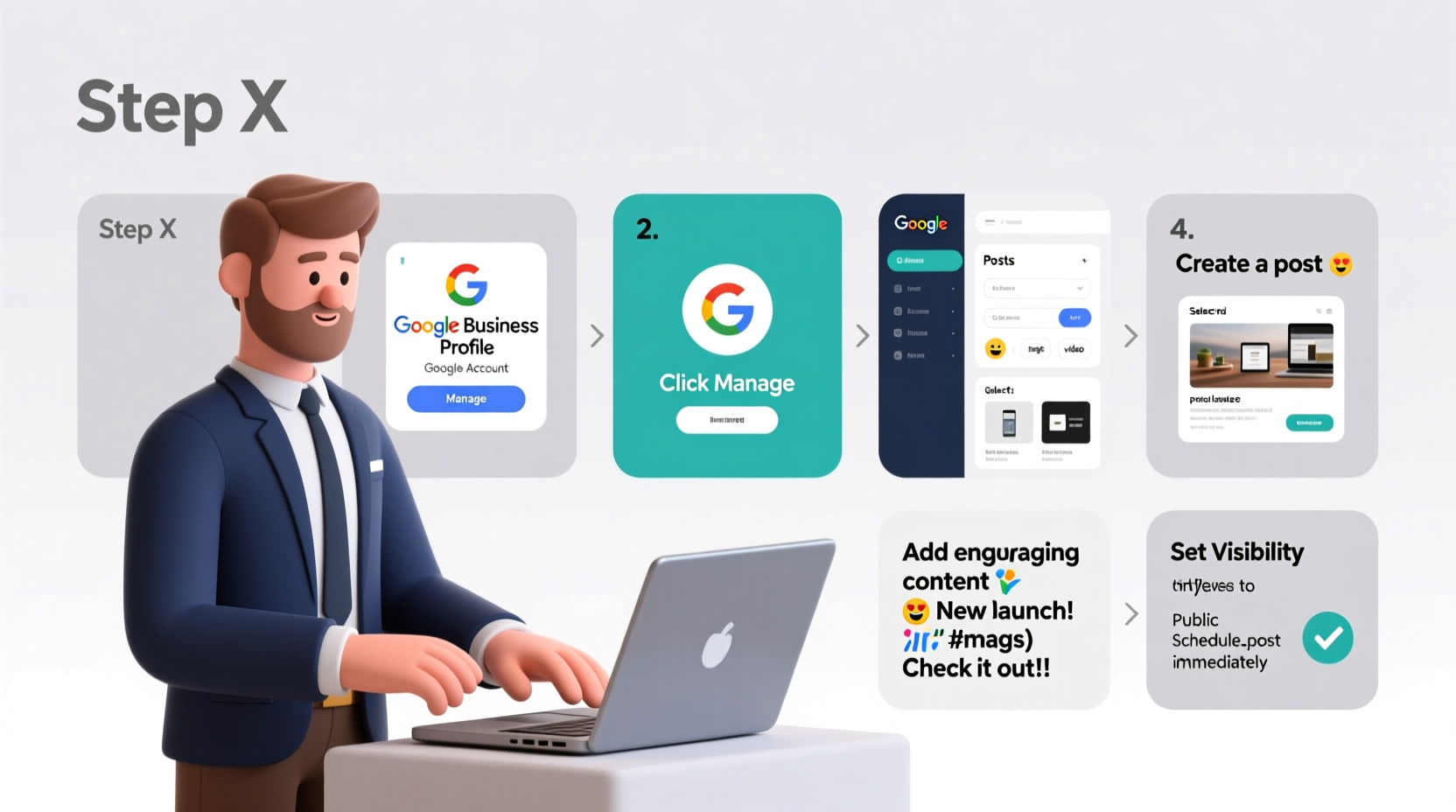
Publishing a post on your Google Business Profile is simple once you know where to go and what to include. Follow these steps carefully:
- Sign in to Google Business Profile: Go to google.com/business and log in using the Google account associated with your business.
- Select Your Location: If you manage multiple locations, choose the correct one from the dashboard.
- Navigate to the “Posts” Section: On the left-hand menu, click “Posts” under the “Home” tab or find it under “Manage info.”
- Choose a Post Type: Click “Create post” and select from options: Offer, Event, Update, or What’s New.
- Add Content: Enter a headline (up to 50 characters), description (up to 300 characters), and upload a high-quality image (recommended size: 1080 x 1080 pixels).
- Include a Call-to-Action (CTA): Choose a button like “Learn More,” “Call Now,” or “Book,” and link it to a relevant page on your website.
- Set Expiration Date (if applicable): For time-sensitive content like events or promotions, set an end date. Posts without dates expire after 7 days.
- Publish: Review your post and click “Publish.” It will appear immediately on your profile.
Types of Posts You Can Create
Google allows four main types of posts, each serving a different marketing purpose:
| Post Type | Best For | Key Features |
|---|---|---|
| What’s New | Announcements, product launches, team highlights | No expiration; ideal for general updates |
| Offer | Promotions, discounts, limited-time deals | Includes coupon code field and expiration date |
| Event | Workshops, sales, community gatherings | Supports start/end times and location details |
| Update | Temporary changes (e.g., holiday hours, closures) | Short-lived; disappears after 7 days unless extended |
Using a mix of these post types keeps your profile fresh and caters to different customer intents—from discovery to conversion.
Best Practices for High-Impact Google Posts
To maximize reach and engagement, follow these proven strategies:
- Post consistently: Aim for 1–2 posts per week. Frequent posting increases visibility and helps maintain audience interest.
- Use compelling visuals: Include branded images with minimal text overlay. Avoid cluttered graphics.
- Write concise, action-oriented copy: Focus on benefits, not features. Use phrases like “Get 20% off today” instead of “We offer discounts.”
- Leverage urgency and scarcity: For offers and events, mention deadlines (“Ends Friday!”) to drive immediate action.
- Link to relevant pages: Direct users to a booking page, menu, or product category—not just your homepage.
Mini Case Study: Boosting Foot Traffic with a Weekly Offer
Corner Grind, a small coffee shop in Portland, noticed declining foot traffic during midweek mornings. They began posting a “Midweek Mocha Madness” offer every Tuesday via their Google Business Profile: “Buy one mocha, get one half off—valid until Thursday.” Each post included a vibrant photo of their signature drink and linked to their online ordering system.
Within three weeks, they saw a 40% increase in midweek sales and a noticeable uptick in profile clicks. Customers mentioned seeing the deal directly in Google Search when looking for “coffee near me.” The shop now maintains a rotating schedule of weekly offers, ensuring their GBP remains active and attractive.
Common Mistakes to Avoid
Even well-intentioned posts can fall flat if not optimized correctly. Watch out for these pitfalls:
- Vague headlines: “Check this out!” doesn’t tell users anything. Be specific: “Free WiFi with Every Purchase This Week.”
- Low-quality images: Blurry or dark photos reflect poorly on your brand. Use bright, high-resolution visuals.
- Ignoring mobile preview: Over 80% of Google searches are mobile. Always test how your post looks on a phone screen.
- Forgetting the CTA: A post without a button limits user action. Always guide the next step.
- Posting infrequently: Inactive profiles appear outdated. Set a reminder or use a content calendar.
FAQ: Common Questions About Google Business Posts
How long do Google posts stay live?
“What’s New” and “Offer” posts can remain active indefinitely or until you set an expiration. “Event” posts last until the event ends. “Update” posts automatically expire after 7 days unless manually renewed.
Can I edit a post after publishing?
Yes, but only before it expires. Go to your Posts dashboard, find the published post, and click “Edit.” Note: Changing the image or headline may affect performance tracking.
Do Google posts help with SEO?
Indirectly, yes. While posts aren’t indexed like blog content, they enhance your local search presence, increase engagement, and improve click-through rates—all factors that support better local rankings.
Checklist: Publishing a Successful Google Post
- ✅ Log in to Google Business Profile
- ✅ Select the correct business location
- ✅ Choose the appropriate post type
- ✅ Write a clear headline (≤50 characters)
- ✅ Craft a compelling description (≤300 characters)
- ✅ Upload a high-quality, relevant image
- ✅ Add a call-to-action button with working link
- ✅ Set expiration date (if time-sensitive)
- ✅ Preview on desktop and mobile
- ✅ Publish and monitor performance
Conclusion: Start Sharing and Growing Today
Your Google Business Profile is more than a digital address—it’s a powerful marketing channel within one of the world’s most used platforms. By posting regular, valuable updates, you connect with customers at the moment they’re searching, increase credibility, and stand out from competitors who neglect this feature.
The steps outlined here require minimal time but deliver measurable returns. Whether you're announcing a sale, showcasing a new product, or simply reminding people you’re open, every post strengthens your online presence. Don’t wait for perfection—start with one post this week and build momentum from there.




 浙公网安备
33010002000092号
浙公网安备
33010002000092号 浙B2-20120091-4
Comments
No comments yet. Why don't you start the discussion?