
Animating Christmas lights used to mean hiring professionals or investing in expensive pre-programmed controllers. Today, anyone with a Raspberry Pi, a strand of addressable LEDs, and 90 minutes can create synchronized, music-reactive light shows that rival neighborhood favorites. The shift isn’t just about affordability—it’s about creative control. You decide when the tree pulses to carols, when the roofline ripples like snowfall, and how your porch responds to motion or voice commands. This guide walks through every layer: selecting reliable hardware, choosing intuitive software, mapping physical layouts accurately, designing expressive sequences, and deploying them safely and sustainably. It’s written for makers who’ve never touched Python, decorators who want precision without complexity, and families looking to turn holiday tradition into shared technical joy.
Understanding the Hardware Foundation
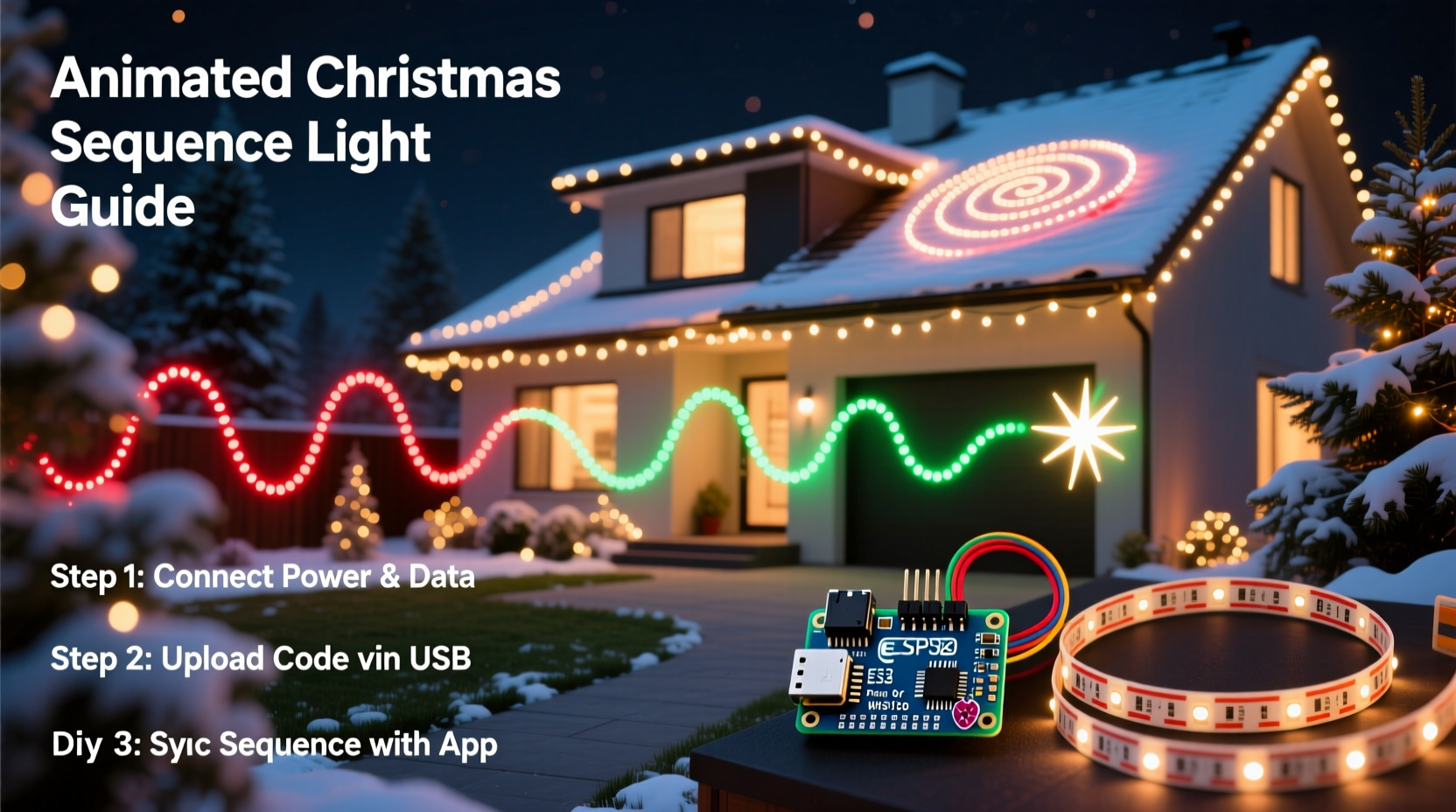
Animated light sequences depend on three interlocking components: addressable LEDs, a controller, and power delivery. Not all “smart” lights qualify—only those with individually controllable pixels (often labeled WS2811, WS2812B, SK6812, or APA102) support true animation. Each pixel contains red, green, and blue LEDs plus an integrated driver chip that accepts digital commands telling it exactly what color and brightness to display—and when.
Common pitfalls begin here. Many beginners buy long strings of non-addressable “twinkle” lights expecting programmability. These only offer fixed modes (chase, fade, strobe) and cannot be customized. Similarly, using underpowered or poorly regulated 5V or 12V DC supplies causes flickering, color shifts, or pixel dropouts—especially beyond 100–150 pixels per power run. Voltage drop accumulates over distance; without periodic power injection, the end of a 30-foot strand may glow dim amber instead of vibrant cyan.
Controllers range from USB-connected microcontrollers (like the FPP or xLights-compatible Falcon F16v3) to single-board computers (Raspberry Pi 4 recommended for multi-strand setups). A Pi offers flexibility—running sequencing software, hosting a web interface, and even triggering via smart home platforms—but requires basic Linux familiarity. Dedicated controllers like the Sandevices E68x simplify setup but limit expansion. Choose based on scale: one tree? A Pi with a USB-serial adapter works. Full-house synchronization across eaves, bushes, and windows? Prioritize a controller with multiple independent output ports and built-in Ethernet.
Selecting and Setting Up Sequencing Software
The software layer transforms intention into illumination. Three tools dominate the home animator’s toolkit—each with distinct strengths:
| Software | Best For | Learning Curve | Key Limitation |
|---|---|---|---|
| xLights | Large displays, audio synchronization, advanced effects | Moderate (requires layout mapping) | Windows-only native; macOS/Linux require Parallels or Wine |
| Falcon Player (FPP) | Headless operation, remote management, multi-controller networks | Low-to-moderate (web-based UI) | Less intuitive visual effect builder than xLights |
| Light-O-Rama (LOR) S3 | Beginners, timeline-focused editing, plug-and-play hardware | Gentle (drag-and-drop interface) | Limited free tier; full features require annual subscription |
All three export standard .fseq or .lms files readable by most controllers. xLights remains the de facto standard for serious hobbyists—not because it’s easiest, but because its visual preview window lets you see effects *before* wiring anything. You draw your house outline, place virtual pixels along eaves, assign strands to channels, then drag wave, twinkle, or comet effects onto specific sections. Its audio analysis tool breaks down song BPM, peaks, and frequency bands so a bass drop triggers a ground-up flash while high-hats spark rapid twinkles.
To install xLights on Windows: download the latest stable release, run the installer, and launch. First-time users should skip complex network configs and start with “Simple Setup”—selecting “USB Serial” as the output method and choosing “FPP” or “Generic E1.31” depending on hardware. Then build a test layout: two rows of 50 pixels each, named “Front Porch Left” and “Front Porch Right.” This small-scale model prevents frustration during initial effect testing.
Mapping Your Physical Lights to Digital Layouts
Accurate mapping is where most sequences fail silently. If your software thinks pixel #47 is on the garage door but it’s actually on the mailbox, animations won’t land as intended—and debugging takes longer than rebuilding. Start physically: label every strand with waterproof tape (“Garage Top Row – 150px”, “Pine Tree Base – 72px”). Note directionality: some strips have arrows indicating data flow; reversing them causes garbled output or no light at all.
In xLights, create a new model matching your labels. Use the “Grid” or “String” model type—not “Matrix”—unless you’re lighting a flat panel. Set pixel count precisely (e.g., 144, not “about 150”). Then assign outputs: if using a Pi with a 16-channel differential board, assign Strand 1 to Universe 1, Channel 1; Strand 2 to Universe 1, Channel 2. Verify continuity with a test sequence: a simple “color wipe” moving left-to-right should travel smoothly—not jump or stutter. If it doesn’t, check wiring polarity (red = +5V, green = data, black/white = ground) and ensure no cold solder joints on connectors.
“Half of all ‘buggy’ sequences stem from misaligned pixel counts or reversed data direction—not faulty code. Measure twice, map once.” — Derek Lin, Founder of HolidayCoro.com and 12-year display engineer
A Step-by-Step Sequence Creation Workflow
Creating a polished 3-minute show involves deliberate stages—not random clicking. Follow this repeatable process:
- Choose & prepare audio: Select a 90–180 second track (WAV or MP3). Normalize peak volume to -3dB in Audacity to prevent clipping. Export as 44.1kHz, 16-bit mono for best analysis accuracy.
- Analyze audio: In xLights, right-click the audio file > “Analyze Audio.” Let it detect beats, energy levels, and frequency bands. Review the waveform overlay—adjust sensitivity if bass hits are missed.
- Scaffold key moments: Mark timestamps for major events: 0:12 (first chorus), 0:48 (bridge swell), 1:32 (final chord). Create empty effect layers at these points.
- Build foundational effects: Apply subtle ambient layers first—slow breathing on rooflines, gentle color cycling on bushes. These run continuously beneath sharper accents.
- Add musical accents: At beat markers, insert short-duration effects: a vertical “pulse” on the front door at each downbeat; a horizontal “scan” across the garage at snare hits; a “burst” on the tree top at cymbal crashes.
- Refine timing: Zoom into the timeline (Ctrl+Scroll). Nudge effects ±0.05 seconds until they lock visually with sound. Human perception notices delays beyond 40ms.
- Test incrementally: Export only the first 30 seconds. Copy the .fseq file to your controller. Power on one strand. Watch. Adjust. Repeat.
This workflow prevents overwhelm. Trying to animate an entire house to “Carol of the Bells” in one sitting leads to fatigue-induced errors. Instead, treat each section like a musical phrase—building cohesion through repetition and variation, not density.
Troubleshooting, Safety, and Sustainability
Even well-planned sequences encounter hiccups. Common issues and proven fixes:
- Flickering or random resets: Caused by insufficient power or voltage sag. Measure voltage at the *end* of the longest strand while running a bright white sequence. If below 4.75V (for 5V strips) or 11.4V (for 12V), add power injection points and upgrade wiring gauge.
- Color distortion (e.g., red appears orange): Indicates data line interference. Keep data wires away from AC lines. Add a 330Ω resistor between data out and data in on the first pixel. Use shielded CAT5 cable for runs over 3 meters.
- Effects lagging behind audio: Usually a mismatch between audio sample rate and controller processing. In xLights, go to Tools > Preferences > E1.31 and set “Universe Rate” to match your controller’s capability (typically 25–40 Hz for Pi-based systems).
- Strand stops working mid-sequence: Often a single dead pixel cascading failure. Identify the last working pixel, cut before it, and reconnect with a JST-SM connector. Keep spare pixels and crimping tools on hand.
Safety is non-negotiable. Outdoor circuits must be GFCI-protected. All connections need waterproof enclosures (IP65-rated junction boxes). Never exceed the manufacturer’s maximum strand length without amplification. And crucially—avoid running controllers or power supplies in enclosed spaces like attics; heat buildup kills electronics faster than moisture.
Sustainability matters too. Well-designed sequences use less power than static white lights. A 300-pixel strand drawing 0.5A at full white uses ~6W; running dynamic effects at 30% average brightness cuts consumption to ~2W. Program “night mode” that dims or pauses after 11 p.m. Use timers or smart plugs to cut power entirely when unattended. And choose strips with 50,000-hour rated LEDs—they’ll outlast three holiday seasons with daily 6-hour operation.
Real-World Example: The Henderson Family’s First Animated Display
The Hendersons—two parents, ages 38 and 40, and two children aged 7 and 10—wanted their modest suburban home to feel festive without overwhelming their budget or technical comfort zone. They started small: one 150-pixel strip for the front porch railing, purchased with a $35 Raspberry Pi Starter Kit from CanaKit. Using YouTube tutorials and the xLights “Beginner’s Guide” PDF, they spent a Saturday afternoon wiring the strip, installing Raspberry Pi OS, and configuring FPP via its web interface.
For their first sequence, they chose “Jingle Bells” (92 BPM). Rather than complex choreography, they created three layers: (1) a slow blue-to-white gradient sweep across the railing, (2) synchronized “bounce” pulses timed to the “jingle” syllables, and (3) a single warm-white “star” pixel at the center that flashed brightly on the final “bell!” They tested for two hours, adjusting pulse duration and color saturation until their daughter declared, “It looks like the railing is dancing!”
That December, neighbors stopped to ask how they did it. By New Year’s, the Hendersons had added a second strand to their bay window and were experimenting with motion-triggered greetings using a $12 PIR sensor. Their success wasn’t about perfection—it was about starting with one strand, one song, and one joyful moment of light responding to sound.
FAQ
Do I need to know how to code to create animated sequences?
No. Modern sequencing software like xLights, FPP, and Light-O-Rama uses graphical interfaces. You drag effects onto timelines, adjust sliders for speed and intensity, and sync to audio waveforms—all without writing a single line of code. Programming knowledge helps optimize large displays or integrate with smart home systems, but it’s optional for beautiful results.
Can I use my existing Christmas lights?
Only if they’re addressable LED strings with identifiable model numbers (e.g., “WS2812B 5V 50ct”) and compatible controllers. Traditional incandescent mini-lights, C7/C9 bulbs, or non-addressable RGB strings cannot be individually animated. However, retrofitting is possible: replace old strings with new addressable ones—many now cost under $0.10 per pixel in bulk.
How long does it take to create a 2-minute sequence?
For beginners: 3–5 hours for the first sequence, including setup and testing. With practice, experienced users build polished 2-minute shows in 45–90 minutes. Reusing effects, saving templates, and maintaining a library of calibrated audio files dramatically accelerates future projects.
Conclusion
Programming animated Christmas light sequences isn’t about mastering electronics or becoming a software developer. It’s about reclaiming wonder—translating the rhythm of a favorite carol into visible light, turning your home into a canvas for seasonal storytelling, and sharing moments of collective delight with neighbors who pause mid-walk to watch snowflakes ripple across your roofline. The tools are accessible, the learning curve is kinder than it appears, and the payoff—a personalized, living decoration that breathes with music and mood—is deeply human. You don’t need permission to begin. Grab one strand. Download xLights. Pick a 60-second song. Map five pixels. Run your first color wipe. That first pulse of light, perfectly timed, is where magic becomes yours—not bought, not borrowed, but built.




 浙公网安备
33010002000092号
浙公网安备
33010002000092号 浙B2-20120091-4
Comments
No comments yet. Why don't you start the discussion?