
Philips Hue holiday lights—like the LightStrip Plus, Outdoor LightStrip, or the festive Mini Lights—are more than decorative accents. They’re programmable RGBW luminaires capable of synchronized motion, dynamic color transitions, and responsive lighting choreography. Yet most users stop at preset scenes in the Hue app. That’s a missed opportunity. Custom light shows unlock seasonal storytelling: gentle snowfall pulses on Christmas Eve, rhythmic pulsing during New Year’s countdowns, or slow amber-to-crimson gradients for Thanksgiving dinners. This isn’t about blinking lights—it’s about ambient narrative. The tools exist, the hardware is ready, and the learning curve is gentler than many assume.
Understanding Your Hardware and Ecosystem Limits
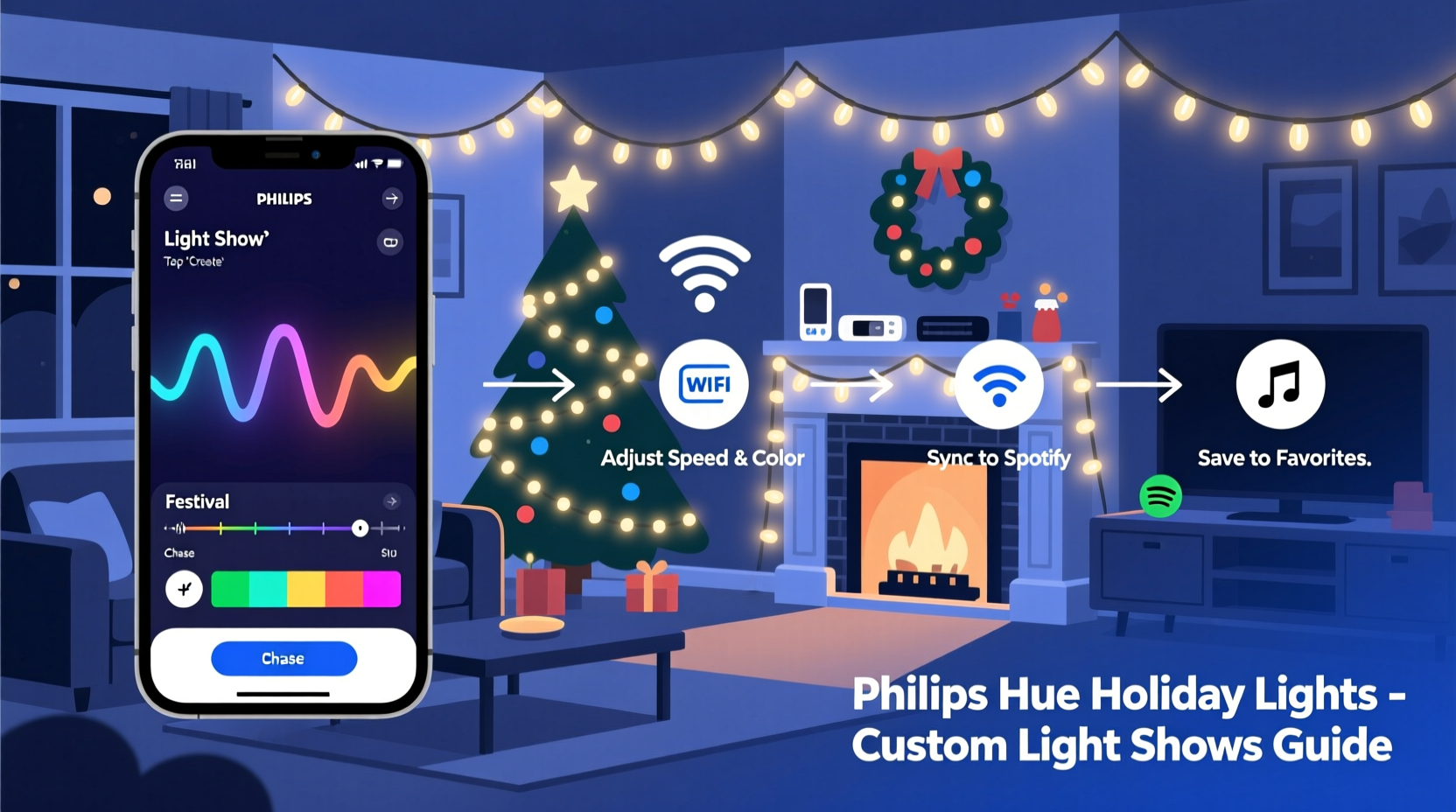
Before writing code or tapping buttons, verify compatibility. Not all Hue holiday lights support full animation control. The original Hue LightStrip (gen 1) lacks smooth hue/saturation transitions and has no native motion effects. In contrast, the LightStrip Plus (gen 3), Outdoor LightStrip, and the newer Hue Festive Light String (released late 2023) support 16 million colors, precise brightness control down to 1%, and sub-second transition timing—essential for fluid shows.
Your Hue Bridge (v2 or v3) is non-negotiable. Local control via the Bridge enables low-latency commands; cloud-dependent routines introduce lag that breaks synchronization. Also confirm firmware: all lights and the Bridge must run firmware version 1.49.1 or later to access advanced animation APIs and Hue Sync Engine features.
Three Practical Pathways to Custom Shows
You don’t need to write Python to build compelling sequences. There are three distinct tiers of customization—each serving different goals, time budgets, and technical comfort levels. Choose the path that matches your intent—not your ego.
1. Hue Sync Desktop App (No-Code, Real-Time)
Hue Sync, available for Windows and macOS, transforms screen content into reactive lighting. It’s ideal for holiday movie nights (think *Home Alone* with flickering fireplace tones) or live music visualization. Unlike the mobile app, Hue Sync runs locally, bypassing cloud delays. You can define zones, adjust sensitivity, and layer multiple effects—including “Ambient” (color bleed from screen edges), “Video” (scene-based analysis), and “Music” (frequency-driven pulses).
For holiday-specific use: Import a curated playlist (e.g., “Christmas Jazz” or “Festive Synthwave”) and set Hue Sync to “Music” mode. Then assign your outdoor LightStrip to “Bass” zone (for deep red/gold pulses) and indoor Mini Lights to “Treble” (for shimmering white/cyan highlights). Save as a profile named “Holiday Dinner Party” and launch it with one click.
2. Third-Party Apps with Visual Editors
Apps like Qubino Flow (iOS/Android) and Hue Disco (Windows/macOS) offer drag-and-drop timelines. Qubino Flow lets you place color blocks, set duration (down to 0.1 sec), add easing curves (ease-in-out for natural fade), and loop segments. Hue Disco specializes in beat-synced shows—import an MP3, tap the tempo, and it auto-generates cue points. Both integrate directly with the Hue Bridge via local API calls, requiring no manual token generation.
Real-world example: Sarah, a graphic designer in Portland, used Qubino Flow to create a “Twelve Days of Christmas” sequence. Each verse triggered a unique 8-second motif—gold strobes for “five golden rings,” slow blue swirls for “calling birds,” and warm white fades for “partridge in a pear tree.” She scheduled it to activate daily at 5:00 PM via the Hue app’s built-in timer, syncing audio narration from her smart speaker.
3. Direct API Programming (Full Control)
For granular precision—like triggering lights based on weather data, door sensor status, or sunrise time—you’ll use the Philips Hue Developer API. It’s RESTful, well-documented, and supports OAuth2 or local key authentication. All commands route through your Bridge’s IP address (e.g., http://192.168.1.42/api/[username]/lights/1/state). You can send JSON payloads to set hue, sat, bri, transitiontime (in 100ms increments), and even effect (“none” or “colorloop”).
“Most ‘custom’ shows fail not from complexity—but from over-engineering. Start with one light, one transition, and one trigger. Build rhythm before adding layers.” — Lars Jørgensen, Senior Developer Advocate, Signify (Philips Hue)
Step-by-Step: Building Your First API-Powered Show
This sequence creates a 30-second “Winter Solstice Glow”—a slow, organic shift from deep indigo to soft amber, simulating twilight to hearthlight. It uses curl (command line) but works identically with Python’s requests library or Node.js fetch.
- Get Your Bridge Username: Press the link button on your Bridge, then POST to
http://[bridge-ip]/apiwith{\"devicetype\":\"my_holiday_app\"}. Note the returned username. - Identify Your Light ID: GET
http://[bridge-ip]/api/[username]/lights. Locate your LightStrip—note its numeric ID (e.g.,\"2\"). - Set Initial State: PUT to
http://[bridge-ip]/api/[username]/lights/2/statewith:
{\"on\":true,\"hue\":46920,\"sat\":140,\"bri\":80,\"transitiontime\":0} - Define Transition Steps: Send four sequential PUTs, each increasing
hueand adjustingsat/bri. Example step 2:
{\"hue\":18920,\"sat\":110,\"bri\":110,\"transitiontime\":750}(750 = 7.5 seconds) - Loop & Schedule: Wrap the sequence in a bash script or cron job. For reliability, add error checking: if a PUT returns HTTP 200, proceed; if 404, re-authenticate.
Pro tip: Use transitiontime values above 200 (20 seconds) sparingly—Hue lights cap at ~30 seconds per transition. For longer fades, break them into smaller steps.
Do’s and Don’ts for Reliable Holiday Shows
| Action | Do | Don’t |
|---|---|---|
| Power Management | Use UL-listed outdoor-rated extension cords with surge protection for outdoor LightStrips. Keep connections elevated and covered. | Plug multiple high-wattage strings into one outlet—even with Hue’s low draw, combined load + transformer heat risks tripping GFCIs. |
| Timing Precision | Set all lights to “Local Control Only” in the Hue app > Settings > Light Settings. Disables cloud sync delays. | Rely on phone-based timers. Mobile background app suspension kills scheduled scripts after 3–5 minutes. |
| Color Consistency | Calibrate lights in-situ: measure ambient light with a lux meter app, then adjust white point using ct (color temperature) for whites instead of RGB approximations. |
Mix gen 1 and gen 3 strips in one group. Their gamma curves differ—blending causes visible banding during transitions. |
| API Stability | Implement exponential backoff: if API returns 503 (Service Unavailable), wait 1s, then 2s, then 4s before retrying. | Send >10 commands/second to one light. Hue Bridge v2 throttles at 10 req/sec; v3 at 20. Exceeding this drops packets silently. |
FAQ
Can I make lights respond to voice commands beyond “turn on”?
Yes—with limitations. Alexa and Google Assistant only expose basic on/off/brightness/color controls via native skills. For true show triggers (“Alexa, start the Yule Log show”), use IFTTT or Home Assistant. Create an applet that listens for a phrase, then fires a webhook to your local API script. Response time averages 1.8 seconds—acceptable for ambiance, not beat-syncing.
Why does my LightStrip flicker during fast transitions?
Flicker usually indicates voltage drop or firmware mismatch. First, update all lights via the Hue app (Settings > Software Update). If persistent, check power: LightStrip Plus draws up to 12W/meter. A 5m strip needs ≥60W stable supply. Use the official Hue Power Supply (12V/5A); third-party adapters often sag under load, causing PWM instability.
How do I prevent neighbors’ remotes from interfering?
Hue lights use Zigbee 3.0, which operates on channels 11–26. Interference is rare—but if you see erratic behavior, change your Bridge’s Zigbee channel. In the Hue app: Settings > Bridge > Zigbee Channel > select “Auto” or manually pick 15, 20, or 25 (least congested in North America). Re-pair lights afterward.
Putting It All Together: A Real-World Workflow
Consider Mark, who manages holiday lighting for his neighborhood’s annual “Luminaria Lane” event. He needed 12 synchronized LightStrips (outdoor) and 8 Mini Lights (porch and entry) to pulse gently for 90 minutes each night, synced to a central audio track.
His solution blended approaches: He used Hue Sync for real-time audio-reactive base layers (low-frequency throb on LightStrips), then layered precise timed cues via Python scripts hitting the Hue API. A Raspberry Pi 4 ran the scripts, triggered by a cron job at 5:55 PM daily. To avoid single-point failure, he added a fallback: if the Pi went offline, the Hue app’s built-in “Sunset” routine activated a simple warm-white fade—ensuring no dark porch, ever.
He documented everything in a shared Notion page for volunteers: firmware checklist, IP address log, reset procedure, and emergency contact for Signify’s developer support. That documentation cut setup time from 3 hours to 22 minutes per house.
Conclusion
Custom light shows with Philips Hue holiday lights aren’t reserved for developers or professional installers. They’re accessible through thoughtful tool selection, realistic expectations, and incremental testing. Start small: automate one LightStrip to shift from cool to warm white at dusk. Then add rhythm. Then add responsiveness. Each layer compounds the emotional impact—transforming static decoration into living atmosphere. Your holiday lights shouldn’t just illuminate space; they should evoke memory, signal transition, and quietly deepen the season’s resonance. Don’t wait for perfect conditions or flawless code. Plug in the LightStrip. Open Hue Sync. Send your first API call. Let the first pulse be imperfect—and let it be yours.




 浙公网安备
33010002000092号
浙公网安备
33010002000092号 浙B2-20120091-4
Comments
No comments yet. Why don't you start the discussion?