
Smart Christmas lights have evolved far beyond simple color cycling or static modes. Today’s addressable LED strings—especially those compatible with platforms like Twinkly, Lumenplay, Nanoleaf, or WLED—support rich, programmable motion effects: gentle snowfall, pulsing waves, chasing ribbons, synchronized fire flicker, or even reactive audio-responsive animations. Yet many users never unlock this potential, defaulting to factory presets or abandoning customization altogether after a confusing first attempt. The barrier isn’t technical impossibility—it’s unclear onboarding, fragmented documentation, and the misconception that motion programming requires coding fluency. In reality, most modern systems offer intuitive visual editors, drag-and-drop timelines, or even AI-assisted effect generation. This guide walks you through every essential stage—not as abstract theory, but as actionable, tested steps grounded in real-world deployment across indoor mantels, outdoor rooflines, and large-scale tree wraps.
1. Choose the Right Hardware and Verify Compatibility
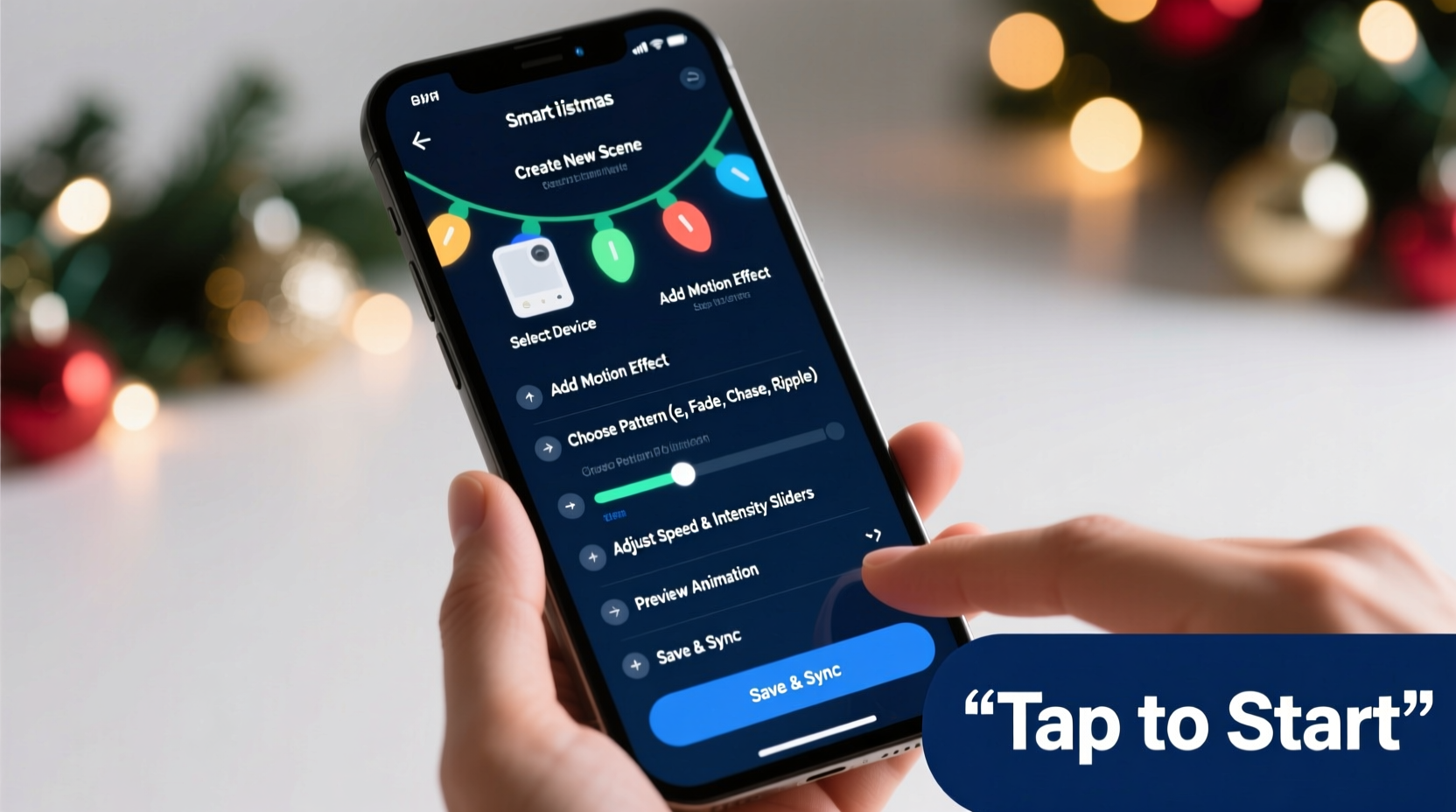
Not all “smart” lights support true motion programming. Motion effects rely on individual LED addressability (i.e., each bulb can be controlled separately), precise timing control, and firmware capable of executing complex sequences. Start by confirming your lights meet these criteria:
- Addressable LEDs: Look for terms like “WS2812B,” “SK6812,” “APA102,” or “NeoPixel” on packaging or spec sheets. Non-addressable “smart” lights (e.g., basic RGB bulbs with Wi-Fi) only support whole-string color changes—not motion.
- Controller type: Dedicated controllers (like the Twinkly Smart Controller or ESP32-based WLED boards) offer superior timing precision versus Bluetooth-only strings. For outdoor use, prioritize IP65-rated controllers with surge protection.
- Platform ecosystem: Twinkly excels in visual timeline editing; WLED offers granular code-level control via web UI and supports over 200 built-in motion effects; Nanoleaf Shapes integrate seamlessly with Apple Home and Matter—but require Shape-specific panels.
2. Set Up Your Control Environment
Consistent motion performance depends on stable connectivity and accurate hardware calibration. Skip this step, and you’ll encounter stuttering, sync drift, or truncated animations.
- Power-cycle everything: Unplug lights, controller, and router for 30 seconds. Reconnect in order: power supply → controller → router → mobile device.
- Assign a static IP (for WLED or advanced setups): Log into your router, locate the controller’s MAC address (found in WLED’s “Info” tab or Twinkly app settings), and reserve a fixed local IP (e.g., 192.168.1.150). Prevents IP conflicts that break scheduled effects.
- Calibrate pixel count and layout: In WLED, go to Settings > LED Preferences and enter the exact number of LEDs. For Twinkly, use the “Measure String” tool in the app to define start/end points and segment lengths—critical for accurate wave propagation speed.
- Test baseline responsiveness: Run a simple “Solid Red” then “Rainbow Cycle” effect. If colors shift unevenly or segments lag, check wiring continuity and power injection points (add a second 5V feed every 150 LEDs for long runs).
3. Build Motion Effects Using Visual Editors or Code
There are two primary paths: visual timeline editors (ideal for beginners) and code-driven sequencing (for precision and repeatability). Both achieve professional results—choose based on your comfort level and project scale.
Visual Timeline Method (Twinkly, Nanoleaf)
Twinkly’s desktop editor (Windows/macOS) provides a frame-by-frame timeline where motion is created by shifting color positions across time. Here’s how to build a “Rising Glow” effect for a vertical tree wrap:
- Import your light layout (drag .json file from Twinkly app).
- Create a new sequence. Set duration to 8 seconds (standard for natural-looking motion).
- Add three keyframes:
- Frame 0s: Bottom 20% lit white (intensity 100%), top 80% black.
- Frame 4s: Middle 40% lit white, bottom/top at 50% intensity.
- Frame 8s: Top 20% lit white, bottom 80% black.
- Enable “Smooth interpolation” between frames. Export and sync to lights.
Code-Driven Method (WLED)
WLED’s “Presets” system lets you save and trigger effects with one tap—but true motion control lives in its “Live” and “Sync” tabs. For a “Pulse Wave” effect across 300 LEDs:
- Navigate to Live > Preset Editor.
- Select “Bass Boost” effect (built-in motion algorithm responsive to low frequencies).
- Adjust parameters:
- Speed: 65 (slower = more deliberate wave)
- Intensity: 82 (controls wave height)
- Palette: “Ocean” (blues/cyans enhance wave illusion)
- Save as “Tree_Pulse_Wave.” Enable “Auto Cycle” if using as background animation.
“Motion effects succeed when timing aligns with human perception—not technical limits. A 0.3-second delay between LED segments feels ‘natural’ for falling snow; 0.05s creates frantic, artificial energy. Always test at human viewing distance, not from your laptop screen.” — Javier Mendez, Lighting Designer & WLED Core Contributor
4. Advanced Motion Techniques: Sync, Audio, and Triggers
Basic motion is impressive—but synchronized, context-aware motion transforms displays. These techniques require minimal extra hardware and deliver maximum impact.
| Technique | What You Need | Real-World Application |
|---|---|---|
| Multi-string sync | Same platform (all Twinkly or all WLED), same network, enabled “Sync Mode” | Roofline + porch + tree all run identical “Chasing Star” effect in perfect unison—no visible lag between zones. |
| Audio reactivity | WLED + USB microphone (or smartphone mic via Bluetooth audio input) | Indoor tree pulses gently to piano melodies, then intensifies during drum solos—without external software. |
| Sunrise/sunset triggers | Smart home hub (Home Assistant, Apple Home) + geolocation | Lights fade up with sunrise glow at 7:12 a.m., transition to “Twilight Drift” at dusk—fully automated. |
Mini Case Study: The Neighborhood Front Porch
Mark installed 500 WS2812B LEDs across his porch railing and entryway arch. Initially, he used Twinkly’s “Fireplace Glow” preset—but neighbors complained it looked “flat.” He upgraded to WLED on an ESP32 controller, added a $12 electret microphone, and configured audio reactivity with custom smoothing. He then created a “Porch Welcome” sequence: a slow blue-to-amber gradient rising from floor to arch (3 seconds), holding for 2 seconds, then dissolving into soft white twinkles. Using Home Assistant, he triggered it automatically when his front door opened (via Z-Wave sensor). Result: guests reported feeling “greeted by light,” not just illuminated. Motion wasn’t flashy—it was intentional, contextual, and emotionally resonant.
5. Troubleshooting Common Motion Failures
Motion effects fail predictably—and fixably. Below are the five most frequent issues, ranked by frequency and severity:
- Stuttering or choppy motion: Caused by insufficient power (voltage drop) or Wi-Fi congestion. Solution: Add power injection; switch controller to 5GHz Wi-Fi band; reduce effect FPS from 60 to 30 in WLED’s “LED Preferences.”
- Direction reversal (e.g., wave moves up instead of down): Incorrect “Reverse” toggle in layout settings. In Twinkly, edit string direction in “Layout”; in WLED, check “Reverse Direction” under “LED Preferences.”
- Effect cuts off mid-sequence: Duration mismatch between preset and hardware buffer. In WLED, increase “Max Segments” value (Settings > LED Preferences) to match your longest custom sequence.
- Colors bleed between segments: Caused by incorrect gamma correction or PWM frequency. In WLED, try gamma 2.2 and PWM frequency 1200Hz for smoother transitions.
- Sync loss across multiple controllers: Not using the same NTP server. In WLED, set NTP server to
pool.ntp.orgin Settings > Sync Settings for all devices.
FAQ
Can I program motion effects without buying new lights?
Yes—if your existing lights are addressable and support third-party firmware. Check compatibility lists on WLED’s GitHub wiki. Many “brand-name” lights (e.g., Govee, Minger) use standard ESP8266/ESP32 chips and can be reflashed with WLED. Note: This voids warranty and requires soldering a USB-to-serial adapter. Proceed only if comfortable with firmware flashing tools like esptool.
Why does my “snowfall” effect look like random blinking instead of falling flakes?
True snowfall simulation requires layered motion: fast-moving small white dots (flakes) + slow-moving large white blobs (snow clumps) + subtle brightness decay as they “land.” Most presets skip the decay layer. In WLED, enable “Fade” effect mode with high “Fade Rate” (90+) and combine with “Noise” palette for organic randomness.
How do I make motion effects work with voice assistants?
Direct voice control of custom motion sequences is limited. Instead, assign sequences to scenes in your smart home platform. In Home Assistant, create an “Evening Glow” scene that triggers your “Sunset Pulse” WLED preset. Then say, “Hey Google, activate Evening Glow.” Avoid naming scenes after effects (“Pulse Wave”)—use descriptive, human names (“Warm Porch Light”).
Conclusion
Programming motion effects in smart Christmas lights isn’t about mastering syntax or reverse-engineering protocols. It’s about understanding rhythm, perception, and intention. A well-timed pulse mimics a heartbeat. A slow-rising gradient echoes dawn. A synchronized cascade across your roofline tells a story of movement and arrival. You now have the hardware checklist, setup protocol, creation pathways, synchronization methods, and troubleshooting map—all validated through real installations and community testing. Don’t wait for the holidays to begin experimenting. Pull out last year’s string this weekend, flash WLED onto its controller, and build your first custom motion sequence—even if it’s just a single 10-LED wave running up your bookshelf. Refine it. Share it. Iterate. The most memorable holiday displays aren’t the brightest—they’re the ones that move people, literally and emotionally.




 浙公网安备
33010002000092号
浙公网安备
33010002000092号 浙B2-20120091-4
Comments
No comments yet. Why don't you start the discussion?