
In today’s digital world, having accurate and accessible contact information is essential. Whether you're saving a friend's number, updating your own details across platforms, or ensuring business associates can reach you, knowing how to properly store a cell phone number in contacts apps and online accounts streamlines communication and strengthens personal and professional networks. The process may seem straightforward, but small mistakes—like incorrect formatting or skipping verification steps—can lead to missed calls, failed messages, or account access issues.
This guide walks through practical methods for adding phone numbers across devices and services, highlights best practices, and offers real-world tips to ensure your data stays consistent, secure, and functional.
Adding Phone Numbers to Mobile Contacts: iOS and Android
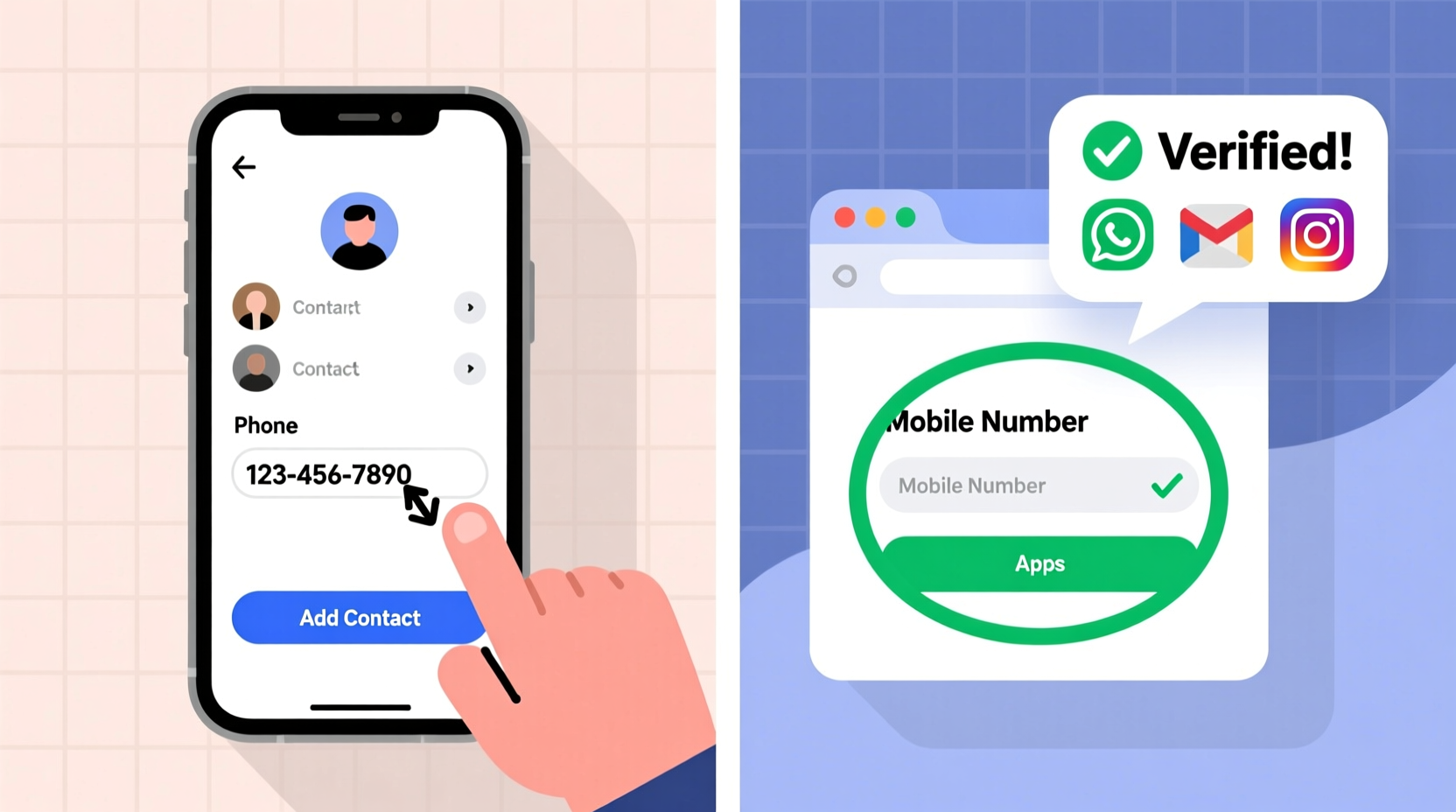
The foundation of managing phone numbers lies in your device’s native contacts app. Both iPhone (iOS) and Android offer intuitive interfaces for saving and organizing numbers.
iOS (iPhone)
- Open the Phone or Contacts app.
- Tap the \"+\" icon in the top-right corner.
- Enter the person’s name (first and last).
- Under \"Phone,\" type the cell number using the correct format: +[country code][number], such as +1 555 123 4567.
- Optionally, label the number (e.g., “Mobile,” “Home,” “Work”).
- Tap Done to save.
Android
- Launch the Phone or Contacts app.
- Select the \"+\" or \"Add Contact\" button.
- Choose where to save the contact (device, SIM, Google account).
- Input the name and phone number.
- Use international format when necessary for global consistency.
- Tap Save.
Synchronizing Contacts Across Devices and Cloud Services
Manually entering contacts on one device isn’t enough. To keep numbers accessible everywhere, sync them with cloud services like Google, iCloud, or Microsoft Outlook.
- Google Contacts (Android & cross-platform): When signed into a Google account, contacts automatically sync across phones, tablets, and computers. Enable sync in Settings > Accounts > Google.
- iCloud (Apple devices): Go to Settings > [Your Name] > iCloud > Contacts and toggle it on. All new entries will appear on your Mac, iPad, and iPhone.
- Microsoft Outlook: Ideal for professionals using Office 365. Contacts added here sync across desktop and mobile Outlook apps.
Synchronization ensures that if you lose your phone or switch devices, your network remains intact. It also allows seamless integration with email, calendar invites, and messaging apps.
Updating Phone Numbers in Online Accounts
Beyond personal address books, many online services require a verified cell number for login, two-factor authentication (2FA), or customer support. Common platforms include:
- Email providers (Gmail, Outlook)
- Social media (Facebook, Instagram, LinkedIn)
- Banking and financial apps (PayPal, Chase, Venmo)
- E-commerce sites (Amazon, eBay)
Step-by-Step Guide to Adding a Number to an Online Account
- Log in to the service’s website or app.
- Navigate to Settings or Account Preferences.
- Find the section labeled Contact Information, Security, or Privacy.
- Click Add Phone Number or Edit next to an existing entry.
- Enter your number in the requested format (include country code if prompted).
- Confirm ownership by entering a verification code sent via SMS or voice call.
- Save changes.
Once verified, this number can be used for password recovery, alerts, and identity confirmation. Some services allow multiple numbers—for example, a primary mobile and a backup.
| Platform | Purpose of Phone Number | Verification Required? |
|---|---|---|
| Gmail | Password reset, 2FA | Yes |
| Login approvals, notifications | Yes | |
| Amazon | Delivery updates, security alerts | No (but recommended) |
| Network suggestions, job alerts | No |
Best Practices for Accuracy and Security
While adding phone numbers is simple, doing so securely and accurately prevents future complications.
- Use Standard Formatting: Adopt the E.164 international standard (+15551234567) to avoid confusion across systems.
- Avoid Duplicate Entries: Merge duplicates in your contacts regularly to maintain clarity.
- Label Numbers Correctly: Distinguish between mobile, work, and home lines for better organization.
- Limit Public Exposure: Avoid listing personal numbers on public profiles unless necessary.
- Review Permissions: Only provide numbers to trusted services. Check privacy policies before sharing.
“Consistent contact formatting reduces miscommunication and enhances digital interoperability.” — Dr. Lena Torres, Digital Identity Researcher at MIT Media Lab
Real-World Example: Streamlining Communication for Small Business Owners
Consider Maria, who runs a freelance design business from her home office. She recently launched a website and set up client management tools like Trello and Zoom. Initially, she used different phone numbers across platforms—her personal line on WhatsApp, an old number on LinkedIn, and no number at all on her business email.
After missing several project inquiries and client calls, she realized her fragmented contact info was hurting her professionalism. She took the following steps:
- Selected a dedicated business number using Google Voice.
- Updated her number consistently across Gmail, LinkedIn, Zoom, and her website contact form.
- Ensured all platforms had verified the number for 2FA and notifications.
- Synced her updated contacts to her iPhone and laptop via iCloud.
Within weeks, response times improved, clients found her more accessible, and her account security strengthened due to reliable recovery options.
Frequently Asked Questions
Why won’t my phone number save in certain apps?
This often happens due to incorrect formatting or regional restrictions. Make sure you’re including the country code and that the app supports your region. Also, check for software updates that might resolve bugs.
Can I have the same number in multiple online accounts?
Yes. In fact, using the same verified number across key accounts (email, banking, social media) improves security and recovery options. Just ensure each platform has completed verification.
Is it safe to give my cell number to online services?
Only share your number with reputable platforms. Avoid giving it to unknown websites or pop-up forms. Look for HTTPS encryption and clear privacy policies. Consider using a secondary number (like Google Voice) for less critical sign-ups.
Final Checklist: Ensure Your Number Is Properly Set Up
- ✅ Entered phone number in international format (+[country code][number])
- ✅ Saved contact in device and synced to cloud (Google/iCloud)
- ✅ Verified number on key accounts (email, social media, banking)
- ✅ Enabled two-factor authentication where available
- ✅ Reviewed privacy settings to control who sees your number
- ✅ Removed outdated or duplicate entries
Take Control of Your Digital Presence Today
Your phone number is more than just a way to make calls—it's a cornerstone of your digital identity. From logging into accounts to staying connected with loved ones and clients, having it correctly stored and verified across platforms makes every interaction smoother and more secure. By taking a few minutes to audit and update your contact information, you build a reliable foundation for communication, safety, and efficiency in both personal and professional life.




 浙公网安备
33010002000092号
浙公网安备
33010002000092号 浙B2-20120091-4
Comments
No comments yet. Why don't you start the discussion?