
YouTube is the second-largest search engine in the world, and its videos are powerful tools for communication, education, marketing, and entertainment. But knowing how to share or embed them effectively—beyond just copying a link—can dramatically increase engagement. Whether you're a blogger, educator, small business owner, or content creator, learning how to place YouTube videos anywhere gives you greater control over user experience and content reach.
This guide walks through practical methods to embed and share YouTube videos on websites, emails, presentations, forums, and more—all while preserving quality, functionality, and compliance with platform rules.
Understanding YouTube’s Sharing vs. Embedding Options
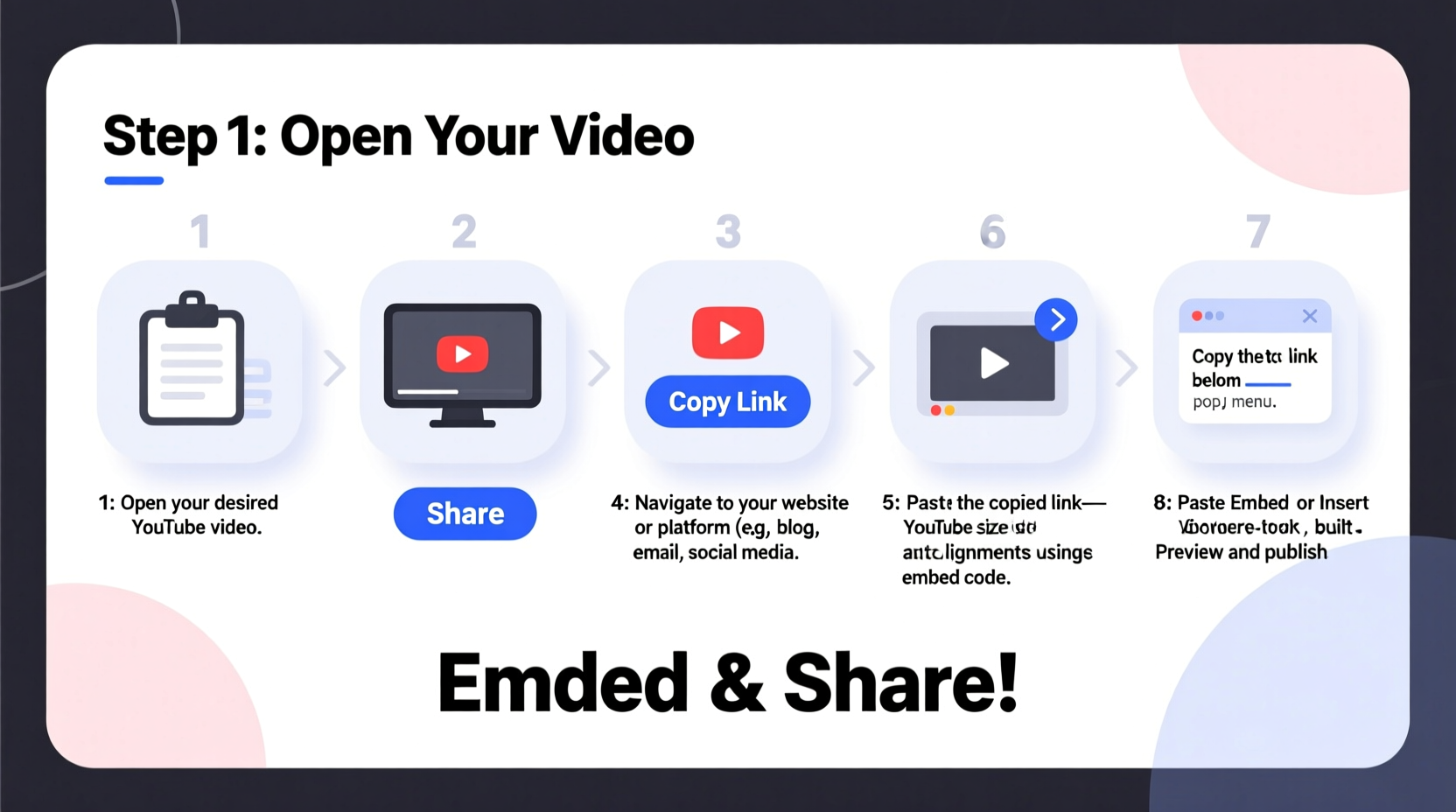
Before placing a video, it's essential to distinguish between *sharing* and *embedding*. Sharing typically means distributing a direct link via email, messaging apps, or social media. Embedding, however, involves inserting the video into another website or application so it plays directly within that environment.
Each method serves different purposes:
- Sharing is ideal for quick distribution and driving traffic back to YouTube.
- Embedding enhances content richness on blogs, landing pages, or internal training portals without redirecting users.
YouTube supports both options natively, but success depends on correct implementation and awareness of privacy, bandwidth, and design considerations.
Step-by-Step Guide to Embedding YouTube Videos on Websites
Embedding a YouTube video on your website is straightforward if you follow these steps carefully. This process works for most content management systems (CMS), including WordPress, Wix, Squarespace, and custom HTML sites.
- Navigate to the YouTube video you want to embed.
- Click the “Share” button below the video player.
- Select “Embed” from the dropdown menu.
- Copy the provided HTML iframe code.
- Paste the code into your webpage’s HTML editor in the desired location.
- Save and publish the page.
You can customize the embedded player using optional parameters:
| Parameter | Description | Example Value |
|---|---|---|
| width / height | Sets player dimensions | width=\"560\" height=\"315\" |
| autoplay | Starts playback automatically | ?autoplay=1 |
| mute | Mutes audio on start (required for autoplay in many browsers) | ?mute=1 |
| controls | Shows or hides player controls | ?controls=0 |
| rel | Shows related videos at end | ?rel=0 to disable |
How to Share YouTube Videos Across Platforms
Different platforms require tailored approaches for optimal video sharing. Here’s how to adapt your strategy based on where you’re posting.
Email Campaigns
You cannot embed playable videos directly into most email clients due to security limitations. Instead, use a compelling thumbnail image linked to the YouTube URL. Add a clear call-to-action like “Watch the full tutorial here.”
Social Media
Platforms like Facebook, LinkedIn, and X (formerly Twitter) allow YouTube links to generate rich previews. Paste the URL directly into your post—don’t upload the same video separately, as this splits viewer metrics and may trigger copyright flags.
Forums and Comment Sections
Many forums support BBCode or limited HTML. If available, use the [iframe] tag with the YouTube embed URL. Otherwise, share the standard video link; modern forums often auto-convert these into preview cards.
Presentations (Google Slides, PowerPoint)
In Google Slides: Go to Insert > Video > Search YouTube. In PowerPoint: Use the “Online Video” option under Insert > Video. Ensure internet access during presentation, as these pull the video live from YouTube.
“We’ve seen a 40% increase in course completion when instructional videos are embedded directly into our LMS instead of linked externally.” — Daniel Reyes, E-Learning Coordinator at Nexa Learning Systems
Common Pitfalls and How to Avoid Them
Even experienced users make mistakes when embedding or sharing YouTube content. Awareness of these issues improves reliability and professionalism.
- Ignoring Privacy Settings: Private or unlisted videos won’t play when embedded on public sites unless viewers have proper access.
- Using Outdated URLs: Never rely on long-form URLs like
watch?v=...for embedding. Always use the embed code from the official tool. - Overriding Branding: Removing YouTube branding (via deprecated parameters) violates Terms of Service. Let the platform attribution remain.
- Autoplay Without Muting: Most browsers block autoplay with sound. Combine
autoplay=1withmute=1for reliable behavior.
Do’s and Don’ts of YouTube Embedding
| Do | Don't |
|---|---|
| Test embedded videos after publishing | Use third-party tools to download and re-upload videos |
| Respect aspect ratios (e.g., 16:9) | Resize iframes arbitrarily without adjusting proportions |
| Link back to your channel in descriptions | Remove YouTube watermark or UI elements illegally |
| Use privacy-enhanced mode when possible | Embed videos on insecure (HTTP) pages without warnings |
Real-World Example: A Small Business Boosts Engagement
Luna & Oak, a boutique skincare brand, struggled with low conversion rates on their product pages. They decided to embed short demonstration videos showing how to apply their serums and moisturizers.
By following YouTube’s embed process and optimizing video length (under 90 seconds), they integrated tutorials directly into each product description. Within six weeks, time-on-page increased by 72%, and customer service inquiries about usage dropped by nearly half.
The key was placement: videos appeared just below the main image, ensuring visibility without disrupting the purchase flow. They also used descriptive titles like “How to Use Our Vitamin C Serum” rather than generic names, improving clarity and SEO value.
Frequently Asked Questions
Can I embed a YouTube video on a password-protected site?
Yes, as long as the viewer has permission to access both the site and the video. If the YouTube video is set to private or unlisted, only authorized users will see it—even when embedded.
Why isn’t my embedded video playing on mobile?
This often happens when custom CSS overrides iframe responsiveness. Ensure your iframe uses relative units (like percentages) or includes responsive wrappers. Also, avoid disabling touch gestures via JavaScript.
Is it legal to embed any YouTube video?
You can embed any public YouTube video, provided it doesn’t violate copyright or community guidelines. However, creators can disable embedding via their video settings. Respect those choices—do not circumvent restrictions.
Final Checklist Before You Publish
Before going live with an embedded video, run through this checklist:
- ✅ Confirm the video is publicly accessible or properly restricted
- ✅ Copy the embed code directly from YouTube
- ✅ Adjust size for responsiveness on desktop and mobile
- ✅ Test autoplay only with muted audio
- ✅ Verify playback on multiple browsers (Chrome, Safari, Firefox)
- ✅ Include a fallback link for users with connectivity issues
Conclusion: Make YouTube Work for Your Content Strategy
Knowing how to put YouTube videos anywhere transforms passive links into dynamic, engaging experiences. From blog posts to internal training modules, the ability to seamlessly integrate video strengthens communication and keeps audiences focused.
Apply these techniques thoughtfully—test performance, respect platform rules, and prioritize user experience. Once mastered, embedding becomes second nature, opening new possibilities for storytelling, education, and growth.




 浙公网安备
33010002000092号
浙公网安备
33010002000092号 浙B2-20120091-4
Comments
No comments yet. Why don't you start the discussion?