
Digital photos are precious. They capture moments that can't be recreated—birthdays, sunsets, family gatherings, spontaneous laughter. But over time, these cherished memories become buried under duplicates, blurry shots, screenshots, and forgotten folders. The average smartphone user takes over 1,000 photos per year. Multiply that across multiple devices and years, and it's no surprise that digital photo libraries often spiral into chaos.
The good news? You don’t need hours or technical expertise to regain control. With a focused strategy, the right tools, and a few disciplined habits, you can declutter your entire digital photo ecosystem in under a weekend—and keep it organized long-term.
Why Digital Clutter Matters More Than You Think
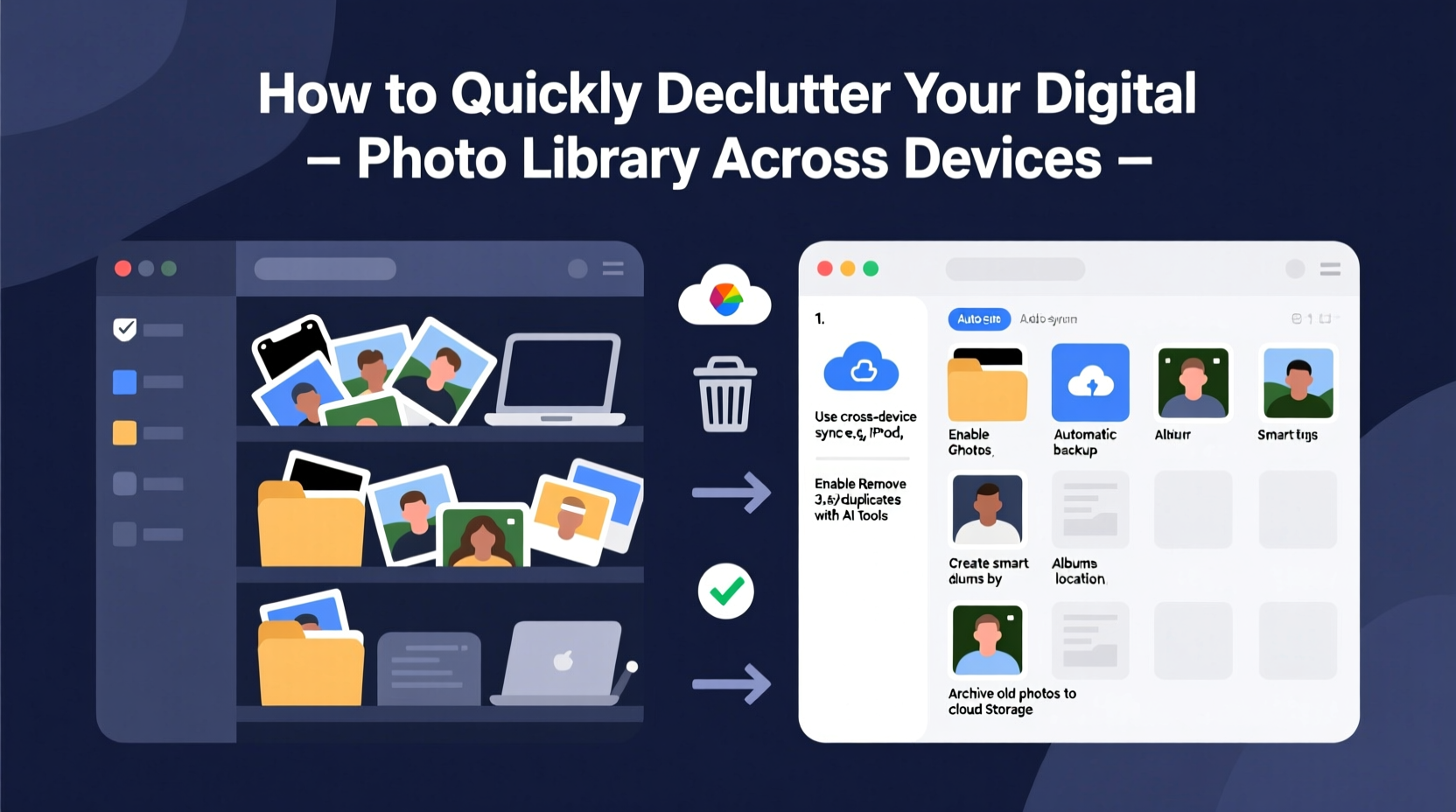
Clutter isn’t just visual. It has real consequences: slower device performance, wasted storage space, difficulty finding important images, and emotional fatigue from facing a disorganized gallery every time you open your phone.
A cluttered photo library also increases the risk of losing data. When files are scattered across devices without backups or structure, one accidental deletion or hardware failure can erase irreplaceable memories.
“Digital clutter creates cognitive load similar to physical mess. Organizing your photos isn’t vanity—it’s mental hygiene.” — Dr. Lena Patel, Digital Wellness Researcher at Stanford University
Decluttering isn’t about perfection. It’s about creating a system where your best memories are easy to find, safely backed up, and free from digital noise.
Step-by-Step: A 5-Stage System to Declutter Fast
This method is designed for speed and sustainability. Follow these stages in order—they build on each other and minimize backtracking.
Stage 1: Audit Your Current Photo Ecosystem
Begin by mapping where your photos live. Most people have them spread across:
- Smartphones (iOS/Android)
- Tablets
- Laptops or desktop computers
- External hard drives
- Cloud services (Google Photos, iCloud, Dropbox, etc.)
Create a simple list noting each location and approximate number of photos. This gives you visibility and prevents duplication during cleanup.
Stage 2: Consolidate Everything into One Primary Hub
Choose one central platform as your master library. For most users, this should be a cloud-based service with strong cross-device sync and AI features. Recommended options:
| Service | Best For | Free Tier Limit | Cross-Device Sync? |
|---|---|---|---|
| Google Photos | Android users, AI search, shared albums | 15 GB (shared with Gmail/Drive) | Yes (iOS, Android, Web) |
| iCloud Photos | Apple ecosystem users | 5 GB | Yes (Apple devices only) |
| Microsoft OneDrive | Windows users, Office integration | 5 GB | Yes (Windows, macOS, iOS, Android) |
| Flickr | Photographers, high-quality uploads | 1,000 photos | Limited |
Once chosen, begin uploading all photos from secondary devices into this hub. Use Wi-Fi-only transfers to avoid data overages. Allow several hours or overnight if needed.
Stage 3: Apply the 4-D Framework to Every Photo
Now comes the actual sorting. Work in batches of 200–500 photos at a time to avoid burnout. For each image, apply the 4-D rule:
- Delete – Blurry, duplicate, irrelevant screenshots, receipts, memes.
- Delegate – Send photos to others who are featured in them (e.g., friends at an event).
- Designate – Assign meaningful keywords or dates if not auto-tagged.
- Display – Mark favorites for albums, slideshows, or printing.
Use your cloud platform’s AI tools. Google Photos, for example, automatically groups faces, locations, and events. Review these clusters and delete low-quality versions.
Stage 4: Create Smart Albums and Folders
After deletion, organize what remains. Avoid generic names like “Vacation” or “Family.” Instead, use specific, searchable titles:
- “Italy Trip 2023 – Rome & Florence”
- “Maya’s Graduation – June 15, 2024”
- “Home Renovation – Kitchen Remodel”
In Google Photos or iCloud, create albums based on people, trips, or milestones. Enable face recognition so new photos of loved ones are automatically grouped.
For advanced users: Set up folder hierarchies on your computer using YYYY-MM format (e.g., “2024/06_June_Trip_to_Canada”). This aligns with how most cloud services export data.
Stage 5: Automate Ongoing Maintenance
Prevent future clutter with automation:
- Enable auto-backup on all devices.
- Turn off unnecessary app permissions that save photos (e.g., social media apps).
- Set monthly calendar reminders to review new uploads.
- Use tools like Shortcuts (iOS) or Tasker (Android) to auto-move screenshots to a designated folder weekly.
Within 90 days, this becomes second nature. You’ll spend less time managing photos and more time enjoying them.
Real Example: How Sarah Cleared 18,000 Photos in Two Days
Sarah, a freelance designer and mother of two, had over 18,000 photos scattered across her iPhone, old iPad, MacBook, and a failing external drive. She hadn’t opened her photo library in three years.
She followed the 5-stage system:
- First, she connected her devices and uploaded everything to Google Photos (using her existing 100 GB plan).
- She spent 90 minutes reviewing AI-generated “Memories” and deleting duplicates and out-of-focus shots—removing over 7,000 files instantly.
- She created 12 themed albums (e.g., “Kids’ Art Projects,” “Beach Week 2022”) and shared six with family members.
- She set up automatic backup and disabled screenshot saving in messaging apps.
Total time: 10 hours over a weekend. Result: 60% reduction in photo count, faster phone performance, and a library she now actually browses for fun.
“I thought I’d lose memories. Instead, I found ones I’d forgotten. And now I don’t dread opening my gallery.” — Sarah T., Portland, OR
Checklist: Your Quick-Start Declutter Plan
Follow this checklist to ensure nothing is missed:
- ☐ Inventory all devices storing photos (phone, tablet, computer, drives)
- ☐ Choose one primary cloud platform (Google Photos, iCloud, etc.)
- ☐ Back up all photos to the central hub
- ☐ Delete obvious junk: duplicates, screenshots, memes, receipts
- ☐ Use AI tools to group by faces, places, and events
- ☐ Create 5–10 key albums with specific, date-stamped names
- ☐ Share relevant albums with family/friends
- ☐ Enable auto-upload on all devices
- ☐ Schedule a monthly 15-minute maintenance session
- ☐ Test restore one photo from backup to confirm integrity
Do’s and Don’ts of Digital Photo Management
| Do | Don’t |
|---|---|
| Back up photos to at least two locations (e.g., cloud + external drive) | Rely solely on your phone’s internal storage |
| Use descriptive album names with dates | Create vague folders like “Misc” or “Old Pics” |
| Leverage facial recognition and AI search | Manually tag every single photo |
| Delete aggressively—sentimental value rarely applies to blurry duplicates | Keep 20 near-identical shots of the same moment |
| Review and clean quarterly | Wait years before organizing |
Frequently Asked Questions
How do I know which photos to keep?
Ask three questions: Does this photo capture a unique moment? Is it clear and well-composed? Would I want to share or print it? If two answers are “no,” consider deleting it.
Is it safe to delete photos after uploading to the cloud?
Yes—but only after confirming they’ve fully synced. Check your cloud service’s app or website to verify all files are present. Wait 48 hours, then delete from devices. Never delete originals without a verified backup.
What if I run out of cloud storage?
Upgrade your plan (Google One starts at $2/month for 100 GB), or archive older photos to an encrypted external drive. For long-term cold storage, consider a NAS (Network Attached Storage) device at home.
Conclusion: Reclaim Your Memories, Not Just Your Space
Decluttering your digital photo library isn’t just a tech chore—it’s an act of preservation. Every photo you delete that lacks meaning makes room for the ones that truly matter. By following a structured process, leveraging smart tools, and setting up sustainable habits, you transform chaos into clarity.
Your digital memories deserve better than being lost in a sea of screenshots and duplicates. Take the next two weekends to implement this system. Start small, stay consistent, and soon you’ll have a photo library that works for you—not against you.




 浙公网安备
33010002000092号
浙公网安备
33010002000092号 浙B2-20120091-4
Comments
No comments yet. Why don't you start the discussion?