
Your iPhone stores a wealth of personal information, but surprisingly, your own phone number isn’t always immediately visible. Unlike Android devices, which often display the number prominently in settings, iPhones can make this detail harder to locate—especially if you’ve recently switched carriers, activated a new SIM, or restored from a backup. Knowing where to look saves time during setup, contact sharing, or troubleshooting calls and messages.
This guide walks through every reliable method to find your number, verify its accuracy, and manage it across Apple services. Whether you’re setting up an iPhone for the first time or helping someone else, these steps ensure you maintain full control over your identity on the device.
Where Your Phone Number Is Stored (And Why It Might Be Missing)
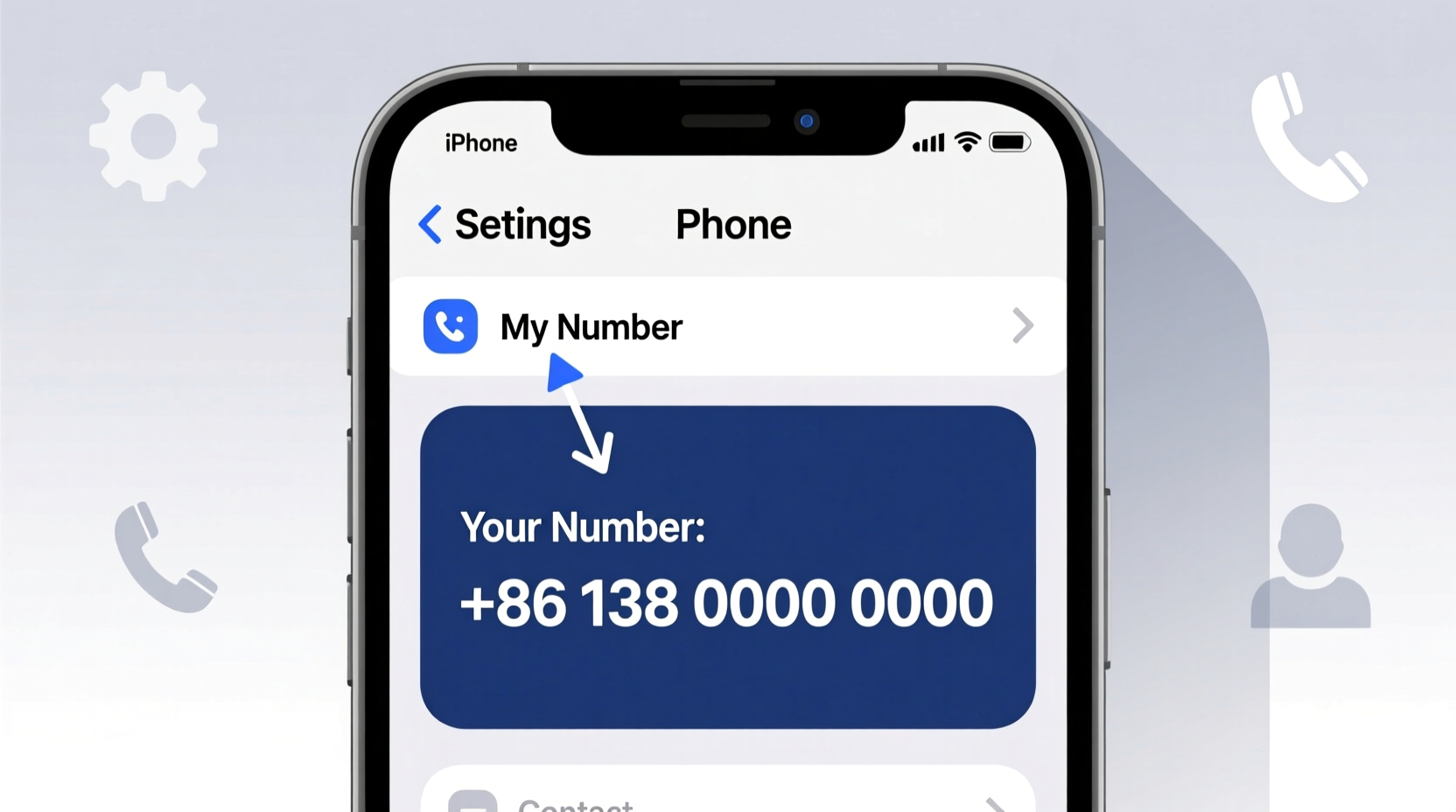
iOS doesn’t automatically pull your phone number from the SIM card in all cases. Instead, it relies on carrier settings, account registration, and syncing with iCloud or other contacts. If your number doesn’t appear in Settings > Phone, it’s likely because:
- The carrier didn’t properly register the line during activation.
- You're using an eSIM without full provisioning.
- The number is stored in your contact card but not linked correctly.
- You restored from a backup where the number wasn’t saved locally.
Apple intentionally separates your identity from hardware identifiers for privacy. As former iOS engineer David Klein explains:
“Apple treats the phone number as part of your communication profile, not a device attribute. This design enhances security but requires users to know where to look.” — David Klein, iOS Systems Developer
Understanding this distinction helps explain why multiple pathways exist to access your number—and why consistency across them matters.
Step-by-Step: How to Find Your iPhone Number in Settings
The most direct way to check your number is through the Settings app. Follow these steps:
- Open the Settings app.
- Tap Phone.
- Look under the “My Number” field at the top.
If the field is blank or shows “Unknown,” your number hasn’t been detected. Try restarting your iPhone after ensuring cellular service is active. In many cases, the number populates within minutes of rebooting.
Alternatively, go to:
- Settings → Messages → Send & Receive.
- Under “You can be reached by iMessage at,” your phone number should appear alongside any associated email addresses.
- Ensure the checkbox next to your number is selected to enable messaging via SMS/iMessage.
Repeat the same process in FaceTime settings. If your number isn’t listed there, FaceTime calls may fail to connect.
Using Your Contact Card to Display and Share Your Number
A reliable workaround—even when Settings fails—is creating or updating your personal contact card. This serves as a digital business card and can be shared instantly.
To set it up:
- Open the Phone app and tap the Contacts tab.
- Tap your name at the top (if already set) or create a new contact labeled with your name.
- Add your mobile number under “Mobile.”
- Go back to Settings → Mail → Contacts → My Card.
- Select the contact you just created or updated.
Once assigned, your number becomes accessible in several places:
- In Messages, when starting a new conversation, your card appears at the bottom.
- When others search your name in their contacts, they’ll see your info if shared.
- Via AirDrop or QR code sharing, allowing quick exchange without typing.
This method ensures you always have a reference point—even if carrier detection lags.
Managing Multiple Numbers on iPhone (Dual SIM & eSIM)
With support for dual SIMs (physical + eSIM) on compatible models, managing multiple lines adds complexity. Each number must be individually verified and configured.
Here’s how to keep track:
- In Settings → Phone → Sim Cards, both lines are listed with labels (e.g., “Personal,” “Work”).
- Tap each to assign a label and choose default settings for calls and data.
- In Messages and FaceTime, ensure both numbers are enabled under “You can be reached by…”
When sending messages, iOS lets you choose which number to use per conversation. To switch:
- Open a message thread.
- Tape the contact's name at the top.
- Select “Send Message” and choose the desired number.
| Feature | Single SIM | Dual SIM |
|---|---|---|
| Number Visibility | One entry in Settings > Phone | Two entries in Sim Cards section |
| iMessage Setup | One number/email combo | Both numbers can receive iMessages |
| Default Line Selection | Automatic | User-defined per call/message |
| Data Usage | Single data plan | Choose primary data SIM |
Real Example: Traveler Regains Access Abroad
Sophie, a digital nomad based in Lisbon, rented an eSIM for local data while keeping her U.S. number active. After installation, she noticed her American number no longer appeared in Messages. Friends couldn’t reach her via iMessage, assuming she was offline.
She followed these steps:
- Went to Settings → Messages → Send & Receive.
- Found her U.S. number unchecked due to temporary signal loss.
- Re-enabled it once connected to Wi-Fi.
- Verified her number reappeared under FaceTime settings.
Within minutes, iMessage functionality resumed. By understanding where iOS stores number permissions, Sophie avoided costly international calling and maintained seamless communication.
Checklist: Verify and Manage Your iPhone Number
Use this checklist to ensure your number is visible, functional, and properly managed:
- ✅ Check Settings > Phone > My Number – is it displayed?
- ✅ Confirm your number appears in Messages > Send & Receive.
- ✅ Ensure it’s listed in FaceTime settings.
- ✅ Set your personal contact as “My Card” in Contacts settings.
- ✅ For dual SIM: Label both lines and assign usage preferences.
- ✅ Test receiving a call or text from another device.
- ✅ Share your contact card with a friend to verify visibility.
Frequently Asked Questions
Why doesn’t my iPhone show my phone number?
This usually happens when the carrier hasn’t fully provisioned the line, or the number wasn’t transferred correctly during setup. Restart the phone, ensure cellular service is active, and contact your provider if the issue persists.
Can I change the number listed in Settings?
No—you cannot manually edit the number in Settings > Phone. The system pulls it from the SIM or carrier network. To update it, swap the SIM, activate a new line, or contact your carrier to re-provision.
Does resetting network settings affect my phone number?
No. Resetting network settings clears Wi-Fi passwords and cellular configurations but does not erase or alter your phone number. After reset, the number should reappear once the SIM reconnects to the network.
Take Control of Your Identity on iPhone
Your phone number is more than just digits—it’s a key to your digital identity, enabling communication, verification, and connectivity across apps and services. On iPhone, visibility depends on correct carrier setup, proper contact configuration, and awareness of where iOS stores this information.
By mastering these methods, you eliminate guesswork when sharing your number, troubleshoot messaging issues faster, and confidently manage multiple lines. Don’t wait until someone asks, “What’s your number?” and you’re fumbling to find it.




 浙公网安备
33010002000092号
浙公网安备
33010002000092号 浙B2-20120091-4
Comments
No comments yet. Why don't you start the discussion?