
Finding your own phone number might sound simple, but many people are surprised when they realize it's not immediately visible on their device. Whether you're setting up a new smartphone, verifying an account, or helping someone else, knowing where to look can save time and frustration. Unlike landlines, mobile numbers aren’t always displayed prominently—especially if you’ve recently switched carriers or use a SIM from another country.
This guide walks you through reliable methods to locate your mobile number across different platforms, including iOS, Android, and even some lesser-known workarounds that don’t require third-party apps. You’ll also learn why the number might not appear correctly and what to do when standard steps fail.
Why Your Phone Number Might Not Be Visible
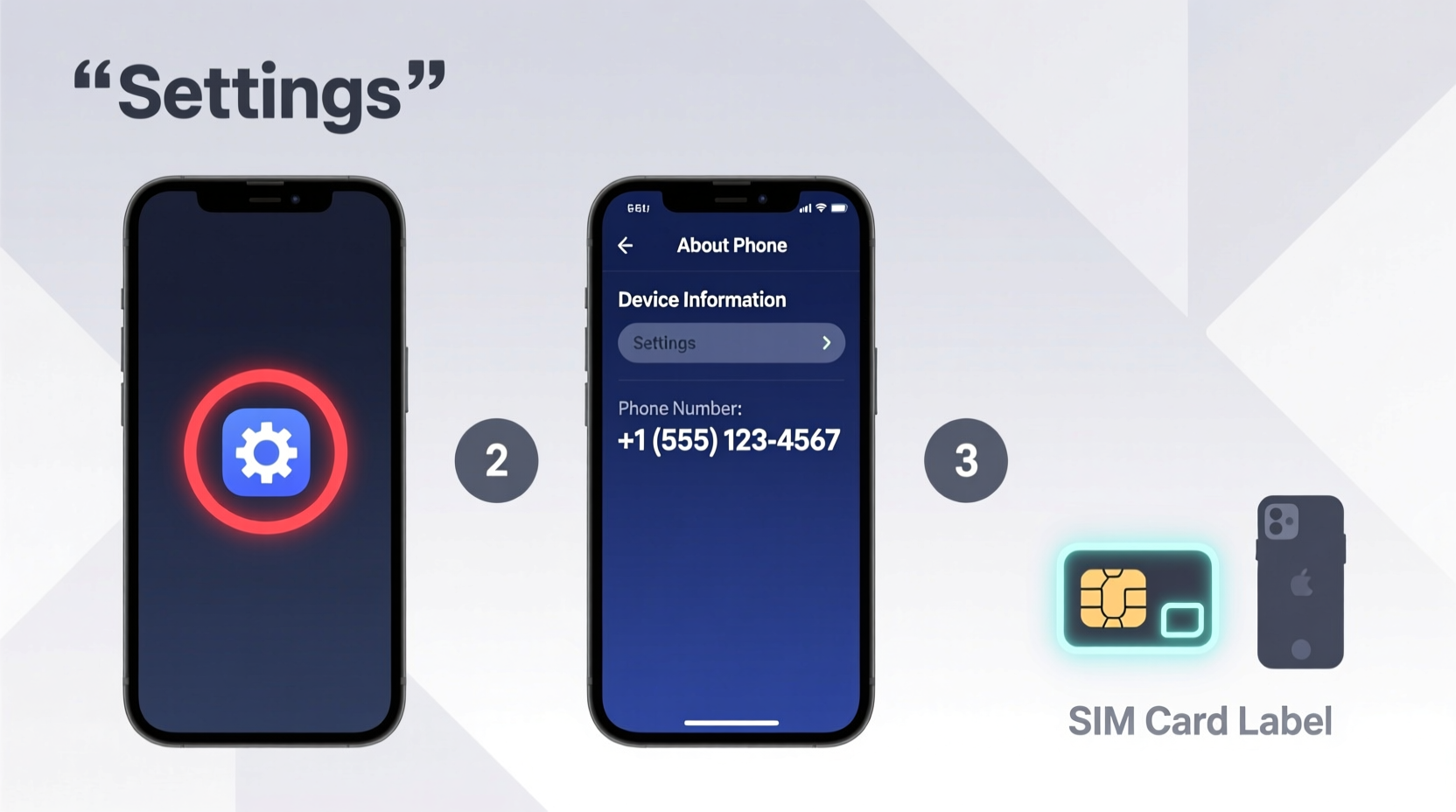
Before diving into the solutions, it’s important to understand why your number may not be accessible at first glance. Mobile carriers don’t always push the subscriber number to the device during activation. This is especially common with:
- eSIM activations
- International SIM cards
- Prepaid or MVNO (Mobile Virtual Network Operator) services
- Older Android devices without updated carrier profiles
In such cases, the operating system may not automatically retrieve the number from the SIM card. Additionally, some users manually delete or edit contact entries linked to “My Number,” further obscuring visibility.
“Many users assume their phone number is stored locally like contacts, but it's actually managed by the carrier and often requires proper provisioning.” — David Lin, Senior Mobile Support Engineer at T-Mobile
How to Find Your Number on iPhone (iOS)
Apple integrates your phone number into several areas of iOS, though availability depends on carrier support and device configuration.
- Open Settings from your home screen.
- Tap your name at the top to enter your Apple ID profile.
- Select Phone.
- Look under “My Number” — this should display your active line’s number.
If the field is blank or shows “Unknown,” try the following alternative method:
- Go to Settings > Phone.
- Tap My Number. If available, it will show here directly.
Another quick workaround: send yourself a text message from another device. The recipient number shown in Messages is likely your own.
Locating Your Number on Android Devices
Android handles phone number storage differently depending on the manufacturer, OS version, and carrier. There’s no universal path, but these approaches cover most scenarios.
Method 1: Using Settings (Varies by Brand)
On Samsung Galaxy phones:
- Navigate to Settings > About phone > Status information.
- Look for “My phone number” — note that this field is often left blank by carriers.
On Google Pixel devices:
- Go to Settings > Network & internet > Mobile network.
- Select your SIM (if dual-SIM), then tap Advanced > Phone number.
- If supported, your number appears here.
Method 2: Check Your Google Account
If you’ve used your number for Google services:
- Open any browser and go to accounts.google.com.
- Sign in with your Google account linked to the device.
- Click Security > Recovery phone.
- Your verified number will be listed (may be partially masked).
This isn’t guaranteed to show your current SIM number, especially if you've changed providers without updating recovery options.
Method 3: Use USSD Codes
Dialing specific codes can prompt your carrier to reply with your number. These vary by region and provider:
| Carrier / Region | USSD Code | Notes |
|---|---|---|
| AT&T (USA) | *#646# | Returns voice plan number |
| T-Mobile (USA) | *#225# | Displays \"MyInfo\" menu with number |
| Vodafone (UK) | *#100# | Shows balance and number |
| Airtel (India) | *#123# | Provides account summary |
| Generic Code | *#06# | Shows IMEI only – not your number |
These codes are free and safe to use. However, success depends on carrier implementation.
Alternative Methods That Work Across Platforms
When built-in settings fail, these universal techniques can help recover your number regardless of device type.
Call or Text Yourself
Use a second phone, tablet, or computer with calling capabilities (like FaceTime, WhatsApp, or Google Voice). Call your mobile number or send a message—the incoming notification will reveal the sender’s number.
Contact Your Carrier Directly
Visit a retail store, call customer service, or log into your online account. Most carriers list your primary number prominently once authenticated. For example:
- Verizon: My Verizon app under “Account Overview”
- AT&T: att.com login shows all lines on account
- Sprint/T-Mobile: Account dashboard displays each device’s number
Check Original Packaging or SIM Tray
Sometimes the simplest solution is overlooked. The original box or starter kit may include documentation with your assigned number. On certain models, particularly older iPhones, the SIM tray ejector pin tool has the number printed on it.
Common Issues and How to Fix Them
Even after trying multiple methods, some users still can’t see their number. Here’s what might be going wrong—and how to resolve it.
- Blank “My Number” field: This usually means the carrier didn’t provision the data. Restart the phone or toggle Airplane mode to force a network refresh.
- Wrong number displayed: Could be a recycled SIM or cached data. Remove and reinsert the SIM, or clear the dialer app cache (Android).
- No USSD response: Carrier doesn’t support the code, or signal is weak. Try again with strong reception.
“It’s surprising how many customers panic thinking they lost their number, when really it’s just not syncing properly with the OS.” — Maria Chen, Customer Experience Lead at U.S. Cellular
Quick Checklist: Find Your Number in Under 5 Minutes
Follow this actionable checklist the next time you need to locate your number fast:
- ✅ Try sending yourself a text via another device
- ✅ Dial *#646# (iPhone) or check Settings > About phone (Android)
- ✅ Log into your carrier’s website or app
- ✅ Use a USSD code appropriate for your provider
- ✅ Look at original SIM packaging or tray
- ✅ Contact customer service as a last resort
Frequently Asked Questions
Can I find my number without a SIM card?
No. Without a SIM, there is no associated phone number. The IMEI (found via *#06#) identifies the device, not the line.
Why does my Android show “Unknown” instead of my number?
This happens when the carrier hasn’t sent the number to the device. It’s common with MVNOs or international SIMs. Manually entering it in Contacts as “My Number” can serve as a temporary fix.
Is it safe to share USSD codes?
Yes, codes like *#646# are read-only and cannot make purchases or change settings. Avoid entering codes from untrusted sources, as some can trigger hidden menus or reset functions.
Conclusion: Stay Prepared with the Right Knowledge
Knowing how to quickly access your mobile number empowers you in everyday situations—from signing up for two-factor authentication to lending your phone to a friend. While modern smartphones manage countless details automatically, basic identity information like your phone number still requires user awareness and occasional troubleshooting.
The key takeaway? Don’t wait until you’re locked out of an account or traveling abroad to discover your number isn’t visible. Test one of the methods above today, confirm your number is retrievable, and consider saving it in a secure note or contact labeled “Personal Line.” A few seconds now can prevent minutes—or hours—of confusion later.




 浙公网安备
33010002000092号
浙公网安备
33010002000092号 浙B2-20120091-4
Comments
No comments yet. Why don't you start the discussion?