
Your phone is full — the warning pops up at the worst times: just before capturing a child’s first steps, during a critical work call, or when trying to download an important app. The instinctive response? Delete photos. But what if those aren’t just images — they’re memories? Deleting them feels like losing a piece of your life.
The good news is that you don’t have to sacrifice your digital memories to regain space. Modern smartphones store vast amounts of hidden data — cached files, duplicate downloads, unused apps, and bloated messaging threads — that can be cleared safely. With smart, strategic actions, you can reclaim hundreds of megabytes or even gigabytes without touching your photo library.
This guide walks through proven, low-risk strategies to declutter your device while preserving every meaningful moment. Whether you're using an iPhone or an Android, these techniques apply universally and deliver immediate results.
1. Understand What’s Really Taking Up Space
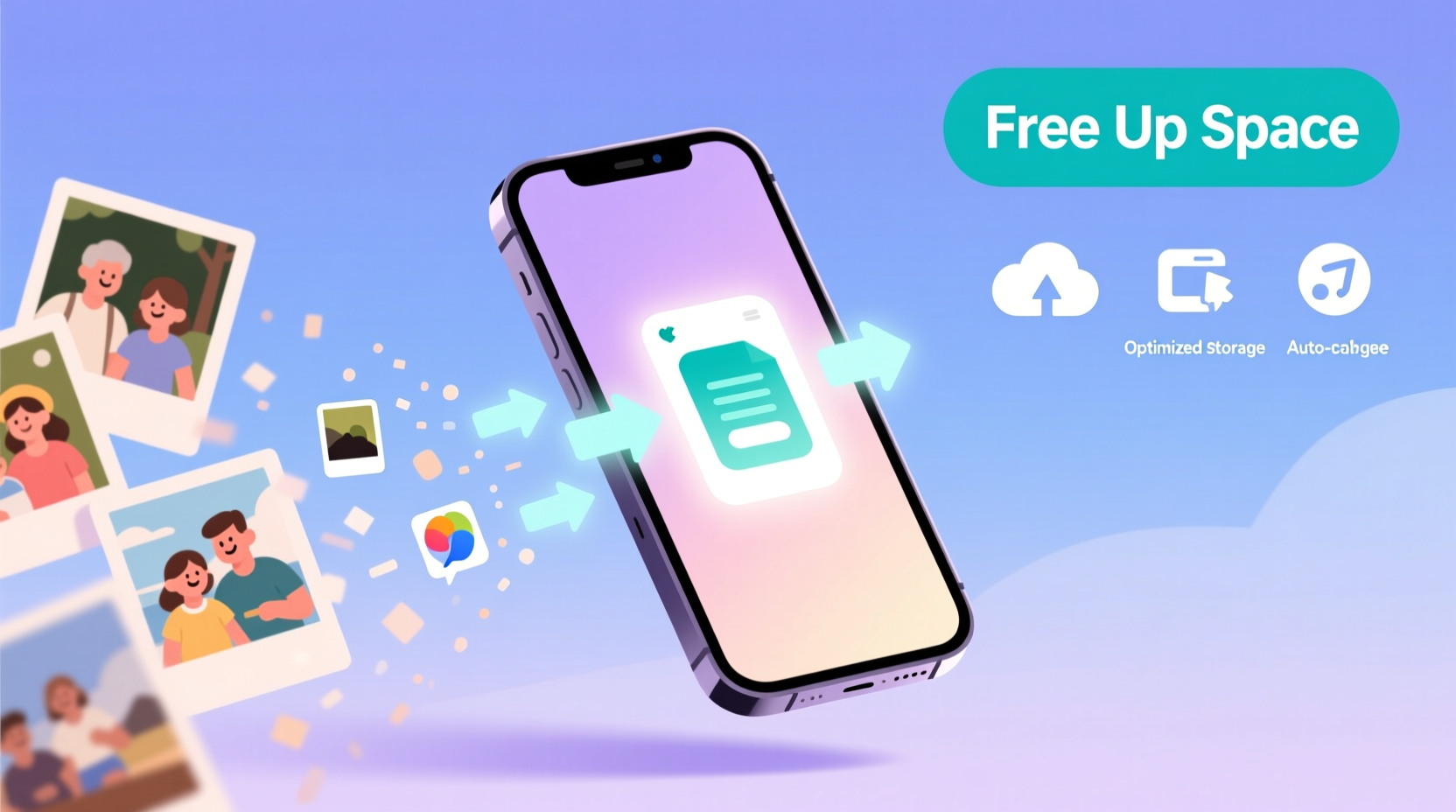
Before removing anything, identify the actual culprits behind storage congestion. Most users assume photos and videos dominate their storage — and often, they do. But other elements quietly accumulate over time:
- App cache and data: Temporary files apps use to run faster, but rarely clean up.
- Messages with media: Years of iMessages or WhatsApp chats filled with images, voice notes, and videos.
- Downloaded files: Forgotten PDFs, APKs, ZIPs, and installers sitting in folders.
- Offline content: Music, podcasts, or maps saved for offline use.
- Duplicate files: Multiple copies of the same image or document across different apps.
On iPhone, go to Settings > General > iPhone Storage. You’ll see a color-coded breakdown of usage by category. Android users can navigate to Settings > Storage for a similar overview. Both systems now categorize storage intelligently, showing not just app size but also “Documents & Data” or “Other,” which often includes orphaned cache.
“Most people panic when they see ‘Storage Almost Full’ — but over 40% of recoverable space comes from temporary files and redundant data.” — Raj Patel, Mobile Systems Analyst at TechFlow Labs
2. Clear App Cache Without Losing Data
Cache is designed to improve performance. Apps like browsers, social media platforms, and streaming services store thumbnails, login tokens, and temporary files locally so they load faster. Over months, this builds up — sometimes to several gigabytes.
Clearing cache doesn’t delete your account information, preferences, or saved content. It simply resets the temporary layer.
For Android:
- Go to Settings > Apps.
- Select high-storage apps (e.g., Chrome, Facebook, Instagram).
- Tap Storage & Cache.
- Press Clear Cache (not Clear Data).
For iPhone:
iOS manages cache more automatically, but you can force-clear it by offloading the app:
- Navigate to Settings > General > iPhone Storage.
- Select a large app (like Spotify or YouTube).
- Choose Offload App — this removes the app but keeps its documents and data.
- Reinstall it from the App Store. The app will return with settings intact, but cache is wiped.
3. Optimize Messaging Apps and Reduce Media Bloat
Text messages with photos, videos, and audio clips are silent storage killers. A single group chat can grow to over 5GB after a year of shared memes, vacation clips, and voice messages.
Instead of deleting entire conversations, adjust auto-save settings and trim existing media:
iMessage (iPhone):
- Go to Settings > Messages.
- Under Message History, change retention from “Forever” to “30 Days” or “1 Year”.
- Enable Auto-Delete Old Conversations to prevent buildup.
- Scroll down and tap Audio Messages — set expiration to “2 Minutes” to avoid accumulating long voice notes.
WhatsApp (iOS/Android):
- Open WhatsApp > Settings > Storage and Data > Manage Storage.
- You’ll see a list of chats sorted by size.
- Select the largest ones and manually uncheck non-essential media before tapping “Delete”.
- Keep text and important files; remove only redundant images or videos you already have elsewhere.
This selective cleanup can free up 1–3 GB instantly, especially in active groups.
4. Use Cloud Offloading and Smart Backups
Cloud storage isn’t just for backing up — it’s a powerful tool for freeing local space while keeping everything accessible.
Services like Google Photos, iCloud Photos, Dropbox, and OneDrive offer “optimize storage” features that automatically replace full-resolution images on your device with smaller, compressed versions — all originals remain safely stored online.
How to Enable Optimization:
| Platform | Setting Name | Action Required |
|---|---|---|
| iPhone (iCloud) | Optimize iPhone Storage | Enable in Settings > [Your Name] > iCloud > Photos |
| Android (Google Photos) | Free Up Space | Run manually under Storage section; removes local copies after backup |
| Both | Backup & Sync | Ensure all media is uploaded before enabling optimization |
Once enabled, your phone displays photos normally, but they stream from the cloud when zoomed. You won’t notice a difference unless you’re offline — and even then, recently viewed images stay cached.
5. Remove Offline Content and Streaming Downloads
If you frequently use Spotify, Netflix, YouTube Premium, or podcast apps, you may have dozens of hours of downloaded content taking up space.
These files are meant to be temporary — used during flights or commutes — but often forgotten.
Quick Cleanup Steps:
- Spotify: Go to Your Library > Playlists > select each downloaded playlist > tap the download icon to remove.
- Netflix: Open app > Menu > My Downloads > tap the trash icon.
- YouTube: Tap profile > Downloads > choose “Remove All” or manage per video.
- Podcast apps: In Apple Podcasts or Pocket Casts, disable auto-download and delete old episodes.
A single downloaded TV season can take up 1.5GB. Removing three such seasons reclaims nearly 5GB — equivalent to over 1,500 photos — with zero impact on your personal memories.
Mini Case Study: Reclaiming 12GB Overnight
Sarah, a freelance photographer, received a “Storage Almost Full” alert right before a wedding shoot. Panicked, she almost deleted her personal photo roll to make room. Instead, she spent 20 minutes auditing her phone using the methods above.
She discovered:
- 7.2GB in WhatsApp backups (mostly memes and forwarded videos).
- 3.1GB in Spotify downloads from a trip six months prior.
- 1.4GB in Safari website data and form history.
By clearing caches, offloading music, and optimizing message retention, Sarah freed up 11.7GB — enough to last through the event. Her cherished family photos remained untouched.
“I didn’t realize how much invisible junk was eating my space,” she said later. “Now I do a quick sweep every month.”
Step-by-Step Guide to a 15-Minute Phone Detox
Follow this timeline to clear significant space fast — ideal when you need breathing room immediately.
- Minute 0–3: Check total storage (Settings > Storage) and note current usage.
- Minute 3–6: Open messaging apps (iMessage, WhatsApp, Messenger) and clear large media in old or inactive chats.
- Minute 6–9: Visit Spotify, Netflix, or YouTube and delete all offline content.
- Minute 9–12: Go to high-storage apps (browser, social media) and clear cache or offload.
- Minute 12–15: Enable cloud optimization (iCloud Photos or Google Photos) and run “Free Up Space” if available.
After completing these steps, check your storage again. Most users see a reduction of 5–15%, depending on previous habits.
Checklist: Quick Storage Rescue Plan
Use this checklist anytime your phone slows down or warns of low storage:
- ✅ Back up all photos and videos to the cloud
- ✅ Clear cache in top 5 largest apps
- ✅ Delete downloaded music, movies, and podcasts
- ✅ Trim message history older than one year
- ✅ Offload infrequently used apps (games, utilities)
- ✅ Enable “Optimize Storage” for photo libraries
- ✅ Empty the “Downloads” folder manually
Repeat monthly for best results.
Frequently Asked Questions
Will clearing cache log me out of apps?
No. Cache contains temporary performance files, not login credentials. You’ll stay logged in. However, the app may load slightly slower the next time you open it as it rebuilds necessary files.
Does “Optimize Storage” affect photo quality?
Only when viewing full resolution. On-device thumbnails look identical. When you view a photo in full screen, your phone fetches the original from the cloud — so quality is preserved. If you’re offline, you’ll see the optimized version, which is still sharp on most screens.
Can I recover something I accidentally deleted during cleanup?
Yes, in most cases. Recently deleted photos stay in the “Recently Deleted” album for 30 days (iOS and Android). For messages, if you backed up your chat history, restoration is possible. Always confirm backups before bulk deletions.
Conclusion: Regain Control Without Sacrificing Sentiment
Running out of phone storage doesn’t mean you must erase your past. With targeted, informed actions, you can reclaim valuable space while protecting every memory. The key is shifting focus from emotional assets — photos, messages, videos — to technical clutter: cache, offline files, and redundant data.
Modern phones are designed to help you manage this balance. Tools like cloud syncing, automatic optimization, and intelligent storage analysis make maintenance easier than ever. The effort takes less than 15 minutes a month, yet prevents stress, missed moments, and performance issues.




 浙公网安备
33010002000092号
浙公网安备
33010002000092号 浙B2-20120091-4
Comments
No comments yet. Why don't you start the discussion?