
Buying or selling an iPhone? One of the most critical details to confirm is whether the device is locked. A locked iPhone can only be used with a specific carrier, severely limiting its usability and resale value. Whether you're purchasing a secondhand device, upgrading your phone, or preparing to sell your current model, knowing how to verify lock status saves time, money, and frustration. This guide walks you through proven methods to determine if your iPhone is locked—quickly, accurately, and without technical expertise.
Why iPhone Lock Status Matters
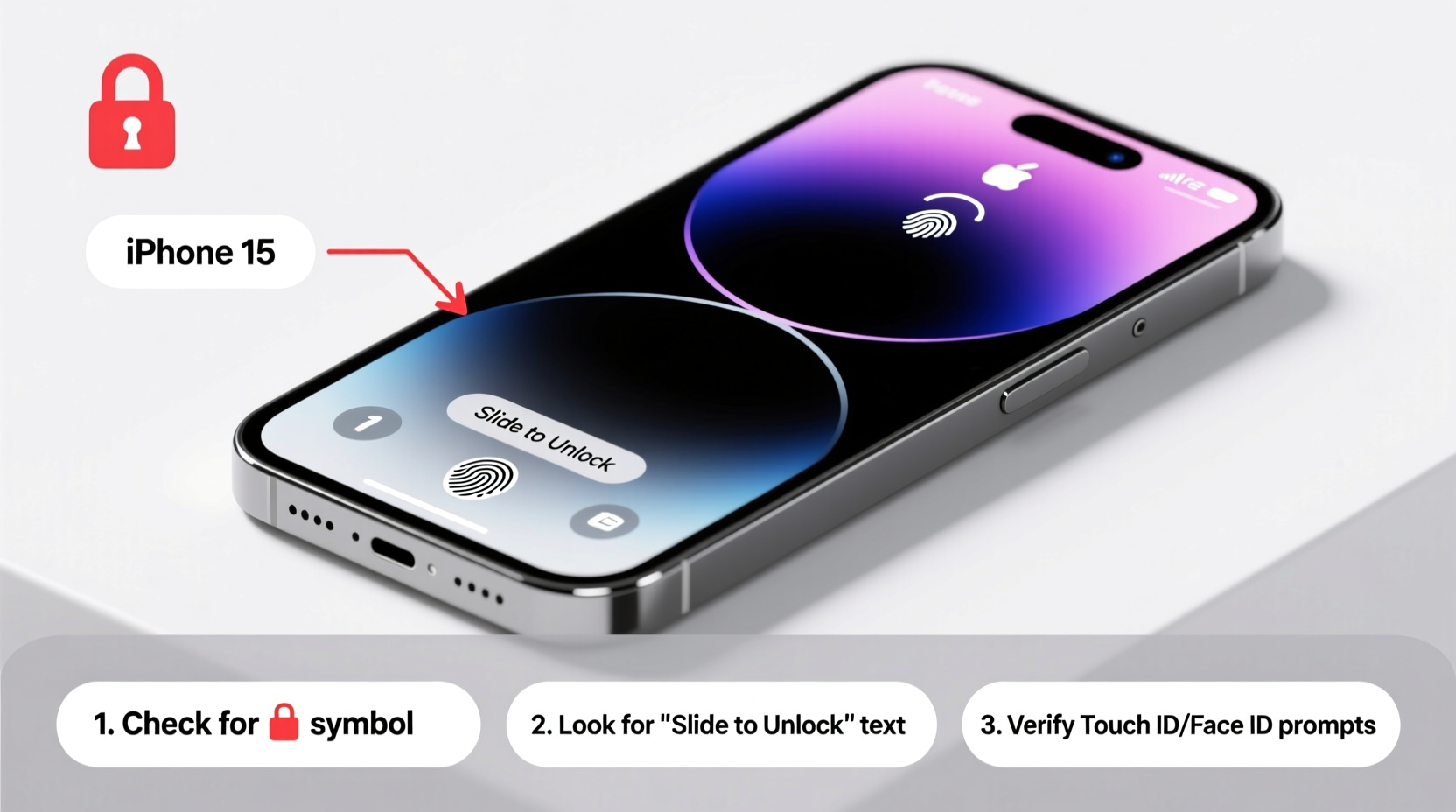
An iPhone may be locked for several reasons: carrier contracts, unpaid balances, or anti-theft protections. When a phone is locked, it won’t accept SIM cards from other carriers, even if they use the same network technology. This restriction applies globally, though unlock policies vary by country and provider.
For buyers, an unknowingly locked iPhone could become a costly paperweight. For sellers, failing to disclose lock status can damage trust and lead to chargebacks. Apple’s Activation Lock, part of Find My iPhone, adds another layer—if enabled, the device cannot be reactivated without the original owner’s Apple ID and password.
“Always verify both carrier and iCloud lock status before completing any iPhone transaction.” — David Lin, Mobile Device Security Analyst
Step-by-Step Guide to Check Carrier Lock Status
Follow these steps to determine if your iPhone is tied to a specific carrier. These methods work regardless of whether you’re the current owner or evaluating a potential purchase.
- Locate the IMEI number: Dial
*#06#on the iPhone’s keypad. A 15-digit number will appear—this is the IMEI (International Mobile Equipment Identity). Write it down or copy it. - Find the IMEI in Settings: Go to Settings > General > About. Scroll down to find the IMEI/MEID. Note that newer iPhones display two IMEIs (for dual-SIM models).
- Use Apple’s Check Coverage Tool: Visit checkcoverage.apple.com and enter the IMEI. While this primarily checks warranty status, some users report lock indicators based on service eligibility.
- Visit your carrier’s IMEI checker: Most major carriers offer free online tools:
- AT&T: Device Unlock Status
- T-Mobile: IMEI Checker
- Verizon: Call customer service or visit a store—Verizon rarely locks post-2019 devices but may restrict due to payment issues.
- Insert a different carrier’s SIM card: Power off the iPhone. Replace the current SIM with one from another carrier. Turn the phone back on. If you see messages like “This iPhone is locked to [Carrier]” or “SIM Not Valid,” it’s locked.
How to Verify iCloud (Activation) Lock Status
Even if an iPhone is unlocked from a carrier, it might still be unusable if Activation Lock is active. This security feature prevents unauthorized access after a reset.
To check Activation Lock status:
- If you have access to the device: Go to Settings > [Your Name] > Find My > Find My iPhone. If \"Find My iPhone\" is turned on, Activation Lock is active. The original Apple ID must sign out before the device can be erased or reactivated.
- If the device is not accessible: You cannot remotely verify Activation Lock unless Apple provides an official tool—which it currently does not.
- Check via Apple’s Activation Lock website: Visit activationlock.apple.com. Enter the device’s IMEI. If prompted for an Apple ID and password, the phone is locked.
Never buy an iPhone without seeing it powered on and confirming that Find My is turned off. Scammers often provide fake screenshots or claim the phone is “clean” when it’s actually reported lost or stolen.
Do’s and Don’ts When Checking iPhone Lock Status
| Action | Do | Don’t |
|---|---|---|
| Before buying | Test with your own SIM card and verify Find My is disabled | Rely solely on seller claims or listing photos |
| Checking IMEI | Use official carrier or Apple websites | Use third-party IMEI checkers that promise “instant unlock reports”—many are scams |
| Selling your iPhone | Remove the device from your Apple ID and disable Find My | Forget to erase all content and settings first |
| After purchase | Contact the carrier directly with the IMEI for confirmation | Assume the phone is unlocked because it powers on |
Real Example: What Happens When You Skip the Checks?
Jamal bought an iPhone 13 online for $400—$200 below market value. The seller said it was “fully unlocked and wiped.” Excited, Jamal inserted his T-Mobile SIM. The phone booted up normally, but after a restart, it asked for an Apple ID and password he didn’t know. He couldn’t activate the phone.
He contacted the seller, who stopped responding. A quick IMEI check revealed the device was not only Activation Locked but also reported as lost by AT&T. Despite having paid in full, Jamal had no recourse. The phone was unusable, and the platform sided with the seller due to lack of proof.
This scenario happens daily. Skipping verification turns a bargain into a loss.
Frequently Asked Questions
Can a factory reset remove carrier lock?
No. Carrier lock is enforced at the firmware level and persists through resets. Only the original carrier can unlock the device, usually after fulfilling contract terms or paying a fee.
Is it legal to unlock an iPhone?
Yes, in the U.S. and many countries, unlocking is legal under certain conditions. The FCC mandates that carriers must unlock eligible devices upon request. However, unlocking a stolen or reported device remains illegal.
How long does it take to unlock an iPhone?
Once approved, most carriers unlock iPhones within 24–72 hours. Some providers, like T-Mobile, offer near-instant unlocks via automated systems. After unlocking, you may need to restore the device using iTunes or Finder to finalize the process.
Final Checklist Before Buying or Selling
- For Buyers:
-
- Verify IMEI isn’t blacklisted using the carrier’s official tool
- Confirm Find My iPhone is turned off
- Test with your own SIM card
- Avoid devices that ask for an old Apple ID during setup
- Ask for proof of purchase and original packaging (optional but helpful)
- For Sellers:
-
- Back up your data
- Sign out of iCloud and turn off Find My iPhone
- Erase all content and settings (Settings > General > Transfer or Reset iPhone > Erase All Content and Settings)
- Provide the IMEI and confirm unlock status to build trust
Take Action Now
Whether you're upgrading, switching carriers, or buying a deal too good to pass up, taking five minutes to verify lock status protects your investment. Use the IMEI, test with a SIM, and always confirm iCloud is clear. These simple steps prevent costly mistakes and ensure your iPhone works exactly as expected.




 浙公网安备
33010002000092号
浙公网安备
33010002000092号 浙B2-20120091-4
Comments
No comments yet. Why don't you start the discussion?