
Moving from an Android device to an iPhone is one of the most common tech transitions today. Whether you're drawn by iOS’s ecosystem, security features, or design, the shift should be smooth—especially when it comes to your contacts. These digital relationships are critical: clients, family, friends, and colleagues all live in your address book. A lost or corrupted contact list can disrupt communication and damage professional credibility.
The good news is that Apple has streamlined the process with built-in tools, and several reliable third-party options exist. However, many users still face issues like duplicate entries, missing numbers, or incomplete names due to improper syncing or incompatible formats. The key isn’t just transferring data—it’s doing so accurately and efficiently.
This guide walks through proven methods to migrate your Android contacts to iPhone quickly and flawlessly, avoiding the most common pitfalls. From Apple’s Move to iOS app to Google-based sync and SIM card fallbacks, every option is evaluated for speed, reliability, and ease of use.
Why Contact Transfer Fails (And How to Prevent It)
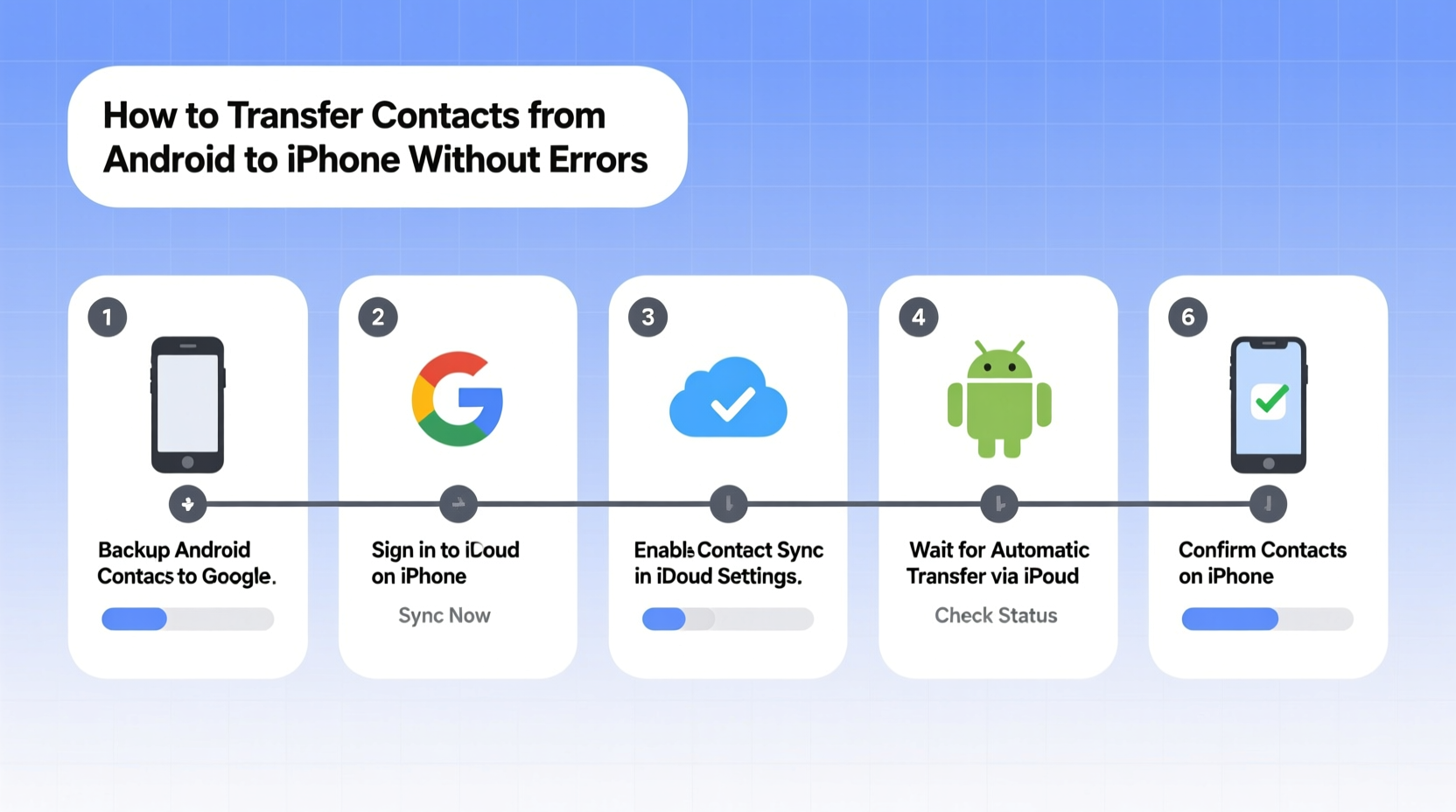
Contact migration seems simple, but failures often stem from overlooked details. Understanding these root causes helps prevent errors before they occur.
- Incorrect export format: Android may store contacts in various locations—Google account, SIM card, or phone memory. Contacts saved only on the device won’t sync automatically.
- Duplicate entries: If you’ve merged contacts across accounts on Android, duplicates may appear during transfer.
- Sync delays: Cloud transfers rely on internet stability. A weak connection can interrupt the process.
- Outdated software: Older versions of iOS or Android may not support current transfer protocols.
- Improper timing: Starting the transfer after setting up your iPhone as a new device bypasses Apple’s dedicated migration tool.
Step-by-Step: Using Apple’s Official “Move to iOS” App
The most reliable way to transfer contacts—and other data like messages, photos, and Wi-Fi settings—is Apple’s free Move to iOS app. Designed specifically for Android-to-iPhone transitions, it creates a private Wi-Fi connection between devices for secure, direct transfer.
- Prepare both devices: Charge your Android and iPhone to at least 50%. Connect both to power if possible.
- Download “Move to iOS”: Install the app from the Google Play Store on your Android phone.
- Start iPhone setup: Power on your iPhone and proceed through setup until you reach the “Apps & Data” screen. Select “Move Data from Android.”
- Open Move to iOS on Android: Tap “Continue,” agree to terms, and wait for a six- to ten-digit code to appear on your iPhone.
- Enter the code: Input this code into the Android app. A secure connection forms between the two devices.
- Select content: Choose “Contacts” (and other desired data). Tap “Next” and wait. The transfer time depends on data volume but typically takes under 10 minutes for contacts alone.
- Complete setup: Once finished, finish iPhone setup. Your contacts will appear in the Phone and Contacts apps immediately.
“Move to iOS eliminates the need for manual exports and reduces human error. It's the gold standard for first-time switchers.” — David Lin, Mobile Migration Specialist at TechOnboard Solutions
Alternative Method: Sync via Google Account
If you've already set up your iPhone or prefer more control over the transfer, syncing through your Google account is highly effective. This method also allows future updates to sync automatically.
Step-by-Step Google Sync Process
- Verify Android contact sync: On your Android, go to Settings > Accounts > Google. Ensure your account is listed and “Contacts” sync is enabled. Force sync if needed.
- Export as backup (optional): In Google Contacts (contacts.google.com), click “Export” and choose vCard format (.vcf) to save a local copy.
- Add Google account to iPhone: Open Settings > Mail > Accounts > Add Account > Google. Sign in and toggle “Contacts” on.
- Wait for sync: The iPhone Contacts app will begin pulling contacts. This may take a few minutes. Check progress in the Contacts app.
- Set default account: Go to Settings > Contacts > Default Account and select your Google account to ensure new contacts save correctly.
This method supports ongoing synchronization. Any future changes on either device update across platforms, provided sync remains active.
Using a SIM Card: Emergency Fallback Option
In rare cases—such as forgotten Google credentials or lack of internet access—you can use your SIM card as a bridge. However, this method has serious limitations.
SIM cards typically hold only basic contact info (name and number), excluding emails, addresses, notes, or custom fields. They also have low storage capacity (usually 250 contacts max).
How to Transfer via SIM
- On Android: Open Contacts > Settings > Import/Export > Copy to SIM.
- Confirm the transfer. Wait for completion.
- Power off Android, remove SIM, and insert into iPhone.
- During iPhone setup or afterward: Go to Settings > Contacts > Import SIM Contacts.
- Select the destination (e.g., iCloud or iPhone account).
While functional in emergencies, this method should be avoided for comprehensive transfers. Use it only when no other option is available.
Comparison of Transfer Methods
| Method | Speed | Reliability | Data Included | Best For |
|---|---|---|---|---|
| Move to iOS App | Fast (5–10 min) | ★★★★★ | Contacts, messages, photos, Wi-Fi, browser data | New iPhone setup; full migration |
| Google Sync | Moderate (2–15 min) | ★★★★☆ | Contacts only (unless using third-party sync) | Ongoing sync; post-setup transfer |
| SIM Card | Slow (manual steps) | ★★☆☆☆ | Name + number only | Emergency use; minimal data |
| vCard File (Email/Cloud) | Variable | ★★★☆☆ | Full contact details | Controlled, one-time import |
Mini Case Study: Sarah’s Seamless Switch
Sarah, a freelance graphic designer, switched from a Samsung Galaxy S21 to an iPhone 15 for better integration with her MacBook. She had over 800 contacts, including clients, collaborators, and personal connections.
Rather than risk losing data, she followed a pre-migration checklist. First, she confirmed all contacts were synced to her Google account. Then, during iPhone setup, she used the Move to iOS app. The entire process took nine minutes. After setup, she verified each contact category and found zero missing entries.
She later enabled Google sync as a backup layer. “Knowing my contacts are mirrored on two platforms gives me peace of mind,” she said. “I didn’t lose a single client number.”
Troubleshooting Common Errors
Even with careful planning, issues can arise. Here’s how to fix them quickly:
- Contacts not appearing: Check if the correct account is selected in Settings > Contacts > Default Account. Also verify sync status in Mail > Accounts.
- Duplicates after transfer: On iPhone, open Contacts, tap a duplicate, then Edit > Link Card to merge entries. Alternatively, clean duplicates in Google Contacts before syncing.
- Missing email addresses or job titles: These fields may not transfer via some methods. Use Google sync or vCard export for full fidelity.
- “Move to iOS” fails to connect: Disable Wi-Fi and Bluetooth on both devices temporarily. Restart the app and iPhone setup. Ensure both devices are close together.
Checklist: Error-Free Contact Transfer
Follow this checklist to ensure a flawless migration:
- ✅ Confirm Android contacts are synced to Google Account
- ✅ Back up contacts via Google Contacts export (.vcf file)
- ✅ Update both Android and iPhone to latest OS versions
- ✅ Use “Move to iOS” during initial iPhone setup if possible
- ✅ If already set up, add Google account and enable Contacts sync
- ✅ Verify transferred contacts in iPhone Contacts app
- ✅ Merge duplicates and set default account for new entries
- ✅ Test by calling or messaging a few contacts
Frequently Asked Questions
Can I transfer contacts after setting up my iPhone?
Yes. You can add your Google account at any time via Settings > Mail > Accounts > Google. Toggle Contacts on to sync. Alternatively, import a vCard file sent to your email.
Will my WhatsApp contacts transfer automatically?
No. WhatsApp stores contacts separately. To move chats, use WhatsApp’s built-in transfer tool during reinstallation. Note: This requires linking your old phone during setup.
What happens if I cancel the Move to iOS transfer midway?
Canceling interrupts the process, potentially leaving partial or corrupted data. It’s best to restart iPhone setup entirely. Back up your Android contacts first to avoid loss.
Final Tips for Long-Term Contact Management
Once your contacts are safely on your iPhone, maintain their integrity with proactive habits:
- Use iCloud or Google as primary: Avoid saving contacts directly to the iPhone unless necessary. Cloud-based storage enables cross-device sync and automatic backups.
- Regularly audit duplicates: Every few months, review and merge redundant entries.
- Label important contacts: Use Favorites or create groups for quick access.
- Enable Find My iPhone: This ensures your device—and its data—can be recovered if lost.
“The real value isn’t in moving contacts—it’s in preserving their accuracy and accessibility long-term.” — Lena Patel, Digital Lifestyle Consultant
Conclusion: Make the Switch with Confidence
Transferring contacts from Android to iPhone doesn’t have to be stressful or error-prone. By using the right method at the right time—especially Apple’s Move to iOS app during initial setup—you can achieve a complete, accurate migration in minutes. When combined with Google sync for redundancy and regular maintenance, your contact list becomes a resilient, always-accessible asset.
Don’t let fear of data loss delay your upgrade. With preparation and the right tools, your transition to iPhone can be fast, secure, and seamless. Start today, follow the steps outlined here, and enjoy the full power of iOS without leaving anyone behind.




 浙公网安备
33010002000092号
浙公网安备
33010002000092号 浙B2-20120091-4
Comments
No comments yet. Why don't you start the discussion?