
Moving to a new smartphone is exciting, but the thought of losing precious memories—especially photos—can turn excitement into anxiety. Whether you're upgrading within the same ecosystem or switching platforms, transferring your data efficiently and safely is essential. The good news: modern tools make it possible to move everything—from contacts and messages to entire photo libraries—in minutes, with zero loss. The key is knowing which method works best for your devices and doing it right the first time.
This guide walks through reliable, fast, and secure ways to migrate your data, focusing especially on preserving every photo you’ve taken. From built-in migration tools to third-party solutions, we’ll cover what works, what doesn’t, and how to avoid common pitfalls that could cost you irreplaceable moments.
Choose the Right Transfer Method for Your Devices
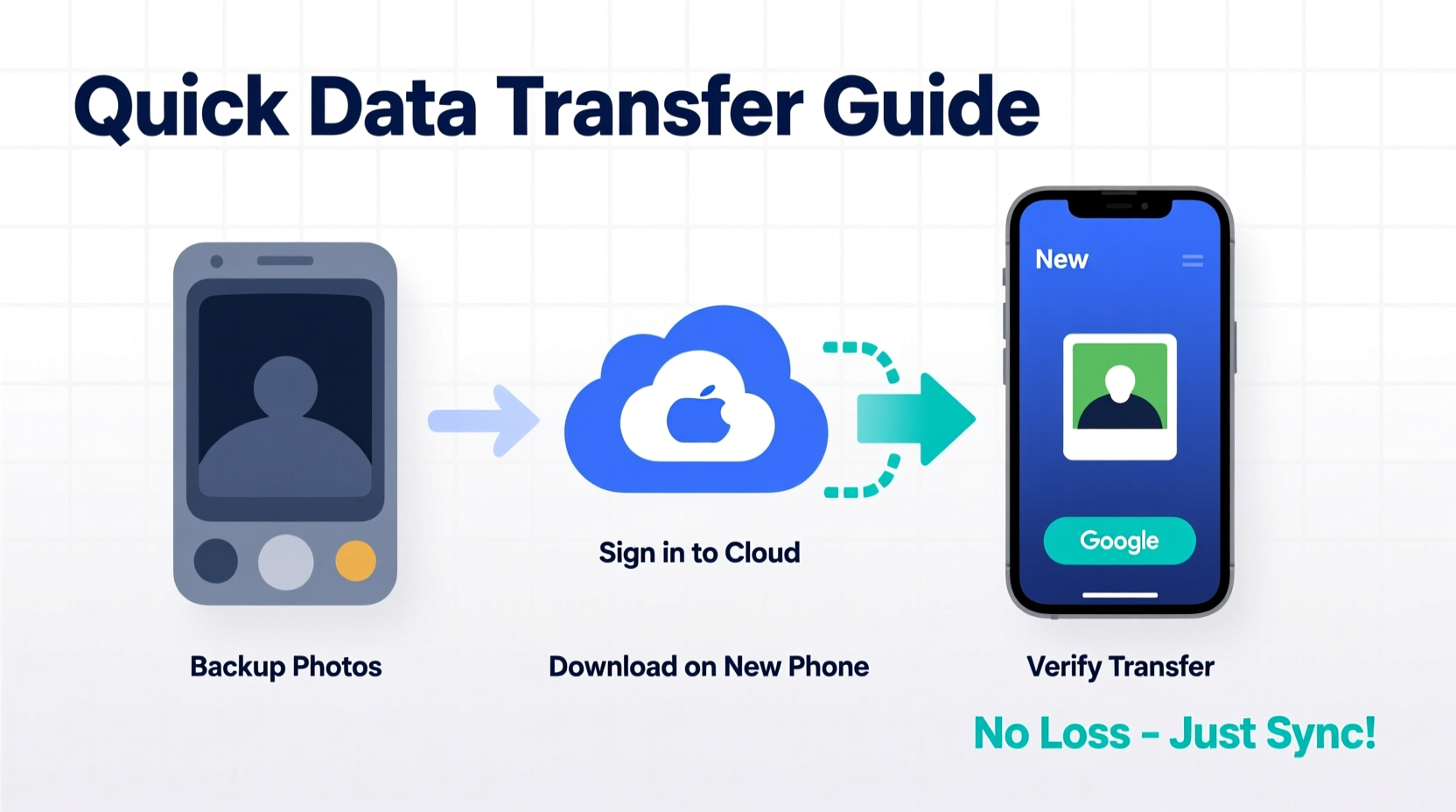
The fastest way to move data depends heavily on whether you’re staying within the same brand (e.g., iPhone to iPhone) or switching platforms (e.g., Android to iPhone). Each ecosystem has its own optimized tools, and understanding them helps you save time and avoid errors.
Apple and Google have both invested heavily in seamless migration experiences. For example, Apple’s Quick Start and Google’s Quick Switch features are designed to handle most transfers wirelessly in under 15 minutes. Third-party apps and cloud services add flexibility, especially when moving between operating systems.
iOS to iOS: Use Quick Start and iCloud
If you’re moving from one iPhone to another, Apple makes it simple. When you power on your new iPhone near your old one, a “Transfer from iPhone” prompt appears. Using Bluetooth and Wi-Fi, the two devices establish a secure peer-to-peer connection. You can then choose to transfer all data directly or restore from an iCloud backup.
For users with large photo libraries, direct transfer is faster than downloading from iCloud, especially if your internet upload speed is slow. However, if you prefer a clean start, backing up to iCloud first gives you more control over what gets restored.
Android to Android: Leverage Google Sync and Smart Switch
On Android, automatic syncing via your Google account ensures that contacts, calendar events, app data, and photos uploaded to Google Photos reappear on your new device after signing in. To transfer local files—especially unuploaded photos—Samsung’s Smart Switch (available on many Android models) enables fast wired or wireless transfers.
Smart Switch supports apps, messages, call logs, and media files, including high-resolution photos stored on internal memory or SD cards. It works across Samsung devices and select non-Samsung Android phones, making it one of the most versatile tools for Android migrations.
Step-by-Step Guide: Fast Data Transfer Without Losing Photos
Follow this structured process to ensure no photo is left behind during your phone upgrade. This timeline applies to both iOS and Android and accounts for preparation, execution, and verification.
- Back up your old phone immediately – Even if you plan a direct transfer, having a backup protects against interruptions.
- Ensure sufficient storage on the new phone – Check available space; consider upgrading storage if needed.
- Connect both phones to Wi-Fi and power – Prevents timeouts and battery drain during transfer.
- Initiate the transfer using the appropriate tool – Quick Start (iOS), Smart Switch (Android), or cross-platform app.
- Verify all photos are present – Open the gallery app and spot-check albums, dates, and recent shots.
- Enable cloud sync on the new device – Ensures future photos are automatically backed up.
This sequence minimizes risk and maximizes speed. Most transfers complete within 10–30 minutes, depending on data volume and connection stability.
Cross-Platform Transfers: Moving from Android to iPhone (and Vice Versa)
Switching ecosystems used to be risky, but tools like Apple’s “Move to iOS” app have made it far safer. This app allows Android users to transfer contacts, message history, photos, videos, and web bookmarks to a new iPhone during initial setup.
To use it:
- Download “Move to iOS” from the Google Play Store.
- Start setting up your new iPhone until you reach the “Apps & Data” screen.
- Select “Move Data from Android,” which generates a private Wi-Fi network.
- Connect your Android device to that network and enter the code displayed on the iPhone.
- Select the content to transfer—ensure “Photos” is checked.
Note: App data and music purchased outside iTunes won’t transfer. Also, only photos stored locally or in Google’s system (not third-party cloud services) will move over. For larger libraries, allow at least 30 minutes for completion.
For iPhone to Android moves, manufacturers like Samsung and Google offer guided migration via their setup wizards. Samsung Smart Switch supports iOS-to-Android transfers via cable or Wi-Fi, though some formatting adjustments may occur due to file compatibility differences.
“Cross-platform transfers have improved dramatically, but photo metadata like timestamps and location can sometimes be lost. Always verify details post-transfer.” — David Lin, Mobile Systems Engineer at TechSync Labs
Cloud-Based Solutions for Photo Preservation
Regardless of transfer method, relying solely on direct copying is risky. Cloud backups act as a safety net. Two dominant options dominate: iCloud Photos and Google Photos.
iCloud Photos automatically uploads all images from your iPhone when enabled. To activate: go to Settings > [Your Name] > iCloud > Photos, then toggle on “iCloud Photos.” All photos sync across devices signed into the same Apple ID.
Google Photos offers similar functionality on Android and iOS. Install the app, sign in, and enable “Backup & Sync.” High-quality backups are free; original quality requires paid storage.
| Service | Free Storage | Photo Quality | Best For |
|---|---|---|---|
| iCloud Photos | 5 GB | Original quality (counts against quota) | iOS users staying in Apple ecosystem |
| Google Photos | 15 GB (shared across Gmail, Drive, Photos) | High quality (free) or Original (paid) | Android users or cross-device access |
| OneDrive + Windows Phone Link | 5 GB | Original quality | Microsoft ecosystem users |
Using cloud sync before switching phones ensures that even if a transfer fails, your photos remain accessible online. After setting up your new phone, simply log in to the same account and download your library.
Mini Case Study: Recovering Lost Photos After a Failed Transfer
Sophia upgraded from a five-year-old Samsung Galaxy S10 to a Pixel 8. Excited to use Google’s “Restore from Backup” feature, she skipped a manual check. A week later, she realized hundreds of photos from a family trip were missing. The issue? Her old phone hadn’t finished uploading all photos to Google Photos before the transfer began.
She recovered the photos by reconnecting her old phone to Wi-Fi and opening the Google Photos app. It resumed uploading the remaining images. Once synced, she accessed them from her new Pixel via the web browser and downloaded them manually. Since then, Sophia now performs a full sync verification before retiring any device.
Her experience underscores a critical rule: never assume sync is complete. Always open the photo app and scroll through your entire library to confirm nothing is pending upload.
Essential Checklist: Don’t Lose Photos During Phone Migration
Use this checklist before, during, and after transferring data:
- ✅ Back up your old phone to iCloud or Google Photos
- ✅ Confirm all photos have uploaded (check for spinning icons or “syncing” labels)
- ✅ Charge both devices to at least 80% or plug them in
- ✅ Connect both phones to the same Wi-Fi network
- ✅ Disable battery saver modes that may interrupt background transfers
- ✅ Use manufacturer-approved tools (Quick Start, Smart Switch, Move to iOS)
- ✅ Verify photo count and sample images on the new phone
- ✅ Re-enable cloud backup on the new device immediately
- ✅ Keep your old phone powered on for 48 hours after transfer as a fallback
Following this list reduces the risk of data loss to near zero. Skipping even one step—like assuming sync is complete—can result in permanent gaps.
Frequently Asked Questions
Can I transfer photos without using the cloud?
Yes. Direct methods like Apple’s Quick Start, Samsung Smart Switch, or a USB-C to USB-C cable allow local transfers without uploading to the cloud. However, these require both devices to be present and may take longer for large libraries.
Why are some of my photos blurry after transfer?
This usually happens when transferring from Google Photos’ “High Quality” (compressed) backup. The originals weren’t saved, so only resized versions are restored. To avoid this, always back up in “Original Quality” if storage allows.
What should I do if the transfer fails halfway?
Restart both devices and try again. If the same error occurs, fall back to cloud restoration. Sign in to your iCloud or Google account on the new phone and restore from there. Ensure stable Wi-Fi and adequate storage space first.
Final Tips for a Smooth Transition
Speed matters when transferring phone data, but accuracy matters more. Rushing the process increases the chance of missing files or corrupt transfers. Take the time to verify each step, especially photo synchronization.
Also, consider labeling your old phone “inactive” rather than resetting it immediately. Keeping it functional for a few days gives you a fallback option if something goes wrong. Once you’re confident everything has moved successfully, you can securely erase and recycle or sell the old device.
Modern smartphones are built to make transitions easy—but they still require user oversight. Automation handles much of the work, but final verification is always your responsibility.
“The safest transfer is the one you double-check. Technology is reliable, but human verification is irreplaceable.” — Lena Patel, Digital Archiving Specialist
Conclusion: Secure Your Memories, Simplify Your Upgrade
Transferring data from your old phone to a new one doesn’t have to be stressful. With the right tools and a careful approach, you can preserve every photo and complete the switch in under an hour. Whether you're staying within iOS or Android or making a cross-platform leap, built-in features and cloud services make fast, loss-free migration entirely achievable.
Don’t leave your memories to chance. Prepare your devices, follow a trusted method, and always verify the results. Your future self will thank you when every birthday, vacation, and spontaneous moment remains exactly where it belongs—safe, accessible, and intact.




 浙公网安备
33010002000092号
浙公网安备
33010002000092号 浙B2-20120091-4
Comments
No comments yet. Why don't you start the discussion?