
Moving from an iPhone to an Android device—or sharing files between friends who use different platforms—can feel like navigating a digital border with no passport. Apple and Google operate on separate ecosystems, each with its own rules for data flow. Yet in today’s connected world, the need to transfer photos, videos, contacts, messages, and documents across these systems is more common than ever. Whether you're switching phones, collaborating on a project, or simply sending vacation clips to a friend, there are fast, reliable ways to bridge the gap.
The good news: you don’t need technical expertise or expensive software. With the right tools and approach, file transfers between iOS and Android can be seamless, secure, and surprisingly quick. This guide walks through the most effective methods available today, including cloud services, cross-platform apps, direct wireless sharing, and even physical options when needed.
Why Transferring Between iPhone and Android Isn't Instant
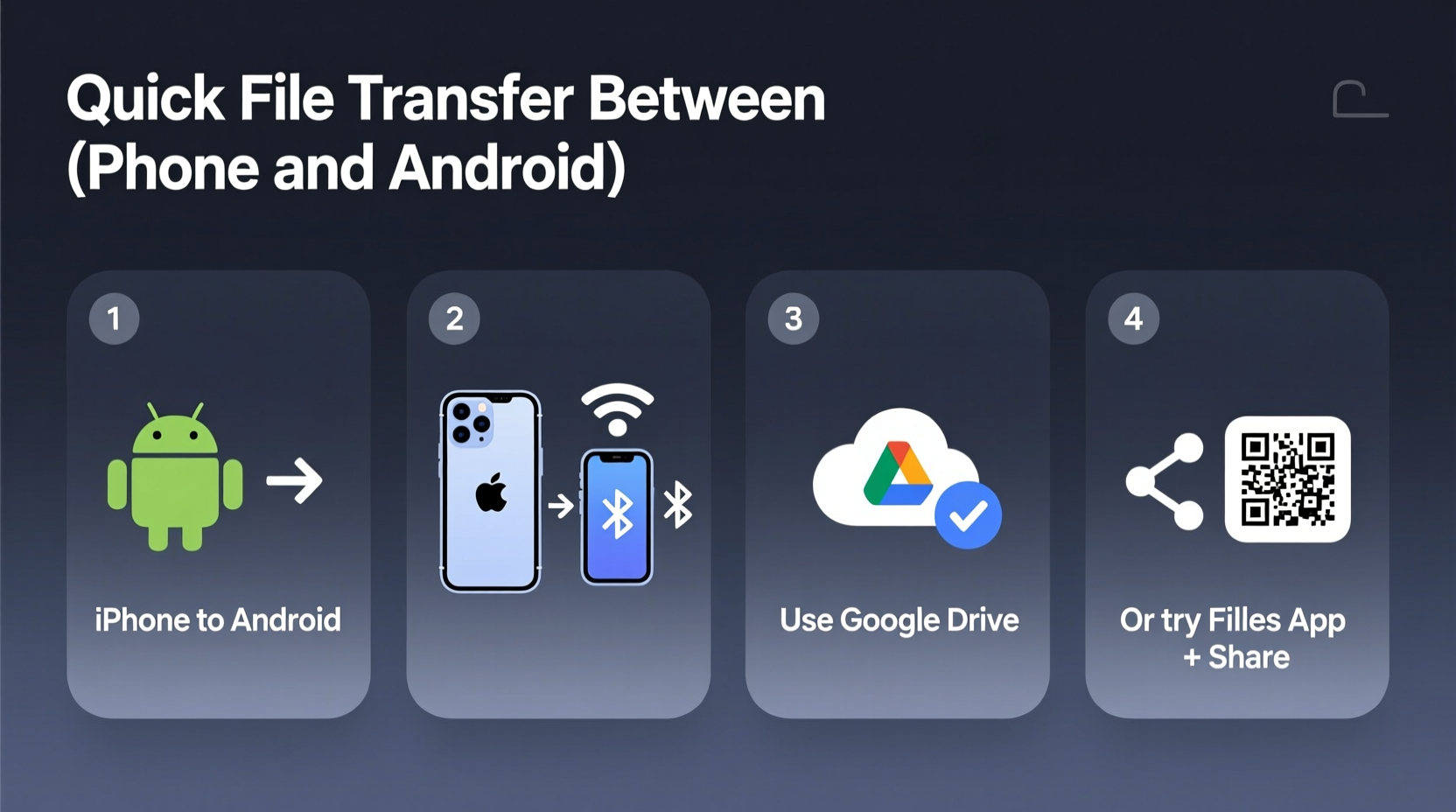
Unlike transferring files between two Windows PCs or two Macs, moving data between Apple and Android devices involves crossing ecosystem boundaries. iPhones rely heavily on iCloud, AirDrop, and proprietary formats, while Android uses Google Drive, Nearby Share, and open file systems. These differences create friction:
- AirDrop only works between Apple devices. It won’t detect Android phones, making one of the fastest iOS sharing tools useless in mixed-device environments.
- iMessage and SMS aren’t fully compatible. While recent updates allow limited message syncing via Messages for Web, full chat history migration still requires third-party solutions.
- File permissions and app silos differ. On iOS, apps often restrict access to internal storage; Android offers broader file system access but varies by manufacturer and OS version.
Despite these challenges, interoperability has improved significantly over the past few years. Both companies now recognize that users own multiple types of devices, and third-party developers have stepped in to fill the gaps.
Top Methods for Fast File Transfer
The best method depends on what you’re transferring, how much data is involved, and whether you're doing it once or regularly. Below are the most reliable techniques ranked by speed, ease, and compatibility.
1. Use Cross-Platform Cloud Services
Cloud storage remains one of the simplest and most universal ways to move files between devices. Upload from your iPhone, download on your Android phone—and vice versa.
Recommended services:
- Google Drive – Pre-installed on most Android devices; available as a free app on iPhone.
- Dropbox – Offers consistent performance across platforms and supports selective sync.
- OneDrive – Ideal if you're already in the Microsoft ecosystem (e.g., using Outlook or Office).
How to use Google Drive for transfer:
- Install Google Drive on your iPhone from the App Store.
- Open the app, tap “+”, and select “Upload” to add files (photos, PDFs, etc.).
- On your Android device, open Google Drive and locate the uploaded files.
- Tap the three dots next to a file and choose “Download” or “Share”.
This method works well for individual files or small batches. For bulk transfers, consider automating uploads via backup settings.
2. Leverage Dedicated Transfer Apps
Several apps are designed specifically to move data between iOS and Android with minimal effort. They bypass cloud dependency by creating direct peer-to-peer connections.
Best-in-class transfer apps:
| App | Transfer Speed | Supported Data Types | Security |
|---|---|---|---|
| Send Anywhere | Fast (Wi-Fi Direct) | Photos, videos, contacts, apps, documents | 6-digit key encryption |
| SHAREit | Very Fast (hotspot-based) | Files up to 10GB+, apps, music | Local transfer (no internet) |
| Xender | Fast | Media, docs, APKs | Encrypted local network |
These apps work by turning one device into a temporary server and connecting the other via QR code, PIN, or Bluetooth handshake. No file goes through external servers, which enhances privacy.
“Dedicated transfer apps reduce cross-platform friction significantly. Tools like Send Anywhere offer near-AirDrop speeds without requiring both devices to be on the same brand.” — Lin Zhao, Mobile Interoperability Analyst at TechBridge Labs
3. Email and Messaging Workarounds
While not ideal for large files, email and messaging apps remain viable for quick, one-off transfers.
When to use:
- Sending a single document under 25MB.
- Transferring contact information or short video clips.
- When neither device has enough storage for additional apps.
Pro tip: Use Gmail’s attachment feature from your iPhone, then log into the same account on your Android device to retrieve the file. Alternatively, send a link via WhatsApp, Telegram, or Signal—especially useful for shared media folders.
4. Physical Transfer via Computer
If you prefer full control over your data and are dealing with hundreds of photos or sensitive documents, using a computer as a middleman ensures reliability and high-speed transfer.
Step-by-step guide:
- Connect your iPhone to a Mac or PC using a Lightning cable.
- On Mac: Open Finder, select your iPhone under Locations, and navigate to Photos or Files.
- On Windows: Use iTunes or the built-in Photos app to import images/videos.
- Select desired files and copy them to a folder on your computer.
- Disconnect iPhone and connect your Android device via USB.
- Enable “File Transfer” mode on Android when prompted.
- Drag and drop files from the computer folder to your Android’s internal storage or SD card.
This method is especially helpful when migrating from iPhone to Android permanently. It also allows you to organize files before transfer—renaming, sorting into folders, or deleting duplicates.
5. Smart Sharing with QR Codes
Modern smartphones can share URLs, Wi-Fi passwords, and even files using QR codes. This technique is underrated but highly effective for instant transfers in person.
How it works:
- On your iPhone, open the file (e.g., a photo in Photos app).
- Tap “Share,” then select “Copy Link” or use a service like Google Photos to generate a shareable URL.
- Go to a QR code generator website (like qr-code-generator.com) on Safari.
- Paste the link and generate the code.
- Have the Android user scan the QR code using their camera or Google Lens.
- The link opens instantly, allowing download.
This method avoids app downloads and works across all modern smartphones. Some newer Android phones even let you create QR codes directly from files in the Share menu.
Mini Case Study: Switching from iPhone to Pixel
Jamie had used an iPhone 13 for three years and recently upgraded to a Google Pixel 8. She needed to move over 1,200 photos, her contact list, calendar events, and several work documents. Here’s how she did it in under 90 minutes:
- Step 1: Backed up all iPhone photos to Google Photos via the app (set to “High Quality” for faster upload).
- Step 2: Used Google’s “Move to Android” app during initial Pixel setup to transfer contacts, calendars, and messages via a direct Wi-Fi connection.
- Step 3: Downloaded remaining documents from iCloud Drive to her laptop, then transferred them to the Pixel via USB.
- Step 4: Verified everything was intact and unlinked her old device from shared accounts.
Total time: 87 minutes. Cost: $0. Result: Full continuity without data loss.
Checklist: Quick Transfer Success
Before starting any transfer, run through this checklist to ensure a smooth process:
- ✅ Charge both devices to at least 50% to prevent shutdowns mid-transfer.
- ✅ Connect both phones to the same Wi-Fi network for faster local transfers.
- ✅ Disable battery saver modes that may interrupt background processes.
- ✅ Free up space on the receiving device if moving large media libraries.
- ✅ Sign in to the same cloud account (Google, Dropbox, etc.) on both devices.
- ✅ Enable location and Bluetooth (required for some peer-to-peer apps).
- ✅ Confirm file format compatibility (e.g., HEIC vs JPG, .mov vs .mp4).
Do’s and Don’ts of Cross-Platform Transfers
| Do | Don’t |
|---|---|
| Use end-to-end encrypted apps for sensitive files. | Rely solely on public Wi-Fi for transfers. |
| Compress large albums into ZIP files before sending. | Assume all apps support HEIC image format on Android. |
| Verify file integrity after transfer. | Leave transfer apps running indefinitely—close them after use. |
| Use official apps from trusted developers (Google, Microsoft, etc.). | Download unknown “transfer booster” apps promising unrealistic speeds. |
Frequently Asked Questions
Can I transfer iMessages to an Android phone?
Direct iMessage transfer isn’t supported due to encryption and platform restrictions. However, you can export message threads as text files using third-party tools like iMazing (on a computer), then share them via email or cloud. Note: Multimedia attachments may not carry over completely.
Why are my iPhone photos blurry on Android?
This usually happens because iPhone saves photos in HEIC format by default, which many Android devices don’t support natively. To fix this, go to Settings > Camera > Formats on your iPhone and select “Most Compatible” (switches to JPEG). Alternatively, convert HEIC files using online converters or Google Photos, which automatically converts them during upload.
Is it safe to use third-party transfer apps?
Yes—if downloaded from official stores (App Store, Google Play) and developed by reputable companies. Avoid apps requesting unnecessary permissions (e.g., access to SMS or call logs when transferring photos). Stick to widely reviewed tools like Send Anywhere, SHAREit, or Xender, which use local encryption and don’t store your data.
Final Thoughts: Make Cross-Platform Easier
Transferring files between iPhone and Android doesn’t have to be a headache. The key is choosing the right tool for the job: cloud services for convenience, dedicated apps for speed, and computer-assisted transfers for complete migrations. As interoperability improves, we’re moving toward a future where your operating system doesn’t limit how you share your digital life.
Start by identifying what you need to move and how urgently. Then apply the appropriate method—whether it’s scanning a QR code across the dinner table or syncing years of memories through Google Photos. With practice, switching between ecosystems becomes routine, not daunting.




 浙公网安备
33010002000092号
浙公网安备
33010002000092号 浙B2-20120091-4
Comments
No comments yet. Why don't you start the discussion?