
Moving files between an iPhone and an Android device often feels like crossing a digital border with strict customs. Apple’s ecosystem is tightly sealed, while Android offers openness—but bridging the two usually pushes users toward iCloud or Google Drive. Yet many prefer to avoid the cloud entirely: due to privacy concerns, limited storage, slow upload speeds, or simply a desire for direct control over their data.
The good news is that transferring photos, videos, contacts, messages, and documents from iPhone to Android (or vice versa) can be fast, secure, and completely offline. No internet? No problem. With the right tools and methods, you can move large files in minutes using only your devices and a cable or local Wi-Fi connection.
Why Avoid Cloud-Based Transfers?
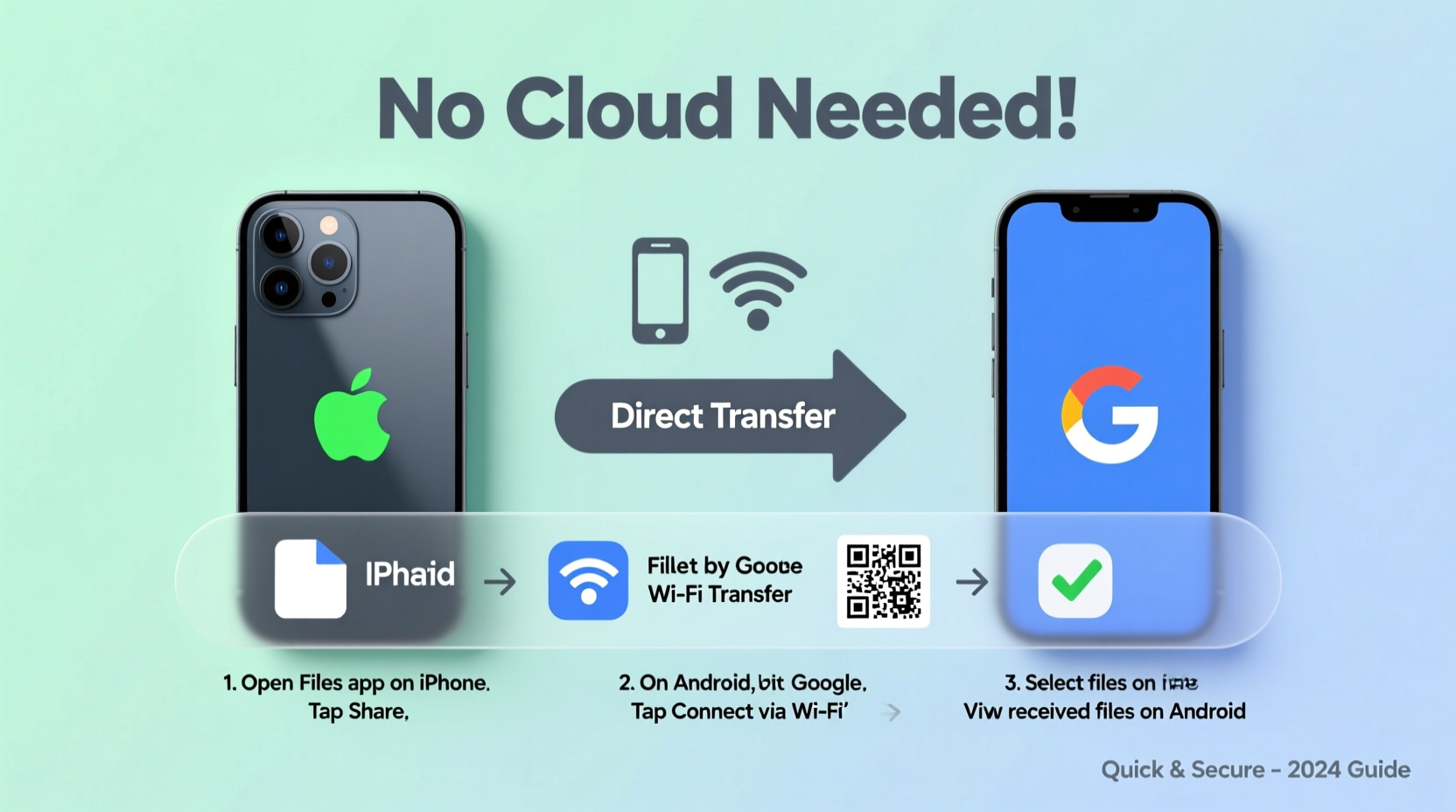
While cloud services like iCloud, Google Photos, or Dropbox are convenient, they come with drawbacks:
- Privacy risks: Uploading personal media to third-party servers increases exposure to breaches or unauthorized access.
- Data caps: Large photo and video libraries can consume bandwidth, especially on metered connections.
- Compression: Some platforms automatically compress media, reducing quality.
- Cost: Extended cloud storage often requires paid subscriptions.
- Speed: Uploads and downloads depend on internet stability, which can delay transfers significantly.
Direct, offline methods bypass these issues by keeping data confined to your control. Whether you're switching phones, sharing with friends, or backing up critical files, local transfer options offer speed, reliability, and peace of mind.
Top Methods for Direct iPhone-to-Android File Transfer
Below are five proven, cloud-free techniques ranked by speed, ease of use, and compatibility. Each works without requiring a continuous internet connection after setup.
1. Use a USB OTG Cable with File Transfer Apps
One of the fastest physical methods involves connecting your iPhone and Android directly via a USB On-The-Go (OTG) cable. While iPhones don’t support standard USB host mode, certain apps and cables enable file sharing through local networks created by the phone itself.
- Purchase a USB-C to Lightning OTG adapter (for newer Android phones) or Micro-USB variant if needed.
- Connect both devices using a compatible USB cable.
- Install a cross-platform file transfer app like Portal by Pushbullet or SHAREit.
- On iPhone, open the app and select “Send.” On Android, tap “Receive.”
- Choose files and begin transfer over the direct link established by the app.
This method achieves transfer speeds of up to 20 MB/s depending on file size and device performance—significantly faster than most home Wi-Fi uploads.
2. Local Wi-Fi Direct Transfer with SHAREit or Send Anywhere
Wi-Fi Direct creates a peer-to-peer network between devices, eliminating the need for a router. Apps like SHAREit and Send Anywhere leverage this protocol to move files at high speed.
| App | Max Speed | iOS Support | Android Support | Encryption |
|---|---|---|---|---|
| SHAREit | Up to 20 Mbps | Yes (limited features) | Yes | End-to-end (AES-128) |
| Send Anywhere | Up to 15 Mbps | Yes | Yes | Yes (6-digit key required) |
| Portal by Pushbullet | Varies (Wi-Fi dependent) | Yes | Yes | HTTPS tunneling |
To use Send Anywhere:
- Install the app on both iPhone and Android.
- Open the app and select “Send” on the source device.
- Choose files—photos, videos, APKs, documents.
- Note the 6-digit key displayed or scan the QR code from the receiving device.
- Accept the transfer on the destination phone.
Files are transferred over a temporary local network. No data touches external servers, and the entire process typically completes within seconds for small batches or under five minutes for multi-gigabyte transfers.
3. AirDroid Personal Mode + iPhone Web Interface
AirDroid allows Android users to manage their device from a web browser. By enabling Personal Mode, you can securely connect your iPhone’s browser to your Android phone over the same Wi-Fi network and push files locally.
“AirDroid’s local transfer mode ensures zero data leaves your network. It’s ideal for sensitive documents or private media.” — Lin Tao, Mobile Security Analyst at NetSecure Labs
Steps:
- Ensure both devices are on the same Wi-Fi network.
- Open AirDroid on Android and enable “Local Connection.”
- Note the IP address and port shown (e.g., http://192.168.1.15:8888).
- On iPhone, open Safari and enter the full URL.
- Authenticate using the PIN displayed on the Android screen.
- Navigate to “File Transfer,” drag and drop files from iPhone (via upload prompt), or download files stored on Android.
This method supports batch transfers and even clipboard syncing. Since communication occurs over LAN, it's fast and encrypted within the network boundary.
4. Use a Dual-Compatible Flash Drive (OTG USB Stick)
Dedicated USB drives with dual connectors—Lightning for iPhone and USB-C/Micro-USB for Android—are excellent for one-way bulk transfers.
Popular models include:
- SanDisk iXpand Luxe
- Seagate One Touch Mobile
- Leef iAccess
Workflow:
- Plug the drive into your iPhone first.
- Use the companion app (e.g., iXpand Drive) to copy photos, videos, or files to the drive.
- Eject safely, then connect the USB-C end to your Android phone.
- Use the built-in file manager or a file explorer app to copy data to internal storage.
This approach is particularly useful when migrating all media during a phone switch. A 64GB or 128GB drive can hold thousands of photos and hours of HD video.
5. Create a Local Web Server Using Python or Node.js (Advanced)
For technically inclined users, setting up a minimal web server on one device allows instant file access from the other via browser.
Example using Python (on Android with Termux):
- Install Termux from F-Droid or GitHub.
- Run:
pkg install python - Navigate to the folder containing files:
cd /sdcard/Download - Start server:
python -m http.server 8000 - On iPhone, open Safari and go to
http://[android-ip]:8000 - Download any visible file directly.
This method gives full control and transparency. All traffic stays within the local network, and no app permissions are required beyond basic file access.
Mini Case Study: Switching Phones Before a Family Trip
Sophia had just upgraded from an iPhone 12 to a Samsung Galaxy S23. She was leaving the next day for a two-week family vacation and wanted all her photos—over 8,000—from the past year on her new phone before departure. She didn’t want to wait days for iCloud to sync, nor did she trust public Wi-Fi for cloud uploads.
Using a SanDisk iXpand flash drive, she connected it to her iPhone and used the iXpand app to automatically back up her entire camera roll overnight. The next morning, she plugged the drive into her Galaxy via USB-C OTG adapter and copied everything to the DCIM folder. Total time: 12 minutes for final transfer. Her albums appeared instantly in Google Photos without re-uploading.
No internet was used after initial backup, and she retained original quality. The entire migration cost less than $30 and gave her confidence her memories were secure.
Checklist: Fast, Offline iPhone-to-Android Transfer
Follow this checklist for a smooth, cloud-free transfer:
- ✅ Ensure both devices are charged (or plug them in during transfer)
- ✅ Install trusted file-sharing apps (Send Anywhere, SHAREit, Portal)
- ✅ Use a high-quality OTG cable or dual-connector USB drive
- ✅ Connect both devices to the same Wi-Fi network (if using wireless method)
- ✅ Disable sleep mode or screen timeout during large transfers
- ✅ Verify transferred files by opening a sample photo, video, or document
- ✅ Eject external drives properly to avoid corruption
Common Pitfalls to Avoid
Even with the right tools, mistakes can derail a transfer. Be mindful of these issues:
- Using untrusted third-party apps: Stick to well-reviewed apps with transparent privacy policies. Avoid apps requesting unnecessary permissions like SMS or call logs.
- Interrupting transfers: Closing the app or locking the screen may pause or cancel ongoing transfers, especially on iOS.
- File format incompatibility: HEIC photos from iPhone may not display natively on older Android versions. Convert to JPG first using built-in iOS settings or during transfer.
- Storage limitations: Check available space on the destination device before initiating large transfers.
- Outdated OS versions: Older iOS or Android versions may lack support for modern transfer protocols. Update both devices if possible.
FAQ: Offline iPhone-Android Transfers
Can I transfer WhatsApp chats without the cloud?
Yes, but only from Android to iPhone officially. For iPhone to Android, WhatsApp does not provide a direct local export tool. However, third-party tools like Dr.Fone or iMazing can back up WhatsApp data locally and allow selective restoration on Android—though this requires caution regarding data security.
Is Bluetooth a viable option?
Bluetooth is supported but impractical for large transfers. Sending a 1GB video could take over an hour. Wi-Fi Direct or USB methods are 10–50x faster and more reliable.
Do these methods work without Wi-Fi?
Yes. USB OTG, flash drives, and mobile hotspot-based Wi-Fi Direct (where one phone creates a network) function without traditional Wi-Fi. Only a direct connection or local network is needed.
Conclusion: Take Control of Your Data
Transferring files between iPhone and Android doesn’t require surrendering your data to the cloud. With simple tools and a few minutes of setup, you can move photos, videos, and documents quickly, securely, and privately. Whether you choose a physical flash drive, a peer-to-peer app, or a DIY web server, the power to control your digital life remains in your hands.
Stop waiting for uploads. Stop worrying about compression. Start using direct transfer methods that respect your time and privacy. Try one of the techniques above today—and experience how seamless cross-platform sharing can truly be.




 浙公网安备
33010002000092号
浙公网安备
33010002000092号 浙B2-20120091-4
Comments
No comments yet. Why don't you start the discussion?