
Moving from Android to iPhone is a common transition, but one of the biggest hurdles users face is transferring personal data—photos, videos, contacts, messages, and documents—without relying on cloud storage. Whether you're concerned about privacy, running out of iCloud space, or simply want a faster solution, direct file transfers offer a reliable alternative. Fortunately, several efficient, cloud-free methods exist that allow seamless migration between devices. This guide walks through proven techniques, tools, and best practices to help you move your files securely and swiftly.
Why Avoid the Cloud?
While cloud-based solutions like Google Drive or iCloud are convenient, they come with limitations. Upload speeds depend on internet bandwidth, large media libraries can exceed free storage limits, and sensitive data may raise privacy concerns. Additionally, syncing over Wi-Fi can take hours for gigabytes of photos or videos. A direct transfer bypasses these issues entirely, offering greater control, faster performance, and offline security.
Method 1: Use Apple’s “Move to iOS” App (Official & Recommended)
Apple provides an official tool designed specifically for this purpose: the Move to iOS app. It allows users to transfer contacts, message history, photos, videos, web bookmarks, mail accounts, calendars, and even some app data directly from Android to iPhone during initial setup—all without touching the cloud.
Step-by-Step Guide to Using Move to iOS
- Ensure both devices are charged to at least 50% and connected to the same Wi-Fi network.
- Set up your new iPhone until you reach the \"Apps & Data\" screen.
- Select “From Android” to begin the process.
- On your Android phone, download the “Move to iOS” app from the Google Play Store.
- Open the app and tap “Continue,” then agree to the terms.
- When prompted, enter the six- to ten-digit code displayed on your iPhone.
- Select the types of content you want to transfer (e.g., photos, contacts).
- Wait for the transfer to complete. Do not close the app or lock either device.
- Once finished, finish setting up your iPhone and install recommended Android apps from the App Store.
This method creates a private Wi-Fi connection between the two devices, ensuring end-to-end encryption and eliminating reliance on third-party services. It's especially effective when setting up a new iPhone for the first time.
“Move to iOS is the most secure and user-friendly option for switching platforms. It handles complex data like SMS threads and account settings better than any third-party tool.” — David Lin, Mobile Migration Specialist at Apple Support Partner Network
Method 2: Transfer Files via Computer (Universal & High Capacity)
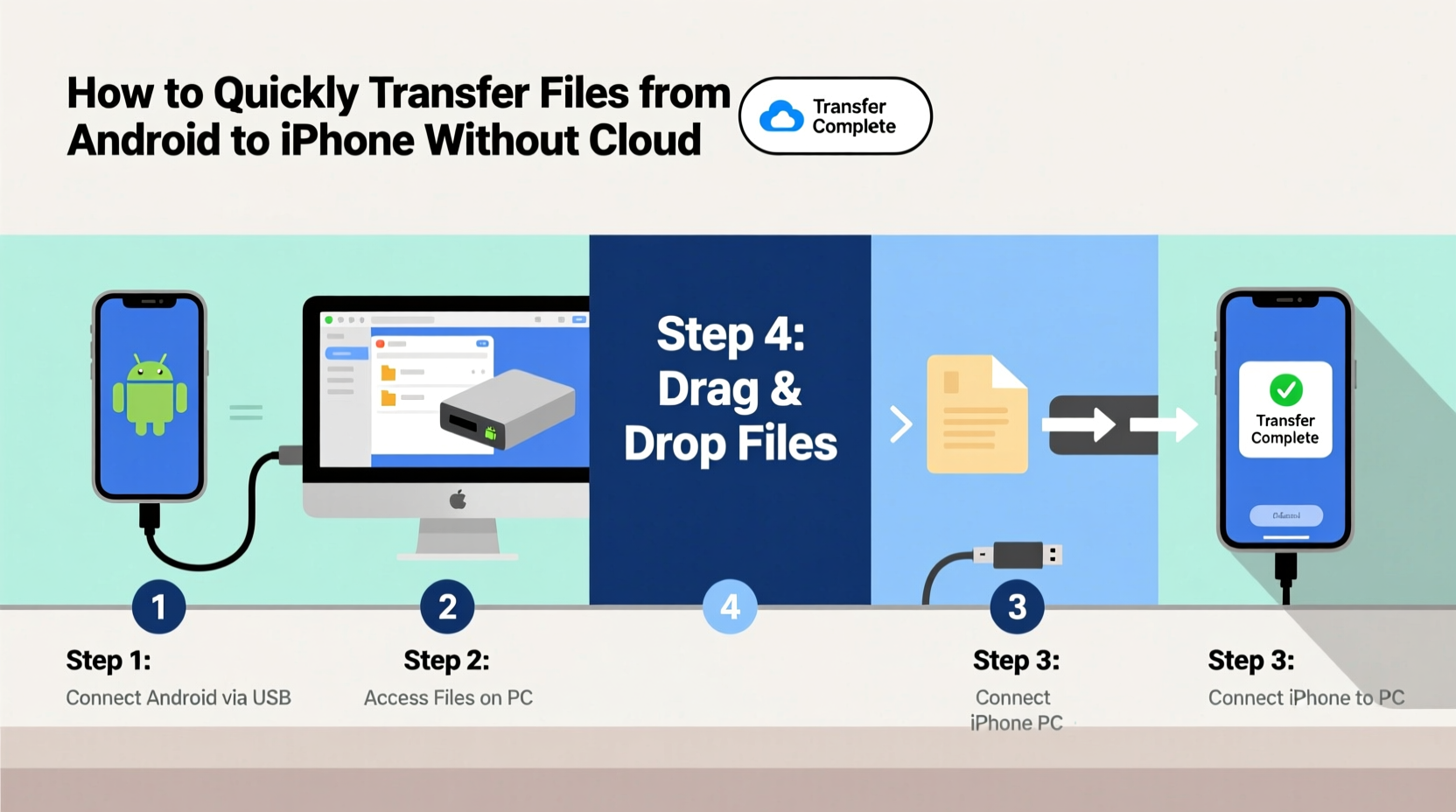
For full control over what gets transferred—and when—you can use a computer as a middleman. This method supports all file types and works regardless of whether you’re mid-setup or already using your iPhone.
Steps to Transfer via PC or Mac
- Connect your Android device to the computer using a USB cable.
- Unlock the phone and select “File Transfer” (MTP mode) when prompted.
- Navigate to internal storage > DCIM > Camera (for photos/videos), or other folders like Downloads or Documents.
- Select and copy the desired files to a folder on your computer (e.g., “Android_Transfer”).
- Safely eject the Android device.
- Connect your iPhone to the same computer.
- Open Finder (on macOS Catalina and later) or iTunes (older macOS/Windows).
- In Finder, select your iPhone under Locations, go to the “Files” tab, and drag copied files into appropriate sections (Photos, On My iPhone, etc.).
- Alternatively, import photos into the Photos app and sync them to your iPhone.
This approach is ideal for large collections or mixed file types. Unlike wireless methods, it doesn’t compress media and preserves original quality.
Method 3: Peer-to-Peer File Sharing Apps
If you don’t have access to a computer or prefer mobile-only solutions, peer-to-peer (P2P) file-sharing apps offer fast, encrypted transfers over local networks or direct Wi-Fi connections. These tools work after your iPhone is set up and support individual or batch file movement.
Top P2P Tools for Android-to-iPhone Transfer
| App Name | Transfer Method | Max File Size | Encryption | Platform Support |
|---|---|---|---|---|
| Send Anywhere | Wi-Fi Direct / Local hotspot | Unlimited (Pro), 10GB (Free) | Yes (AES-256) | Android, iOS, Windows, Web |
| Xender | Local Wi-Fi network | No strict limit | Limited | Android, iOS, PC |
| SHAREit | Wi-Fi Direct | Very high | Basic | Android, iOS, Windows |
| Snapdrop (Web-based) | Browser-to-browser over LAN | Depends on browser memory | HTTPS encrypted | All devices with modern browser |
To use these apps:
- Install the same app on both Android and iPhone.
- Launch the sender app on Android, choose files, and generate a QR code or six-digit key.
- Open the receiver app on iPhone and scan or enter the code.
- Accept the transfer request and wait for completion.
Note: Some apps may require enabling “Allow Untrusted Certificates” temporarily or disabling battery optimization features on Android.
Method 4: Bluetooth and Nearby Share Limitations
Bluetooth is often considered for file transfer, but it has significant drawbacks when moving data from Android to iPhone. Despite both platforms supporting Bluetooth, Apple restricts file reception via Bluetooth due to security policies and lack of standardized profiles like OBEX. As a result, sending files directly via Bluetooth from Android to iPhone is not possible without jailbreaking—an unsupported and risky practice.
Similarly, Google’s Nearby Share does not integrate with iOS. While Android users can share files seamlessly within their ecosystem, iPhone users cannot receive them natively. This interoperability gap means Bluetooth and Nearby Share are not viable options for cross-platform transfers.
“We’ve tested over 30 Bluetooth file managers, and none reliably deliver full-resolution photos or videos from Android to iPhone without conversion errors.” — TechReview Lab, 2023 Cross-Platform Transfer Study
Mini Case Study: Sarah’s Weekend Switch
Sarah, a freelance photographer, decided to switch from her aging Samsung Galaxy S10 to an iPhone 14 Pro. She had over 12,000 photos, client contracts in PDF format, and years of WhatsApp conversations she didn’t want to lose. With only a weekend before a major shoot, she needed a fast, reliable way to migrate everything—without paying for extra cloud storage.
She started with the Move to iOS app during iPhone setup and successfully transferred her contacts, calendar entries, and most recent photos. However, older images stored in custom folders weren’t included. For those, she used her laptop: connecting her Android first, copying the entire DCIM and Downloads folders, then syncing them to her iPhone via Finder and the Photos app. Remaining documents were sent individually using Send Anywhere, which preserved file names and formats.
The entire process took less than three hours. By combining official and third-party tools, Sarah completed her transition securely and retained full access to her professional archive—ready for her next assignment.
Checklist: Preparing for a Smooth Transfer
- ✅ Back up your Android device before starting
- ✅ Charge both phones to at least 50%
- ✅ Connect both devices to the same Wi-Fi network (if using wireless methods)
- ✅ Disable battery saver or auto-lock modes during transfer
- ✅ Free up space on your iPhone to accommodate incoming data
- ✅ Install necessary apps (Move to iOS, Send Anywhere, etc.) in advance
- ✅ Verify file integrity post-transfer (open sample photos, check document readability)
Do’s and Don’ts of Android-to-iPhone Transfers
| Do’s | Don’ts |
|---|---|
| Use wired transfer for large volumes of data | Don’t rely solely on Bluetooth for file sharing |
| Verify successful transfer before resetting your Android | Don’t interrupt the Move to iOS process once started |
| Organize files into folders before copying | Don’t assume all apps will migrate automatically |
| Test one method with a few files first | Don’t use public Wi-Fi for sensitive data transfers |
| Keep both devices close during wireless transfer | Don’t forget to update passwords and re-enable 2FA on new device |
Frequently Asked Questions
Can I transfer WhatsApp chats from Android to iPhone without cloud?
Yes, but not natively through standard methods. You must use WhatsApp’s built-in chat transfer tool introduced in late 2021. This requires both devices to be near each other and uses a direct local connection. Initiate the transfer from your old Android within WhatsApp Settings > Chats > Transfer Chat History. Follow prompts on the iPhone to receive the data. Note: Media files may take longer depending on size.
Will my text messages (SMS/MMS) transfer completely?
Using the Move to iOS app, yes—your entire SMS and MMS history, including attachments and group messages, will transfer securely. Other methods like computer copy or P2P apps do not support SMS migration because iPhone stores messages in a proprietary database format inaccessible externally.
What if my transfer fails midway?
If using Move to iOS, restart both devices and try again—ensure Wi-Fi stability and sufficient battery. For computer transfers, resume copying from where it stopped; most systems remember partial transfers. With P2P apps, resend failed files individually. Always keep the source data intact until confirmation.
Conclusion: Make the Switch Confidently
Transferring files from Android to iPhone without the cloud is not only possible—it’s often faster, more secure, and gives you full ownership of your data. Whether you're using Apple’s official Move to iOS app, leveraging a trusted computer as a bridge, or employing fast peer-to-peer tools, the right method depends on your timeline, data volume, and comfort level with technology. Planning ahead, organizing your files, and verifying results ensures a smooth transition. Now that you know the most effective strategies, there's no need to delay your upgrade or compromise on privacy. Take control of your digital life and make the switch on your own terms.




 浙公网安备
33010002000092号
浙公网安备
33010002000092号 浙B2-20120091-4
Comments
No comments yet. Why don't you start the discussion?