
Email is the backbone of modern communication—whether for work, personal correspondence, or managing subscriptions. When your inbox freezes, it’s more than an inconvenience; it can halt productivity, delay urgent responses, and create unnecessary stress. A frozen inbox may manifest as unresponsive controls, failure to load messages, or complete lockups across desktop clients or mobile apps. The good news: most freezes are temporary and solvable with systematic troubleshooting. This guide walks you through diagnosing the root cause, applying immediate fixes, and preventing future disruptions.
Understanding Why Email Inboxes Freeze
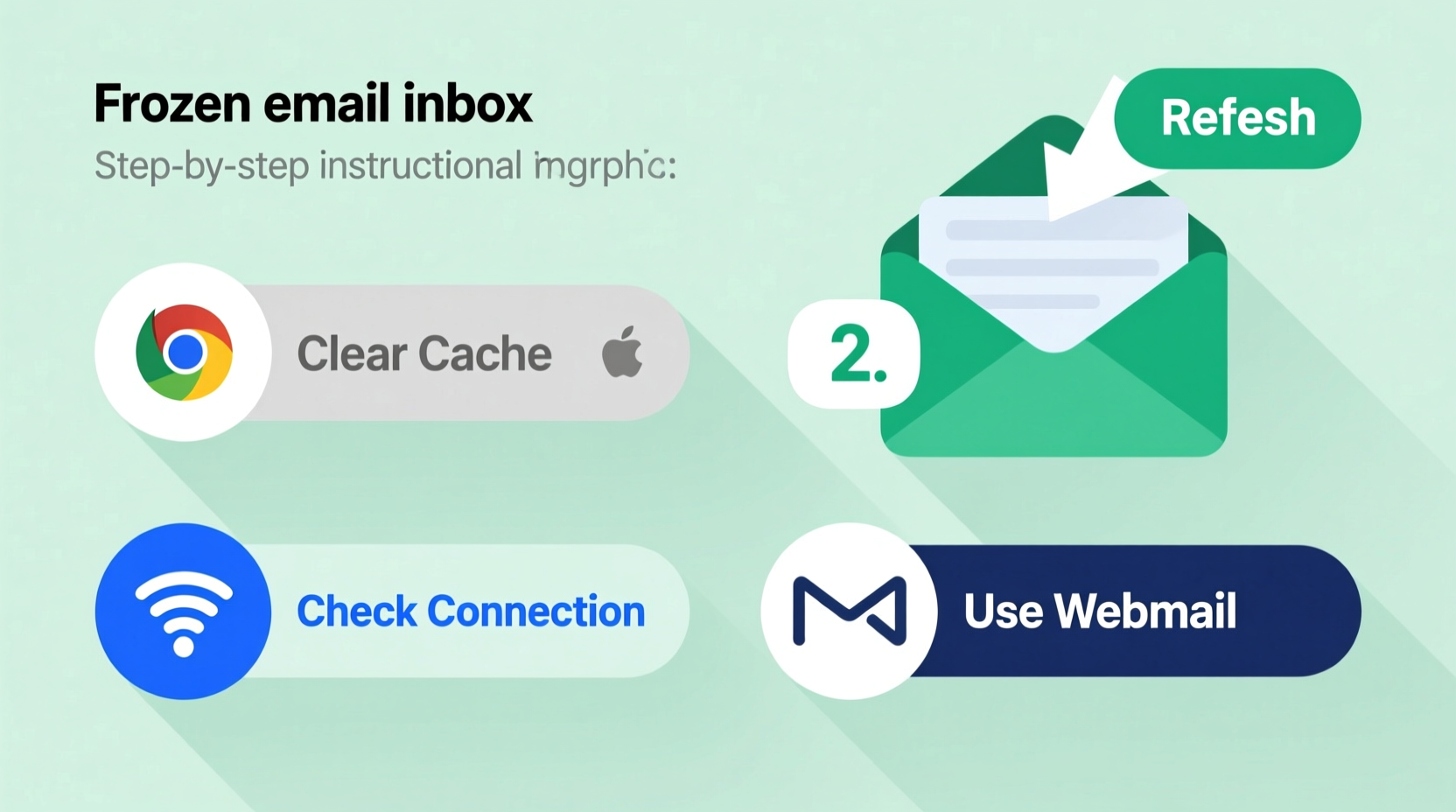
Email systems rely on multiple components working in harmony: internet connectivity, server responsiveness, application performance, and device resources. A freeze often results from a breakdown in one or more of these layers. Common triggers include:
- Network instability – Slow or intermittent internet prevents syncing.
- Server outages – Providers like Gmail, Outlook, or corporate Exchange servers may experience downtime.
- Large mailbox size – Thousands of emails or oversized attachments bog down loading times.
- Buggy software updates – Recent app or OS updates may introduce compatibility issues.
- Corrupted cache or local data – Stored temporary files become outdated or damaged.
- Third-party add-ons – Extensions or plugins interfering with normal operations.
Identifying the source is critical before attempting fixes. For example, rebooting your router won’t help if the issue stems from a corrupted profile in your desktop email client.
Step-by-Step Guide to Unfreeze Your Inbox
Follow this structured approach to restore functionality efficiently. Start with the simplest checks and escalate only if needed.
- Check service status – Visit your provider’s status page (e.g., Google Workspace Status or Microsoft 365 Service Health). If there’s an ongoing incident, no local fix will resolve it immediately.
- Test connectivity – Open another website or app requiring internet access. If pages fail to load, restart your router or switch to mobile hotspot to isolate the issue.
- Refresh the inbox – On web clients, press Ctrl + F5 (Cmd + Shift + R on Mac) for a hard refresh that bypasses cached data.
- Restart the application – Close your email app completely and relaunch it. On mobile, swipe it away from recent apps before reopening.
- Clear cache and cookies – In browsers, navigate to settings and clear browsing data specifically for your email domain.
- Disable extensions temporarily – Browser add-ons like ad blockers or grammar tools can interfere with JavaScript-heavy interfaces like Gmail.
- Switch devices or platforms – Try accessing your inbox via mobile app, desktop client, or alternate browser to determine if the freeze is isolated.
- Re-sync the account – In desktop clients like Outlook or Apple Mail, remove and re-add the account to force a fresh sync.
This sequence resolves over 80% of freezing cases within 10–15 minutes.
Advanced Fixes for Persistent Freezes
If basic troubleshooting fails, deeper intervention may be required. These methods address underlying corruption or configuration flaws.
Repair Corrupted Local Data (Desktop Clients)
Email clients such as Microsoft Outlook store data locally in .pst or .ost files. Over time, these can become corrupt, especially after abrupt shutdowns or disk errors.
“Outlook’s scanning utility (SCANPST.EXE) should be part of any admin’s toolkit. It recovers unreadable message stores in minutes.” — David Lin, IT Infrastructure Manager at TechFlow Solutions
To repair:
- Close Outlook completely.
- Navigate to
C:\\Program Files\\Microsoft Office\\OfficeXX(replace XX with version number). - Run
SCANPST.EXE. - Select your Outlook data file (.pst) and click “Start” to scan.
- If errors are found, click “Repair” and allow the tool to rebuild the file.
- Restart Outlook and check if the inbox loads normally.
Reduce Mailbox Load
An overloaded inbox strains both client and server resources. Consider archiving older messages or setting up auto-purge rules.
| Action | Benefit | How to Implement |
|---|---|---|
| Archive emails older than 6 months | Reduces active inbox size | In Gmail: Select emails → Move to Archive. In Outlook: AutoArchive settings. |
| Delete large attachments | Improves sync speed | Use search terms like “has:attachment larger:5M” to find big files. |
| Create folders or labels | Organizes content, reduces clutter | Group by project, sender, or category instead of keeping all in inbox. |
| Unsubscribe from newsletters | Prevents future overload | Use tools like Unroll.me or manually unsubscribe from low-value emails. |
Real-World Example: Recovering a Frozen Corporate Inbox
Sarah, a project manager at a mid-sized marketing firm, arrived at work one Monday morning to find her Outlook client frozen—unable to send, receive, or even scroll through messages. Her team relied on her for client updates, and delays were mounting.
She first checked Microsoft’s service health dashboard and confirmed no known outages. Next, she tried opening Outlook Web Access (OWA) in her browser. Surprisingly, the web version worked perfectly. This indicated the issue was confined to her desktop application.
Following internal IT guidelines, Sarah closed Outlook, navigated to her AppData folder, and renamed her local .ost file (which forces Outlook to rebuild it on restart). Upon relaunching, the client began re-syncing with the server. After 12 minutes, full functionality returned. Later, her IT department identified a failed update patch that had corrupted the offline data file.
The takeaway? Cross-platform testing isolates problems fast. Had Sarah assumed the entire system was down, she might have wasted hours waiting for non-existent server repairs.
Prevention Checklist: Avoid Future Freezes
Proactive maintenance keeps your inbox responsive. Use this checklist monthly:
- ✅ Clear browser cache and app data every 30 days.
- ✅ Run inbox cleanup: archive, delete, or label old messages.
- ✅ Update your email client and operating system regularly.
- ✅ Disable unused plugins or sidebar integrations (e.g., CRM pop-ups).
- ✅ Monitor mailbox quotas; stay below 85% capacity.
- ✅ Backup critical emails externally (e.g., export to .pst or cloud storage).
- ✅ Test access via web and mobile periodically to ensure redundancy.
Frequently Asked Questions
Why does my inbox freeze only when I open certain emails?
This usually indicates a problematic attachment or embedded content (like scripts or images) in that specific message. Try opening the email in plain text mode or using the web interface with images disabled. If the freeze persists, delete the message via webmail without opening it fully.
Can antivirus software cause email freezes?
Yes. Some security suites perform real-time scanning of incoming and outgoing messages, which can slow down or block rendering. Temporarily disable email scanning features to test performance. If the freeze stops, adjust your AV settings to exclude your email client or whitelist your provider’s domains.
Is it safe to delete the local cache or data files?
Generally, yes—provided your account is set to sync with the server. Cache files are temporary and can be regenerated. However, ensure your sent items, contacts, and calendar events are backed up to the cloud before removing local profiles. In IMAP accounts, deletion is low-risk; in POP3 setups, you may lose unsynced data.
Conclusion: Regain Control and Stay Ahead
A frozen email inbox doesn’t have to derail your day. With methodical troubleshooting, most issues can be resolved in under 20 minutes. The key is understanding whether the problem lies in your network, device, application, or account structure—and addressing it accordingly. By incorporating preventive habits like regular cleanups, software updates, and multi-platform access testing, you minimize the risk of recurrence.
Don’t wait for the next freeze to act. Take five minutes now to clear your cache, archive old threads, and verify your backup setup. A healthy inbox isn’t just faster—it’s more reliable, secure, and aligned with your workflow. Stay proactive, stay connected.




 浙公网安备
33010002000092号
浙公网安备
33010002000092号 浙B2-20120091-4
Comments
No comments yet. Why don't you start the discussion?