
Performing a factory reset on your smartphone can resolve performance issues or prepare the device for resale, but it often leads to unintended data loss—especially if files were stored directly on the internal memory or improperly backed up. However, if you used a memory card (microSD) and removed it before resetting, there’s a strong chance your data remains intact. Even if the card was left in the phone during the reset, recovery is often possible. This guide walks through proven methods to recover and access your memory card content after a reset, using accessible tools and techniques that don’t require technical expertise.
Understanding Memory Card Behavior During a Reset
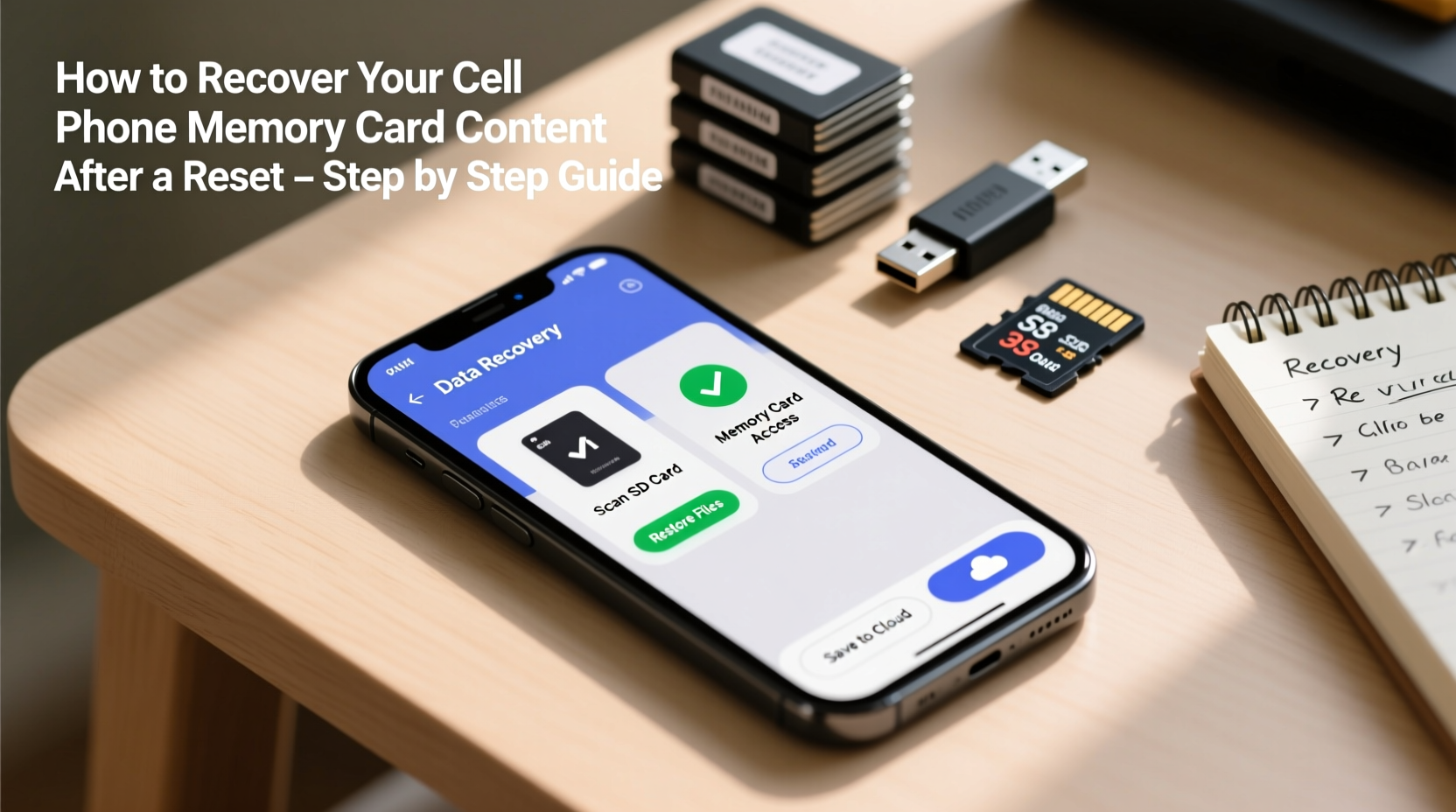
A factory reset typically erases the phone’s internal storage, including apps, settings, and user data saved directly on the device. However, external microSD cards are usually not automatically wiped unless explicitly formatted during the reset process. Many users assume all data is gone post-reset, but in reality, the files may still exist on the card—they’re just no longer indexed by the operating system.
The key factor determining recoverability is whether the card was reformatted. If it wasn’t, the original file structure likely remains undisturbed. Even if some overwriting occurred, partial recovery is often feasible using specialized software.
Step-by-Step Guide to Recover Memory Card Content
- Remove the Memory Card Safely
Power off your phone completely. Locate the SIM/microSD tray, usually on the side of the device. Use an ejector tool or paperclip to gently push open the tray. Carefully remove the microSD card. Avoid touching the gold contacts to prevent static damage. - Inspect the Card Physically
Check for visible signs of damage—cracks, corrosion, or bent connectors. A damaged card may require professional repair, but minor dirt can be cleaned gently with a dry lint-free cloth. - Connect the Card to a Computer
Use a microSD-to-SD adapter or USB card reader to insert the memory card into a laptop or desktop computer. Most modern systems recognize SD cards as removable drives automatically. - Check for Immediate Access
Open File Explorer (Windows) or Finder (Mac). Look for the drive labeled as “Removable Disk” or similar. Double-click to view contents. If folders like DCIM, Documents, or WhatsApp appear, your data is intact and accessible. - Use Data Recovery Software (If Files Are Missing)
If the card appears empty or shows errors, download reputable recovery software. Recommended tools include Recuva (free), EaseUS Data Recovery Wizard, or Disk Drill. Install the software on your computer—not on the memory card—and run a deep scan. - Preview and Restore Recovered Files
After scanning, browse the list of recoverable files. Preview images, videos, or documents to verify integrity. Select the files you want and restore them to a folder on your computer’s hard drive. Do not save them back to the memory card until recovery is complete. - Reformat the Card (Optional)
Once data is securely backed up, consider reformatting the card via your computer or phone to clear any residual corruption. Choose FAT32 or exFAT depending on card size (over 32GB should use exFAT).
Recommended Recovery Tools Comparison
| Software | Platform | Free Version? | Best For | Limits |
|---|---|---|---|---|
| Recuva | Windows | Yes | Basic photo and document recovery | No Mac/Linux support |
| EaseUS Data Recovery Wizard | Windows, Mac | Yes (2GB limit) | Deep scans, multimedia files | Paid version needed for full recovery |
| Disk Drill | Windows, Mac | Yes (500MB limit) | User-friendly interface, previews | Slower scan speeds |
| PhotoRec | Cross-platform (command-line) | Yes | Advanced users, maximum recovery | No GUI, steep learning curve |
Real Example: Recovering Family Photos After Accidental Reset
Sarah, a teacher from Portland, accidentally triggered a factory reset on her Android phone while troubleshooting app crashes. She hadn’t backed up her 64GB microSD card in months, which contained over 800 family photos from vacations and school events. Panicked, she turned off the phone immediately and removed the card. Using a USB reader and EaseUS Data Recovery Wizard, she connected the card to her laptop. After a 20-minute scan, the software detected 783 recoverable images. She previewed thumbnails to confirm quality, then restored them to a folder named “Recovered_Photos.” Within an hour, all her memories were safe. She later reformatted the card and reinserted it into a new phone.
“Most data isn’t truly erased after a reset—it’s just made invisible. Quick action and the right tools can bring it back.” — Dr. Alan Torres, Digital Forensics Analyst at SecureData Labs
Common Mistakes That Hinder Recovery
- Using the Phone Immediately After Reset: Launching apps or taking new photos may overwrite deleted data on the card.
- Formatting Without Backup: Some phones prompt to format the SD card during setup—decline this until recovery attempts are complete.
- Storing Recovered Files Back on the Same Card: This risks corrupting both old and new data.
- Using Untrusted Recovery Apps: Third-party Android apps may contain malware or fail to deliver promised results.
Essential Checklist Before Attempting Recovery
- Power off the phone and remove the microSD card
- Inspect the card for physical damage
- Use a reliable card reader to connect to a PC or Mac
- Install trusted recovery software on the computer
- Ensure sufficient free space on the computer for recovered files
- Do not modify or save anything to the memory card during recovery
- Restore files to a local drive, not the card
Frequently Asked Questions
Can I recover data if my phone won’t turn on after the reset?
Yes. As long as the memory card is physically intact, you can remove it and access its contents via a card reader and computer. The phone’s operational status does not affect the card’s readability unless the card itself was damaged during the reset process.
Will a factory reset erase everything on the SD card?
Not necessarily. Android and iOS devices typically do not format external SD cards during a factory reset unless specifically instructed. However, some phones may unmount or de-authorize the card, making it appear empty. The actual files often remain recoverable.
Is it safe to use free data recovery software?
Many free tools like Recuva and PhotoRec are safe and effective when downloaded from official websites. Avoid third-party download portals that bundle adware. Stick to well-known developers with positive user reviews and transparent privacy policies.
Final Steps: Securing Your Recovered Data
Once files are recovered, take steps to prevent future loss. Transfer important photos and documents to cloud storage services like Google Drive, Dropbox, or iCloud. Enable automatic backups on your phone settings. Label and organize recovered files into dated folders for easier management. Consider keeping two copies—one on your computer and one on an external hard drive—for critical personal data.
Regularly inspect your memory card for errors using built-in disk utilities. On Windows, right-click the drive > Properties > Tools > Check. On Mac, use Disk Utility to verify and repair if needed.
Take Action Now to Preserve What Matters
Data loss after a reset doesn’t have to mean permanent disappearance of cherished memories or essential files. With timely intervention and the right approach, most content on a memory card can be retrieved. Don’t delay—every time the card is reused, the chances of successful recovery drop. Follow the steps outlined here, use trusted tools, and prioritize backing up once your data is restored. Your digital life is worth protecting.




 浙公网安备
33010002000092号
浙公网安备
33010002000092号 浙B2-20120091-4
Comments
No comments yet. Why don't you start the discussion?