
Accidentally formatting a USB drive can feel like a digital disaster—especially when it contains irreplaceable photos, documents, or work projects. The good news is that formatting doesn’t always mean permanent data loss. In most cases, the files remain recoverable as long as new data hasn’t overwritten them. With the right tools and approach, you can retrieve your lost files efficiently and safely. This guide walks you through the entire recovery process, from immediate actions to advanced software solutions, ensuring you maximize your chances of full restoration.
Why Files Can Be Recovered After Formatting
When you format a USB drive, the operating system removes the file system structure—the table of contents that tells the computer where files are stored—but it doesn’t immediately erase the actual data. Think of it like removing labels from a filing cabinet: the drawers still contain the documents, but there’s no index to find them. Until new files are saved to the same physical memory locations, the old data remains intact and potentially retrievable.
This principle applies to both quick and full formatting:
- Quick Format: Only clears the file allocation table; fastest but least secure for sensitive data.
- Full Format: Scans for bad sectors and may overwrite some data, reducing recovery odds slightly.
The key to successful recovery lies in minimizing further use of the drive. Any new activity increases the risk of overwriting the remnants of your lost files.
“Data isn’t truly gone until it’s overwritten. Formatting just hides it temporarily.” — Dr. Alan Reed, Digital Forensics Specialist, CyberSecure Labs
Step-by-Step Guide to Recover Files from a Formatted USB Drive
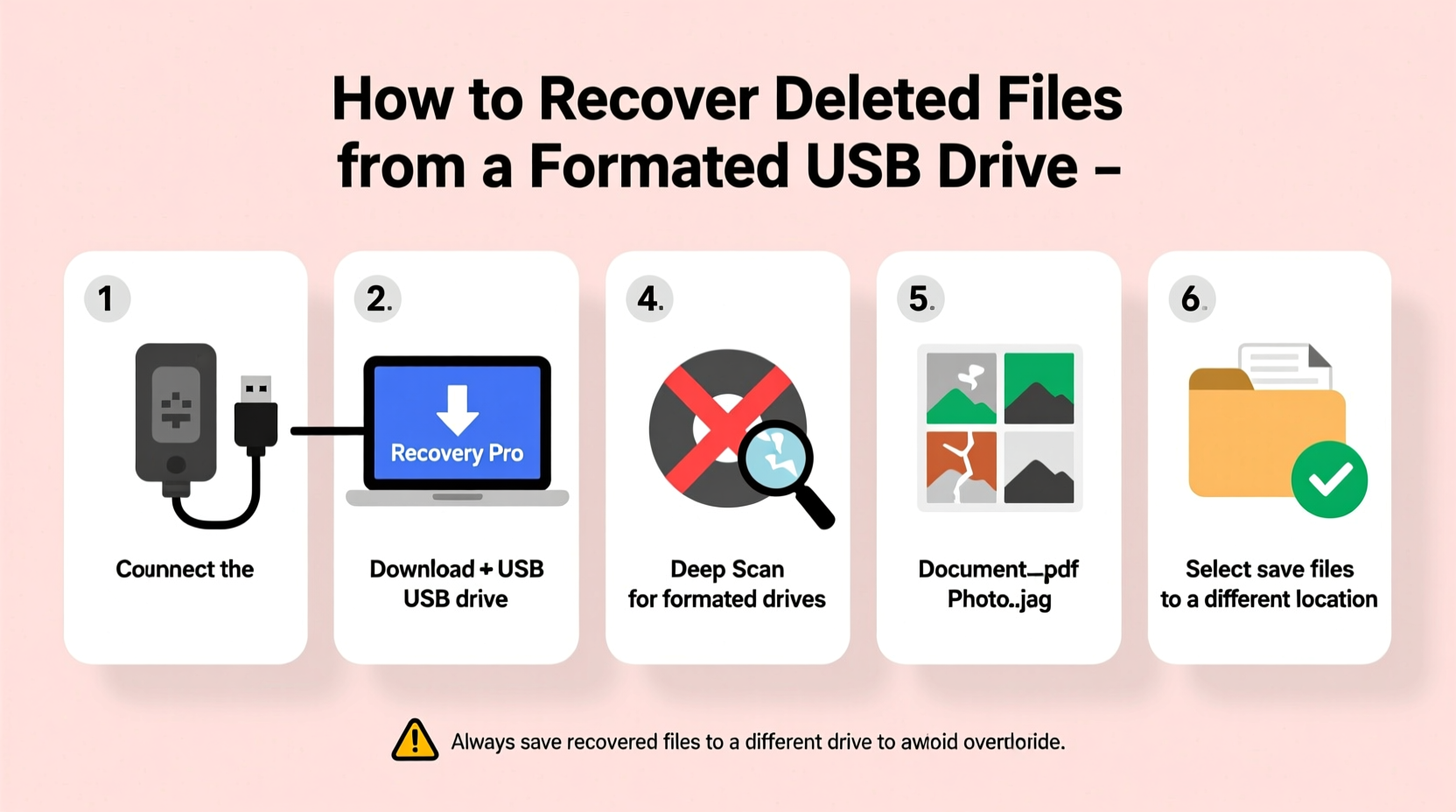
Recovering data from a formatted USB requires methodical action. Follow this timeline carefully to increase success rates and avoid irreversible damage to recoverable data.
- Disconnect the USB drive from active use. Do not save any new files to it, including downloads or temporary backups.
- Connect the USB to a trusted computer. Use a different machine if possible to reduce background write operations.
- Check drive visibility in File Explorer (Windows) or Finder (Mac). If the drive appears but shows 0 bytes or unallocated space, proceed to recovery software.
- Download reputable data recovery software on a separate device. Never install recovery tools directly onto the formatted USB.
- Run a deep scan using the selected tool. Choose the USB drive as the target and initiate a comprehensive scan.
- Preview recoverable files before restoring. Most tools allow you to view file names, types, and partial content.
- Save recovered files to a different storage device. Avoid writing anything back to the original USB until recovery is complete.
- Verify file integrity. Open documents, play media, and check for corruption after transfer.
- Back up recovered data immediately. Use cloud storage or an external hard drive for redundancy.
- Reformat the USB properly afterward. Once recovery is confirmed, reformat the drive for future use.
Recommended Recovery Software Tools
Not all data recovery programs are created equal. Some offer faster scans, better preview features, or support for specific file types. Below is a comparison of top-rated tools suitable for formatted USB recovery.
| Software | Platform | Free Version? | Scan Depth | Best For |
|---|---|---|---|---|
| Recuva | Windows | Yes | Deep + Quick | Beginners, simple interface |
| PhotoRec | Cross-platform (CLI) | Yes | Very Deep | Advanced users, raw file carving |
| Stellar Data Recovery | Windows, Mac | Limited Free Trial | Comprehensive | Photos, videos, Office files |
| EaseUS Data Recovery Wizard | Windows, Mac | Yes (2GB limit) | Deep + Partition Scan | Formatted drives, partition loss |
| TestDisk | Cross-platform | Yes | Partition-focused | Rebuilding lost partitions |
Real Example: Recovering Family Photos from a Misformatted Drive
Sarah, a freelance photographer, accidentally formatted her 32GB USB drive while preparing it for client delivery. The drive contained two years’ worth of family vacation photos—over 1,200 images—including rare footage from her grandmother’s 90th birthday. Panicked, she unplugged the drive and turned to online forums for help.
Following expert advice, she downloaded EaseUS Data Recovery Wizard on her laptop and connected the USB. She ran a deep scan, which took about 45 minutes. The software detected 1,178 recoverable JPEG and MP4 files. Sarah previewed several thumbnails and confirmed they were intact. She restored the files to her desktop, verified each folder, and uploaded the collection to Google Photos for backup.
Only 22 files were corrupted—likely due to minor overwrites during the initial formatting process. While not perfect, recovering 98% of her data was a win. “I learned my lesson,” she said later. “Now I triple-check before formatting anything.”
Common Mistakes That Prevent Successful Recovery
Even with the best tools, poor handling can doom recovery efforts. Avoid these critical errors:
- Continuing to use the formatted drive. Saving logs, updates, or even browsing files can trigger hidden writes.
- Installing recovery software on the same USB. This overwrites sectors where data may still reside.
- Using unreliable or pirated recovery tools. Some fake apps encrypt or delete data under the guise of scanning.
- Skipping file verification. Restored files may appear normal but be partially damaged or unopenable.
- Reformatting again prematurely. Wait until you’ve confirmed full recovery before reinitializing the drive.
“Over 60% of failed recoveries stem from user actions post-formatting, not technical limitations.” — IT Support Survey, 2023, TechRescue Association
Do’s and Don’ts at a Glance
| Action | Do | Don’t |
|---|---|---|
| After Formatting | Stop using the USB immediately | Continue saving files to it |
| Software Installation | Install on your main PC or laptop | Run setup from the USB itself |
| Scanning | Use deep scan mode for formatted drives | Rely solely on quick scan results |
| File Restoration | Save to a different drive or cloud | Restore directly to the same USB |
| Post-Recovery | Back up recovered data immediately | Assume files are safe without redundancy |
Frequently Asked Questions
Can I recover files if the USB was fully formatted?
Yes, in many cases. A full format may perform a surface scan but rarely performs a true secure erase unless explicitly chosen. As long as no large files have been written afterward, recovery is often possible using deep-scan tools like PhotoRec or TestDisk.
Is it safe to use free data recovery software?
Yes—if downloaded from official sources. Tools like Recuva, PhotoRec, and TestDisk are open-source or freeware developed by trusted organizations. Avoid third-party download sites that bundle malware. Always verify checksums or digital signatures when available.
What if my computer doesn’t recognize the USB at all?
If the drive isn’t detected, the issue may be hardware-related—damaged connectors, controller failure, or power issues. Try different ports, cables, or computers. If still undetected, professional data recovery services may be required, though costs can range from $200 to $1,200 depending on complexity.
Final Checklist Before You Begin Recovery
Before launching any software, ensure you’re set up for success. Follow this concise checklist:
- ✅ Disconnect the USB from all devices except the recovery computer.
- ✅ Install recovery software on your main system, not the USB.
- ✅ Prepare another drive or cloud folder to store recovered files.
- ✅ Ensure your computer is plugged into power to avoid shutdowns during scanning.
- ✅ Disable sleep mode and auto-updates during the scan process.
- ✅ Verify the USB appears in Disk Management (Windows) or Disk Utility (Mac).
- ✅ Start with a free tool to assess recoverable data before investing in paid software.
Conclusion: Act Fast, Recover Smarter
Recovering files from a formatted USB drive is far more achievable than most people assume. The critical factor isn’t the formatting itself—it’s what happens afterward. By acting quickly, avoiding common pitfalls, and using reliable tools, you can reclaim valuable data that seemed lost forever. Whether it’s personal memories, academic work, or business records, the steps outlined here provide a clear, practical roadmap to recovery.
Don’t wait until the next accident occurs to prepare. Establish a habit of regular backups and label storage devices clearly to prevent future mishaps. And if this guide helped you recover your files, consider sharing it with others who might face the same panic one day. Knowledge turns disasters into learning moments.




 浙公网安备
33010002000092号
浙公网安备
33010002000092号 浙B2-20120091-4
Comments
No comments yet. Why don't you start the discussion?