
Accidentally deleting important text messages can be frustrating—especially when you don’t have a backup. Whether it was a critical conversation with your employer, a confirmation code, or a heartfelt message from a loved one, losing SMS data feels like losing a piece of digital history. The good news? It’s often possible to recover deleted text messages on Android even if you never backed them up. Unlike iOS, where iCloud backups are common, many Android users operate without regular syncs. But thanks to the way Android handles data storage, deleted messages aren’t instantly erased from your device.
When you delete a message, the operating system typically only removes the reference to that data, not the data itself. The actual content may remain in your phone’s memory until it’s overwritten by new files. This window of opportunity allows recovery through specialized tools and techniques. However, success depends on timing, device model, and whether new data has already replaced the old.
Why Deleted Messages Can Still Be Recovered
Understanding how Android manages data is key to recovering lost messages. When you send or receive a text, it’s stored in a local database file (usually an SQLite file) within the messaging app’s private storage directory. Deleting a message doesn’t immediately wipe this data—it simply marks the space as available for reuse.
This behavior mirrors how hard drives work on computers: deletion is more about accessibility than erasure. Until new data fills that memory block, the original message remains intact and potentially retrievable. This principle is what forensic tools and recovery software rely on.
“Most Android devices retain deleted SMS fragments for days or even weeks after deletion, especially if the user hasn’t sent or received many new messages.” — Dr. Lin Zhao, Mobile Data Forensics Researcher, University of Toronto
However, the longer you wait and the more you use your phone, the higher the chance that the deleted messages will be permanently overwritten. Immediate action increases your chances significantly.
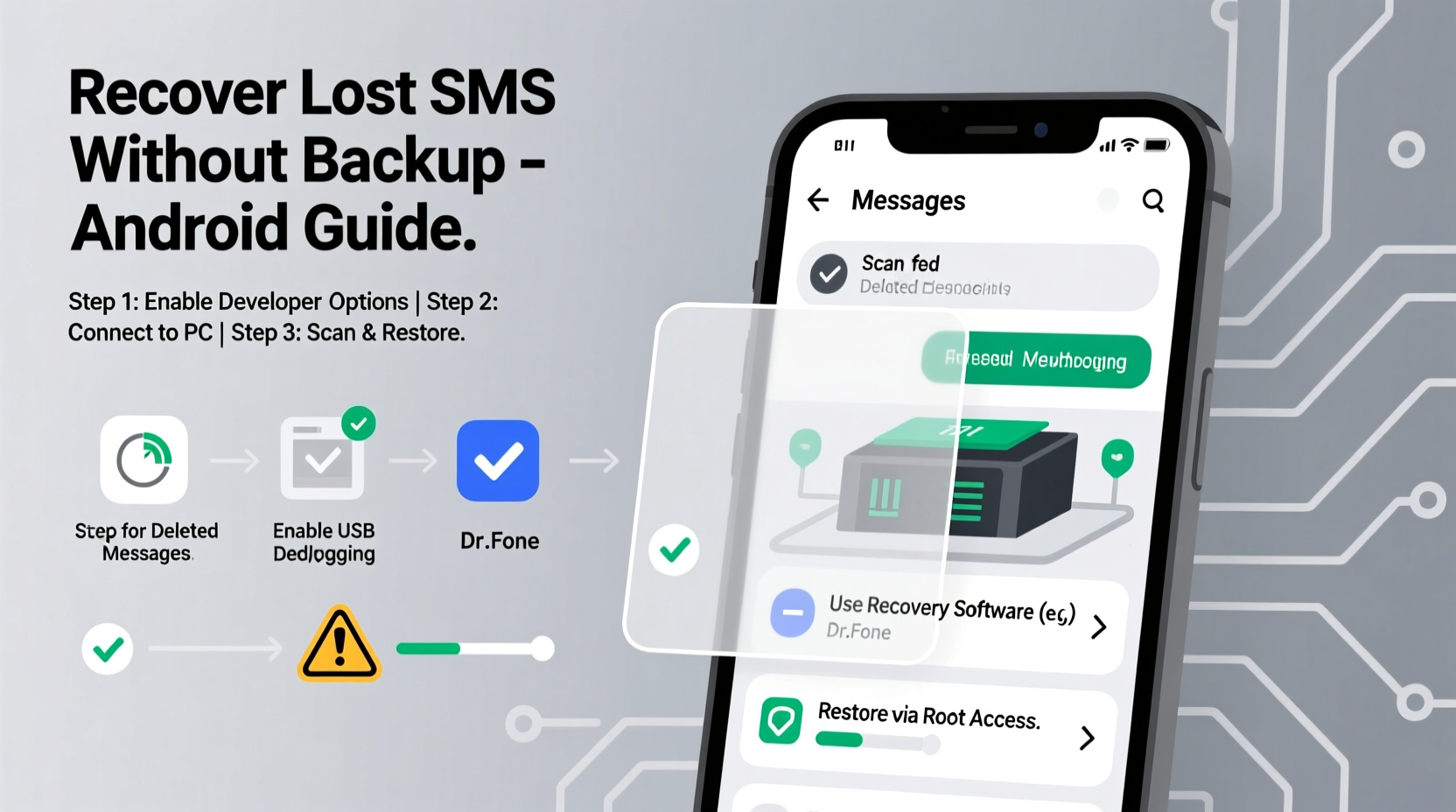
Step-by-Step Guide to Recover Deleted Text Messages Without Backup
Recovering messages without a backup requires careful execution. Follow these steps methodically to maximize your chances of success:
- Stop Using Your Phone Immediately
Every new message, photo, or app download could overwrite the memory sectors where your deleted texts reside. Put your device in airplane mode to prevent incoming messages from writing over old data. - Determine Your Messaging App
Most Android phones use either Google Messages, Samsung Messages, or a third-party app. The recovery method may vary slightly depending on which app stored the messages. - Download a Trusted Recovery Tool
Choose a reputable Android data recovery application that supports SMS recovery without requiring prior backups. We’ll cover top options shortly. - Connect Your Device to a Computer
Use a USB cable to connect your Android phone to a Windows or Mac computer. Enable USB debugging in Developer Options to allow deep access to your device’s file system. - Scan for Deleted Messages
Run the recovery software to scan your device’s internal storage. This process may take several minutes, depending on your phone’s storage capacity. - Preview and Restore Messages
Once the scan completes, preview the recoverable messages. Select the ones you want and restore them to your device or export them to a safe location.
Top Android Recovery Tools That Work Without Backup
Not all recovery tools are created equal. Some promise results but fail to deliver or compromise your privacy. Below is a comparison of reliable, tested tools capable of retrieving deleted SMS without needing a prior backup.
| Tool Name | Works Without Root? | Computer Required? | Free Version Available? | Best For |
|---|---|---|---|---|
| Dr.Fone - Data Recovery (Android) | Yes (limited) | Yes | Yes (trial) | Beginners; intuitive interface |
| FonePaw Android Data Recovery | Yes | Yes | Yes | Precise scanning and filtering |
| DiskDigger Pro (for rooted devices) | No (requires root) | No | No | Advanced users with root access |
| Undeleter Restore Files | Yes | No | Yes | On-device recovery (non-root) |
| PhotoRec (via TestDisk) | Yes | Yes (technical setup) | Yes | Free, open-source solution |
Among these, Dr.Fone and FonePaw are most effective for average users due to their guided workflows and high recovery success rates. Both support a wide range of Android models and can extract messages from the SQLite databases used by default SMS apps.
Note: Free versions often let you preview recoverable data but require payment to export or restore. Always verify software legitimacy before downloading—stick to official websites and avoid third-party APKs.
Real-World Example: Recovering a Lost Job Offer Message
Samantha, a marketing professional in Vancouver, accidentally swiped away a crucial text from a hiring manager confirming her job interview. She had no Google Drive backup enabled and hadn’t synced messages to any cloud service. Panicked, she searched for solutions and found Dr.Fone.
She followed the steps: connected her Samsung Galaxy S21 to her laptop, enabled USB debugging, and ran a deep scan. Within 15 minutes, the software detected 12 deleted messages—including the interview confirmation. She restored it to her phone and saved the details to her calendar. The role eventually led to a full-time position.
Her experience underscores two points: first, immediate action matters; second, commercial tools can deliver real results even without backups.
Common Mistakes That Prevent Recovery
Even with the right tools, many users fail to recover messages because they unknowingly sabotage the process. Avoid these pitfalls:
- Continuing to use the phone normally – Sending or receiving messages floods the storage with new data, increasing overwrite risk.
- Restarting the phone unnecessarily – Some reboots trigger system updates or background processes that write data.
- Installing recovery apps directly on the device – This creates write operations that may destroy recoverable fragments.
- Delaying the recovery attempt – The longer you wait, the lower your chances become.
- Using unreliable or pirated software – These may contain malware or fail to perform deep scans.
Also, remember that encrypted messaging apps like WhatsApp store messages differently. This guide focuses on standard SMS/MMS handled by your native texting app.
Alternative Methods: When Software Isn’t Enough
If standard recovery tools fail, consider these less common but viable alternatives:
Check Carrier Logs (Limited Success)
Some mobile carriers retain metadata of SMS traffic for billing or compliance reasons. While they rarely provide message content due to privacy laws, it’s worth contacting customer support to ask. In rare cases—such as legal disputes—carriers may release logs under formal request.
Google Messages Web Sync (If Enabled)
If you used Google Messages with web syncing enabled (messages.google.com), your messages might still exist in the cloud—even without a full backup. Log into the web version from a computer and check if recently deleted messages appear there. You can copy or screenshot them before they disappear.
Third-Party App Traces
If you used an app like SMS Backup & Restore temporarily in the past, remnants of auto-saved drafts might exist in app cache or temporary folders. Use a file explorer to check directories like /Android/data/com.android.providers.telephony/databases/ or /data/data/com.google.android.apps.messaging/databases/ (root access needed).
“While consumer tools have improved dramatically, true forensic recovery often requires lab-grade equipment and expertise. But for everyday users, timely use of trusted software gives a strong chance of success.” — Marcus Reed, Digital Forensics Consultant, CyberShield Labs
Checklist: How to Maximize SMS Recovery Chances
Follow this actionable checklist immediately after realizing messages are missing:
- ✅ Enable Airplane Mode to stop new message writes
- ✅ Do not restart your phone unless required for recovery setup
- ✅ Connect to a trusted computer using a known-good USB cable
- ✅ Enable Developer Options and USB Debugging
- ✅ Download a reputable recovery tool on the computer (not the phone)
- ✅ Run a deep scan for deleted SMS entries
- ✅ Preview and selectively restore only necessary messages
- ✅ Back up recovered messages externally (email, notes, cloud)
- ✅ Consider enabling automatic SMS backups going forward
Frequently Asked Questions
Can I recover deleted texts without a computer?
Yes, but with limitations. Apps like Undeleter Restore Files can scan internal storage directly on the device. However, success rates are lower because the app itself creates write activity. A computer-based tool offers deeper access and better control.
Do I need to root my Android phone to recover messages?
Not always. Many modern recovery tools work without root by exploiting accessible system caches and database remnants. However, root access significantly improves recovery depth by allowing full read access to protected directories. If your device is already rooted, your chances increase substantially.
How long do deleted messages stay on my phone?
There’s no fixed timeline. It depends on storage usage. On lightly used devices, messages can linger for weeks. On active phones with frequent app downloads and messaging, overwriting may occur within hours. Immediate action is critical.
Final Thoughts and Next Steps
Recovering deleted text messages without a backup is challenging but far from impossible. The key lies in understanding how Android stores data and acting quickly before it’s overwritten. By using trusted recovery tools, avoiding common mistakes, and following a structured approach, you can retrieve vital messages even in the absence of a cloud or local backup.
Technology should serve you—not cause stress when things go wrong. Take this experience as a prompt to enable automatic SMS backups via Google Messages or another secure service. A few seconds of setup today can save hours of frustration tomorrow.




 浙公网安备
33010002000092号
浙公网安备
33010002000092号 浙B2-20120091-4
Comments
No comments yet. Why don't you start the discussion?