
Accidentally deleting important WhatsApp messages can be frustrating—especially when there’s no backup available. Whether it was a chat with sentimental value, critical information, or a business conversation, losing access feels like losing a piece of digital history. While many assume that without a Google Drive or local backup, recovery is impossible, that’s not entirely true. With the right approach, timing, and tools, you may still retrieve those messages—even on an unrooted Android device.
This guide explores realistic, tested methods for recovering deleted WhatsApp messages without relying on a pre-existing backup. From built-in features to third-party software and data recovery principles, we’ll walk through what works, what doesn’t, and how to maximize your chances of success.
Understanding How WhatsApp Stores Messages
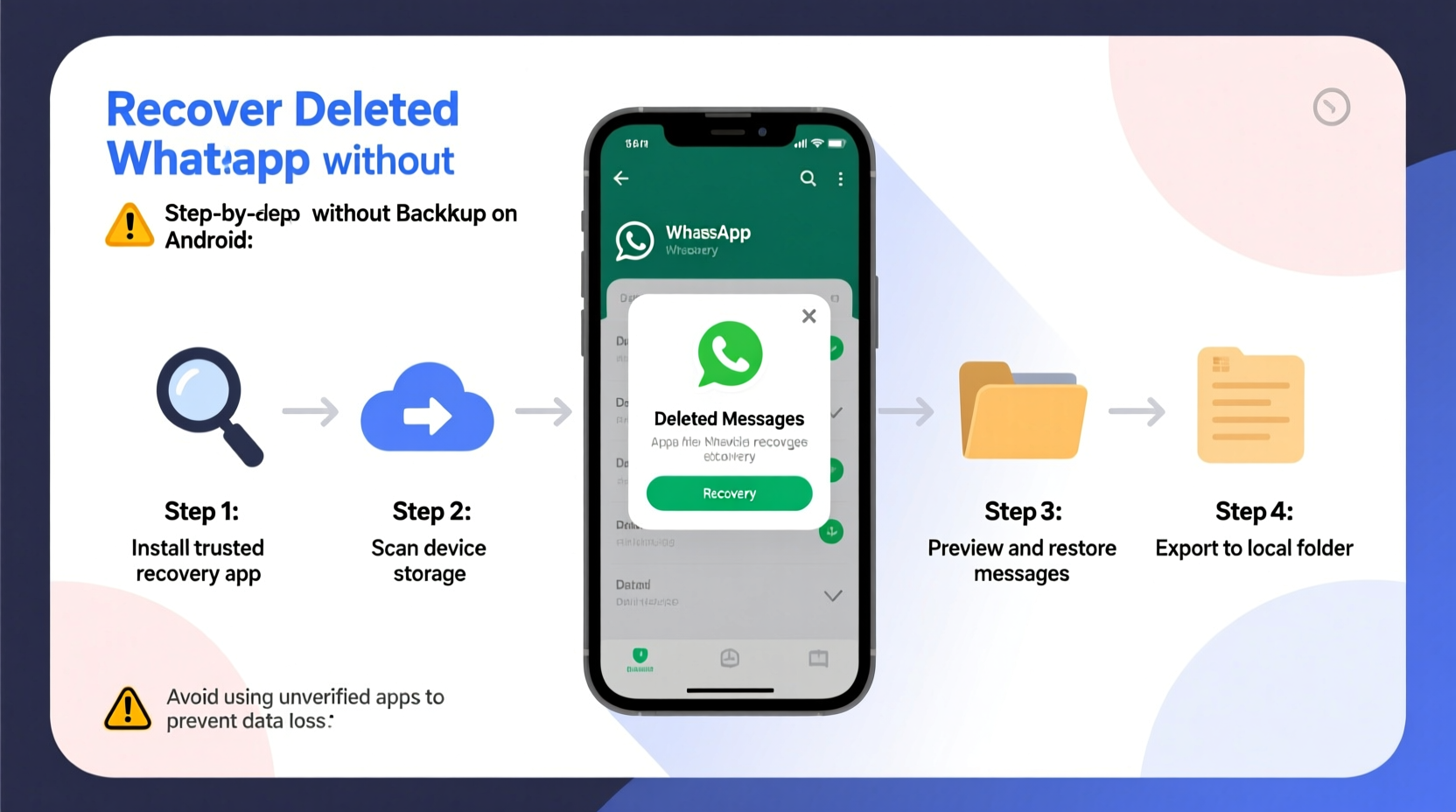
Before attempting recovery, it's essential to understand where and how WhatsApp stores your messages. On Android, WhatsApp saves all chat data locally in an encrypted database file named msgstore.db.crypt14 (or similar, depending on encryption version). This file resides in your phone’s internal storage under:
Internal Storage > WhatsApp > Databases
Every day at 2 AM, WhatsApp creates a new local backup file (e.g., msgstore-YYYY-MM-DD.1.db.crypt14). These files are not automatically synced to the cloud unless you’ve enabled Google Drive backups. When you delete a message within WhatsApp, it’s removed from the active database—but the older database files may still contain copies of the deleted content.
The key to recovery lies in accessing these older database files before they’re overwritten or deleted by system cleanup processes.
Method 1: Restore from Local Database Backup (No Root Required)
Even without a Google Drive backup, WhatsApp generates daily local backups stored on your device. If the deletion occurred recently and no full reinstall has taken place, this method offers the best chance of recovery.
Step-by-Step Guide to Restore from Local Backup
- Uninstall WhatsApp completely from your Android device.
- Using a file manager app (like Files by Google or Solid Explorer), navigate to:
/Internal Storage/WhatsApp/Databases/ - Look for files named
msgstore-YYYY-MM-DD.1.db.crypt14. Choose the most recent one before the deletion happened. - Rename this file to
msgstore.db.crypt14. - Reinstall WhatsApp from the Google Play Store.
- Verify your phone number during setup.
- When prompted with “Restore,” tap Restore to load the renamed local backup.
- Once restored, open WhatsApp—your chats from the selected date will now appear.
Note: This method restores the entire chat history up to the date of the chosen backup. Any messages received after that date will be lost unless they were also backed up locally.
“Local database files are often overlooked but can serve as silent saviors when cloud backups fail.” — Arjun Mehta, Mobile Data Forensics Analyst
Method 2: Use Third-Party Recovery Tools
If local backups have been cleared or overwritten, specialized Android data recovery tools may help scan your device’s storage for remnants of deleted WhatsApp databases. These tools work by scanning raw storage sectors for fragments of deleted files.
While success isn’t guaranteed—especially on newer Android versions with stronger encryption—some users report recovering partial or complete chat histories using the following applications:
- Dr.Fone – Data Recovery (Android)
- FoneLab Android Data Recovery
- EaseUS MobiSaver for Android
- DiskDigger Pro (root required for deep scan)
How These Tools Work
These programs typically require you to connect your Android device to a computer via USB and enable USB debugging. The software then performs a deep scan of internal memory to locate recoverable files, including old WhatsApp database entries.
Limitations include:
- Lower success rate on devices running Android 10 and above due to scoped storage restrictions.
- Encrypted databases (
crypt14) may be recovered but cannot always be decrypted without the original key (stored in app data). - Free versions often only preview recoverable data; full export requires a paid license.
Method 3: Check Notification Logs (For Recently Deleted Messages)
If you deleted the message less than a few days ago—and had notifications enabled—you might still find traces of the content in your notification history.
Steps to Access Notification History
- Open Settings on your Android device.
- Go to Apps & Notifications → Notifications.
- Enable Notification History if it’s off.
- Open the Notification Log (can vary by manufacturer).
- Scroll through past alerts and look for WhatsApp notifications containing the message text.
This won’t restore full conversations, but it can recover snippets of individual messages—often enough to recall key details like addresses, times, or confirmation codes.
⚠️ Note: Notification history is usually retained for only 24–72 hours and may be cleared after reboots or system updates.
Comparison of Recovery Methods
| Method | Success Rate | Root Required? | Technical Skill | Time Required |
|---|---|---|---|---|
| Local Database Restore | High (if file exists) | No | Low | 15–30 minutes |
| Third-Party Tools | Moderate to Low | Sometimes | Moderate | 30–60 minutes |
| Notification Log | Very Low (partial only) | No | Low | 5–10 minutes |
| Cloud Sync (Google Drive) | High (but requires prior backup) | No | Low | 20–40 minutes |
Mini Case Study: Recovering a Lost Job Offer Message
Sarah, a freelance designer, accidentally swiped away a WhatsApp message from a potential client confirming a $2,000 project. She hadn’t backed up her chats to Google Drive in over two weeks and panicked when she realized the message was gone.
Acting quickly, she stopped using her phone and connected it to her laptop. Using a file manager, she navigated to WhatsApp/Databases and found a local backup from three days earlier. She uninstalled WhatsApp, renamed the file to msgstore.db.crypt14, reinstalled the app, and successfully restored the chat—including the job offer.
The process took under 25 minutes. Though she lost messages from the last three days, retrieving the contract details allowed her to proceed confidently with the client.
Sarah’s story highlights the importance of acting fast and knowing where to look—even without cloud backups.
Checklist: Immediate Actions After Deleting WhatsApp Messages
If you’ve just deleted important messages and don’t have a backup, follow this checklist immediately:
- ✅ Stop using your phone for new apps or downloads.
- ✅ Avoid restarting your device unnecessarily.
- ✅ Locate and preserve existing local backup files in
WhatsApp/Databases. - ✅ Enable Notification History to check for message traces.
- ✅ Download and test a reputable recovery tool while the data may still be intact.
- ✅ Write down any remembered details (sender, time, keywords) to aid recovery.
What Doesn’t Work (And Why)
Despite numerous online claims, some commonly suggested methods are ineffective or outdated:
- Using WhatsApp Web alone: It mirrors your phone’s current state and cannot retrieve deleted messages.
- “Secret” recovery codes or dialer tricks: No such codes exist for message recovery; these are hoaxes.
- Clearing app cache to restore data: Cache contains temporary files, not deleted messages.
- Waiting for auto-recovery: WhatsApp does not auto-recover deleted messages under any circumstances.
Be cautious of fake apps promising instant recovery—they may steal your data or install malware.
FAQ
Can I recover deleted WhatsApp messages without root access?
Yes, but only through local database restoration or limited third-party tools. Full disk scanning usually requires root privileges, especially on Android 10+.
How long do deleted WhatsApp messages stay on my phone?
Deleted messages aren't instantly erased. Their data remains until overwritten by new files—this window can range from hours to several days, depending on usage.
Are third-party recovery tools safe to use?
Reputable tools from established companies (like Dr.Fone or EaseUS) are generally safe. However, avoid downloading cracked versions or unknown software, as they may compromise privacy or install spyware.
Expert Insight: The Reality of Data Recovery
Data recovery on modern smartphones is fundamentally different than on traditional computers. Android’s file-based encryption, sandboxed app environments, and automatic garbage collection make undeletion increasingly difficult.
“On Android 11 and later, even if you recover a crypt14 file, decrypting it without the original app-specific key is nearly impossible. Prevention—through regular local backups—is far more effective than cure.” — Lena Park, Digital Forensics Researcher at SecureMobile Lab
Her insight underscores a crucial truth: while recovery is sometimes possible, relying on it is risky. Building habits around data preservation is the smarter long-term strategy.
Prevention Tips for Future Protection
To avoid facing this situation again, adopt these proactive measures:
- Enable daily local backups: Even without cloud sync, local files give you a fallback.
- Use Google Drive backups weekly: Go to WhatsApp Settings > Chats > Chat Backup and set automatic uploads.
- Star important messages: Starred messages are easier to locate and less likely to be accidentally deleted.
- Take screenshots of critical info: For contracts, addresses, or confirmations, a screenshot is the simplest backup.
- Archive sensitive conversations: Archiving hides chats without deleting them, reducing accidental swipe-deletes.
WhatsApp/Databases folder to a secure location like a PC or external drive.
Conclusion
Recovering deleted WhatsApp messages without a backup on Android is challenging—but not always impossible. Success depends on timing, device usage after deletion, and whether local database files remain intact. The most reliable method remains restoring from a local msgstore file, which requires quick action and basic file management skills.
While third-party tools offer hope in more complex scenarios, their effectiveness varies widely based on device model, Android version, and encryption standards. Meanwhile, simple practices like enabling notification history or starring key messages can provide unexpected lifelines.
Ultimately, the best recovery strategy is prevention. By setting up regular backups and treating your chat data with care, you reduce the risk of irreversible loss. Technology evolves, but human error remains constant—prepare accordingly.




 浙公网安备
33010002000092号
浙公网安备
33010002000092号 浙B2-20120091-4
Comments
No comments yet. Why don't you start the discussion?