
Redeeming a Roblox gift card through the mobile app is a straightforward process that allows users to quickly add Robux to their account. Whether you've received a gift card for a birthday, holiday, or achievement, knowing how to apply it directly from your smartphone ensures you can start enjoying premium features, avatar items, or game passes without delay. This guide walks you through each step clearly, highlights potential pitfalls, and offers tips to ensure a smooth redemption every time.
Understanding Roblox Gift Cards
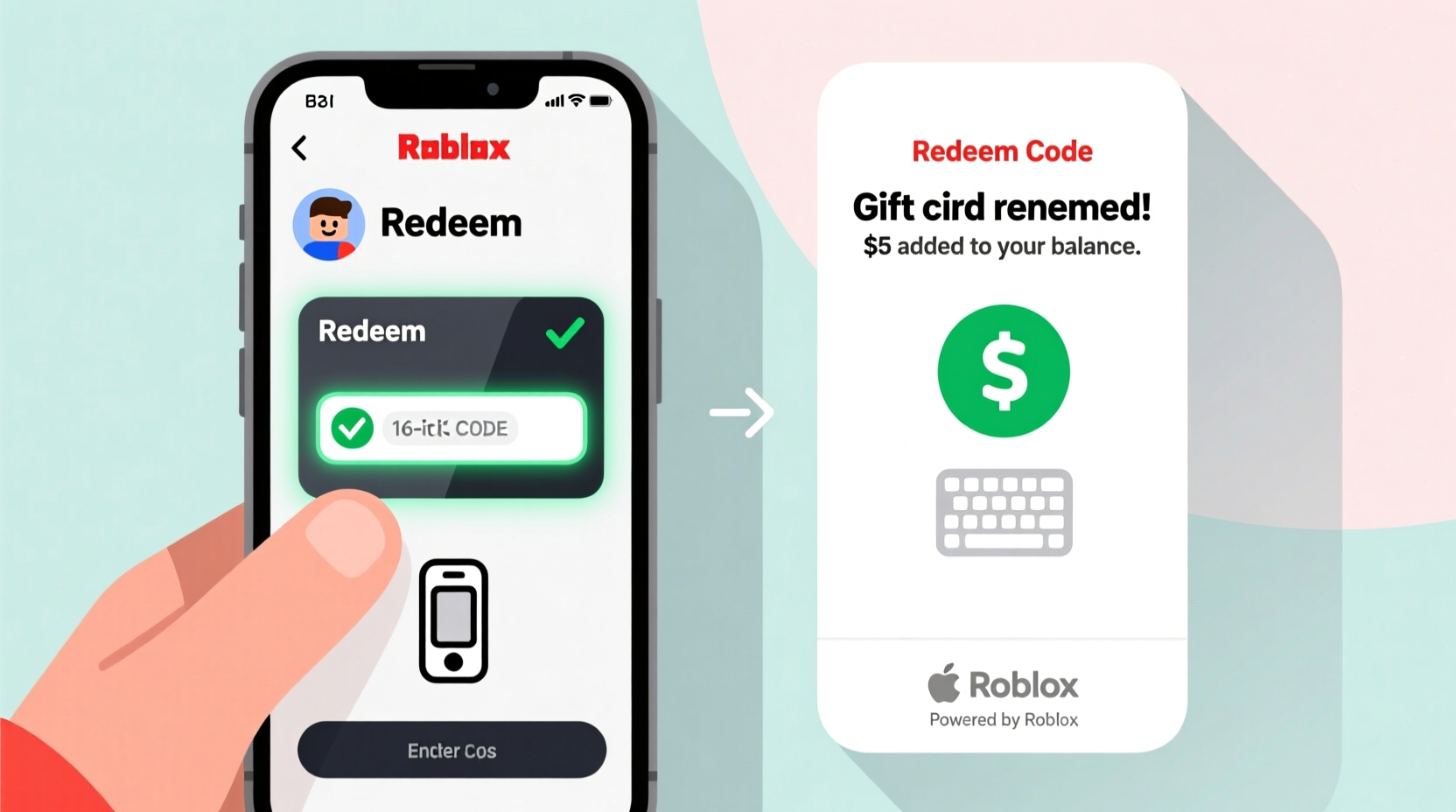
Roblox gift cards are prepaid cards sold by major retailers such as Amazon, Walmart, Target, and Best Buy. They come in various denominations—typically $10, $25, $50, and $100—and provide an easy way to fund a Roblox account with Robux, the platform’s virtual currency. Each card includes a unique 14-digit PIN that must be entered correctly during the redemption process.
These cards are region-specific and only valid in the country where they were purchased. For example, a U.S.-issued gift card won’t work on a non-U.S. Roblox account. Additionally, they cannot be combined with other payment methods if the purchase exceeds the card balance. It's important to verify these details before attempting redemption.
Step-by-Step Guide to Redeem in the Roblox App
The Roblox mobile app (available on iOS and Android) supports gift card redemption directly within its interface. Follow this sequence to successfully apply your card:
- Open the Roblox app on your device and log in to your account. Make sure you're using the official Roblox app from the App Store or Google Play.
- Navigate to your profile icon in the top-right corner and tap it.
- Select \"Settings\" from the menu.
- Scroll down and choose \"Redeem Gift Card\". This option may also appear under \"Billing\" or \"Payment Methods,\" depending on your app version.
- Enter the 14-digit code found on the back of your physical card or in your digital purchase confirmation.
- Tap \"Redeem\" and wait for confirmation.
- If successful, you’ll see a message indicating that Robux have been added to your account. The amount will reflect based on the card’s value and current regional conversion rate.
Note: Internet connectivity is required throughout this process. A weak signal may cause timeouts or false error messages.
Common Issues and How to Fix Them
Despite the simplicity of the process, some users encounter obstacles when redeeming their gift cards. Here are frequent problems and their solutions:
- Invalid Code Error: Double-check that all 14 digits are entered correctly. Confusing characters like '0' and 'O' or '1' and 'I' are common mistakes.
- Region Mismatch: Ensure the gift card matches your account’s registered country. You can check your account region in Settings > Account Info.
- Already Redeemed: If the code was previously used—even on another account—it cannot be reused. Gift cards are single-use only.
- Expired Card: While most Roblox gift cards don’t expire, promotional ones might. Check the terms printed on the card packaging.
- App Crashes During Redemption: Update the Roblox app to the latest version. Outdated versions may lack support for current redemption protocols.
| Issue | Possible Cause | Solution |
|---|---|---|
| “Code Not Recognized” | Typographical error or damaged PIN | Re-enter carefully; contact retailer if defective |
| “This code has already been redeemed” | Used previously or shared improperly | Verify usage history; report fraud if applicable |
| No Robux received after redemption | Processing delay or login mismatch | Wait 5 minutes, confirm correct logged-in account |
“Always redeem gift cards on the same account you intend to use for gameplay. Switching profiles mid-process is one of the top reasons for failed redemptions.” — Jordan Lee, Roblox Community Support Lead
Best Practices for Secure Redemption
To maximize success and protect your account, follow these recommended practices:
- Redeem the card as soon as possible after purchase to minimize loss risk.
- Only enter the PIN in the official Roblox app or website—never on third-party sites claiming to offer free Robux.
- Avoid sharing your PIN with others, even friends or family members using shared devices.
- Enable two-factor authentication (2FA) on your Roblox account to prevent unauthorized access.
- Keep the receipt or proof of purchase until the Robux appear in your account.
Real Example: Sarah’s Smooth Redemption Experience
Sarah, a 13-year-old Roblox enthusiast, received a $25 gift card for her birthday. She opened the Roblox app on her mother’s tablet, logged into her account, and tapped her profile icon. After finding the “Redeem Gift Card” option under Settings, she carefully typed in the 14-digit code from the card. Within seconds, a pop-up confirmed the addition of 2,000 Robux. She immediately used them to buy a limited-edition hat in her favorite game. Her mom appreciated that the entire process took less than three minutes and didn’t require entering any credit card information.
This experience highlights how intuitive the system can be when users follow the correct steps and maintain awareness of their account settings.
Frequently Asked Questions
Can I redeem a Roblox gift card on a computer instead of the app?
Yes. Visit www.roblox.com/redeem, log in, and enter your 14-digit code. The process is nearly identical across platforms.
What happens if my gift card balance doesn’t cover a full Robux package?
Roblox will apply the available balance toward the purchase. If insufficient, you’ll need another payment method to cover the remainder—unless buying directly via gift card value.
Do unused Robux expire?
No. Once Robux are added to your account, they remain indefinitely unless spent or removed due to policy violations.
Final Tips Checklist
- ✅ Confirm you’re logged into the correct Roblox account
- ✅ Use a stable internet connection
- ✅ Carefully enter the 14-digit PIN without spaces
- ✅ Verify region compatibility between card and account
- ✅ Wait for on-screen confirmation before closing the app
- ✅ Check your Robux balance post-redemption under Account Settings
Conclusion
Redeeming a Roblox gift card through the app is designed to be quick and user-friendly, especially for younger players who rely on parental gifts or rewards. By understanding the steps, avoiding common errors, and practicing secure habits, you can reliably convert physical or digital cards into usable Robux. Whether you're upgrading your avatar, unlocking game advantages, or supporting developer experiences, timely redemption enhances your overall engagement on the platform.




 浙公网安备
33010002000092号
浙公网安备
33010002000092号 浙B2-20120091-4
Comments
No comments yet. Why don't you start the discussion?