
Spending hours in front of multiple monitors has become standard for professionals in design, finance, programming, data analysis, and many other fields. While this setup boosts productivity, it also places significant stress on the eyes. Digital eye strain—also known as computer vision syndrome—affects up to 90% of people who spend three or more hours daily on digital devices. Symptoms include dryness, blurred vision, headaches, neck pain, and difficulty focusing. The challenge intensifies with multiple screens, where glare, inconsistent brightness, and poor ergonomics compound the problem. The good news is that eye strain is largely preventable. With intentional workspace adjustments, healthy visual habits, and a few strategic tools, you can maintain visual comfort and protect your long-term eye health—even during extended screen sessions.
Understand the Causes of Multi-Screen Eye Strain
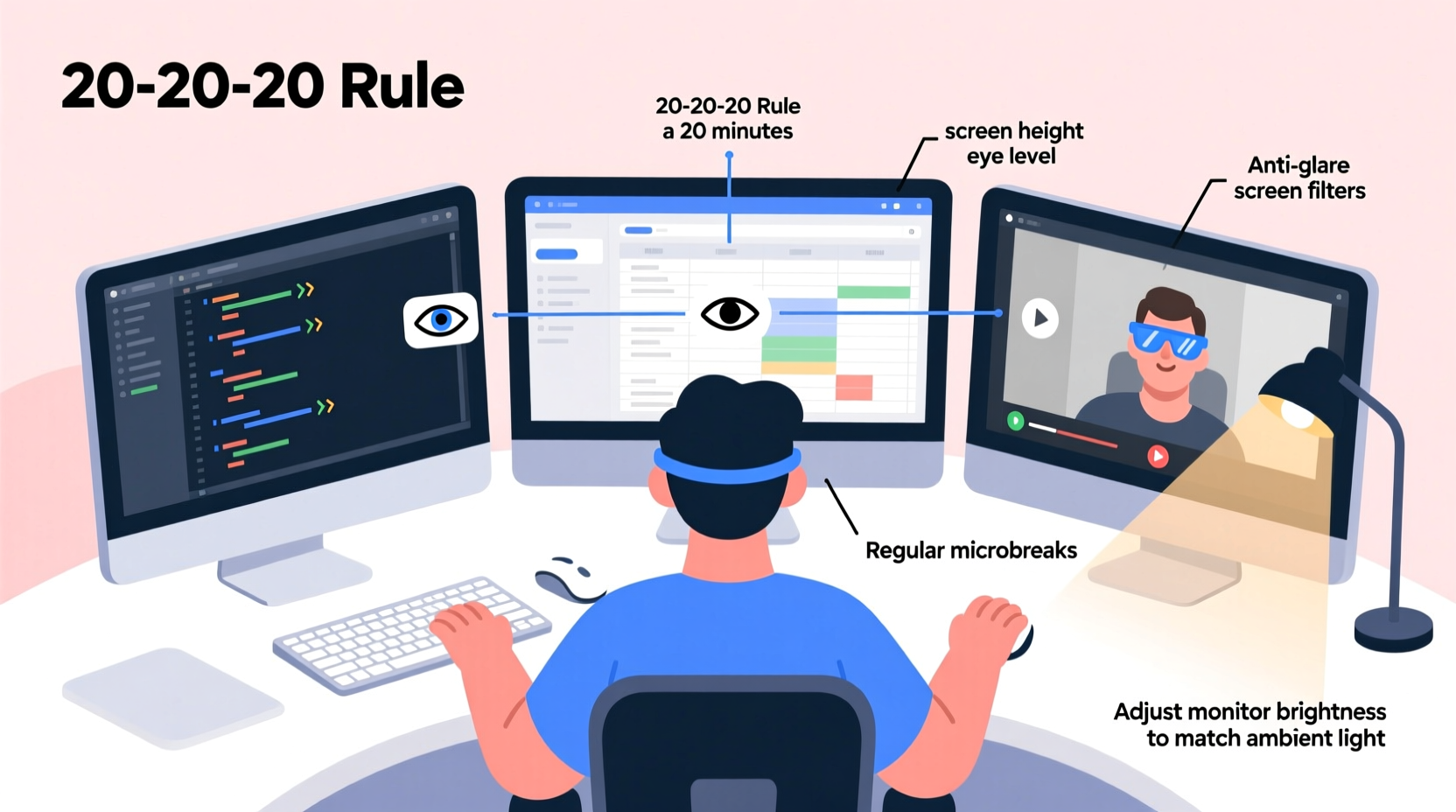
Before addressing solutions, it’s important to recognize what causes eye strain in multi-monitor environments. Unlike single-screen setups, multiple displays introduce variables that increase visual load:
- Inconsistent lighting: Screens with different brightness levels force your eyes to constantly adjust.
- Glare and reflections: Light from windows or overhead fixtures bouncing off glossy screens creates visual noise.
- Poor alignment: Monitors placed at uneven heights or angles cause awkward head tilting and refocusing.
- Extended focus without breaks: Staring at high-contrast digital text reduces blink rate by up to 66%, leading to dry eyes.
- Blue light exposure: High-energy visible (HEV) blue light emitted by screens may contribute to retinal fatigue over time.
The human eye isn’t designed for prolonged near-focus tasks under artificial lighting. When you add multiple focal distances and peripheral distractions from secondary screens, the ciliary muscles in your eyes remain contracted for long periods, leading to accommodative spasm—a key contributor to eye fatigue.
Optimize Your Workspace Ergonomics
Ergonomic alignment is the foundation of visual comfort. A poorly arranged multi-screen setup forces your eyes and body to compensate, accelerating fatigue. Follow these guidelines to create a balanced, sustainable workspace:
- Arrange screens in a curved arc: Place your primary monitor directly in front of you, with secondary screens angled inward at about 30 degrees. This mimics natural peripheral vision and reduces head movement.
- Set the top of the screen at or slightly below eye level: Your gaze should fall 10–20 degrees below horizontal when looking at the center of the screen. This prevents upward eye rotation, which increases dryness.
- Maintain consistent viewing distance: Keep all screens approximately 20–40 inches from your eyes. Use a tape measure to ensure uniformity.
- Match brightness and color temperature: Calibrate all monitors to the same brightness (ideally 80–120 cd/m²) and set color temperature to 5000K–6500K during the day, shifting toward warmer tones (4000K or lower) in the evening.
- Use matte screens or anti-glare filters: Glossy panels look vibrant but amplify reflections. Matte finishes or anti-reflective screen protectors significantly reduce visual clutter.
Consider investing in monitor arms that allow independent adjustment of height, tilt, and swivel. This flexibility ensures precise alignment and makes it easier to reposition screens throughout the day.
Adopt Proven Visual Hygiene Practices
Even with perfect hardware, poor visual habits undermine eye health. Incorporate these evidence-based techniques into your daily routine:
The 20-20-20 Rule
Every 20 minutes, look at something 20 feet away for at least 20 seconds. This simple habit allows the ciliary muscle to relax, reducing accommodative stress. Set a silent timer or use browser extensions like \"Eye Care 20 20 20\" to stay consistent.
Blink Consciously
People blink less than half as often while staring at screens. Dry eyes result not just from reduced moisture but from incomplete blinks that fail to spread tears evenly. Make a habit of closing your eyes fully for two seconds every few minutes, especially during intense focus.
Use Artificial Tears if Needed
If your eyes feel gritty or tired by midday, preservative-free lubricating drops can provide relief. Avoid redness-reducing formulas, which may worsen dryness over time.
Implement Software and Lighting Adjustments
Hardware is only part of the equation. Software settings and ambient lighting play a crucial role in minimizing visual stress.
Adjust Blue Light Exposure
Night mode features (like Windows Night Light, macOS Night Shift, or f.lux) reduce blue light emission in the evening. However, even during daytime, excessive blue light can contribute to glare sensitivity. Consider setting your screens to emit warmer tones year-round, especially if you work under cool-white LED lighting.
Optimize Text and Contrast
Small, low-contrast text forces your eyes to work harder. Increase font size in browsers and applications, and choose dark text on light backgrounds whenever possible. Avoid pure black on pure white; instead, use off-white (#f8f9fa) and dark gray (#333) to reduce luminance contrast.
Control Ambient Lighting
Ideal workspace lighting should be 300–500 lux—about half the brightness of typical office fluorescents. Overhead lights should be indirect or diffused. Use task lighting focused on your keyboard, not your screens. If natural light enters from the side, position your desk so sunlight doesn’t reflect off the monitors.
| Lighting Condition | Effect on Eyes | Solution |
|---|---|---|
| Direct overhead fluorescent | Causes glare and flicker perception | Replace with indirect LED panels or use a desk lamp |
| Window behind monitor | Creates backlighting and screen washout | Reposition desk or use blackout curtains |
| Uneven room lighting | Forces constant pupil adjustment | Add ambient floor or wall lighting |
“The biggest mistake people make is treating all screens equally. Each display must be individually tuned to match the user’s visual environment and workflow.” — Dr. Lena Torres, Optometrist and Vision Ergonomics Researcher
Step-by-Step Guide to a Low-Strain Multi-Screen Setup
Follow this 7-step process to transform your workspace into an eye-friendly environment:
- Clear and assess your current setup: Turn off all monitors and remove any clutter. Note the positions, angles, and surrounding light sources.
- Align monitors in a concave layout: Center your main screen directly in front of your seated position. Angle side monitors inward so their inner edges face you.
- Adjust height using monitor arms: Raise or lower each screen so the top edge is at or just below eye level. Use books or stands if arms aren’t available.
- Calibrate display settings: Match brightness across all screens. Reduce sharpness and increase grayscale accuracy. Enable consistent night mode scheduling.
- Eliminate glare: Close blinds, turn off overhead lights, and apply anti-glare filters if necessary. View screens from different angles to check for reflections.
- Introduce layered lighting: Add a warm-toned desk lamp for task lighting and soft ambient lighting (e.g., LED strip behind the desk) to balance contrast.
- Test and refine: Work for 30 minutes, then note any discomfort. Adjust one variable at a time until visual fatigue diminishes.
Mini Case Study: Reducing Eye Strain in a Financial Trading Desk
A London-based trading firm reported rising complaints of headaches and blurred vision among employees using four-monitor setups. An ergonomic audit revealed several issues: mismatched screen brightness, overhead fluorescent flicker, and monitors positioned too high, forcing traders to tilt their heads upward.
The company implemented changes based on optometric recommendations: they installed adjustable monitor arms, standardized brightness to 100 cd/m², replaced ceiling lights with indirect LEDs, and introduced mandatory 20-20-20 reminders via desktop alerts. Within six weeks, self-reported eye strain dropped by 68%, and error rates during high-pressure trades decreased noticeably.
This case illustrates that even high-performance environments benefit from basic visual hygiene. Small adjustments yield measurable improvements in both comfort and cognitive performance.
Checklist: Daily Habits to Prevent Eye Strain
Print or bookmark this checklist to build lasting habits:
- ✅ Align all screens at eye level and within 40 inches
- ✅ Calibrate brightness and color temperature uniformly
- ✅ Apply the 20-20-20 rule every hour
- ✅ Blink fully and frequently
- ✅ Use artificial tears if eyes feel dry
- ✅ Avoid working in total darkness
- ✅ Take a 5-minute break every 90 minutes to walk and focus on distant objects
- ✅ Clean screens weekly with microfiber cloth to prevent smudges from increasing glare
Frequently Asked Questions
Can wearing computer glasses help with multi-screen eye strain?
Yes. Computer glasses with anti-reflective coating and a slight magnification for intermediate distances (20–40 inches) can reduce focusing effort. Some include blue light filtering, though research on its long-term benefits is mixed. Consult an optometrist to determine if prescription computer lenses are right for you.
Is it better to use fewer, larger screens instead of multiple smaller ones?
Often, yes. A single ultrawide monitor (e.g., 34-inch 21:9) can replace two 24-inch screens, eliminating the bezel gap and reducing head movement. However, this depends on workflow. For example, coders or traders may still prefer separate screens for dedicated functions. Prioritize seamless visual flow over quantity.
How often should I get my eyes checked if I work on multiple screens?
Adults should have comprehensive eye exams every one to two years, even if no issues are apparent. Inform your optometrist about your screen usage—they may test for subtle focusing deficiencies or recommend specialized lenses tailored to your workstation.
Conclusion: Protect Your Vision Like You Protect Your Productivity
Your eyes are not just sensors—they’re precision instruments essential to your daily performance. In a world where multi-screen workflows are the norm, neglecting visual health leads to diminished focus, increased errors, and long-term discomfort. But eye strain isn’t inevitable. By aligning your screens properly, managing lighting, adopting smart visual habits, and making small but consistent adjustments, you can maintain clarity and comfort throughout the workday.




 浙公网安备
33010002000092号
浙公网安备
33010002000092号 浙B2-20120091-4
Comments
No comments yet. Why don't you start the discussion?