
Spending extended periods in front of dual or triple monitors has become standard for professionals in design, finance, programming, and remote collaboration. While multi-screen setups boost productivity, they also increase the risk of digital eye strain—a condition affecting nearly 60% of screen users, according to the American Optometric Association. Symptoms like dryness, blurred vision, headaches, and neck fatigue are common but not inevitable. With intentional workspace design, behavioral adjustments, and ergonomic awareness, it’s possible to work efficiently without compromising ocular health.
Understanding Digital Eye Strain in Multi-Screen Environments
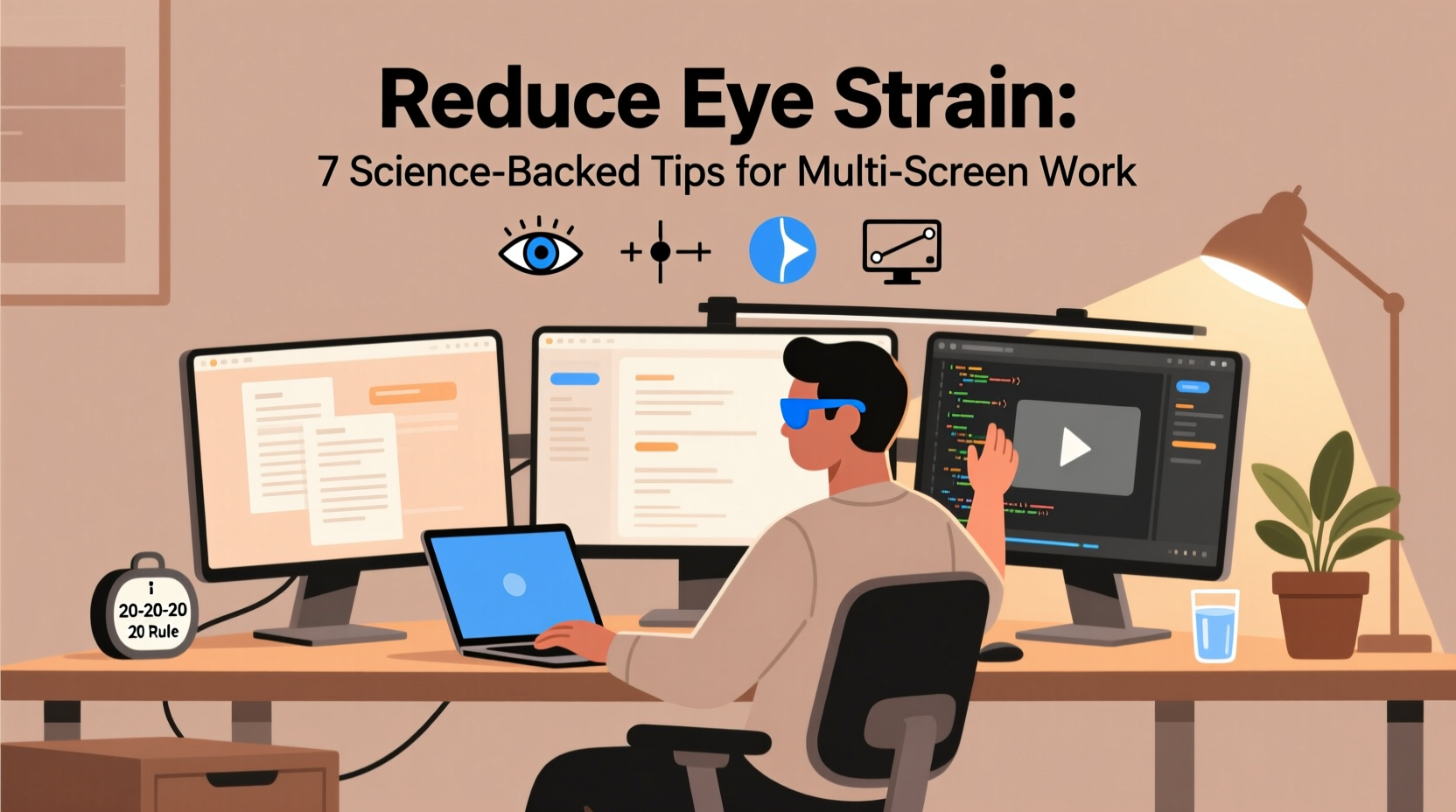
Digital eye strain, also known as computer vision syndrome, results from prolonged focusing on bright, flickering, or poorly positioned screens. When using multiple displays, the eyes constantly shift between different brightness levels, angles, and distances—forcing ciliary muscles to re-adjust repeatedly. This muscular fatigue, combined with reduced blink rates (which can drop by up to 66% during screen use), leads to discomfort.
Unlike single-monitor setups, multi-screen configurations introduce peripheral visual distractions and uneven lighting conditions. For example, a brighter monitor beside a dimmer one creates contrast stress, forcing pupils to dilate and contract rapidly. Additionally, poor alignment can cause awkward head tilts, contributing to both eye and neck strain.
“Prolonged exposure to unoptimized multi-screen environments doesn’t just cause temporary discomfort—it can disrupt circadian rhythms and accelerate age-related visual decline.” — Dr. Lena Torres, Clinical Vision Scientist at the National Eye Institute
Optimize Your Monitor Setup for Visual Comfort
The physical arrangement of your screens plays a crucial role in minimizing eye fatigue. A well-aligned multi-monitor setup reduces unnecessary eye movement and maintains consistent focal distance.
Positioning Guidelines
For two monitors: place the primary screen directly in front of you, centered with your body. The secondary screen should be placed adjacent to it, angled slightly inward (about 30 degrees) so that your gaze shifts smoothly without turning your head excessively. Avoid placing the second screen too far to the side, which forces lateral eye strain.
For three monitors: use a curved layout with the center screen straight ahead and the outer ones angled inward. The edges of all screens should form a continuous arc around your field of view, ideally within a 180-degree radius centered on your nose.
Height and Distance
All screens should have their top edges at or slightly below eye level. When seated, your eyes should naturally rest at the upper third of the display. This prevents excessive upward gaze, which exposes more of the eye surface and increases dryness.
Viewing distance should be between 20–40 inches (50–100 cm), depending on screen size. A good rule: extend your arm—the screen should be roughly an arm’s length away. Larger monitors may require greater distance to avoid peripheral blurring.
Lighting and Display Settings That Protect Your Eyes
Glare, contrast imbalance, and improper color temperature are silent contributors to visual fatigue. Addressing these factors can dramatically improve comfort during long sessions.
Control Ambient Lighting
Avoid overhead fluorescent lights or direct sunlight hitting screens. These create glare and force your eyes to work harder to interpret content. Instead, use indirect, warm-toned task lighting behind or beside your desk. Bias lighting—placing a soft LED strip behind monitors—reduces perceived contrast with dark surroundings and eases eye adaptation.
Adjust Screen Settings
- Brightness: Match screen brightness to ambient light. Overly bright screens in dim rooms cause pupil constriction and strain.
- Contrast: Set high text-to-background contrast (e.g., black text on white background) but avoid pure black on pure white extremes, which can cause halation.
- Color Temperature: Shift toward warmer tones (5000K or lower) in the evening. Blue-rich light suppresses melatonin and increases retinal stress.
- Refresh Rate: Use 75Hz or higher if available. Higher refresh rates reduce flicker perception, especially noticeable during scrolling.
| Setting | Ideal Value | Rationale |
|---|---|---|
| Brightness | Match room lighting | Prevents overstimulation in low light |
| Text Size | 11–14pt minimum | Reduces squinting and cognitive load |
| Color Temp (Day) | 6500K | Natural daylight simulation |
| Color Temp (Night) | 4500–5000K | Minimizes blue light exposure |
| Refresh Rate | ≥75Hz | Smother motion, less flicker fatigue |
Adopt Proven Behavioral Strategies to Reduce Fatigue
Even with perfect hardware setup, unsustainable work patterns undermine eye health. Integrating time-based habits into your routine provides cumulative protection.
The 20-20-20 Rule and Beyond
Every 20 minutes, look at something 20 feet away for at least 20 seconds. This simple practice relaxes the ciliary muscle responsible for lens focusing. For multi-screen users, this break is even more critical due to constant near-vision demand.
Enhance the rule by adding micro-movements: stand, stretch, or walk briefly after each cycle. Movement increases blood flow to ocular tissues and resets visual attention.
Blink Intentionally
Conscious blinking helps maintain the tear film that lubricates the eye. During intense screen focus, people often blink incompletely or infrequently. Set periodic reminders to perform five slow, full blinks—closing the eyes completely and holding for a second—to replenish moisture.
Use Software Tools Strategically
- Blue light filters: Tools like f.lux or built-in Night Light (Windows/macOS) automatically adjust color temperature based on time of day.
- Dark mode: Use in low-light settings to reduce emitted luminance, but avoid on large screens in bright rooms where contrast reverses become hard to read.
- Focus timers: Apps like Pomodoro trackers enforce regular breaks, integrating eye rest into workflow rhythms.
Real-World Example: Redesigning a Financial Analyst’s Workspace
Jamal, a senior equity analyst, worked 10-hour days across three 27-inch monitors tracking live market data. He experienced daily headaches, dry eyes, and difficulty focusing after lunch. An ergonomic assessment revealed key issues: his central monitor was too high, the right screen created glare from a nearby window, and all displays used default cool-white settings at maximum brightness.
Over two weeks, Jamal implemented changes: he lowered the main monitor using a stand, added a matte anti-glare filter to the right display, installed f.lux, and began using the 20-20-20 rule with a timer app. He also introduced bias lighting behind the monitors and replaced overhead LEDs with a warm desk lamp.
Within ten days, Jamal reported a 70% reduction in headaches and improved afternoon concentration. His ophthalmologist noted better tear film stability during a follow-up exam. The total cost of changes: under $80. The productivity gain: measurable in fewer errors and faster report completion.
Essential Checklist for Multi-Screen Eye Health
Apply this checklist weekly to maintain optimal visual conditions:
- ✅ Align all monitors at eye level and within comfortable viewing arc
- ✅ Eliminate glare with positioning or matte filters
- ✅ Adjust brightness to match ambient lighting
- ✅ Enable warm color temperature after sunset
- ✅ Practice the 20-20-20 rule consistently
- ✅ Perform full blinks every hour
- ✅ Use software tools to automate eye-friendly settings
- ✅ Take at least one 5-minute screen-free break every 90 minutes
- ✅ Schedule annual eye exams, mentioning your multi-screen use
- ✅ Keep artificial tears (preservative-free) handy if eyes feel dry
Frequently Asked Questions
Can wearing glasses help reduce eye strain on multiple screens?
Yes. Computer-specific glasses with anti-reflective coating and mild magnification (often +0.75 to +1.25) can ease focusing effort. Some include blue light filtering tints, though evidence on their efficacy varies. Consult an optometrist for personalized recommendations based on your prescription and screen distance.
Is it better to use identical monitors in a multi-screen setup?
Generally, yes. Matching models ensure uniform brightness, color accuracy, and bezel width, reducing visual disruption when scanning across screens. Mismatched sizes or resolutions force constant readjustment of focus and depth perception, increasing strain over time.
How does screen resolution affect eye fatigue?
Higher resolution (e.g., 4K) displays render text and images more crisply, reducing pixelation and jagged edges that contribute to visual noise. However, if scaling is improperly set, small text can lead to squinting. Always pair high resolution with appropriate OS scaling (125–150%) for optimal clarity.
Conclusion: Sustainable Work Starts with Healthy Vision
Reducing eye strain in multi-screen environments isn’t about sacrificing productivity—it’s about enhancing it sustainably. Small, deliberate changes in setup, settings, and behavior compound into significant improvements in comfort, focus, and long-term eye health. You don’t need expensive equipment or drastic overhauls; consistency matters more than perfection.




 浙公网安备
33010002000092号
浙公网安备
33010002000092号 浙B2-20120091-4
Comments
No comments yet. Why don't you start the discussion?