
In fast-paced competitive gaming—whether it’s first-person shooters like CS2 or battle royales like Apex Legends—every millisecond counts. Input lag, the delay between your mouse click or keypress and the corresponding action appearing on screen, can be the difference between securing a kill and getting eliminated. While hardware plays a major role, many players overlook simple software tweaks and configuration changes that can significantly reduce perceived and actual latency. This guide breaks down the science of input lag and delivers practical, proven methods to minimize it across your entire system.
Understanding Input Lag: What It Is and Why It Matters
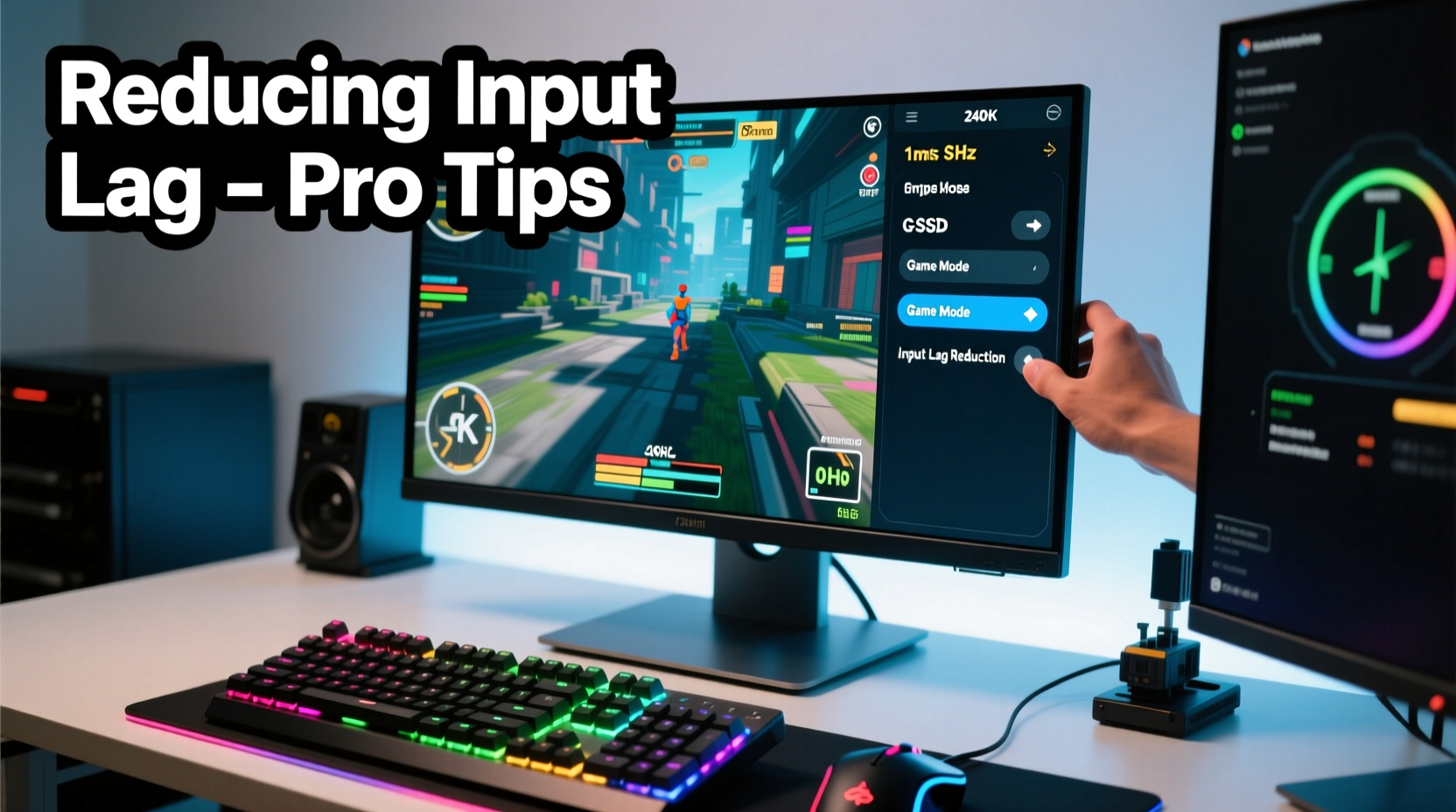
Input lag is not just about your monitor's response time. It encompasses the full chain from user input to visual feedback: your mouse or keyboard sends a signal, your PC processes it, the GPU renders the frame, and finally, the monitor displays it. Any bottleneck in this pipeline adds milliseconds—and in esports, 10ms can mean missing a flick shot by inches.
Unlike motion blur or ghosting, input lag isn’t always visible. You might not notice it until you switch to a better setup and suddenly feel more \"in sync\" with your character. Competitive gamers often describe reduced input lag as a “tighter” or “snappier” experience, where actions feel immediate and precise.
“Top-tier esports pros don’t just train their reflexes—they optimize their entire stack for minimal latency. A 5ms reduction in end-to-end input lag can improve reaction consistency under pressure.” — Daniel Reyes, Esports Performance Analyst at ProFrame Labs
Step-by-Step Guide to Minimizing Monitor Input Lag
Reducing input lag isn’t a one-size-fits-all fix. It requires a systematic approach across hardware, settings, and environment. Follow these steps in order for maximum impact:
- Enable Your Monitor’s Game Mode or Low-Latency Mode
Most modern gaming monitors include a “Game Mode,” “Dynamic,” or “Low Input Lag” setting buried in the OSD (On-Screen Display). This disables post-processing effects like edge enhancement, noise reduction, and motion smoothing that add significant processing delay. Activating this mode alone can reduce input lag by 5–20ms. - Turn Off Unnecessary Image Enhancements
Features such as dynamic contrast, color vibrancy filters, and HDR upscaling introduce additional processing layers. Disable all non-essential picture enhancements. If you’re playing in sRGB mode, keep it there. For competitive titles, accurate colors matter less than responsiveness. - Match Refresh Rate to Frame Output
Running 144Hz on your monitor but averaging only 90 FPS? That mismatch creates inconsistent frame delivery and increases perceived lag. Aim to stabilize your FPS close to your monitor’s refresh rate. Use in-game frame rate limiters or tools like NVIDIA Reflex or AMD Anti-Lag to synchronize rendering with display output. - Use the Right Cable and Port
Ensure you’re using a high-speed cable (e.g., HDMI 2.0/2.1 or DisplayPort 1.4) connected directly to a native video input on the monitor. Avoid daisy-chaining through hubs or using outdated cables that may throttle bandwidth or introduce signal instability. - Update Firmware and Drivers
Monitor manufacturers occasionally release firmware updates that improve timing precision or fix known latency bugs. Similarly, GPU drivers are frequently optimized for new games and lower latency. Check your monitor’s support page and install the latest firmware if available.
Optimize Your GPU Settings for Lower Latency
Your graphics card has a disproportionate influence on input lag. Even with a 360Hz monitor, poor GPU configuration can negate its benefits.
NVIDIA Users: Leverage NVIDIA Reflex
NVIDIA Reflex is a game-changer for competitive play. It synchronizes the CPU and GPU to render frames only when needed, reducing both system latency and queuing delays. To enable:
- Ensure your GPU is GTX 900 series or newer.
- Update to the latest Game Ready driver.
- In supported games (e.g., Valorant, Fortnite, Warzone), enable “NVIDIA Reflex” and set it to “On + Boost” if available.
Reflex can reduce system latency by up to 33% in some titles, effectively making a 144Hz system feel like a 240Hz one.
AMD Users: Use Anti-Lag and Radeon Boost
AMD’s Anti-Lag technology reduces CPU-induced input lag by minimizing render queue depth. Radeon Boost dynamically lowers resolution during motion to maintain higher frame rates. Both features are accessible via AMD Software: Adrenalin Edition.
- Open AMD Software > Gaming > Graphics.
- Enable “Anti-Lag” for the specific game profile.
- Consider enabling “Radeon Boost” if visual fidelity loss is acceptable.
General GPU Best Practices
- Disable V-Sync unless screen tearing is unbearable—V-Sync adds at least one full frame of delay.
- Avoid triple buffering; it increases latency without meaningful benefit.
- Cap FPS slightly below your refresh rate (e.g., 237 FPS on a 240Hz monitor) to prevent buffer buildup.
Hardware Comparison: How Specs Affect Input Lag
Not all monitors are created equal—even those with identical advertised specs. Here’s a breakdown of common panel types and technologies and their typical impact on input lag:
| Panel Type | Avg. Input Lag (GtG) | Pros | Cons |
|---|---|---|---|
| TN (Twisted Nematic) | 0.5 – 2ms | Fastest response, lowest cost | Poor viewing angles, inferior color accuracy |
| IPS (In-Plane Switching) | 3 – 5ms | Better colors, wider viewing angles | Slight input lag increase, potential for backlight bleed |
| VA (Vertical Alignment) | 5 – 8ms | Excellent contrast, deep blacks | Slower pixel response, smearing in dark scenes |
| OLED | 0.1 – 0.5ms | Near-instantaneous response, perfect blacks | Expensive, risk of burn-in |
Note: GtG (Gray-to-Gray) response time is often marketed, but true input lag includes controller processing, frame delivery, and system synchronization. OLED leads due to per-pixel illumination and minimal processing overhead.
Real-World Example: From High Ping to Tournament-Ready Setup
Jamal, a semi-pro Apex Legends player, struggled with inconsistent aim despite excellent mechanical skill. His setup included a mid-tier 144Hz IPS monitor, a GTX 1660 Super, and a standard office desk environment. He consistently placed top 10 but rarely won matches.
After consulting a performance coach, he conducted a system audit. The monitor was running in “Movie Mode” with HDR enabled, adding ~18ms of input lag. His GPU had no frame limiter, causing FPS spikes and stutters. Additionally, he used an old HDMI 1.4 cable.
He made the following changes:
- Switched monitor to “Game Mode” and disabled HDR.
- Replaced HDMI cable with DisplayPort 1.4.
- Updated GPU drivers and enabled NVIDIA Reflex in Origin.
- Capped FPS at 141 using RTSS (RivaTuner Statistics Server).
The result? His measured system latency dropped from ~42ms to ~23ms. Within two weeks, his win rate increased by 40%, and he qualified for a regional LAN event. “It felt like I finally caught up to my own reflexes,” Jamal said. “The game didn’t change—but my connection to it did.”
Essential Checklist: Reduce Input Lag in Under 15 Minutes
Follow this checklist to quickly optimize your setup for competitive responsiveness:
- ✅ Enable Game Mode or Low Input Lag mode on your monitor
- ✅ Disable HDR, motion smoothing, and dynamic contrast
- ✅ Use DisplayPort instead of HDMI (if available)
- ✅ Update GPU drivers to the latest version
- ✅ Enable NVIDIA Reflex or AMD Anti-Lag in-game
- ✅ Cap FPS 3–5 below your monitor’s max refresh rate
- ✅ Turn off V-Sync and triple buffering
- ✅ Confirm your monitor is running at its native refresh rate
- ✅ Test with a fast-paced game and assess perceived responsiveness
Frequently Asked Questions
Does resolution affect input lag?
Yes, but indirectly. Higher resolutions (like 1440p or 4K) require more GPU power, which can lower FPS and increase frame delivery time. If your system can’t maintain high frame rates at higher resolutions, input lag will rise. For competitive play, 1080p is often optimal for maximizing FPS and minimizing latency.
Can I reduce input lag without buying new hardware?
Absolutely. Most modern monitors already have low-latency modes that are disabled by default. Updating drivers, enabling GPU-specific latency reduction tech (like Reflex), and adjusting in-game settings can yield dramatic improvements—sometimes cutting input lag in half—without spending a dollar.
Is wireless peripherals a source of input lag?
Modern wireless gaming mice and keyboards (e.g., Logitech Lightspeed, Razer HyperSpeed) have latency as low as 1ms—comparable to wired devices. However, interference, low battery, or outdated dongles can increase delay. For best results, use dedicated USB ports and keep firmware updated.
Final Thoughts: Precision Starts with Responsiveness
Competitive advantage isn’t just about faster clicks or sharper aim—it’s about minimizing the gap between intention and execution. Input lag is invisible until it’s gone, but once reduced, the improvement is unmistakable. By auditing your monitor settings, leveraging GPU-level optimizations, and understanding the full input pipeline, you create a system that responds instantly to your commands.
Don’t assume your expensive monitor is performing at its peak. Most come tuned for movies and media, not esports. Reclaim those lost milliseconds. Apply the steps in this guide, run a before-and-after test, and feel the difference in your next match.




 浙公网安备
33010002000092号
浙公网安备
33010002000092号 浙B2-20120091-4
Comments
No comments yet. Why don't you start the discussion?