
Motion sickness remains one of the most common barriers to enjoying virtual reality gaming. Despite advancements in hardware and software, many users still experience discomfort, nausea, or dizziness after just minutes inside a VR headset. The good news? You don’t need expensive accessories or medical interventions to improve your experience. Often, the solution lies in adjusting a few key settings within your VR system and games.
Unlike traditional screen-based gaming, VR immerses your senses in a simulated 3D environment. When visual movement doesn’t align with physical cues from your inner ear and body, your brain interprets this mismatch as potential poisoning—a survival mechanism that can trigger nausea. By fine-tuning display, movement, and performance settings, you can significantly reduce sensory conflict and enjoy longer, more comfortable sessions.
Understanding the Root Causes of VR Motion Sickness
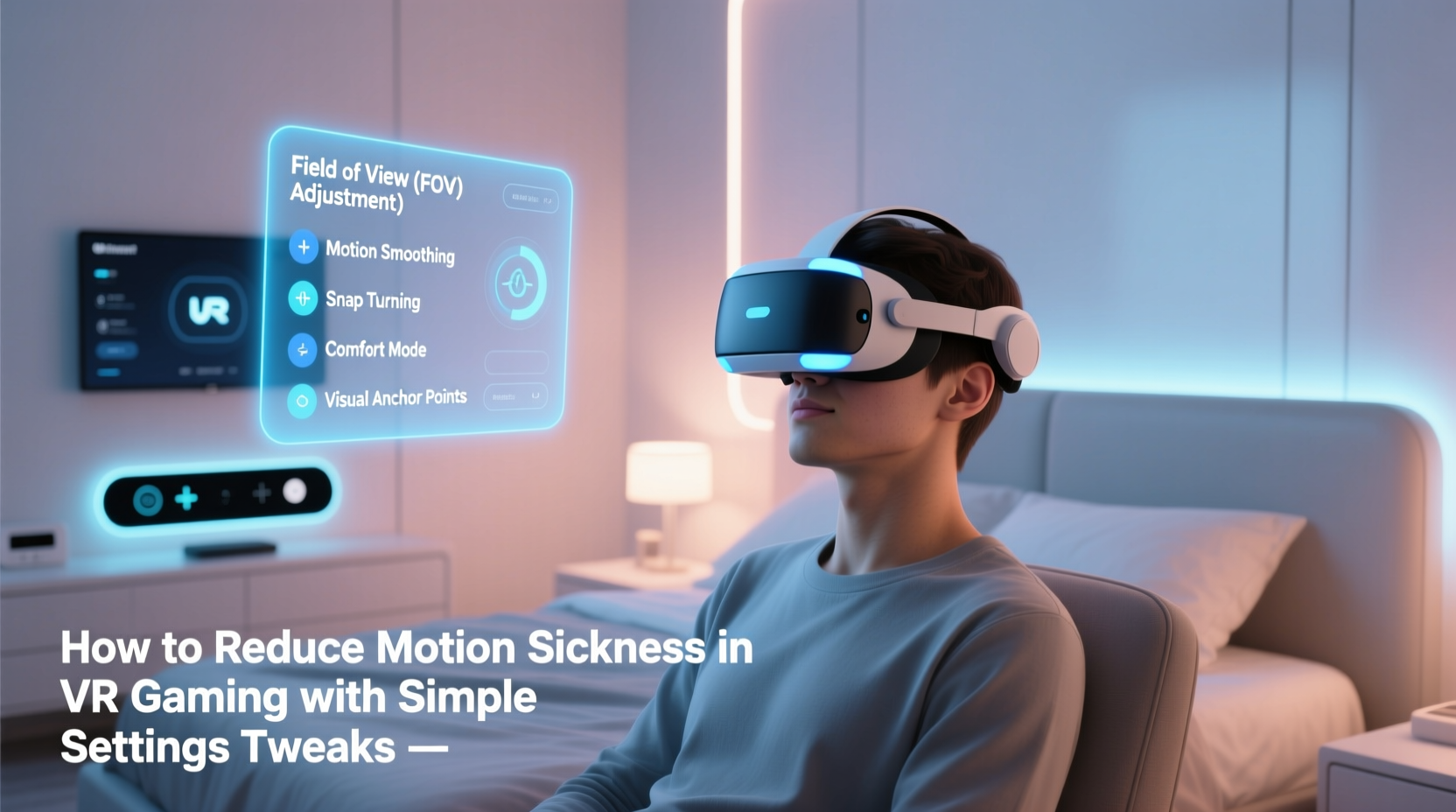
Before diving into solutions, it’s important to understand why motion sickness occurs in VR. Three primary factors contribute:
- Latency: Delay between head movement and visual update. Even a slight lag (over 20ms) disrupts immersion and triggers discomfort.
- Frame Rate: Inconsistent or low frame rates (below 72–90 FPS depending on device) cause stuttering visuals, increasing disorientation.
- Sensory Mismatch: Your eyes see motion (e.g., flying, walking), but your body remains stationary—this disconnect confuses the vestibular system.
Additional contributors include poor resolution, narrow field of view, and unnatural locomotion mechanics like artificial acceleration or snap-turning without visual anchoring.
“VR motion sickness isn’t a flaw in the user—it’s a mismatch between technology and human perception. Adjusting settings is often enough to restore balance.” — Dr. Lena Torres, Neuroscientist & Human-Computer Interaction Researcher
Optimize Display and Performance Settings
The foundation of a comfortable VR experience starts with smooth, responsive visuals. Prioritize stability over graphical fidelity when necessary.
Set Frame Rate to Maximum Supported
Most modern VR headsets operate optimally at 80–120 FPS. Lower frame rates increase perceived latency and break immersion.
Adjust Resolution Scaling
If your PC struggles to maintain high frame rates, lower the render resolution slightly. A small drop in sharpness is far less disruptive than stuttering.
- Open your VR platform (SteamVR, Meta Quest settings, etc.).
- Navigate to Developer or Performance settings.
- Reduce resolution scale from 100% to 80–90%.
- Test gameplay and monitor frame pacing.
This adjustment reduces GPU load and helps sustain target frame rates, especially in graphically intensive titles.
Enable Fixed Foveated Rendering (Quest Users)
On standalone headsets like the Meta Quest 2, 3, and Pro, fixed foveated rendering (FFR) focuses processing power where your eyes are looking, boosting performance with minimal visual loss.
| Setting | Recommended Option | Effect |
|---|---|---|
| Foveated Rendering | Fixed High | Balances clarity and performance |
| Refresh Rate | 90Hz or 120Hz | Reduces motion blur and latency |
| IPD Calibration | Custom (measured) | Improves focus and depth perception |
Ensure IPD (interpupillary distance) is correctly set in your headset. Misalignment causes eye strain and blurriness, compounding discomfort.
Modify Locomotion and Movement Mechanics
How you move through virtual space has the biggest impact on motion sickness. Artificial locomotion—especially free-floating movement—conflicts directly with bodily stillness.
Use Teleportation Instead of Smooth Locomotion
Teleportation eliminates continuous motion. You point to a location and instantly reposition, avoiding the sensation of moving while standing still.
- In supported games (e.g., *Boneworks*, *The Walking Dead: Saints & Sinners*), enable teleport movement in options.
- Use thumbstick click or button press to activate aiming arc.
- Confirm destination with release.
This method gives your brain discrete transitions rather than constant velocity input.
Limit Turning Speed and Use Snap-Turns
Smooth turning can be just as nauseating as walking. Snap-turns rotate your view in fixed increments (e.g., 30° or 45° per input), reducing disorientation.
Add Visual Anchors
Anchors provide stable reference points that ground your perception. Without them, the entire world seems to spin.
- Enable cockpit views in vehicle-based games (*Elite Dangerous*, *Project Cars VR*).
- Use in-game objects like a virtual nose (a subtle dark bar at screen center).
- Install mods that add static frames or peripheral grids.
One study found that adding a simple 3D frame around the viewport reduced motion sickness by up to 40% in susceptible users.
Environmental and Behavioral Adjustments
Hardware and software settings aren’t the only levers. Your physical environment and habits play a crucial role.
Play in a Well-Ventilated Room
Stuffy air increases fatigue and nausea. Keep the room cool and ensure airflow. Overheating amplifies discomfort.
Take Frequent Breaks Using the 20-5-Minute Rule
Beginners should limit initial sessions to 15–20 minutes, followed by at least 5 minutes outside the headset.
- Play for 20 minutes max.
- Remove headset and focus on a distant real-world object.
- Walk around briefly to recalibrate balance.
- Hydrate before returning.
This routine prevents sensory overload and trains your brain to adapt gradually.
Avoid Gaming on an Empty or Full Stomach
Extreme hunger or fullness affects nausea thresholds. Eat a light snack 30–60 minutes before playing—bananas, crackers, or ginger biscuits work well.
“I used to get sick within five minutes of starting *Half-Life: Alyx*. After switching to teleport-only mode, lowering FOV, and taking breaks every 15 minutes, I played for 90 minutes straight without issues.” — Marcus R., VR Enthusiast (Seattle, WA)
Actionable Checklist for Immediate Relief
Apply these steps before your next VR session to minimize discomfort:
- ✅ Calibrate IPD and wear the headset snugly (no slippage).
- ✅ Set refresh rate to highest stable option (90Hz+).
- ✅ Reduce render resolution if frame drops occur.
- ✅ Enable teleportation or arm-swing movement.
- ✅ Switch to snap-turns (30° increments).
- ✅ Lower field of view (FOV) in game settings (from 110° to 90°).
- ✅ Play seated or standing in place—avoid walking simulations.
- ✅ Ensure room is cool and well-lit.
- ✅ Limit first session to 15–20 minutes.
- ✅ Use a fan to maintain airflow during play.
Frequently Asked Questions
Can I completely eliminate VR motion sickness?
For most people, yes—with proper settings and gradual exposure. While some individuals remain highly sensitive, over 80% report significant improvement after adjusting locomotion and performance settings. Complete elimination may take weeks of acclimatization.
Does lowering field of view really help?
Yes. A wide FOV increases peripheral motion, which is most likely to trigger nausea. Reducing it to 80–90 degrees limits visual flow at the edges of vision, where your brain is most sensitive to false motion. Many users report immediate relief after this single change.
Are certain VR headsets better for motion sickness?
Higher-end models with faster refresh rates (120Hz), lower persistence displays, and better positional tracking tend to cause less discomfort. Devices like the Valve Index, HP Reverb G2, and Meta Quest 3 offer superior motion clarity. However, even budget headsets can be made comfortable with correct settings.
Final Tips for Long-Term Comfort
Motion sickness in VR isn’t a permanent limitation—it’s a temporary hurdle. With deliberate adjustments, most users can expand their tolerance dramatically. Start conservatively, prioritize stability over spectacle, and let your nervous system adapt over time.
Remember: discomfort decreases with repeated, controlled exposure. Don’t push through nausea. Instead, use shorter, optimized sessions to build resilience. Track your progress—if you lasted 10 minutes the first day and 25 the next, you’re improving.




 浙公网安备
33010002000092号
浙公网安备
33010002000092号 浙B2-20120091-4
Comments
No comments yet. Why don't you start the discussion?