
High ping in Valorant can turn a competitive edge into a frustrating lag-fest. Even with a powerful PC and sharp aim, latency issues can ruin clutch moments, cause rubberbanding, or make bullets feel unresponsive. The good news? You don’t need expensive upgrades to fix it. Often, the solution lies in optimizing your existing network setup. By making a few strategic adjustments—some as simple as changing a cable—you can significantly reduce ping, stabilize your connection, and enjoy a much smoother gaming experience.
Ping measures the round-trip time between your device and the game server, usually in milliseconds (ms). Lower ping means faster communication, which is critical in fast-paced shooters like Valorant. While Riot Games maintains solid server infrastructure, your local network plays a major role in how well you connect. This guide breaks down practical, effective tweaks—ranging from hardware changes to software settings—that directly impact your ping in Valorant.
Understand What Affects Ping in Valorant
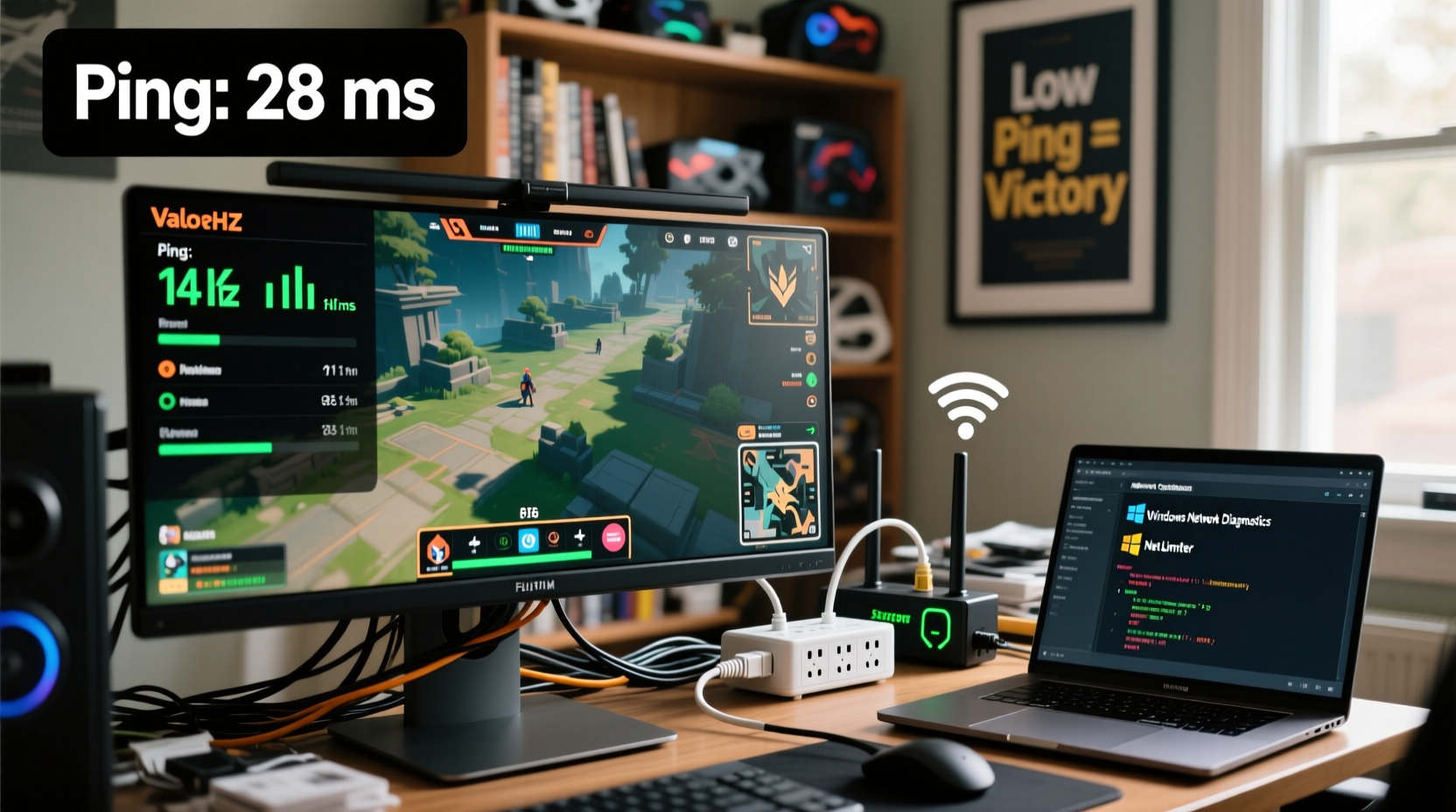
Before diving into fixes, it’s essential to understand what contributes to high ping. Several factors influence your connection quality:
- Distance to Server: The farther you are from the game server, the longer data takes to travel. Valorant routes players to regional servers automatically, but sometimes suboptimal routing occurs.
- Network Congestion: Multiple devices streaming, downloading, or updating on the same network consume bandwidth and increase latency.
- Wi-Fi Interference: Wireless signals are prone to interference from walls, appliances, and neighboring networks, leading to packet loss and jitter.
- Router Quality & Settings: Outdated or poorly configured routers may not prioritize gaming traffic efficiently.
- Background Applications: Cloud sync tools, updates, and browsers using bandwidth in the background can spike ping unexpectedly.
Riot recommends a ping under 40ms for optimal play, though anything under 70ms is generally playable. Anything above 100ms starts to affect responsiveness, especially in gunfights. Identifying your current baseline is the first step—launch Valorant, check your in-game ping (found in settings > social), and test your internet speed via speedtest.net to compare results before and after applying these tweaks.
Switch from Wi-Fi to Ethernet: The Most Effective Fix
If you're currently using Wi-Fi, switching to a wired Ethernet connection is the single most impactful change you can make. Wireless connections introduce variability due to signal strength, interference, and protocol overhead—all of which contribute to higher and less stable ping.
Ethernet provides a direct, dedicated link between your PC and router, eliminating wireless bottlenecks. Gamers consistently report ping reductions of 20–50ms simply by plugging in. Additionally, wired connections offer lower jitter (variation in ping) and fewer dropped packets, both crucial for consistent performance.
“Latency-sensitive applications like online gaming benefit immensely from deterministic, low-jitter paths. Ethernet remains the gold standard.” — Dr. Lena Patel, Network Performance Analyst
To set this up:
- Obtain a Cat 6 or Cat 6a Ethernet cable (affordable and widely available).
- Connect one end to your PC’s Ethernet port and the other to a LAN port on your router.
- Disable Wi-Fi on your PC to ensure traffic routes through the cable.
- Restart Valorant and monitor your ping in the scoreboard.
If your router is far from your gaming setup, consider a long cable, a powerline adapter, or a mesh system with Ethernet backhaul. Avoid extending Wi-Fi range with repeaters—they amplify latency issues.
Optimize Router Settings for Gaming
Your router manages all incoming and outgoing traffic. Default settings often treat all data equally, which means a YouTube video might get the same priority as your Valorant packets. Adjusting a few key settings can dramatically improve responsiveness.
Enable Quality of Service (QoS)
QoS allows you to prioritize gaming traffic over other types of data. In your router’s admin panel (usually accessible via 192.168.1.1 or 192.168.0.1), look for QoS settings and assign higher priority to your gaming PC. You can identify your device by its IP or MAC address.
Use a Static IP for Your Gaming PC
Dynamic IPs assigned via DHCP can change, disrupting QoS rules. Assigning a static IP ensures your PC always gets prioritized. This is done either in the router settings or within Windows network configuration.
Update Firmware
Manufacturers release firmware updates that improve stability, security, and performance. An outdated router may lack optimizations for modern gaming traffic. Check your router brand’s support site for updates.
Select the Best DNS Servers
Default ISP DNS servers aren’t always the fastest. Switching to public options like Google DNS (8.8.8.8, 8.8.4.4) or Cloudflare (1.1.1.1) can reduce domain resolution time and slightly improve overall connectivity.
Reduce Background Network Usage
Even if your internet plan offers high speeds, concurrent usage can saturate your bandwidth and increase ping. Many applications run silently in the background, consuming upload and download capacity.
Common culprits include:
- Windows Update (especially large feature updates)
- Cloud storage apps (OneDrive, Dropbox, Google Drive syncing files)
- Streaming services (Spotify, Netflix on another device)
- Discord screen sharing or voice call recording
- Smart home devices uploading footage
To minimize interference:
- Open Task Manager (Ctrl+Shift+Esc) and go to the “Performance” tab to monitor real-time network usage.
- Identify high-usage processes under the “Processes” tab.
- Temporarily disable non-essential apps before launching Valorant.
- Schedule large downloads or updates for after gaming sessions.
In Windows, you can also set your connection as metered to block automatic updates:
- Go to Settings > Network & Internet > Wi-Fi.
- Select your network > Set as metered connection.
This prevents Windows from downloading updates in the background while allowing you to play without competition for bandwidth.
Port Forwarding and Firewall Tweaks
While Valorant uses UDP and typically works fine behind NAT (Network Address Translation), configuring port forwarding can help maintain a stable connection, especially if you’re hosting parties or experiencing frequent timeouts.
Valorant uses the following ports:
| Application | Protocol | Ports |
|---|---|---|
| Valorant Client | TCP | 5222, 5223 |
| Game Traffic | UDP | 80, 443, 5000–5100 |
| RIOT API | TCP | 443 |
To forward these ports:
- Access your router’s admin interface.
- Navigate to Port Forwarding or Virtual Server settings.
- Create a new rule for each required port range.
- Set the destination to your PC’s static IP address.
- Save and restart the router.
Additionally, ensure Windows Firewall isn’t blocking Valorant:
- Go to Control Panel > System and Security > Windows Defender Firewall.
- Click “Allow an app through firewall.”
- Ensure both “Private” and “Public” boxes are checked for RiotClientServices.exe and VALORANT.exe.
Note: Some ISPs use CGNAT (Carrier-Grade NAT), which blocks traditional port forwarding. If you can’t open ports, contact your ISP about obtaining a public IP address.
Real-World Example: From 120ms to 38ms
Take the case of Marcus, a competitive Valorant player in Toronto. He was consistently seeing 110–120ms ping despite having a 200 Mbps fiber connection. Frustrated by missed shots and delayed abilities, he decided to troubleshoot.
His initial setup used Wi-Fi, with multiple devices streaming 4K video in the background. After switching to Ethernet, disabling auto-updates on his PC, and enabling QoS on his router, his ping dropped to 65ms. He then updated his router’s firmware and changed DNS to Cloudflare, bringing it down further. Finally, he scheduled his family’s streaming for after his gaming hours.
Result: His average ping stabilized at 38ms, with zero packet loss during ranked matches. He climbed two ranks within a month, attributing much of his improvement to the reduced input lag and consistent server response.
“Fixing my network didn’t just lower my ping—it made the game feel *fairer*. I could finally trust my mechanics.” — Marcus T., Competitive Valorant Player
Quick Optimization Checklist
Follow this checklist before every serious gaming session to ensure peak network performance:
- ✅ Use Ethernet instead of Wi-Fi
- ✅ Close bandwidth-heavy apps (Steam downloads, Discord streams)
- ✅ Disable Windows auto-updates temporarily
- ✅ Restart your router and modem
- ✅ Set a static IP for your PC
- ✅ Enable QoS and prioritize gaming traffic
- ✅ Change DNS to 1.1.1.1 or 8.8.8.8
- ✅ Verify firewall allows Valorant executables
- ✅ Monitor ping in-game and via third-party tools
Frequently Asked Questions
Does lowering graphics settings reduce ping?
No. Graphics settings affect FPS (frames per second) on your end, not network latency. However, higher FPS can improve perceived responsiveness, making low ping feel even better. They work together but are separate metrics.
Can a VPN reduce ping in Valorant?
Generally, no. Most consumer VPNs add extra hops, increasing ping. However, some gaming-specific VPNs (like ExitLag or WTFast) use optimized routing to bypass congested paths. These may help in rare cases where ISP routing is inefficient, but they’re not a guaranteed fix and can be costly.
Why does my ping spike randomly during matches?
Sudden spikes are often caused by background processes (e.g., Windows update kicking in), Wi-Fi interference, or router buffer bloat. Ensure no other devices are downloading large files, switch to Ethernet, and consider enabling “bufferbloat mitigation” if your router supports SQM (Smart Queue Management).
Final Thoughts: Small Tweaks, Big Impact
Reducing ping in Valorant doesn’t require a full network overhaul. Often, the biggest gains come from simple, overlooked adjustments—like swapping a cable or closing a browser tab. The key is consistency: treat your network like a tuned machine, not a set-it-and-forget-it utility.
Start with the basics—go wired, eliminate background noise, and optimize your router. Then refine with DNS, QoS, and port settings as needed. Each step compounds, leading to a smoother, more reliable connection that lets your skill shine without technical interference.




 浙公网安备
33010002000092号
浙公网安备
33010002000092号 浙B2-20120091-4
Comments
No comments yet. Why don't you start the discussion?