
In today’s digital-first world, most people spend more than six hours a day in front of screens. Whether you're working on a laptop, reading articles on a tablet, or responding to messages on your phone, prolonged exposure can lead to eye fatigue, dryness, blurred vision, and headaches. While dark mode is often recommended as a solution, it's not always practical—especially in bright environments or when viewing color-sensitive content like photos, charts, or design work.
The good news: reducing screen-related eye strain doesn’t require switching to dark themes. A combination of ergonomic adjustments, environmental optimization, and behavioral habits can significantly improve visual comfort—even with light-mode interfaces. Below are proven, actionable strategies that support long-term eye health while keeping your display settings functional and familiar.
Adjust Your Screen Position and Viewing Angle
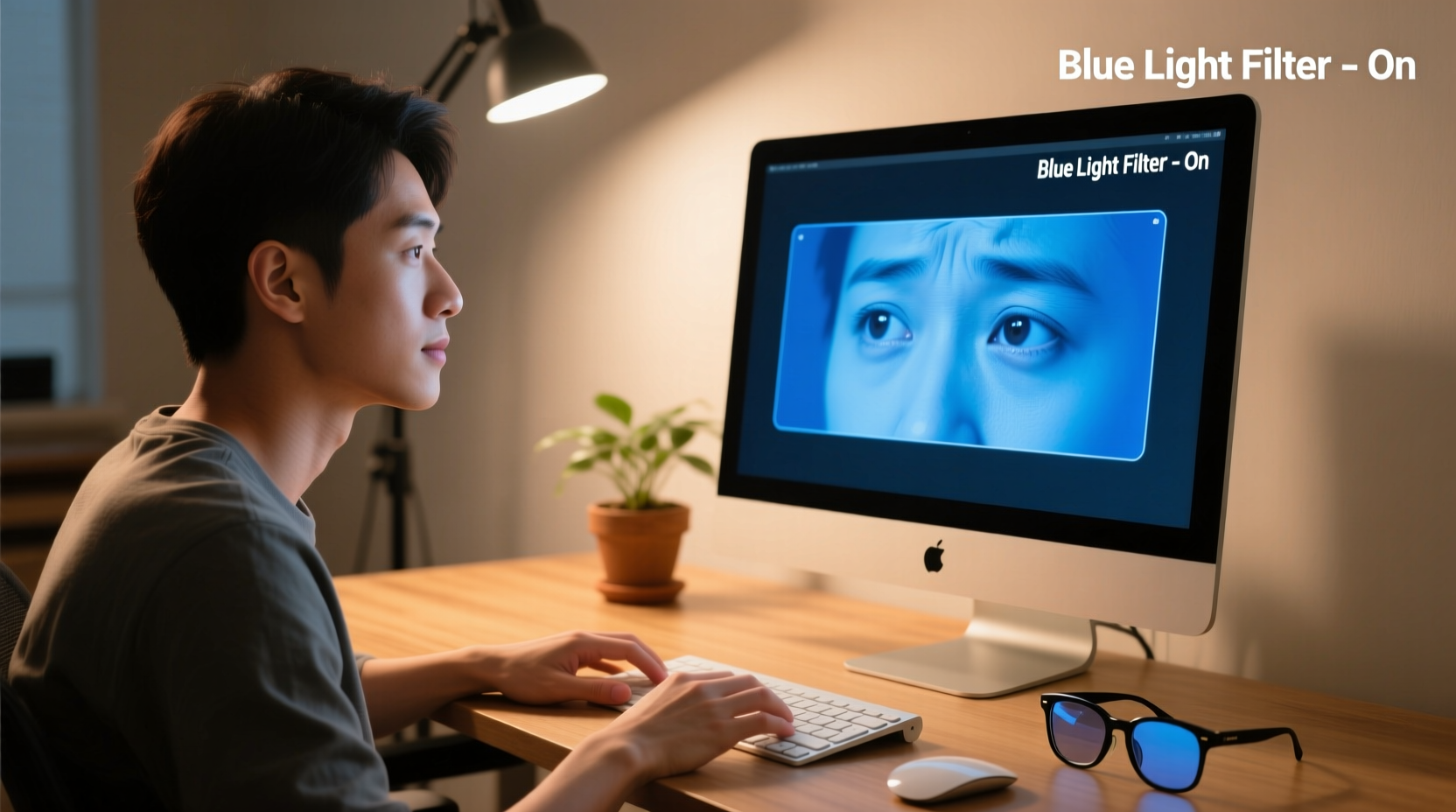
One of the most overlooked contributors to eye strain is poor screen positioning. When your monitor is too high, too low, or too far away, your eyes must constantly refocus or adjust their convergence angle, leading to muscle fatigue over time.
The ideal setup places the top of your screen at or slightly below eye level. This allows your gaze to fall naturally about 10–20 degrees downward, minimizing strain on both your neck and ocular muscles. The screen should be approximately an arm’s length (50–70 cm) from your face. For dual monitors, align the primary screen directly in front of you and angle secondary displays inward to maintain consistent focus distance.
Monitor Height & Distance Guidelines
| Factor | Recommended Setting |
|---|---|
| Screen Top Level | At or slightly below eye level |
| Viewing Distance | 50–70 cm (20–28 inches) |
| Gaze Angle | 10°–20° below horizontal |
| Screen Tilt | Slight backward tilt (10°–15°) |
This configuration reduces glare and keeps your eyelids partially closed, decreasing tear evaporation and helping prevent dry eyes—a common symptom of screen overuse.
Optimize Ambient Lighting and Reduce Glare
Lighting plays a critical role in visual comfort. Harsh overhead lights or unfiltered sunlight reflecting off your screen forces your eyes to work harder to distinguish text and images. Excessive contrast between your screen brightness and room lighting creates visual stress, even if the display itself appears clear.
To minimize this effect, aim for balanced ambient illumination. Use indirect lighting such as floor lamps or wall sconces instead of direct ceiling bulbs. If natural light enters your workspace, position your desk perpendicular to windows rather than facing them directly. This prevents backlighting and reduces dynamic glare changes throughout the day.
Anti-glare screen protectors are another effective tool. These matte-finish filters scatter reflected light, making it easier to view content under varied lighting conditions without squinting. They’re particularly helpful in offices with fluorescent lighting or near large glass surfaces.
“Proper ambient lighting can reduce perceived screen brightness by up to 40%, which significantly lowers visual fatigue.” — Dr. Lena Torres, Optometrist and Vision Ergonomics Researcher
Do’s and Don’ts of Workspace Lighting
| Action | Recommendation |
|---|---|
| Use overhead fluorescent lights | ❌ Avoid; causes flicker and harsh contrast |
| Position monitor facing a window | ❌ Avoid; leads to glare and reflections |
| Use task lighting near the screen | ✅ Do; provides localized, soft illumination |
| Install an anti-glare filter | ✅ Do; improves readability in bright rooms |
| Rely solely on screen brightness | ❌ Avoid; balance with room lighting instead |
Apply the 20-20-20 Rule and Blink Consciously
Even with perfect ergonomics and lighting, continuous focus on close-range objects disrupts normal eye function. The ciliary muscles inside your eyes remain contracted during screen use, which can cause temporary focusing issues known as accommodative spasm. Additionally, studies show people blink only one-third as often while staring at screens—leading to dry, irritated eyes.
The 20-20-20 rule is a simple yet powerful technique developed by optometrists: every 20 minutes, look at something at least 20 feet away for 20 seconds. This brief shift relaxes the focusing muscle and gives your retina a break from high-contrast pixel patterns. It also encourages natural blinking, restoring moisture to the ocular surface.
To build consistency, pair this habit with routine actions—like after sending an email, finishing a paragraph, or taking a sip of water. Over time, it becomes second nature.
Step-by-Step Guide: Implementing the 20-20-20 Rule
- Set a timer or use a productivity app to alert you every 20 minutes.
- Pause typing or reading and shift your gaze to a distant object (e.g., a tree outside, a painting across the room).
- Focus softly on the object—don’t analyze details—and breathe normally.
- Consciously blink several times during the pause to rewet your eyes.
- After 20 seconds, return to your screen with refreshed focus.
Customize Display Settings for Visual Comfort
You don’t need dark mode to make your screen easier on the eyes. Fine-tuning brightness, contrast, text size, and color temperature can deliver similar relief while preserving visibility and color accuracy.
Start by adjusting screen brightness to match your surroundings. A display that glows brighter than the room acts like a flashlight in a dim room—overstimulating your pupils. Most operating systems now include auto-brightness features based on ambient light sensors, but manual calibration often yields better results. Test by displaying a white webpage: if it feels harsh or blinding, reduce brightness gradually until it appears neutral.
Next, increase text size and line spacing. Small fonts force your eyes to concentrate intensely, especially in long-form reading. On desktops, use Ctrl + '+' (Cmd + '+' on Mac) to zoom pages to 125% or 150%. Many websites and apps allow custom font scaling in accessibility settings.
Color temperature adjustment is another key lever. Blue-rich light—common in default daylight settings—can contribute to retinal stress and suppress melatonin. Shifting toward warmer tones (around 5000K–6000K) reduces blue emission without turning the screen yellow-orange like extreme night modes. Tools like f.lux or built-in \"Warm Color Filter\" (Windows) or \"Night Shift\" (macOS/iOS) let you schedule gradual transitions based on time of day.
Display Optimization Checklist
- ✅ Match screen brightness to ambient light
- ✅ Increase text size for comfortable reading
- ✅ Adjust color temperature to warm daylight (not full amber)
- ✅ Enable high-DPI scaling for sharper visuals
- ✅ Use anti-aliasing for smoother font edges
- ✅ Disable animated backgrounds and parallax effects
Real-World Example: Sarah’s Open-Office Transformation
Sarah, a technical writer at a software company, spent eight hours daily reviewing documentation and editing code comments—all in standard light mode due to team collaboration tools that lacked consistent dark theme support. After months of persistent eye discomfort and midday headaches, she consulted an occupational therapist.
Instead of recommending dark mode, the specialist assessed her environment. She worked under flickering fluorescent lights with her laptop perched on a stack of notebooks, forcing her to crane her neck upward. Sunlight streamed directly onto her screen each morning.
Her solution was multifaceted: she requested a monitor riser and external keyboard, repositioned her desk sideways to the window, added a bias light behind her screen, installed an anti-glare film, and began using timed reminders for the 20-20-20 rule. Within two weeks, her symptoms decreased dramatically. Her team later adopted similar setups, proving that structural changes often outperform superficial UI tweaks.
Frequently Asked Questions
Can screen eye strain cause permanent damage?
No conclusive evidence shows that screen-related eye strain leads to permanent vision loss. However, chronic discomfort can accelerate conditions like dry eye syndrome or worsen pre-existing refractive errors. Persistent symptoms should be evaluated by an eye care professional.
Is blue light blocking really effective?
Research remains mixed. While excessive blue light exposure at night may disrupt sleep, daytime filtering has limited impact on eye strain. More important factors include brightness, contrast, and viewing duration. That said, moderate warmth adjustments (not full blue blockers) can enhance comfort during extended use.
What if I wear glasses—can they help?
Absolutely. If you spend significant time on screens, consider computer-specific lenses with anti-reflective coating and slight magnification for intermediate distances. Even mild prescriptions designed for 50–70 cm viewing can reduce focusing effort. Consult your optometrist for a tailored recommendation.
Final Thoughts: Sustainable Eye Health Starts Today
Reducing screen eye strain isn't about finding a single fix—it's about creating a supportive visual ecosystem. You don’t need to abandon light mode to protect your eyes. By aligning your workspace with ergonomic principles, managing lighting intelligently, adopting healthy viewing habits, and fine-tuning display settings, you can maintain clarity and comfort throughout the day.
Small changes compound quickly. Repositioning your monitor takes five minutes. Calibrating brightness adds no cost. Practicing the 20-20-20 rule costs nothing but attention. Together, these actions form a sustainable defense against digital fatigue—one that respects both your workflow and your well-being.




 浙公网安备
33010002000092号
浙公网安备
33010002000092号 浙B2-20120091-4
Comments
No comments yet. Why don't you start the discussion?