
Prolonged screen time is a reality for most professionals, students, and remote workers. A common yet often overlooked issue in this digital routine is screen glare—reflected light that bounces off the surface of your laptop display, making it harder to read text, view images, and maintain focus. While anti-glare filters are widely marketed, they aren’t always necessary or convenient. The good news? You can significantly reduce screen glare without any external accessories by adjusting your environment, optimizing display settings, and adopting smarter work habits.
This guide explores proven, practical methods to minimize glare using only what you already have: your laptop, your workspace, and a few thoughtful changes. Whether you're working from a sunlit café, a home office with overhead lights, or a shared co-working space, these strategies will help you reclaim visual clarity and reduce eye strain—no stickers, films, or purchases required.
Optimize Your Workspace Lighting
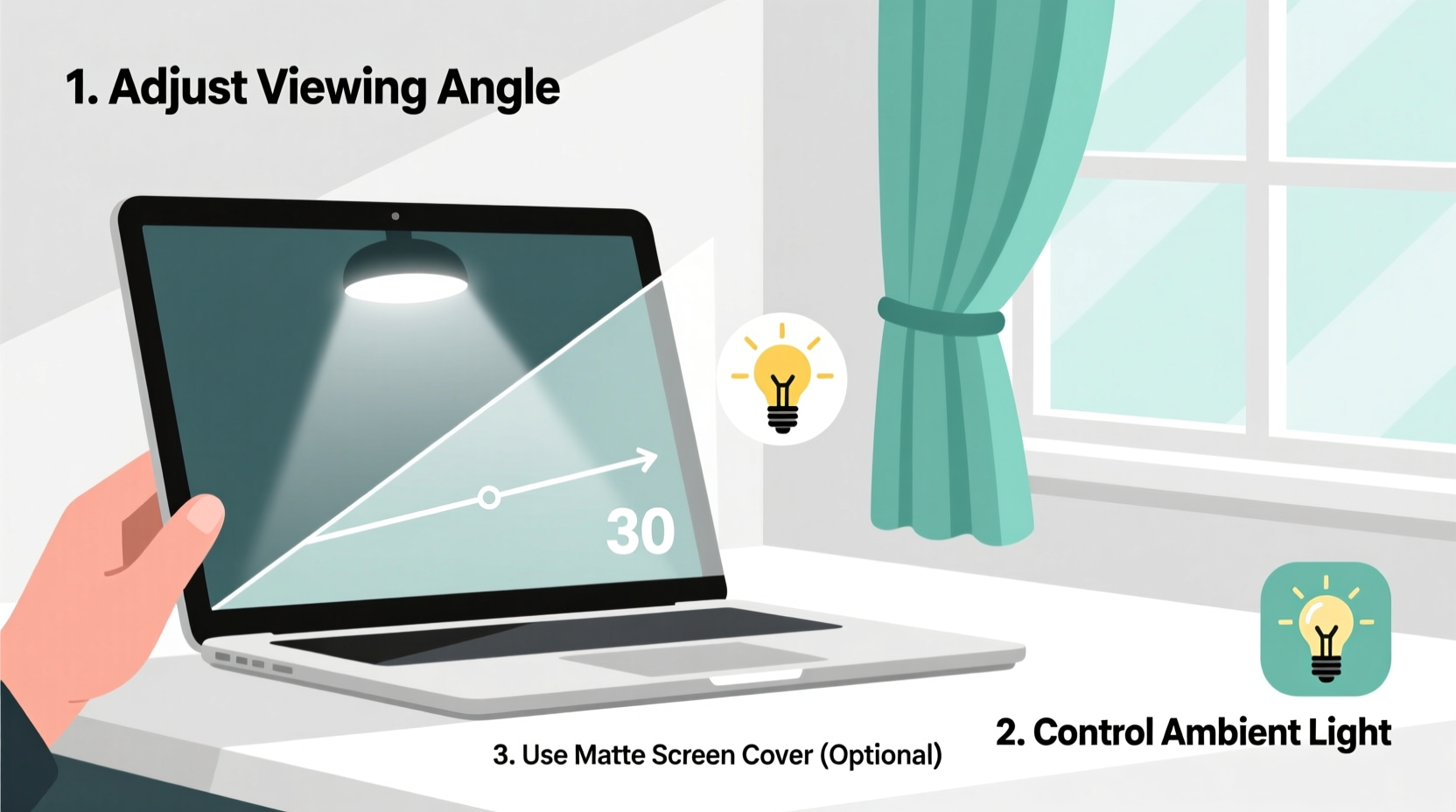
The primary cause of screen glare isn’t your laptop—it’s the ambient light around you. Harsh overhead lighting, unfiltered sunlight, and reflective surfaces all contribute to glare by bouncing light directly onto your screen. Controlling your lighting environment is the first and most effective step toward reducing reflections.
Natural light is ideal during daytime work, but direct sunlight streaming through windows creates intense hotspots on glossy screens. Position your laptop so that windows are to your side rather than in front or behind you. This minimizes direct beam exposure while still allowing natural brightness to illuminate your workspace.
For indoor lighting, avoid placing your laptop under bright ceiling fixtures. Fluorescent lights, especially older models, emit a cool, flickering glow that reflects strongly on screens. If possible, switch to warm-toned LED bulbs with lower lumen output. Desk lamps with adjustable arms allow you to direct light where it's needed—on your notebook or keyboard—without shining it onto the screen.
A simple test: hold your hand between the light source and your screen. If your hand casts a shadow on the display, that light is contributing to glare. Reposition either the lamp or your laptop until the reflection disappears.
Adjust Your Laptop Position and Angle
Your physical setup plays a critical role in managing glare. Most people use laptops on flat surfaces like tables or laps, which often forces the screen into a perpendicular angle to light sources—perfect for reflections. By adjusting the tilt and location of your device, you can redirect reflected light away from your eyes.
Tilt the screen slightly backward. A 10° to 20° recline changes the angle at which light hits the display, redirecting reflections downward and out of your line of sight. If you're using your laptop on a desk, consider a small stand or even a stack of books to elevate the back edge. This not only improves ergonomics but also alters the optical path of ambient light.
Also pay attention to your seating position. Avoid facing large windows or bright walls directly. Instead, orient your body and screen so that light comes from the side or over your shoulder. This subtle shift can dramatically cut down on mirror-like reflections.
“Even a five-degree change in screen angle can eliminate up to 70% of perceived glare,” says Dr. Lena Tran, optometrist and digital eye strain researcher at the Vision Wellness Institute. “It’s one of the simplest yet most effective fixes.”
Step-by-Step: Optimal Laptop Setup for Glare Reduction
- Evaluate light sources: Identify all active lights and windows in your room.
- Reposition your laptop: Rotate the device so no direct light shines onto the screen.
- Tilt the screen: Adjust the hinge to recline the display slightly backward.
- Elevate the back: Use a stand or folded notebook to increase tilt if needed.
- Test visibility: Check for reflections by moving your head side to side—glare should appear less prominent.
- Lock in the position: Once glare is minimized, keep the setup consistent.
Modify Display Settings for Better Visibility
While hardware and environment matter, your laptop’s software settings offer powerful tools to combat glare-related discomfort. These adjustments won’t eliminate reflections physically, but they enhance readability despite them.
Start with brightness. Many users keep their screens too dim in bright rooms or too bright in dark ones. Match your screen brightness to the ambient light. In well-lit environments, increase brightness so the display overpowers mild reflections. In low-light conditions, lower brightness to prevent the screen from becoming a mirror due to contrast.
Use your operating system’s auto-brightness feature if available. On Windows, go to Settings > System > Display and enable “Change brightness automatically when lighting changes.” macOS users can turn on “Automatically adjust brightness” in System Settings > Displays.
Next, adjust color temperature. Cooler (bluer) tones can intensify glare perception, especially at night. Enable “Night Light” (Windows) or “Night Shift” (macOS) to warm the display colors after sunset. Warmer tones reduce visual strain and make reflections less jarring.
Do’s and Don’ts of Display Adjustment
| Do | Don’t |
|---|---|
| Match screen brightness to room lighting | Keep brightness maxed out in dark rooms |
| Use adaptive brightness features | Rely solely on default factory settings |
| Warm color tones in evening or sunny conditions | Use cool blue modes during daylight glare |
| Zoom in text for better readability | Ignore font clarity in favor of aesthetics |
Real-World Example: Reducing Glare in a Home Office
Sophie, a freelance graphic designer, worked from her dining table near a large east-facing window. Every morning, sunlight flooded the room, turning her MacBook screen into a shimmering mirror. She initially considered buying an anti-glare film but decided to experiment with positioning first.
She rotated her chair and laptop 90 degrees, placing the window to her left instead of directly in front. Then, she used a wooden laptop stand to tilt the screen backward. She closed the sheer curtains slightly to diffuse the light. Finally, she enabled Night Shift mode to warm the display, counteracting the cool glare of sunlight.
The result? Within ten minutes and zero cost, Sophie reduced screen reflections by over 80%. She could now see design details clearly without squinting or shielding the screen with her hands. Her eye fatigue decreased, and she completed projects faster. Months later, she still uses the same setup—proof that environmental tweaks often outperform add-ons.
Eliminate Reflective Surroundings
Glare doesn’t just come from above or in front—it can bounce off nearby surfaces. Shiny desks, glass tables, white walls, and even light-colored notebooks can reflect light upward onto your screen. The solution is to reduce reflectivity in your immediate environment.
If you’re using a glass-topped desk, place a matte-finish desk pad or fabric mousepad underneath your laptop. Darker, textured materials absorb light instead of reflecting it. Avoid placing mirrors, framed art with glass, or metallic objects near your workspace.
Wall color matters more than most realize. White or light-colored walls act as secondary light sources, amplifying ambient brightness. If you work in the same room daily, consider painting one wall behind you with a darker, non-reflective hue. Even a single accent wall in charcoal or deep gray can reduce bounced light significantly.
Furniture placement also helps. Position bookshelves, plants, or fabric-covered panels between your screen and bright areas. These absorb stray light and break up reflection paths. A potted plant on the corner of your desk may seem decorative, but its matte leaves and soil actually serve as a micro glare barrier.
Checklist: 7 No-Cost Ways to Reduce Laptop Screen Glare
- ✅ Reposition your laptop so windows are to the side, not in front or behind
- ✅ Tilt the screen backward to redirect reflections downward
- ✅ Use sheer curtains or blinds to soften direct sunlight
- ✅ Switch from overhead lighting to directional desk lamps
- ✅ Adjust screen brightness to match ambient light levels
- ✅ Enable Night Light or Night Shift to warm display colors
- ✅ Place a non-reflective mat under your laptop to reduce surface bounce
Frequently Asked Questions
Can I reduce glare on a glossy screen without a filter?
Yes. Glossy screens are more prone to reflections, but strategic positioning, lighting control, and display adjustments can neutralize most glare issues. Tilting the screen and avoiding direct light sources are especially effective.
Does screen resolution affect glare?
No, resolution does not impact glare. However, higher-resolution displays often have sharper text and better color accuracy, which can improve readability in challenging lighting—even with some reflection present.
Is it better to work in a darker room to avoid glare?
Not necessarily. Working in a very dark room with a bright screen can cause eye strain and make the screen act like a mirror due to contrast. A moderately lit room with balanced, diffused lighting is ideal. Use indirect illumination to support screen visibility without creating reflections.
Final Thoughts: See Clearly, Work Better
Screen glare is more than a minor annoyance—it contributes to headaches, reduced concentration, and long-term eye discomfort. Yet many people accept it as inevitable, reaching immediately for filters or screen protectors. The truth is, the most effective solutions are often free and rooted in awareness: how you position your device, manage light, and fine-tune your display.
By taking control of your environment and understanding the physics of reflection, you can achieve a clearer, more comfortable viewing experience. These adjustments don’t require technical skills or spending money. They require observation, experimentation, and consistency.




 浙公网安备
33010002000092号
浙公网安备
33010002000092号 浙B2-20120091-4
Comments
No comments yet. Why don't you start the discussion?