
Screen glare remains one of the most persistent challenges for professionals, students, and casual users alike. Whether you're working from a sunlit home office, attending virtual meetings near a window, or simply trying to read at night under overhead lights, glare can strain your eyes, reduce readability, and disrupt focus. While many turn to screen filters or lower brightness settings as quick fixes, these solutions often compromise visibility or color accuracy. The good news is that there are several practical, non-invasive methods to minimize glare—without sacrificing screen quality.
By adjusting your environment, repositioning your device, optimizing ambient lighting, and leveraging built-in display technologies, you can significantly reduce glare while maintaining full brightness and screen fidelity. This guide explores proven strategies grounded in ergonomics, lighting science, and real-world usability to help you reclaim visual comfort—no stickers, films, or dimmed screens required.
Reposition Your Screen for Optimal Viewing Angles
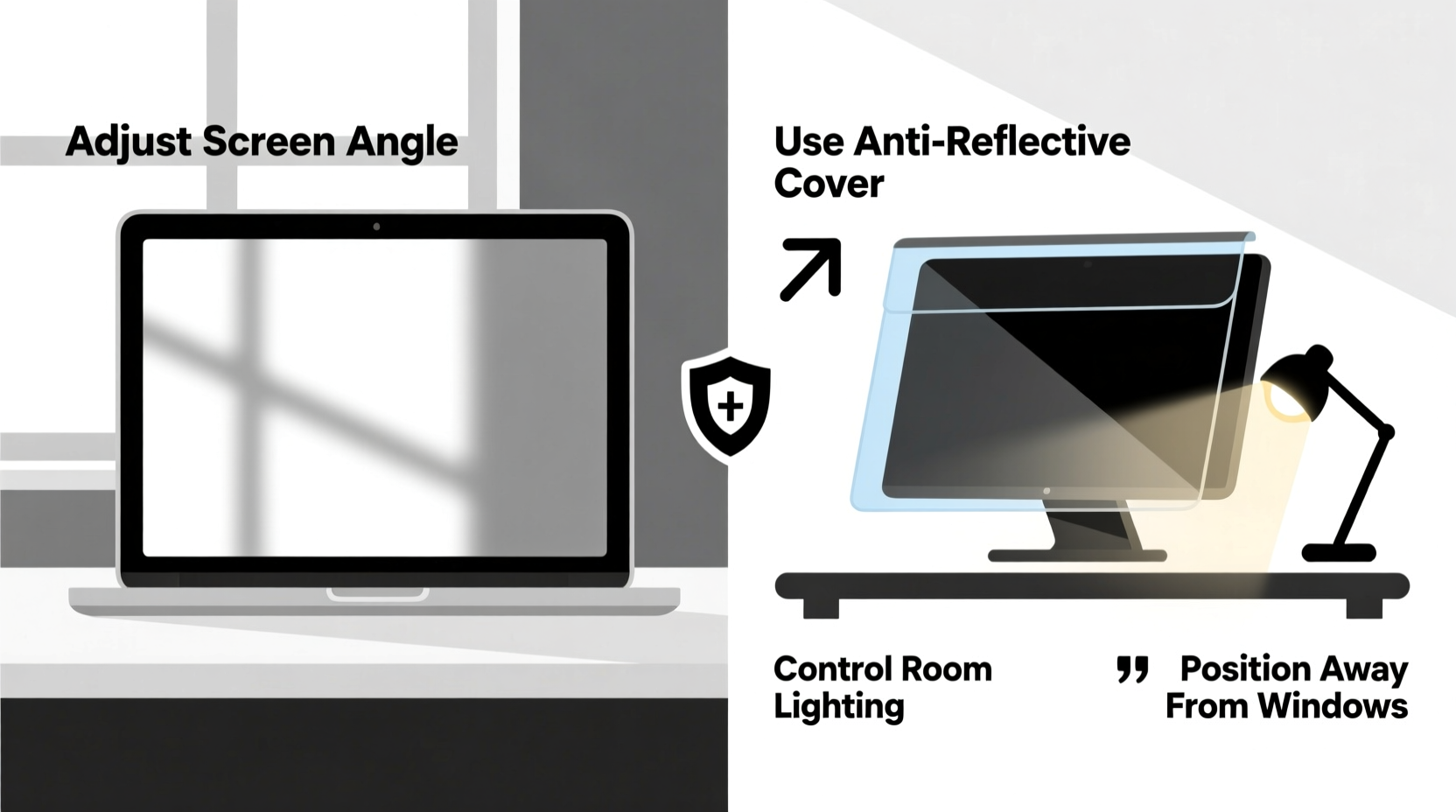
The angle at which light hits your screen plays a crucial role in how much glare you experience. Most glare occurs when ambient light sources—natural sunlight or artificial room lighting—reflect directly off the screen surface into your eyes. By adjusting the position and orientation of your monitor or device, you can avoid this reflection zone altogether.
Begin by identifying the primary light sources in your space: windows, ceiling lights, desk lamps, or even bright walls that reflect light. Once located, rotate or shift your screen so that its surface is perpendicular to those sources. A slight tilt downward (for desktop monitors) or upward (for laptops) can also help deflect overhead glare.
Ergonomic guidelines recommend that the top of your screen should be at or slightly below eye level, with a viewing distance of about an arm’s length. This posture not only supports neck and eye health but also reduces the surface area exposed to overhead lighting, decreasing the chance of reflections.
Optimize Ambient Lighting to Minimize Reflections
Controlling the light around your screen is just as important as adjusting the screen itself. Harsh, unfiltered light creates high-contrast reflections that make text hard to read and images appear washed out. The goal isn’t to eliminate light, but to balance it.
Replace bright overhead fluorescent or LED ceiling lights with softer, indirect options. Consider using floor lamps or adjustable desk lamps with warm-toned bulbs (2700K–3000K) placed behind or to the side of your monitor. These create gentle ambient illumination without casting direct beams onto the screen.
If natural light is unavoidable, use window treatments such as sheer curtains, blinds, or shades to diffuse sunlight. Avoid fully closing blackout curtains unless necessary, as complete darkness forces your eyes to adjust between the bright screen and dark surroundings—increasing eye fatigue.
“Proper ambient lighting can reduce perceived screen glare by up to 60%, even without altering the display settings.” — Dr. Lena Patel, Vision Ergonomics Researcher at the Institute for Human Factors
Lighting Do’s and Don’ts
| Do | Don't |
|---|---|
| Use indirect, diffused lighting | Place bright lamps directly above or behind the screen |
| Position lights to the side of the monitor | Allow direct sunlight to hit the screen |
| Match room brightness to screen output | Work in a dark room with a very bright screen |
| Use warm white bulbs (2700K–3500K) | Use cool white or blue-enriched LEDs near workstations |
Leverage Anti-Glare Display Technologies
Not all screens are equally prone to glare. Modern displays vary widely in their surface finishes and underlying technologies, some of which are specifically designed to reduce reflections. If you’re frequently dealing with glare, consider whether your current device uses a glossy or matte finish.
Glossy screens deliver vibrant colors and deep blacks but act like mirrors under bright conditions. Matte-finish or anti-glare coated screens, on the other hand, scatter incoming light rather than reflecting it sharply, resulting in a softer, more diffuse reflection that’s less disruptive.
Many professional-grade monitors, especially those marketed for office or design work, feature anti-reflective (AR) coatings. These multi-layer coatings are applied directly to the screen during manufacturing and work by canceling out specific wavelengths of reflected light. Unlike adhesive filters, AR coatings do not degrade image sharpness or introduce texture.
If upgrading your monitor isn’t feasible, check if your laptop or tablet has an optional matte screen variant. Some manufacturers offer both glossy and anti-glare versions of the same model. Alternatively, look for devices labeled “low-reflectance” or “anti-glare display” when making future purchases.
Control Environmental Reflectivity
Glare doesn’t always come from direct light sources. Surfaces around your workspace—walls, desks, furniture, even clothing—can reflect light onto your screen. A white desk or a light-colored wall behind your monitor may seem innocuous, but they can bounce significant amounts of ambient light onto the display.
To mitigate this, assess the reflectivity of your surroundings. Darker, matte-finished surfaces absorb more light and produce fewer reflections. Painting a wall behind your monitor a darker neutral tone, using a fabric mousepad, or placing a non-reflective mat under your device can dramatically reduce indirect glare.
Furniture material matters too. Glass-topped desks and polished wood surfaces are highly reflective. If you can’t replace them, try positioning your screen so that it doesn’t face these surfaces directly. Even small changes—like rotating your chair or shifting your monitor a few inches—can break the reflection path.
Step-by-Step: Reduce Environmental Glare in 5 Minutes
- Scan your surroundings: Identify shiny surfaces near your screen—desk, walls, shelves, or nearby electronics.
- Adjust screen position: Tilt or rotate the monitor to avoid facing reflective objects directly.
- Add absorption: Place a dark, non-glossy mat or cloth beneath your device.
- Modify wall exposure: Hang a fabric panel, artwork, or tapestry behind your monitor to reduce light bounce.
- Test and refine: View the screen from your seated position and tweak until reflections are minimized.
Real-World Example: Reducing Glare in a Home Office
Sarah, a freelance graphic designer based in Austin, Texas, struggled with intense morning glare on her 27-inch iMac. Her desk faced east, and by 8:30 AM, direct sunlight flooded through the window, rendering her screen nearly unusable. She initially tried a screen filter, but found it dulled colors and made photo editing inaccurate. Lowering brightness helped slightly, but caused eye strain later in the day.
Instead of relying on digital fixes, Sarah reconfigured her workspace. She rotated her desk 90 degrees so the window was now to her left, reducing direct beam exposure. She installed a semi-sheer bamboo blind to diffuse sunlight while preserving natural brightness. She replaced her glass desk with a walnut-finish wooden one and added a charcoal-gray desk pad. Finally, she positioned a small floor lamp behind her monitor, providing soft backlighting that balanced the room’s luminance.
The result? Glare dropped by over 80%, according to her self-assessment, and she no longer needed to squint or adjust settings throughout the day. Best of all, her screen remained at full brightness and color accuracy—essential for her design work.
Checklist: Eliminate Screen Glare Without Filters or Dimming
- ✅ Reposition your screen to avoid direct light exposure
- ✅ Tilt the monitor downward slightly to deflect overhead light
- ✅ Use indirect, warm-toned ambient lighting
- ✅ Install window coverings to diffuse sunlight
- ✅ Choose matte or anti-reflective surfaces for your desk and surroundings
- ✅ Upgrade to a monitor with an anti-glare coating if possible
- ✅ Eliminate reflective objects near your screen
- ✅ Balance room brightness with screen output
Frequently Asked Questions
Can I reduce glare without changing my room setup?
Yes, even small adjustments can help. Tilting your screen slightly, repositioning a nearby lamp, or using a non-reflective desk mat can make a noticeable difference without major changes. However, combining multiple strategies yields the best results.
Does screen resolution affect glare?
Resolution itself doesn’t cause glare, but higher-resolution screens often have glossy finishes to enhance image clarity, which can increase reflectivity. Look for high-res displays with matte coatings if glare is a concern.
Are there software tools to reduce glare?
Software cannot eliminate physical glare, but features like automatic brightness adjustment, night mode, or adaptive color temperature (e.g., f.lux or Night Shift) can improve visual comfort in bright environments. These complement—but don’t replace—environmental fixes.
Final Thoughts
Reducing screen glare doesn’t require compromises. You shouldn’t have to dim your display to the point of straining your eyes, nor should you depend on third-party filters that degrade image quality. The most effective solutions are rooted in thoughtful environmental design: smart positioning, balanced lighting, and mindful material choices.
Every workspace is different, so what works in one setting may need adjustment in another. Take the time to observe how light interacts with your screen throughout the day. Small, intentional changes can lead to significant improvements in comfort, productivity, and long-term eye health.




 浙公网安备
33010002000092号
浙公网安备
33010002000092号 浙B2-20120091-4
Comments
No comments yet. Why don't you start the discussion?