
Uninstalling an app doesn’t always mean it’s truly gone. Residual files, cached data, and background permissions can linger long after deletion, consuming storage space and potentially compromising privacy. Whether you're switching devices, troubleshooting performance issues, or simply decluttering, removing apps completely requires more than a quick tap or drag. This guide walks you through the full process across Android, iOS, Windows, and macOS, ensuring no trace is left behind.
Why Standard Uninstall Isn’t Enough
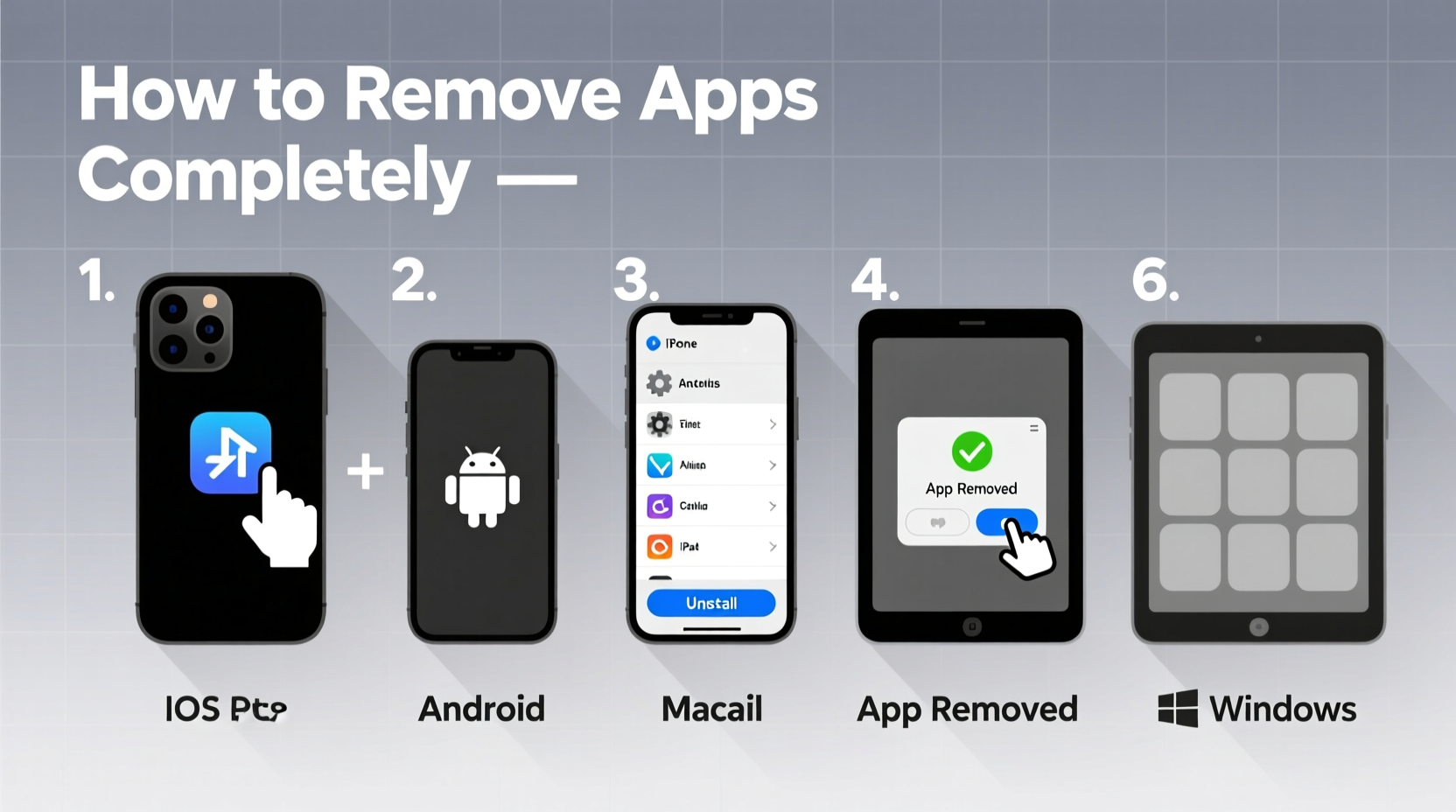
Most users assume that deleting an app removes all associated data. In reality, operating systems often retain cache files, preferences, logs, and even login tokens. These remnants can take up valuable storage and pose security risks—especially if the app handled sensitive information like passwords or financial data.
For example, social media apps may store image caches; productivity tools keep configuration files; and games preserve save data in hidden folders. Over time, these fragments accumulate, slowing down your device and cluttering internal storage.
“Simply uninstalling an app is like closing a door but leaving the keys inside. True removal means erasing every digital footprint.” — David Lin, Cybersecurity Analyst at TechShield Labs
Step-by-Step Guide to Complete App Removal
Follow this universal framework to fully eliminate apps across platforms. Each step ensures thorough cleanup beyond basic uninstallation.
- Back up essential data (if needed) before removal.
- Log out of the app to terminate active sessions and revoke access.
- Delete the app using the native method for your device.
- Clear residual files and folders manually or with system tools.
- Revoke permissions and disable integrations in system settings.
- Restart the device to flush temporary processes.
Removing Apps on Android Devices
Android offers multiple layers of app integration, making complete removal critical for both performance and privacy.
- Long-press the app icon and select “Uninstall” or drag to the “Uninstall” prompt.
- Go to Settings > Apps > [App Name] and ensure it's fully removed.
- Navigate to Settings > Storage > Other Apps to check for leftover data.
- Use Files by Google or a file manager to browse:
/Android/data/[package.name]/Android/obb/[package.name]
- Visit Settings > Privacy > Permission Manager and review any lingering app-specific permissions.
- Clear cache partition via recovery mode (optional for advanced users).
Removing Apps on iOS (iPhone and iPad)
iOS handles app data more securely, but remnants can persist in iCloud or local caches.
- Press and hold the app icon until it jiggles, then tap the “X” to delete.
- Confirm deletion when prompted.
- Go to Settings > General > iPhone Storage and verify the app no longer appears.
- If the app used iCloud, visit Settings > [Your Name] > iCloud > Manage Storage > Show All Apps and disable or delete its data.
- Check for related widgets, shortcuts, or Siri integrations under Shortcuts or Siri & Search.
- Restart the device to finalize cleanup.
Removing Apps on Windows PCs
Windows applications often install components system-wide, especially third-party software.
- Open Settings > Apps > Installed Apps.
- Find the app, click the three dots, and select “Uninstall.”
- Run the built-in uninstaller if prompted.
- After removal, open File Explorer and check:
C:\\Program Files\\[AppName]C:\\Program Files (x86)\\[AppName]C:\\Users\\[Username]\\AppData\\Local\\[AppName]C:\\Users\\[Username]\\AppData\\Roaming\\[AppName]
- Press Win + R, type
regedit, and search for the app name under HKEY_CURRENT_USER and HKEY_LOCAL_MACHINE (advanced users only). - Use trusted tools like Revo Uninstaller Free to automate deep scans.
Removing Apps on macOS
macOS uses sandboxing, but apps still leave behind preference files and caches.
- Drag the app from the Applications folder to Trash.
- Right-click Trash and select “Empty.”
- Open Finder, press Cmd + Shift + G, and enter:
~/Library/Application Support/~/Library/Preferences/~/Library/Caches/
- For login items, go to System Settings > General > Login Items and remove any entries linked to the app.
- Restart your Mac to clear runtime processes.
“On macOS, the Library folder is where most forgotten data lives. Cleaning it regularly improves system responsiveness.” — Naomi Reed, Apple-Certified Technician
Data Residue Checklist
Use this checklist after uninstalling any app to ensure total removal:
- ✅ App removed from home screen / application list
- ✅ Logged out of account within the app (before deletion)
- ✅ Cache and data cleared via system settings
- ✅ Related folders deleted from file system
- ✅ Permissions revoked in privacy settings
- ✅ iCloud, OneDrive, or cloud sync disabled for the app
- ✅ Device restarted to finalize changes
Do’s and Don’ts of App Removal
| Do’s | Don’ts |
|---|---|
| Always log out before uninstalling | Don’t skip checking hidden folders like AppData or Library |
| Use built-in storage managers to find leftover files | Don’t edit the Windows Registry without backups |
| Restart your device post-removal | Don’t rely solely on dragging apps to Trash (macOS) |
| Review app permissions periodically | Don’t ignore cloud-synced app data |
Real-World Example: Removing a Social Media App
Sarah noticed her phone was slowing down and realized she had uninstalled Instagram months ago—but her storage remained nearly full. Upon checking Settings > Storage > Other Apps, she found over 1.2 GB of cached data labeled “com.instagram.android.” Using a file explorer, she navigated to /Android/data/com.instagram.android and deleted the entire folder. She also visited her Google Account settings online and revoked Instagram’s access to her photos and location history. After restarting her phone, she regained significant space and improved battery life, proving that invisible data can have real-world impact.
Frequently Asked Questions
Can deleted apps still track me?
Not directly—but if you didn’t log out or revoke permissions, some services may continue accessing location, contacts, or usage data. Always disable app-specific permissions in your device’s privacy settings after uninstalling.
Why does my storage not improve after uninstalling an app?
The app’s cache, downloads, or cloud-synced files may still exist in hidden directories. Use your device’s built-in storage analyzer to identify “cached data” or “residual files” and clear them manually.
Are third-party uninstallers safe to use?
Reputable tools like Revo Uninstaller (Windows) or AppCleaner (macOS) are generally safe. Avoid unknown utilities from unofficial sources, as they may bundle malware or delete critical system files.
Final Steps for a Cleaner Digital Life
Completely removing an app is about more than freeing up space—it’s about taking control of your digital environment. By following these steps consistently, you protect your privacy, boost device performance, and maintain a streamlined user experience. The extra few minutes spent cleaning up residuals pay off in smoother operation and peace of mind.




 浙公网安备
33010002000092号
浙公网安备
33010002000092号 浙B2-20120091-4
Comments
No comments yet. Why don't you start the discussion?