
Watermarks are commonly added to digital images to protect intellectual property or assert ownership. While they serve a legitimate purpose, there are situations where you may need to remove them—such as editing personal photos with accidental overlays, repurposing archived images with outdated branding, or restoring old family pictures with unwanted text. The good news is that removing watermarks doesn’t require expensive software. With the right techniques and freely available tools, you can effectively eliminate most watermarks while preserving image quality.
It’s important to note that removing watermarks from copyrighted material without permission may violate legal and ethical guidelines. This guide focuses on scenarios involving your own images, public domain content, or properly licensed files. Always ensure you have the right to modify the photo before proceeding.
Understanding Watermark Types and Challenges
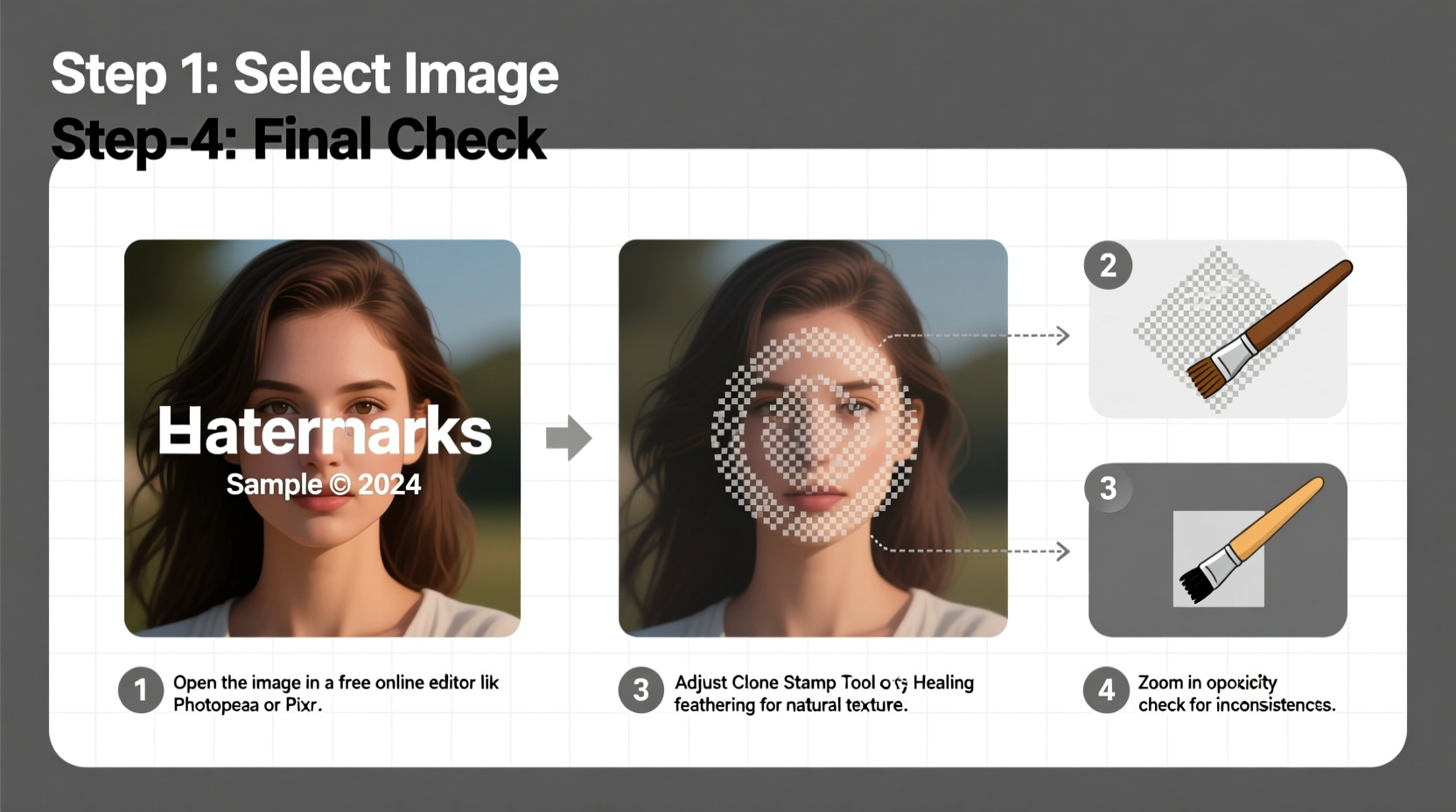
Not all watermarks are created equal. Their complexity determines how easy or difficult they are to remove. Recognizing the type of watermark helps in choosing the best removal method.
- Text-based watermarks: Simple text overlays, often semi-transparent, placed in corners or across the center of an image.
- Logo or graphic watermarks: Company logos, icons, or custom graphics embedded over the photo.
- Patterned or tiled watermarks: Repeating designs across the entire image, making removal more complex.
- Deeply integrated watermarks: Embedded at the pixel level or altered during compression, harder to erase cleanly.
The success of removal depends on factors like watermark opacity, size, location, and the underlying image texture. A watermark over a solid sky is easier to fix than one covering a detailed face or intricate background.
Free Tools That Can Remove Watermarks Effectively
A variety of free, open-source, and web-based tools offer powerful editing features without cost. These platforms support essential functions like cloning, healing, and content-aware fill—key for seamless watermark removal.
| Tool | Type | Key Features | Best For |
|---|---|---|---|
| GIMP | Desktop (Open Source) | Clone tool, heal tool, layers, filters | Precise, high-quality edits on complex images |
| Inkscape | Desktop (Vector Editor) | Limited raster editing, good for simple overlays | Removing text from flat backgrounds |
| Photopea | Web-Based Editor | Photoshop-like interface, smart fill, layers | Quick edits without installation |
| Fotor (Free Tier) | Online Tool | Basic retouching, blemish remover | Simple watermarks on uniform areas |
| Pixlr X | Browser Editor | Crop, clone, overlay removal tools | Fast fixes on mobile or tablet |
Among these, GIMP and Photopea stand out for their advanced capabilities and ease of access. GIMP is ideal for users who prefer desktop control, while Photopea offers a near-identical Photoshop experience directly in your browser.
Step-by-Step Guide to Removing Watermarks Using Free Tools
Follow this structured workflow to remove watermarks efficiently using only free resources. We’ll use GIMP as the primary example, but similar steps apply to Photopea and other editors.
- Download and install GIMP from gimp.org. It’s available for Windows, macOS, and Linux.
- Open your image by dragging it into GIMP or using File > Open.
- Duplicate the layer (right-click the layer > Duplicate Layer) to preserve the original pixels.
- Select the Heal Tool (H key) from the toolbox. Adjust brush size to slightly larger than the watermark edges.
- Hold Ctrl and click on a clean area near the watermark to set the source point. This tells GIMP which texture to copy.
- Paint over the watermark with steady strokes. The tool blends surrounding pixels to replace the marked area naturally.
- Switch to the Clone Tool (C key) for more control. Use it on areas where healing produces blurry results.
- Zoom in frequently to check for inconsistencies, especially around edges or fine details.
- Use the Smudge Tool lightly to blend any visible seams between repaired and original regions.
- Export the final image via File > Export As, choosing JPEG or PNG depending on your needs.
For large or opaque watermarks, consider cropping the image if composition allows. Sometimes, a tighter frame improves visual impact while eliminating the mark entirely.
“With practice, even beginners can achieve professional-level retouching using free tools like GIMP. The key is patience and attention to detail.” — Lena Petrov, Digital Restoration Specialist
Alternative Browser-Based Methods for Quick Fixes
If installing software isn’t an option, browser tools offer surprisingly capable solutions. Photopea, in particular, supports layered editing and AI-assisted fills.
To remove a watermark in Photopea:
- Go to photopea.com and open your image.
- Select the Lasso Tool to outline the watermark precisely.
- Navigate to Edit > Fill Selection > Content-Aware Fill. Photopea analyzes surrounding pixels and generates a seamless patch.
- Refine with the Spot Healing Brush if needed.
- Save the result as PNG or JPG directly from the browser.
While browser tools may lack the processing power of desktop applications, they’re excellent for light-to-moderate watermark removal tasks and are accessible from any device with internet access.
Mini Case Study: Restoring a Vintage Family Photo
Sarah downloaded a scanned 1950s family portrait from a public archive. The image had a faint “ArchiveCopy_2003” watermark diagonally across the lower half. She wanted to print it for a reunion but didn’t want the distraction.
Using GIMP, she zoomed in and analyzed the watermark. It was low-opacity text over a grassy yard—ideal for healing. She duplicated the layer, selected the Heal Tool, sampled nearby grass texture, and carefully painted over each letter. For the final “3,” which overlapped a shadow, she switched to the Clone Tool and manually blended pixels. The entire process took 12 minutes. After exporting, the watermark was gone, and the image looked untouched.
This example shows that even older or scanned images can be restored effectively without spending a dime on software.
Common Mistakes to Avoid During Watermark Removal
Even with the right tools, poor technique can ruin an otherwise good edit. Watch out for these pitfalls:
- Using too large a brush: Oversized brushes blur details and create unnatural textures.
- Ignoring lighting direction: Cloned areas must match the original light source; otherwise, shadows look off.
- Over-smudging: Excessive blending softens sharp features like eyes or text in the actual image.
- Skipping zoom checks: What looks fine at 50% zoom may reveal artifacts at 100%.
- Editing on the original layer: Always work on a copy to prevent irreversible damage.
Patience pays off. Take breaks during long edits to return with fresh eyes and catch subtle flaws.
Checklist: Watermark Removal Best Practices
Before finishing your edit, run through this checklist to ensure quality and integrity:
- ✅ Backed up the original image
- ✅ Used a duplicate layer for editing
- ✅ Selected the appropriate tool (Heal vs. Clone)
- ✅ Sampled from consistent textures and lighting
- ✅ Zoomed in to verify edge accuracy
- ✅ Compared before/after views side by side
- ✅ Saved in a non-lossy format (PNG) first, then converted if needed
Frequently Asked Questions
Is it legal to remove watermarks from photos?
Only if you own the image, have explicit permission, or the image is in the public domain. Removing watermarks from copyrighted content without authorization violates laws in many countries, including the U.S. Digital Millennium Copyright Act (DMCA).
Can AI tools remove watermarks automatically?
Some AI-powered tools claim to automate watermark removal, but many are either inaccurate or operate in legal gray areas. Reliable free AI tools are limited. Manual editing with GIMP or Photopea remains the safest and most transparent option.
Why does my edited area look blurry or fake?
This usually happens when the source sampling area doesn’t match the target in texture, color, or lighting. Try selecting a closer or more representative area to clone from. Also, avoid overusing the smudge or blur tools, as they degrade image clarity.
Final Thoughts and Next Steps
Removing watermarks without paid software is not only possible—it’s practical and accessible to anyone willing to learn. Tools like GIMP and Photopea provide robust editing capabilities that rival commercial products. With attention to detail and a methodical approach, you can restore images to their full potential, free from distracting marks.
The skills you develop in healing, cloning, and content-aware editing extend beyond watermark removal. They apply to photo restoration, blemish correction, and general digital touch-ups—valuable abilities whether you're managing personal archives or supporting creative projects.




 浙公网安备
33010002000092号
浙公网安备
33010002000092号 浙B2-20120091-4
Comments
No comments yet. Why don't you start the discussion?