
Watermarked images are common across the web, often used to protect intellectual property or brand identity. While watermarks serve a legitimate purpose, there are times when you may need a clean version of an image—whether for personal projects, design mockups, or educational use. Fortunately, removing watermarks doesn’t require expensive software like Photoshop. A range of free, accessible tools can deliver professional-level results with minimal effort.
The key is knowing which methods work best for different types of watermarks and understanding the ethical and legal implications. This guide walks through practical, no-cost solutions that preserve image quality while avoiding copyright violations.
Understanding Watermarks and Legal Considerations
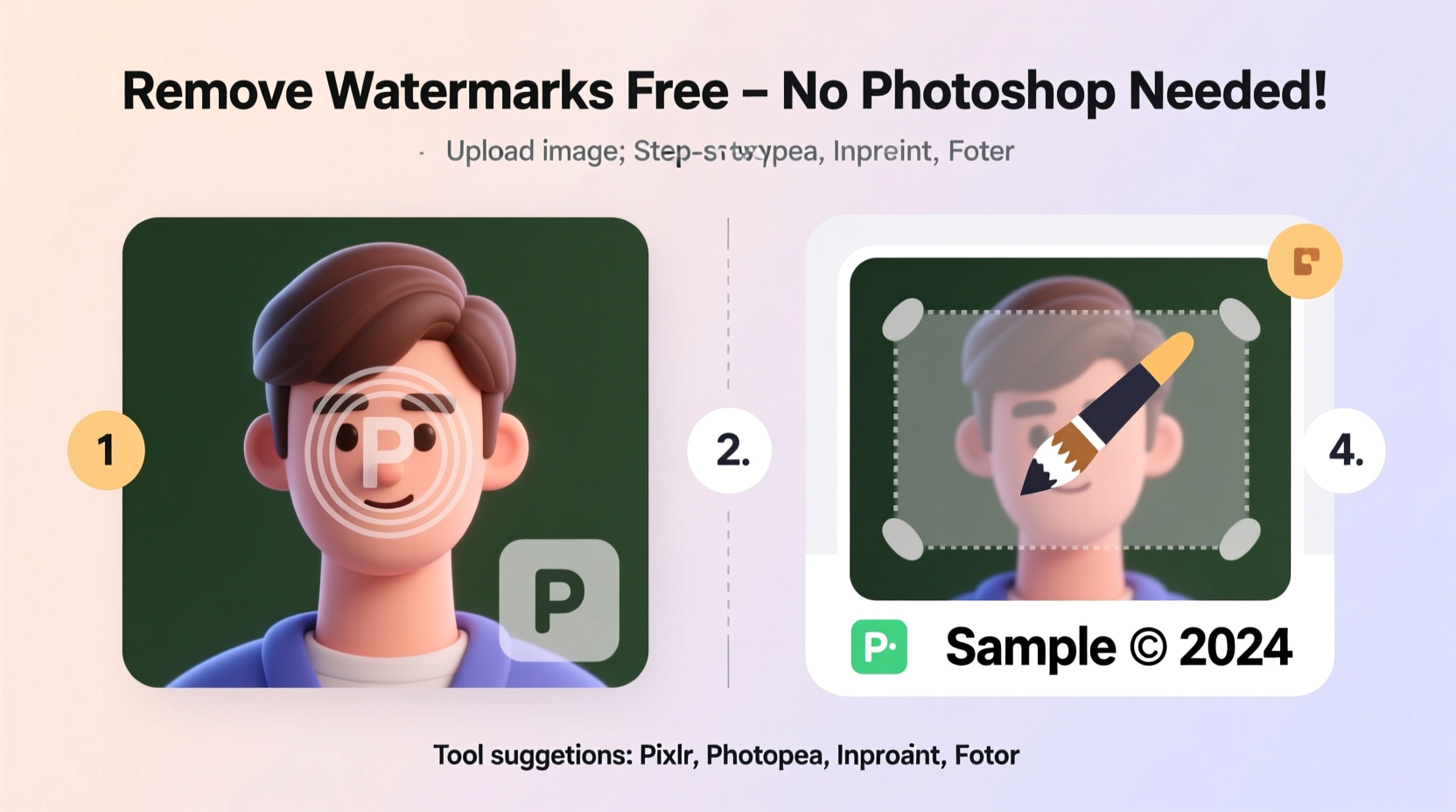
Before diving into removal techniques, it's essential to understand what watermarks are and when their removal is acceptable. A watermark is typically a semi-transparent logo, text, or pattern overlaid on an image to assert ownership or discourage unauthorized use. They appear on stock photos, press images, and social media content.
Removing a watermark from copyrighted material without permission is illegal in most jurisdictions. The U.S. Digital Millennium Copyright Act (DMCA), for example, prohibits the circumvention of copyright protection measures, including watermark removal.
“Removing watermarks from copyrighted images without authorization undermines creators’ rights and can lead to legal consequences.” — Sarah Lin, Digital Media Law Consultant
However, there are legitimate scenarios where watermark removal is appropriate:
- You own the original image but received a watermarked preview from a client or service.
- You’re editing a photo you took, and a third-party app added a watermark you wish to remove.
- You're working on a personal project using public domain or Creative Commons-licensed images where the license permits modification.
Always verify usage rights before altering any image. When in doubt, seek permission from the copyright holder.
Best Free Tools for Removing Watermarks Without Photoshop
A variety of online and desktop tools offer powerful editing features at no cost. These platforms use AI-driven algorithms or manual editing tools to seamlessly erase watermarks while preserving image integrity. Below are some of the most reliable options available today.
1. GIMP (GNU Image Manipulation Program)
GIMP is a free, open-source alternative to Photoshop with robust retouching capabilities. It supports layers, masks, and advanced cloning tools ideal for precise watermark removal.
How to Use GIMP for Watermark Removal:
- Download and install GIMP from gimp.org.
- Open your image and zoom in on the watermark area.
- Select the “Clone Tool” (stamp icon) from the toolbox.
- Hold Ctrl and click a clean area near the watermark to set the source point.
- Paint over the watermark, sampling surrounding pixels to blend the area naturally.
- Use the “Heal Tool” or “Blur/Sharpen” if needed for fine-tuning.
2. Pixlr E (Online Editor)
Pixlr E is a browser-based editor with a layout similar to Photoshop. It includes healing, clone stamp, and overlay tools perfect for watermark cleanup.
Visit pixlr.com/e, upload your image, and use the “Clone Stamp” under the Retouch menu. Sample nearby textures and paint over the watermark. Save the result in PNG or JPG format.
3. Fotor Go (AI-Powered Background Remover & Eraser)
Fotor Go offers a dedicated \"Object Remover\" tool powered by AI. While primarily designed for deleting objects, it works well on simple watermarks.
Navigate to Fotor’s Object Remover, upload your image, and use the brush to highlight the watermark. Click “Erase,” and the AI fills the space with context-aware content. Results are often seamless for small, low-opacity marks.
4. Inpaint Online
Inpaint is one of the most user-friendly tools specifically built for removing unwanted elements. The online version allows uploads up to 5 MB and delivers fast processing.
Go to theinpaint.com, upload your image, and use the marker tool to outline the watermark. Click “Erase,” and the algorithm replaces the marked area with surrounding patterns. The output is usually high quality, especially for watermarks on uniform backgrounds.
5. Photopea
Photopea is a full-featured online editor that mimics Photoshop’s interface and functionality. It supports PSD files and advanced tools like the Spot Healing Brush and Content-Aware Fill.
Open photopea.com, load your image, and select the “Spot Healing Brush Tool.” Paint over the watermark, and Photopea automatically blends the area using adjacent pixels. For larger watermarks, use the Lasso Tool to select the area, then go to Edit > Content-Aware Fill.
Step-by-Step Guide: Removing a Watermark Using Inpaint Online
This timeline demonstrates a real-world workflow using one of the simplest tools available.
- Step 1: Prepare Your Image – Ensure the photo is saved locally and the watermark isn’t covering critical details. High-resolution images yield better results.
- Step 2: Visit Inpaint Website – Open theinpaint.com in your browser.
- Step 3: Upload the Image – Click “Choose File” and select your photo from your device.
- Step 4: Mark the Watermark – Use the red marker tool to draw over the watermark. Be precise—avoid marking areas you want to keep.
- Step 5: Process the Image – Click “Erase” and wait a few seconds for the server to process the request.
- Step 6: Download the Result – Review the cleaned image. If satisfied, click “Download” to save it to your computer.
If the result has visible artifacts, try refining the selection or use a different tool like GIMP for manual correction.
Comparison of Free Watermark Removal Tools
| Tool | Best For | Watermark Type | Offline Use? | Learning Curve |
|---|---|---|---|---|
| GIMP | Precise manual edits | All types, including complex | Yes | Moderate |
| Pixlr E | Quick fixes with familiar UI | Text/logos on simple backgrounds | No | Low |
| Fotor Go | AI-based automatic removal | Small, semi-transparent marks | No | Very Low |
| Inpaint Online | Fast object/watermark deletion | Isolated logos or text | No | Low |
| Photopea | Advanced editing close to Photoshop | Larger or layered watermarks | No | Moderate |
Mini Case Study: Cleaning a Stock Photo Preview
Jamie, a freelance graphic designer, was creating a presentation for a client and found the perfect image on a stock platform. However, the free preview had a large diagonal watermark across the center. Jamie didn’t have a subscription, but needed a clean version for a mockup.
Using Fotor Go’s Object Remover, Jamie uploaded the image and painted over the watermark. The AI processed the image in under 10 seconds. While the first result left slight texture irregularities, Jamie downloaded the output and opened it in Pixlr E to manually blend the area using the Clone Stamp. The final image looked natural and was used solely for internal review—never distributed publicly.
This approach allowed Jamie to demonstrate the design concept ethically, without violating terms of service. Once approved, the client purchased the licensed version of the image.
Checklist: Safe and Effective Watermark Removal
Follow this checklist to ensure quality and compliance:
- ✅ Confirm you have the right to edit the image (ownership, license, or permission).
- ✅ Back up the original file before making changes.
- ✅ Choose the right tool based on watermark complexity and image background.
- ✅ Zoom in to work precisely and avoid damaging surrounding details.
- ✅ Use non-destructive editing (layers) when possible.
- ✅ Review the final image at 100% zoom for seams or distortions.
- ✅ Never distribute modified images without proper licensing.
FAQ
Can I remove a watermark from a JPEG using only my phone?
Yes. Apps like Snapseed (Google) and TouchRetouch (available on iOS and Android) allow precise object removal. Use the Healing or Clone tools to paint over watermarks. Results vary based on image complexity, but they work well for simple cases.
Do these free tools reduce image quality?
Most tools maintain original resolution, but excessive editing or multiple exports can degrade quality. Always save in lossless formats like PNG when possible, and avoid repeated compression in JPG.
Is it possible to remove a colored or textured watermark?
Yes, but it requires more precision. Tools like GIMP or Photopea give you greater control over blending modes and layer opacity. Manually cloning surrounding areas usually produces the best results for textured overlays.
Expert Insight: The Role of AI in Ethical Editing
As AI-powered tools become more accessible, the line between convenience and misuse blurs. Experts emphasize responsible use.
“The technology to remove watermarks is now in everyone’s hands. With that power comes responsibility. Use it to restore old family photos or enhance creative work—not to steal content.” — Dr. Marcus Reed, AI Ethics Researcher at TechPolicy Institute
Developers of these tools often include disclaimers urging ethical use. Some platforms, like Fotor and Inpaint, explicitly state that users must own the rights to edited images.
Conclusion
Removing watermarks without Photoshop is not only possible—it's straightforward with the right free tools. Whether you choose AI-powered editors like Inpaint and Fotor Go or opt for advanced control with GIMP and Photopea, high-quality results are within reach. The real challenge isn’t technical ability; it’s using these tools responsibly.
Always prioritize legality and respect for creators. Edit only what you’re authorized to change, and credit original sources when required. When used ethically, these tools empower creativity, streamline workflows, and help bring visual ideas to life.




 浙公网安备
33010002000092号
浙公网安备
33010002000092号 浙B2-20120091-4
Comments
No comments yet. Why don't you start the discussion?