
Forgetting your BIOS password can lock you out of your own computer before the operating system even starts. Unlike user account passwords, the BIOS password sits at the firmware level, making it more challenging to bypass. However, resetting it doesn’t have to mean sacrificing your data. With the right approach, you can regain access to your system while keeping all your files intact.
This guide walks through proven techniques used by technicians and IT professionals to clear BIOS passwords safely. Whether you're dealing with a personal laptop, an old desktop, or a company-issued machine, these methods prioritize data preservation and hardware safety.
Understanding BIOS Passwords and Their Risks
The BIOS (Basic Input/Output System) is the first software that runs when you power on your computer. It initializes hardware components and loads the operating system. A BIOS password adds a layer of security by requiring authentication before the boot process continues. There are typically two types:
- Supervisor (Admin) Password: Controls access to BIOS settings.
- User (Boot) Password: Required every time the computer starts.
While these passwords enhance security, they become problematic when forgotten. Unlike OS-level credentials, there’s no “Forgot Password” link. Moreover, incorrect attempts can trigger lockout mechanisms—some systems disable access after three failed tries.
“BIOS passwords are stored in non-volatile memory on the motherboard. Resetting them often requires manipulating hardware or firmware, not just software tools.” — Dr. Alan Torres, Firmware Security Researcher, MITRE Institute
Critical point: The hard drive or SSD where your data resides is separate from the BIOS chip. As long as you don’t format storage devices during recovery, your files remain untouched.
Step-by-Step Methods to Reset BIOS Password Safely
The following methods are ranked by accessibility and risk level. Always start with the least invasive option.
1. Use Default Backdoor Passwords (Manufacturer-Specific)
Some older BIOS versions, particularly from brands like Dell, HP, and Lenovo, include hidden master passwords set by manufacturers. These backdoor codes can override user-set passwords if entered correctly.
To try this method:
- Power on the computer and wait for the password prompt.
- Enter common default passwords such as:
- Dell:
hq123,dell,000000 - HP:
hp,admin,password - Lenovo:
lenovo,thinkpad,201007
- Dell:
- If one works, enter the BIOS setup and remove or change the existing password.
Note: Modern systems rarely support backdoor passwords due to security improvements. This method mainly applies to machines manufactured before 2015.
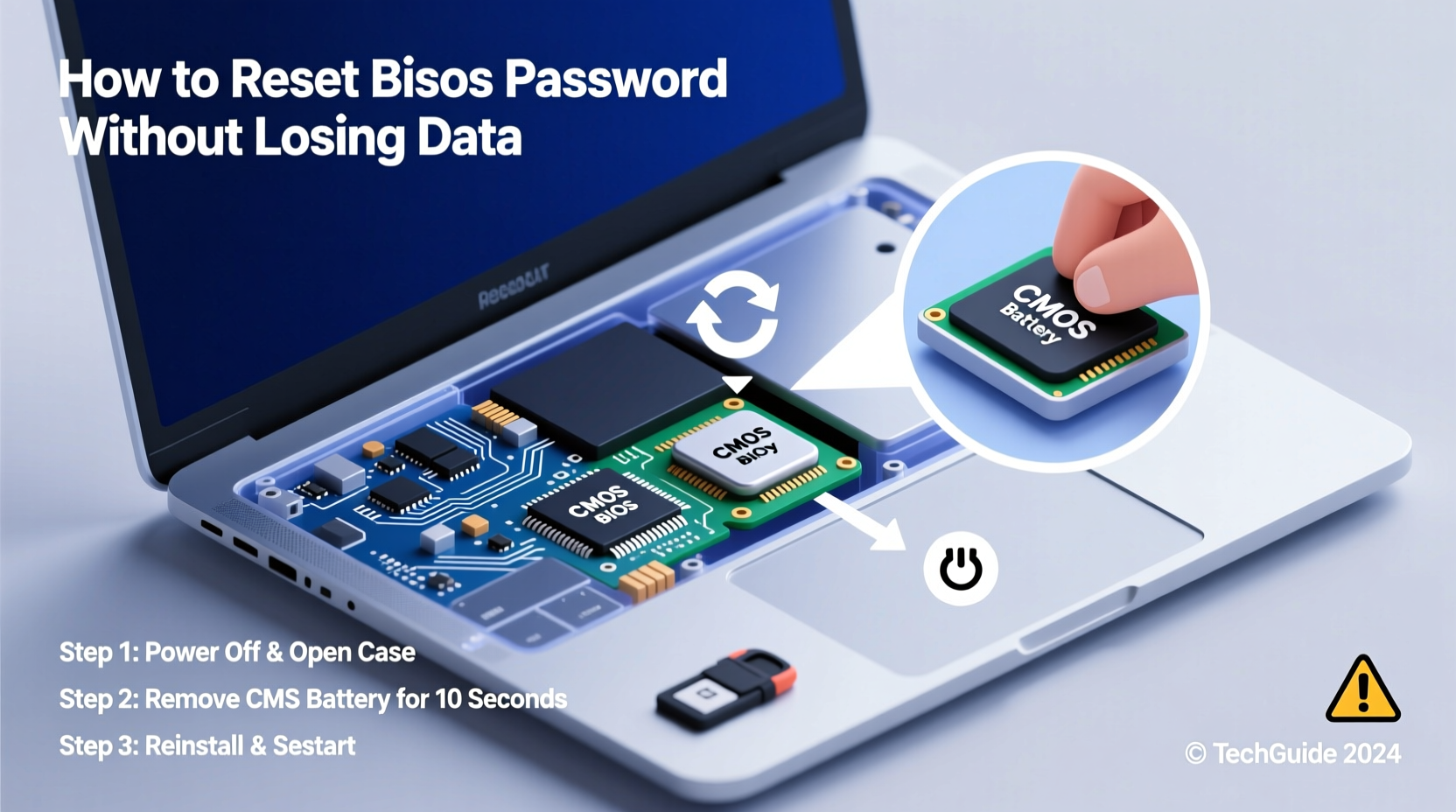
2. Clear CMOS via Jumper or Battery Removal
The most widely applicable hardware method involves resetting the CMOS (Complementary Metal-Oxide-Semiconductor), which stores BIOS settings—including passwords—using a small onboard battery.
Steps for Desktop Computers:
- Shut down the computer and unplug the power cable.
- Open the case and locate the CMOS battery (a coin-cell battery on the motherboard).
- Remove the battery and wait 5–10 minutes to drain residual power.
- Reinsert the battery and reconnect power.
- Power on and check if the password prompt is gone.
Alternatively, many motherboards feature a **Clear CMOS jumper** (labeled CLR_CMOS or similar). To use it:
- Power off and unplug the machine.
- Move the jumper cap from its default position to the clear position for 10 seconds.
- Return the jumper to its original place.
- Reboot the system.
Laptops: Accessing internal components is trickier but possible. Most require removing the bottom panel. Some models allow CMOS reset by disconnecting both the main battery and internal coin cell for 15+ minutes.
3. Use Manufacturer Recovery Tools
Certain OEMs provide official utilities to generate master reset keys based on error codes displayed after failed login attempts.
Example – HP Notebooks:
- Enter any password three times to trigger a halt code (e.g.,
5A123456). - Note the 8-digit code shown.
- Visit HP's official unlock page or use third-party calculators (like BIOS-PW.org) that input the code and return a master password.
- Enter the generated key to gain access.
Similar processes exist for Dell (Service Tag-based unlocks) and some Lenovo ThinkPads using PS/2 keyboard combinations at boot.
| Brand | Method | Data Risk |
|---|---|---|
| HP | Halt code → Master password generator | None |
| Dell | Service Tag unlock via technician support | None |
| Lenovo | PS/2 keyboard + reset combo (older models) | Low |
| Acer/ASUS | Limited options; often require board-level repair | Medium |
These manufacturer-specific solutions are ideal because they preserve system integrity and avoid physical modifications.
4. Flash BIOS Using Bootable Programmer (Advanced)
For systems where standard resets fail—especially newer UEFI-based ones—you may need to rewrite the BIOS chip directly. This method uses a hardware programmer (like CH341A) to read, edit, and reflash the firmware ROM.
Required Tools:
- BIOS programming device (CH341A + SOIC8 clip)
- SPI flash memory reader/writer
- Computer with flash editing software (e.g., WinFlash, SPIWay)
Process Overview:
- Remove the BIOS chip cover or clip onto the chip *in situ*.
- Read the current firmware image.
- Use tools like
UEFIToolto locate and delete password hashes. - Write the modified firmware back to the chip.
- Test boot sequence.
This method carries risk: a failed flash can brick the motherboard. Only attempt it if you have technical experience and backups available.
5. Contact Manufacturer or Authorized Repair Center
When all else fails, especially under warranty, contact the manufacturer. Companies like Dell, Lenovo, and HP offer authenticated services to remove BIOS locks upon verification of ownership.
You’ll typically need:
- Proof of purchase
- Serial number or Service Tag
- Valid ID matching buyer information
This route ensures compliance with licensing and avoids voiding warranties. Turnaround time varies from 24 hours to several days.
Checklist: Safe BIOS Password Reset Procedure
Follow this checklist to minimize risks and maximize success:
- ✅ Confirm the exact make, model, and BIOS version before attempting any fix.
- ✅ Try default or backdoor passwords first—zero cost, zero risk.
- ✅ For desktops, clear CMOS via battery removal or jumper reset.
- ✅ On laptops, consult service manuals before disassembly.
- ✅ Use halt codes (if available) to generate master passwords.
- ✅ Avoid flashing unless experienced and equipped.
- ✅ Contact OEM support if locked out completely.
- ✅ After reset, re-enable necessary security features cautiously.
Real Example: Recovering Access to a Legacy Office Laptop
A small business owner inherited five used Lenovo T430 laptops from a retiring employee. One unit had a BIOS password enabled, preventing boot access. The team didn’t know the credentials, and reinstalling Windows wasn’t enough—the machine wouldn’t pass POST.
Rather than discard it, the IT consultant tried the following:
- Entered wrong password three times; received a 16-digit halt code.
- Used a trusted online calculator to derive a master unlock key.
- Entered the key successfully and accessed BIOS setup.
- Removed the supervisor password and saved changes.
The laptop booted normally, and all pre-existing data was recovered. Total time: 20 minutes. Cost: $0. This illustrates how legacy enterprise hardware often includes recoverable security mechanisms designed for IT management.
Common Mistakes That Risk Data or Hardware
While trying to bypass a BIOS lock, users sometimes take actions that increase risk unnecessarily. Avoid these pitfalls:
- Formatting drives prematurely: The BIOS password isn't stored on your hard drive. Formatting won't help and will erase your data.
- Using random registry cleaners or password crackers: These operate within Windows and cannot touch firmware-level protections.
- Shorting motherboard pins incorrectly: Misapplying voltage or grounding wrong contacts can fry circuits.
- Ignoring model-specific guides: What works on an MSI desktop may damage an Apple Mac Mini logic board.
“Every motherboard design handles CMOS differently. Blindly removing batteries or jumping pins without consulting documentation invites hardware failure.” — Maria Chen, Senior Hardware Engineer at iFixit
Frequently Asked Questions
Will resetting the BIOS delete my files?
No. Your personal data is stored on the hard drive or SSD, which is independent of the BIOS chip. Resetting CMOS only clears firmware settings like boot order, time, and passwords—not user data.
Can I bypass BIOS password with a USB drive or software tool?
Not reliably. Most so-called “BIOS password remover” software requires Windows access, which you can’t reach until the BIOS lock is cleared. True firmware manipulation needs hardware intervention or manufacturer authorization.
Is it legal to reset a BIOS password on a second-hand computer?
Yes, if you legally own the device. However, removing activation locks on employer-owned or leased equipment without permission may violate terms of service or local laws.
Conclusion: Regain Control Without Compromising Data
Forgetting a BIOS password doesn’t mean surrendering your computer or losing valuable data. From simple CMOS resets to leveraging manufacturer recovery protocols, multiple safe pathways exist to restore access. The key is approaching the problem systematically—starting with low-risk methods and escalating only when necessary.
Always document your device’s model number, serial ID, and BIOS version before beginning. Keep service manuals handy, and never rush physical interventions. With patience and precision, you can unlock your system and continue using your data exactly as before.




 浙公网安备
33010002000092号
浙公网安备
33010002000092号 浙B2-20120091-4
Comments
No comments yet. Why don't you start the discussion?