
Forgetting your iPad passcode is more common than you might think—especially if you use multiple devices or haven’t accessed your tablet in weeks. The immediate concern isn’t just access; it’s the fear of losing photos, messages, documents, and apps during the reset process. Fortunately, Apple has built-in safeguards that allow users to regain access to their iPads without sacrificing personal data—provided certain conditions are met.
This guide walks through practical, step-by-step methods to reset a forgotten iPad password while preserving your files, contacts, and settings. Whether you’ve enabled Find My iPad or regularly backed up to iCloud or a computer, there are options available that avoid full device wipes.
Understanding iPad Security and Passcode Protection
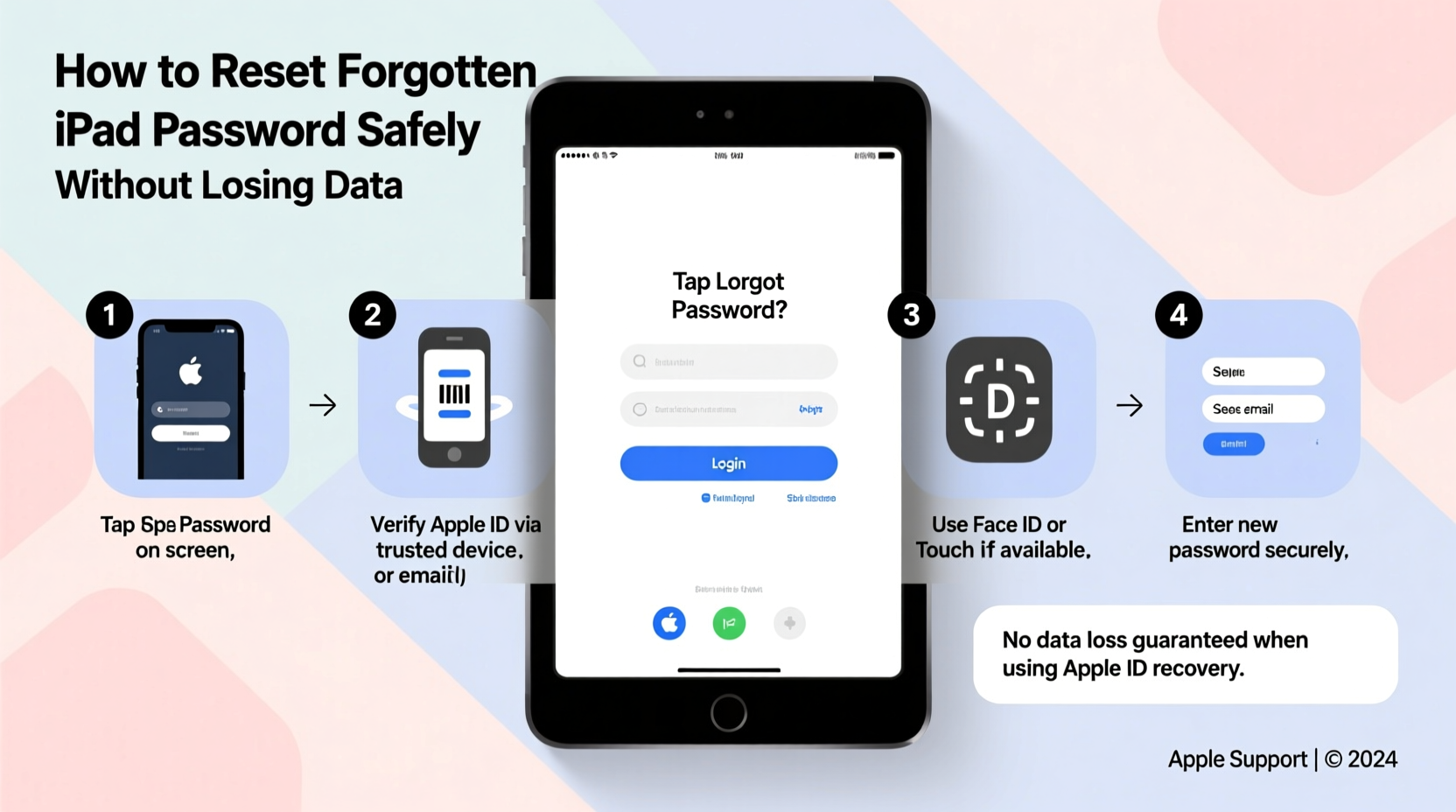
iOS devices use a layered security model combining hardware encryption and software authentication. When you set a passcode, it encrypts sensitive data at the file level. This means no one—not even Apple—can directly extract your information without the correct code.
After several incorrect attempts, the iPad may enforce increasing delays between tries or, in extreme cases, erase all data if “Erase Data” was enabled in Settings > Face ID & Passcode (or Touch ID & Passcode). However, as long as this feature is disabled and you have access to your Apple ID and associated recovery tools, you can bypass the lock screen safely.
The key to avoiding data loss lies in preparation: having Find My iPad activated, being signed into your Apple ID, and maintaining recent backups either via iCloud or iTunes/Finder.
Method 1: Use iCloud’s “Find My” to Remove Passcode (No Data Loss)
If Find My iPad is turned on, you can remotely erase the device through iCloud.com. While this sounds like it would delete everything, the critical advantage here is that after erasing, you can restore from a previous backup—preserving nearly all your data.
This method only works if:
- You know your Apple ID and password.
- Find My iPad was enabled before the device was locked.
- The iPad is connected to Wi-Fi or cellular data.
- Go to iCloud.com on a computer or another device.
- Sign in with the same Apple ID linked to the locked iPad.
- Click on “Find iPhone” (this includes iPads).
- Select “All Devices,” then choose your iPad from the list.
- Click “Erase iPad.” Confirm the action when prompted.
- Once erased, set up the iPad as new and select “Restore from iCloud Backup” during setup.
- Choose the most recent backup before you forgot the password.
The entire process may take 30 minutes to several hours depending on internet speed and backup size. But once complete, your apps, photos, messages, and settings will be restored almost exactly as they were.
“Remote erase through Find My is the safest way to recover access when you’ve lost your passcode—especially if backups are current.” — David Lin, Senior iOS Support Analyst at Apple Authorized Service Provider
Method 2: Restore via Computer Using iTunes or Finder
If you’ve previously synced your iPad with a trusted computer using iTunes (Windows/macOS Mojave and earlier) or Finder (macOS Catalina and later), you can restore the device without relying solely on iCloud.
This method assumes:
- The computer has been authorized and used to sync the iPad.
- You remember the computer login credentials.
- You don’t need to enter the iPad passcode to trust the computer (if already trusted, skip passcode requirement).
Steps to Restore via Computer:
- Connect the locked iPad to the trusted computer using a USB cable.
- If prompted for a passcode, try another method unless the device shows “Trust This Computer.” If so, unlock it briefly to confirm trust.
- Open iTunes (or Finder on macOS Catalina+).
- Select your iPad when it appears in the interface.
- Click “Back Up Now” to create a fresh encrypted backup (recommended).
- After backup completes, click “Restore iPad.”
- Wait for the restore to finish—this reinstalls iPadOS and removes the passcode.
- During setup, choose “Restore from Mac or PC Backup” and select the one you just made.
Because the backup was created prior to erasure, all your data remains intact. This approach often preserves app logins better than iCloud restores, especially for third-party services not tied to Apple ID.
Method 3: Recovery Mode (Last Resort, Requires Backup)
When Find My iPad is off and no trusted computer exists, recovery mode becomes necessary. This forces the iPad into a state where it can be reinstalled with iPadOS—but again, only leads to data preservation if a recent backup exists.
Recovery mode does wipe the device, but restoration from backup brings everything back.
Entering Recovery Mode by iPad Model:
| iPad Type | Button Combination |
|---|---|
| iPad with Home Button | Hold Home + Top (or Side) button until recovery screen appears |
| iPad Pro (2018 and later) | Press Volume Up → Volume Down → Hold Top button until recovery mode screen displays |
| All Other iPad Models | Press Volume Up → Volume Down → Hold Top/Side button until recovery prompt shows |
Process After Entering Recovery Mode:
- Connect to a computer running iTunes or Finder.
- A pop-up will ask whether to “Update” or “Restore.” Choose **Restore**.
- The computer downloads the latest iPadOS software and installs it.
- After installation, follow on-screen instructions to set up the iPad.
- Select “Restore from iCloud Backup” or “Restore from This Computer,” depending on your preferred source.
While this method involves wiping the device, it’s still non-destructive overall if you have a reliable backup. Without one, however, permanent data loss occurs.
What Doesn’t Work (And Why You Should Avoid It)
Despite what some third-party websites claim, there are no legitimate tools that can crack or bypass an iPad passcode without triggering a wipe. Apps promising “one-click password removal” are typically scams or malware distributors.
Apple’s Secure Enclave processor ensures brute-force attacks are impossible. Even Apple cannot retrieve your passcode. Any service offering manual unlocking for a fee should be treated with extreme caution.
“We’ve seen dozens of customers arrive with iPads damaged by unauthorized ‘unlocking’ software. These tools often brick the device permanently.” — Sarah Nguyen, Manager at TechCare Repair Center
| Method | Safe? | Data Preserved? | Requires Backup? |
|---|---|---|---|
| iCloud Find My Erase + Restore | Yes | Yes (with backup) | Yes |
| Computer Restore (iTunes/Finder) | Yes | Yes (if backed up) | Yes |
| Recovery Mode + Restore | Yes | Yes (only with backup) | Yes |
| Third-Party Unlock Tools | No | No | N/A |
| Guessing Passcode Repeatedly | Risky | Potential Loss | No |
Real-World Example: Recovering Access After Travel
Linda, a freelance photographer, returned from a two-week trip abroad and couldn’t recall her iPad passcode. She hadn’t used it since boarding the flight, and her usual 6-digit code had been changed weeks earlier for security reasons.
Luckily, she had Find My iPad enabled and had backed up her device to iCloud three days prior—just before deleting old drafts. She accessed iCloud.com from her laptop, located her iPad, and initiated a remote erase. Within 45 minutes, she was setting up the device again and restoring from her most recent backup.
All her Lightroom edits, client emails, and travel journals were intact. The only minor setback was re-downloading large video files due to storage limits in her iCloud plan—but nothing was permanently lost.
Linda now keeps a note (in her password manager) reminding herself to update recovery methods quarterly and perform manual backups before extended periods of disuse.
Frequently Asked Questions
Can I reset my iPad passcode without a computer or internet?
No. Without access to iCloud, a trusted computer, or a known backup, there is no official way to reset the passcode. The device will remain locked indefinitely unless erased via one of Apple’s supported methods.
Will restoring my iPad remove my Apple ID?
No. Your Apple ID stays linked to the device. Activation Lock prevents anyone else from setting up the iPad without your credentials, even after a restore. This protects against theft but also means you must sign in with your Apple ID during setup.
How often should I back up my iPad to avoid data loss?
For optimal safety, enable automatic daily backups to iCloud whenever the device is charging and connected to Wi-Fi. Additionally, perform manual backups to a computer weekly if you handle important work or media files.
Final Checklist: Regaining Access Without Losing Data
- ✅ Confirm Find My iPad is enabled (via iCloud.com or trusted device)
- ✅ Locate a trusted computer used to sync the iPad
- ✅ Ensure your Apple ID password is accessible
- ✅ Verify existence of recent iCloud or computer backup
- ✅ Connect iPad to Wi-Fi or USB as needed for chosen method
- ✅ Perform remote erase or computer-based restore
- ✅ Restore from backup during initial setup
- ✅ Re-enable security features post-recovery
Conclusion: Act Now to Protect Future Access
Forgetting your iPad password doesn’t have to mean losing your digital life. With the right preparation—active Find My iPad, regular backups, and access to your Apple ecosystem—you can reset your passcode securely and retain every photo, message, and document.
The real lesson isn’t just how to recover access, but how to prevent future lockouts. Take five minutes today to verify your backup status, write down recovery steps in a secure place, and ensure your trusted devices are up to date. A small investment in prevention saves hours of stress down the line.




 浙公网安备
33010002000092号
浙公网安备
33010002000092号 浙B2-20120091-4
Comments
No comments yet. Why don't you start the discussion?