
Slow internet can disrupt work, streaming, gaming, and everyday browsing. While many assume the issue lies with their internet service provider or subscription plan, the real culprit is often closer to home — your router. Over time, routers accumulate data congestion, experience firmware glitches, or suffer from overheating, all of which degrade performance. A proper router reset can clear temporary errors, refresh network connections, and restore speed without requiring technical expertise or costly replacements.
Unlike simply unplugging and plugging back in, a well-executed router reset follows a deliberate process that maximizes effectiveness and minimizes downtime. This guide walks through the correct method, explains when to use different types of resets, and helps you avoid common mistakes that could worsen connectivity problems.
Understanding Router Resets: Soft vs. Hard
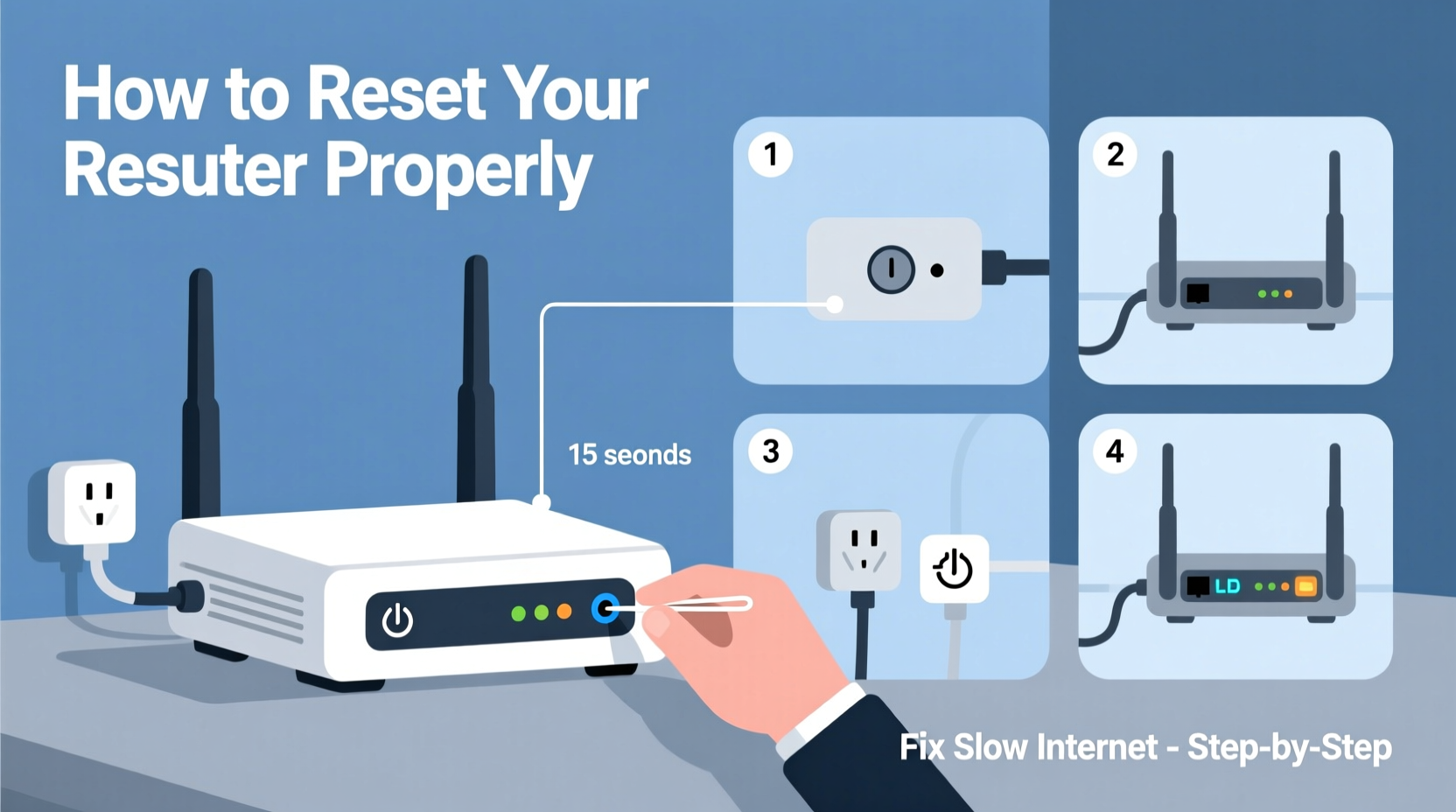
Not all resets are the same. The term “reset” can refer to two distinct actions: a soft reset (reboot) and a hard reset (factory reset). Each serves a different purpose and carries different consequences.
A soft reset involves restarting the router by cutting power briefly. This clears the device’s RAM, stops any frozen processes, and re-establishes the connection with your ISP. It's non-destructive and recommended for routine troubleshooting.
A hard reset, on the other hand, erases all custom settings — including Wi-Fi names, passwords, port configurations, and parental controls — and returns the router to its out-of-the-box state. This should only be used as a last resort when configuration errors are suspected or after failed login attempts lock you out.
Step-by-Step Guide to a Proper Soft Reset
Follow this sequence to perform an effective soft reset that gives your router the best chance of regaining full performance.
- Save active work. Ensure no critical downloads, uploads, or video calls are in progress. A reboot will temporarily disconnect all devices.
- Access the router interface (optional). Log into your router’s admin page via a web browser (typically at
192.168.1.1or192.168.0.1) to check for firmware updates or error logs before proceeding. - Shut down connected devices (recommended). Turn off modems, extenders, or switches if they’re daisy-chained. This ensures a clean restart cycle.
- Unplug the router’s power cable. Do not use the power button if present; physically disconnecting ensures a complete shutdown.
- Wait 30 seconds. This allows capacitors to discharge and clears residual memory. Skipping this step may result in an incomplete reset.
- Reconnect the power cable. Plug it securely into the outlet and router.
- Wait 2–3 minutes. Let the router fully boot. Watch the status lights: once the \"Internet\" or \"DSL\" light stabilizes (usually green or solid), the connection is restored.
- Test your connection. Use a wired device first for accuracy. Run a speed test at
speedtest.netorfast.comand compare results to your usual baseline.
If speeds remain low after three consecutive reboots spaced several hours apart, consider deeper diagnostics or contact your ISP.
When and How to Perform a Factory Reset
A factory reset should only be considered if:
- You’ve forgotten the admin password.
- The router behaves erratically despite multiple soft resets.
- You’re preparing to sell or recycle the device.
- Custom configurations are suspected of causing interference.
To initiate a hard reset:
- Locate the recessed Reset button, usually on the back or bottom of the router.
- With the router powered on, press and hold the button using a paperclip or pin for **10–15 seconds**.
- Release when all indicator lights flash simultaneously.
- Wait 3–5 minutes for the router to reboot completely.
- Reconfigure the network using the default SSID and password listed on the router label.
After a factory reset, reconnect each device manually and reapply security settings such as WPA3 encryption and guest network access.
“Routers are small computers managing complex traffic. Just like a laptop, they benefit from periodic reboots. A monthly soft reset can prevent slowdowns before they start.” — David Lin, Senior Network Engineer at NetSecure Solutions
Checklist: Preparing for a Successful Router Reset
Use this checklist before resetting to ensure a smooth recovery and avoid unnecessary complications.
- ☑ Note down current Wi-Fi name and password
- ☑ Locate the router’s default login credentials (on label or manual)
- ☑ Confirm internet subscription speed with ISP
- ☑ Prepare a wired Ethernet cable for direct testing
- ☑ Schedule reset during low-usage hours (e.g., midday)
- ☑ Inform household members about temporary outage
- ☑ Have phone number for ISP support handy
Troubleshooting Slow Internet After a Reset
Sometimes, even after a proper reset, internet speeds don’t improve. Consider these factors before concluding the router is faulty.
Signal Interference and Placement
Routers perform poorly when placed near microwaves, cordless phones, metal objects, or thick walls. Move the router to a central, elevated location away from appliances. Avoid enclosing it in cabinets.
Device Overload
Too many connected devices — especially those streaming 4K video or downloading large files — can saturate bandwidth. Disconnect unused devices or enable Quality of Service (QoS) settings to prioritize critical traffic like video calls.
Firmware Issues
Outdated firmware can cause instability. After a reset, log into the admin panel and check for available updates under the \"Administration\" or \"Firmware\" tab. Never interrupt a firmware update.
ISP-Level Problems
Your internet provider may be experiencing regional outages or throttling certain services. Test with a direct Ethernet connection to rule out Wi-Fi issues, then call your ISP with your modem’s signal levels (found in its status page).
| Issue | Possible Cause | Solution |
|---|---|---|
| No internet after soft reset | Modem not synced | Restart modem separately; wait for stable DSL/Internet light |
| Wi-Fi won’t reconnect | Settings lost or incorrect password | Use WPS or reset again; verify password on device |
| Speed still below 50% of plan | Network congestion or line degradation | Run speed test via Ethernet; contact ISP for line check |
| Router overheats frequently | Poor ventilation or dust buildup | Clean vents with compressed air; elevate off carpeted floor |
Real Example: Fixing Chronic Lag in a Home Office
Mark, a freelance graphic designer in Austin, began experiencing frequent lag during client Zoom calls. His 200 Mbps plan showed only 30–40 Mbps on speed tests, and file uploads stalled unexpectedly. He tried switching devices and pausing background apps, but the issue persisted.
After reading about router maintenance, he decided to attempt a soft reset. He powered down his laptop and phone, unplugged the router, waited 30 seconds, and restarted it. Upon reconnection, he ran another test — speeds jumped to 187 Mbps. The improvement lasted for weeks.
Later, when performance dipped again, Mark checked his router’s placement: it was tucked behind a bookshelf next to a smart speaker. He moved it to a desk in the center of the room, ensuring better airflow and signal distribution. Since then, his connection has remained stable, and client meetings proceed without interruption.
This case illustrates how simple physical and procedural fixes can resolve what appears to be a technical failure.
Frequently Asked Questions
How often should I reset my router?
There’s no fixed schedule, but performing a soft reset every 2–4 weeks can prevent memory leaks and maintain peak efficiency. If your router runs continuously for months without a reboot, periodic restarts become essential.
Will resetting my router change my Wi-Fi password?
A soft reset does not change your Wi-Fi password or settings. Only a factory (hard) reset will erase your custom configurations, requiring you to set up the network again using default credentials.
Can I reset my router remotely?
Some modern routers with companion apps (like Google Nest Wi-Fi, ASUS AiCloud, or TP-Link Tether) allow remote reboots. This feature must be enabled beforehand. Standard routers require physical access for a reset.
Conclusion: Take Control of Your Connection
Slow internet doesn’t always mean you need a new plan or hardware upgrade. In most cases, a properly executed router reset resolves the issue quickly and effectively. Whether you're dealing with buffering streams, dropped video calls, or sluggish browsing, taking a few minutes to reboot your router correctly can restore performance and save you from unnecessary expenses.
Understanding the difference between soft and hard resets, knowing when to act, and following a disciplined process empowers you to manage your home network like a pro. Don’t wait for frustration to build — reset strategically, monitor results, and optimize placement and usage habits for long-term reliability.




 浙公网安备
33010002000092号
浙公网安备
33010002000092号 浙B2-20120091-4
Comments
No comments yet. Why don't you start the discussion?