
Slow internet can disrupt work, streaming, and gaming—often when you need it most. While many users immediately call their ISP or schedule a technician visit, the solution is frequently simpler: resetting your router. A proper reset clears congestion, refreshes connections, and can restore peak performance. Done correctly, this process takes under 10 minutes and doesn’t require technical expertise. This guide walks you through exactly how to reset your router for maximum speed, avoid common mistakes, and maintain faster, more reliable Wi-Fi long after the reboot.
Why Resetting Your Router Improves Internet Speed
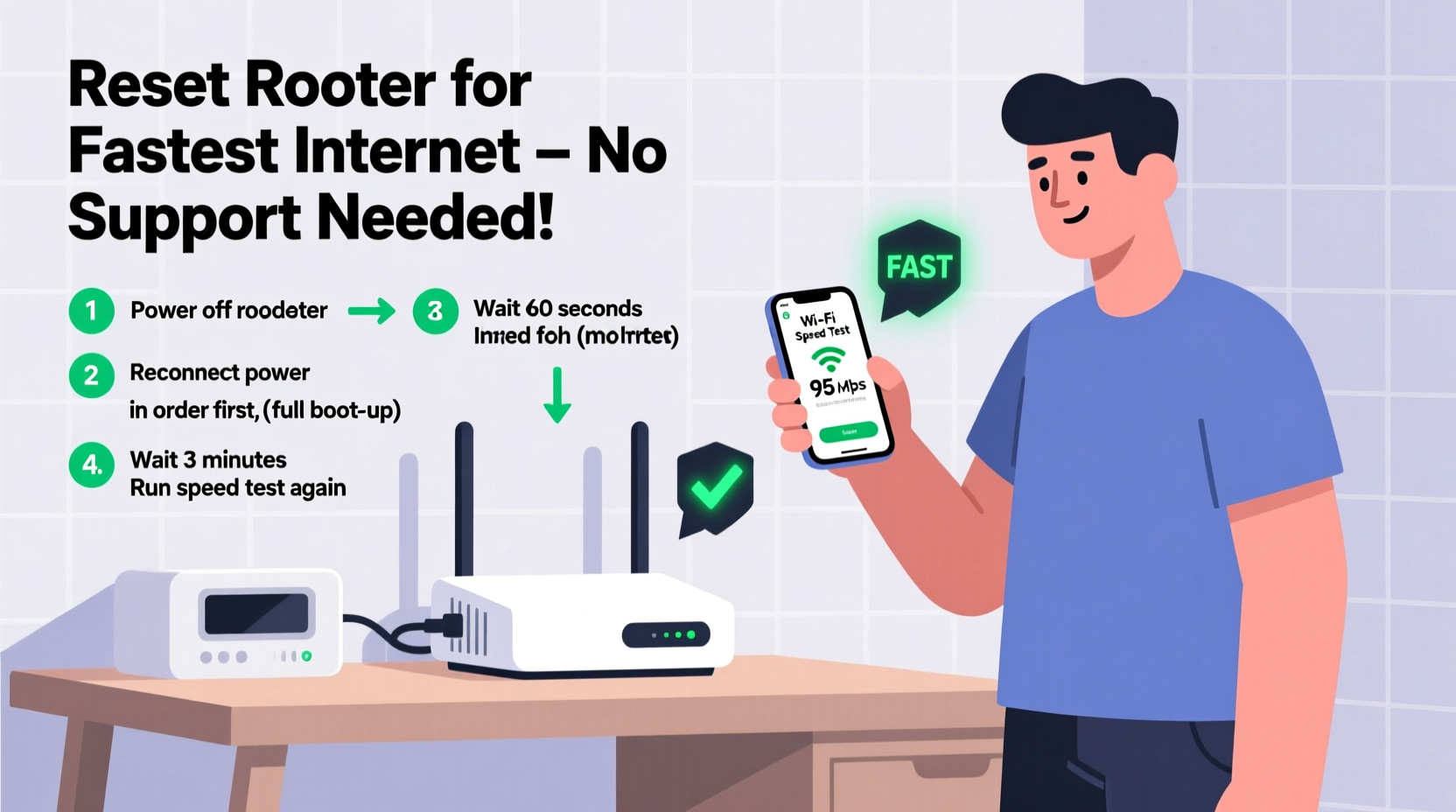
Routers manage data traffic between your devices and the internet. Over time, they accumulate connection logs, temporary glitches, firmware bugs, and interference from nearby networks. These issues degrade performance, leading to buffering, latency, or dropped signals—even if your ISP provides high-speed service.
A reset clears the router’s short-term memory (RAM), terminates stalled connections, and forces a fresh handshake with your modem and ISP. It's like restarting a computer that’s been running too long. Unlike a factory reset, which erases all settings, a standard reboot preserves your network name and password while restoring optimal operation.
“Routers are small computers. Just like your laptop, they need periodic restarts to run efficiently.” — David Lin, Network Infrastructure Engineer at OpenNet Labs
Step-by-Step Guide to Resetting Your Router for Maximum Speed
Follow this sequence to ensure a complete and effective reset. Skipping steps may result in incomplete recovery or lingering issues.
- Save active work: Close video calls, downloads, and cloud syncs on all devices.
- Locate the router: Identify your primary Wi-Fi router (not the modem, unless it’s a combo unit).
- Note current settings: Write down your Wi-Fi name (SSID) and password in case settings are lost.
- Power down the router: Unplug the power cable from the back of the device.
- Wait 30 seconds: This allows capacitors to discharge and clears residual data.
- Reconnect and power on: Plug the router back in and wait 2–3 minutes for full startup.
- Check indicator lights: Wait for the Wi-Fi, internet, and power lights to stabilize (usually solid green or blue).
- Test your connection: Use a wired device first, then a mobile phone or tablet on Wi-Fi.
After the reboot, open a browser and go to a speed test site like fast.com or speedtest.net. Compare results before and after. Most users see a 20–50% improvement in download/upload speeds and reduced ping.
Soft Reset vs. Hard Reset: Know the Difference
Not all resets are the same. Understanding the types helps you choose the right method without losing custom settings.
| Reset Type | What It Does | When to Use | Risk Level |
|---|---|---|---|
| Soft Reset (Reboot) | Turns router off and on; clears RAM and active connections | Weekly maintenance, slow speeds, intermittent disconnects | Low – no setting loss |
| Hard Reset (Factory Reset) | Erases all settings; returns router to out-of-box state | Forgotten password, persistent errors, preparing for resale | High – requires reconfiguration |
A soft reset is sufficient for improving speed. Only perform a hard reset if absolutely necessary. To execute a factory reset, press and hold the recessed “Reset” button (usually with a paperclip) for 10–15 seconds until lights blink erratically. Afterward, you’ll need to set up Wi-Fi again using the admin interface (typically via 192.168.1.1 or 192.168.0.1).
Optimize Settings After Reset for Sustained Speed
A reset alone isn’t a permanent fix. To lock in faster speeds, adjust key settings post-reboot.
- Update firmware: Log into your router’s admin panel and check for updates under “Administration” or “Firmware.” Outdated firmware can cause security flaws and speed throttling.
- Select the best Wi-Fi channel: In crowded areas (apartments, dense neighborhoods), interference slows performance. Use tools like Wi-Fi Analyzer (Android) or built-in diagnostics to find the least congested 2.4GHz or 5GHz channel.
- Enable Quality of Service (QoS): QoS prioritizes bandwidth for critical tasks like video conferencing or gaming. Assign higher priority to work devices or streaming boxes.
- Switch to 5GHz band: If your router is dual-band, connect laptops and smart TVs to the 5GHz network for faster, less crowded performance. Reserve 2.4GHz for IoT devices like smart plugs.
- Position matters: Place the router centrally, elevated, and away from microwaves, cordless phones, and thick walls.
“We’ve seen home networks improve from 40 Mbps to over 200 Mbps just by switching from a congested to an optimal Wi-Fi channel.” — Maria Tran, Senior Support Analyst at NetSecure Solutions
Troubleshooting: What to Do If Speed Doesn’t Improve
If your internet remains sluggish after a reset, consider these possibilities:
- Modem needs reboot too: If your modem and router are separate, power-cycle both. Unplug the modem, wait 30 seconds, plug it back in, wait for sync (steady lights), then restart the router.
- ISP outage or throttling: Check your provider’s status page or use third-party tools like downdetector.com. Some ISPs throttle bandwidth during peak hours or after heavy usage.
- Faulty hardware: Routers older than 3–5 years may lack modern standards (Wi-Fi 5/6) or have failing components. Consider upgrading to a mesh system for large homes.
- Background device consumption: One device downloading updates or uploading backups can hog bandwidth. Use your router’s admin dashboard to identify high-usage devices.
- Cable or line issues: Damaged coaxial cables or loose Ethernet connections reduce throughput. Inspect all physical links.
Mini Case Study: Sarah’s Home Office Fix
Sarah, a freelance graphic designer in Chicago, struggled with Zoom call lag and slow file uploads despite paying for 200 Mbps service. She called her ISP twice, but technicians found “no issues.” Frustrated, she followed the reset procedure outlined here. After rebooting both her modem and router, her speed jumped to 187 Mbps from 63 Mbps. Further investigation revealed her router was stuck on Wi-Fi channel 6, heavily used by neighbors. She switched to channel 11 and enabled QoS for her desktop. Since then, her connection has remained stable, and client meetings run smoothly.
Router Reset Checklist
Use this checklist to ensure a smooth and effective reset every time:
- Save open work on all devices
- Identify router and locate power cable
- Note current Wi-Fi name and password
- Unplug router from power source
- Wait 30 seconds
- Reconnect power and wait 2–3 minutes
- Verify stable indicator lights
- Run speed test on wired and wireless devices
- Log into router admin panel (e.g., 192.168.1.1)
- Check for firmware updates
- Change to least congested Wi-Fi channel
- Enable QoS and prioritize key devices
- Confirm all devices reconnect successfully
FAQ: Common Questions About Router Resets
Will resetting my router delete my Wi-Fi password?
No—a soft reset (reboot) keeps all settings intact. Only a factory reset (holding the reset button) erases your network name and password.
How often should I reset my router?
For optimal performance, reboot your router every two weeks. If you stream 4K video, game online, or work from home, consider weekly resets.
Can I reset my router remotely?
Some modern routers (like Google Nest Wi-Fi, Eero, or ASUS with apps) allow remote reboots via smartphone. Check your model’s companion app. Traditional routers require physical access.
Conclusion: Take Control of Your Internet Experience
You don’t need a technician to fix slow internet. With a few minutes and the right steps, you can reset your router for faster speeds and a more reliable connection. The process is simple, safe, and often dramatically effective. Beyond the reboot, optimizing settings like Wi-Fi channels and QoS ensures lasting improvements. Your router works hard every day—give it a chance to perform at its best. Try the steps today, measure the difference, and enjoy a smoother, faster online experience without making a single support call.




 浙公网安备
33010002000092号
浙公网安备
33010002000092号 浙B2-20120091-4
Comments
No comments yet. Why don't you start the discussion?