
Moving to a new house is exciting, but it also brings logistical challenges—especially if you’ve invested in a smart home ecosystem. From voice assistants to security cameras, thermostats, and door locks, these devices are designed to learn your habits and integrate with your network. When relocating, simply unplugging and plugging them back in won’t suffice. Failing to properly reset and reconfigure your smart devices can lead to connectivity issues, security vulnerabilities, or even prevent setup at your new location.
Resetting smart home devices isn’t just about erasing data—it’s about ensuring they’re ready to be paired with a new Wi-Fi network, linked to your account under fresh conditions, and secured against unauthorized access. Whether you're upgrading your living space or downsizing, this comprehensive guide walks you through the essential steps, tools, and best practices for resetting your smart home tech before the move.
Why Resetting Matters Before a Move
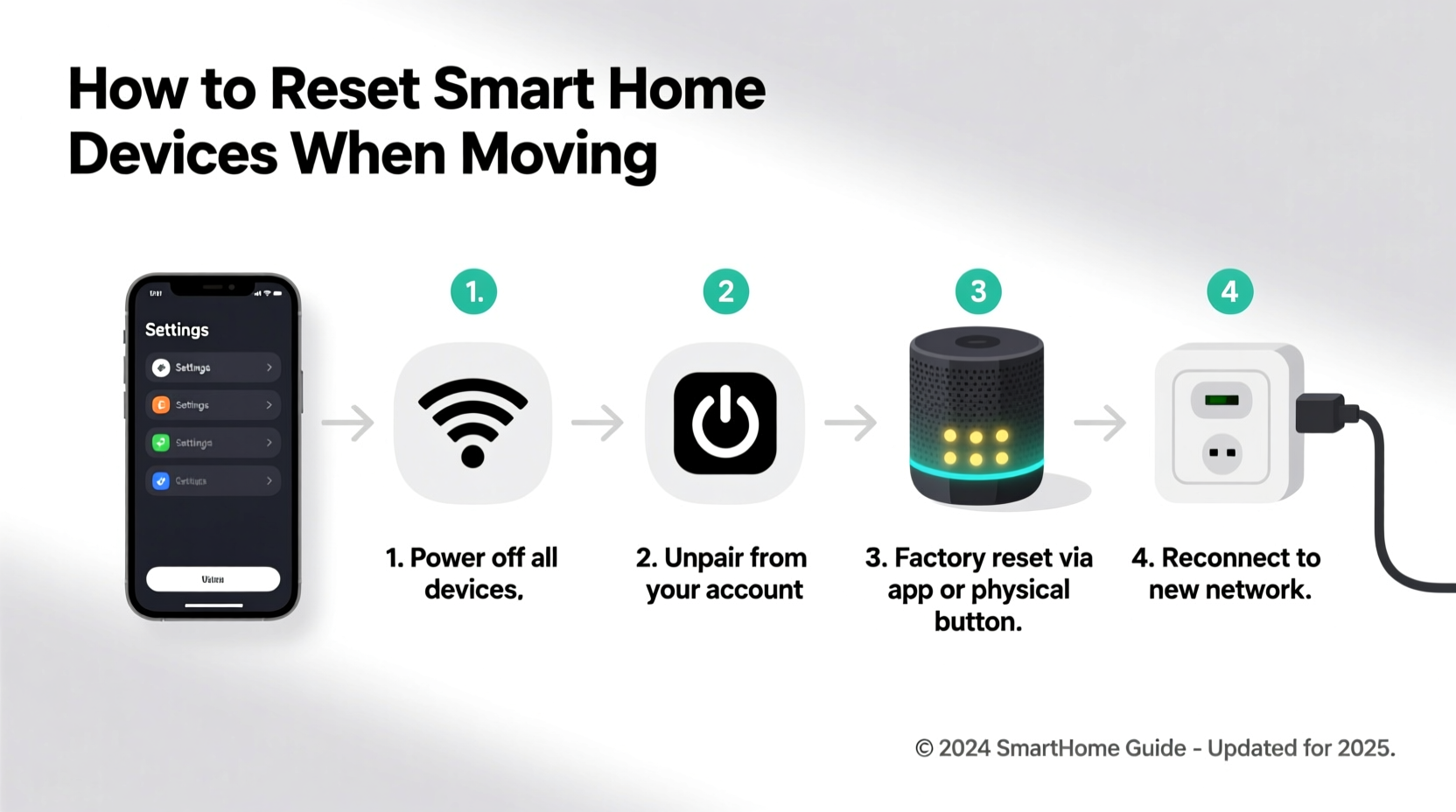
Smart devices store sensitive information: Wi-Fi passwords, voice recordings, geolocation data, camera footage, and user preferences. Leaving this data behind—or failing to unlink devices from your account—can compromise your privacy. Worse, some devices may not function correctly in a new environment if they still “remember” old network settings or hub connections.
Manufacturers design reset procedures to return devices to factory defaults, wiping stored credentials and configurations. This clean slate ensures that when you set up your smart home again, each device starts fresh and securely connects to your new network without conflicts.
“Resetting smart devices before a move is as important as changing the locks. It protects your digital footprint and ensures seamless integration in your next home.” — Jordan Lee, IoT Security Consultant at HomeShield Labs
Step-by-Step Guide to Reset Smart Home Devices
The exact process varies by brand and device type, but the general workflow remains consistent. Follow this timeline-based approach starting two weeks before your move date.
- Inventory Your Devices (Day 1–3): Make a list of all smart devices—smart speakers, lights, plugs, thermostats, cameras, doorbells, locks, sensors, and hubs. Note model numbers and brands.
- Unpair from Apps & Accounts (Day 4–6): Open each associated app (e.g., Google Home, Amazon Alexa, Apple Home, Samsung SmartThings) and remove each device from your account. This prevents sync errors later.
- Disconnect from Hubs (Day 7): If using a central hub (like Hubitat, SmartThings, or Home Assistant), unpair devices via the hub interface before resetting.
- Perform Factory Reset (Day 8–10): Use physical buttons, app options, or voice commands to initiate a factory reset on each device.
- Pack Safely (Day 11–12): Store devices in original boxes or padded containers with accessories (power adapters, screws, manuals).
- Reconfigure at New Home (After Move-In): Reconnect devices to your new Wi-Fi, re-add them to apps, and re-establish automations.
Device-Specific Reset Instructions
Not all resets are the same. Below is a breakdown of common smart home categories and their typical reset methods.
Smart Speakers & Displays (Amazon Echo, Google Nest, Apple HomePod)
- Amazon Echo: Press and hold the Action button (dot icon) for 25 seconds until the light ring turns orange. Release when it turns off.
- Google Nest: Use the Google Home app → Device Settings → Settings > Factory reset. Or press and hold the microphone mute button for 15 seconds.
- Apple HomePod: Unplug, wait 10 seconds, plug back in. Press and hold the top until the white spinning light appears, then say “Reset HomePod.” Confirm via iPhone.
Smart Lights & Switches (Philips Hue, LIFX, TP-Link Kasa)
- Philips Hue Bulbs: Turn the light on/off seven times within 45 seconds. The bulb will flash to confirm reset.
- LIFX Bulbs: Power cycle five times (on/off). The bulb will pulse to indicate reset mode.
- Kasa Smart Switches: Press and hold the physical button for 10+ seconds until the LED blinks rapidly.
Security Cameras & Doorbells (Ring, Arlo, Nest Cam)
- Ring Devices: Remove from the Ring app first. Then press and hold the orange button on the back for 15–20 seconds until the light flashes.
- Arlo Cameras: Press and hold the Sync button for 15 seconds. The status LED will turn amber, then blue.
- Nest Cam: Insert a paperclip into the reset hole and hold for 10 seconds until the LED flashes blue.
Thermostats (Nest Learning Thermostat, Ecobee)
- Nest Thermostat: Go to Settings > Reset > All Settings. Hold the thermostat ring and twist to select “Yes.”
- Ecobee: Navigate to Menu > Settings > Reset > Clear Settings. Confirm with PIN if set.
Smart Locks (August, Yale, Schlage)
- August Lock: Remove the battery tray, press and hold the reset button for 10 seconds, then reinsert.
- Yale Assure Lock: Press and hold Program + Lock buttons for 10 seconds. The lock will beep and flash red/green.
Smart Home Reset Checklist
Use this actionable checklist to ensure no device is overlooked during your move preparation.
- ✅ Create an inventory of all smart devices (brand, model, location in old home)
- ✅ Update firmware on all devices before resetting
- ✅ Log out of shared accounts or disable guest access
- ✅ Remove devices from cloud apps (Alexa, Google Home, etc.)
- ✅ Unpair from hubs or bridges (Zigbee, Z-Wave, Thread)
- ✅ Perform factory reset using correct method per device
- ✅ Confirm reset success (LED indicators, app feedback)
- ✅ Pack devices securely with cables and mounting hardware
- ✅ Store documentation and warranty info together
- ✅ At new home: Set up Wi-Fi, reconnect devices, re-enable automations
Common Mistakes to Avoid
Even tech-savvy homeowners make errors during relocation. These pitfalls can delay setup or expose personal data.
| Mistake | Consequence | Solution |
|---|---|---|
| Skipping app removal before reset | Device remains linked to account; can't re-add later | Always delete from app first, then reset |
| Forgetting hub-connected devices | Zigbee/Z-Wave devices lose pairing; won’t reconnect | Unpair from hub before resetting end devices |
| Not labeling devices | Confusion during reinstallation; wrong bulbs in fixtures | Use masking tape and marker to label each unit |
| Resetting too early | Lose convenience during final days in old home | Wait until 3–4 days before moving day |
| Assuming Wi-Fi name/password can stay the same | Devices auto-connect to old network; fail to configure | Use a different SSID and password at new home |
Real-World Example: Moving a Full Smart Home Setup
Sarah and Tom lived in a fully automated three-bedroom home equipped with 28 smart devices: 12 Philips Hue bulbs, 3 Echo Dots, a Ring Video Doorbell, Nest Thermostat, August Smart Lock, and a SmartThings Hub. When they relocated across state lines, they initially tried to save time by skipping resets, assuming a simple reconnection would work.
At the new house, only half the devices appeared in the SmartThings app. The others showed “offline” or “unreachable.” After consulting Samsung’s support forum, they learned that Zigbee devices must be fully reset and re-paired when changing physical locations—even if the hub moves with them.
They spent an extra weekend resetting each bulb, sensor, and switch individually. This time, they followed the proper sequence: removed devices from the app, reset physically, then re-added them one by one. The second attempt succeeded, and their smart home was operational within a day.
The lesson? Skipping steps creates more work later. A disciplined pre-move reset saves hours of troubleshooting.
Frequently Asked Questions
Do I need to reset every smart device before moving?
Yes. Any device connected to your Wi-Fi, cloud account, or smart home hub should be reset. This includes even simple items like smart plugs or light strips. Resetting ensures a clean setup in your new environment and protects your data.
What happens if I don’t reset my smart speaker?
If you skip resetting, your Echo or Google Nest may retain voice profiles, recent queries, and Wi-Fi credentials. It might also remain linked to your account, preventing re-registration. In rare cases, voice assistants have accidentally responded to neighbors’ voices post-move due to cached audio models.
Can I reset a smart device without the original app?
Sometimes. Most devices support physical reset methods (button holds, power cycling). However, removing the device from your account usually requires the app. If you no longer have access, contact customer support with proof of purchase to unlink it from their backend systems.
Conclusion: Start Smart, Stay Secure
Moving shouldn’t mean leaving your digital life behind—literally. Resetting smart home devices is a critical step in protecting your privacy and ensuring your technology works seamlessly in your next chapter. By following a structured process, avoiding common mistakes, and preparing in advance, you can transition your smart ecosystem smoothly and securely.
Your smart home is only as reliable as the care you give it during transitions. Treat each device with the same attention you’d give to packing important documents or heirlooms. With the right preparation, your new house won’t just be a place to live—it will quickly become a truly smart home again.




 浙公网安备
33010002000092号
浙公网安备
33010002000092号 浙B2-20120091-4
Comments
No comments yet. Why don't you start the discussion?