
Losing access to your MacBook because you've forgotten your password is a common but stressful situation. Many users assume the only solution is erasing their drive and reinstalling macOS, which risks losing photos, documents, apps, and settings. Fortunately, Apple has built-in recovery mechanisms that allow you to reset your password safely—without wiping your data. Whether you're using an Intel-based Mac or a newer Apple Silicon model, this guide walks you through secure, non-destructive methods to regain access to your device.
The key is acting calmly and methodically. Rushing into recovery mode without preparation can lead to irreversible mistakes. With the right approach, resetting your password preserves everything on your Mac while restoring full functionality.
Understanding Your Options for Password Reset
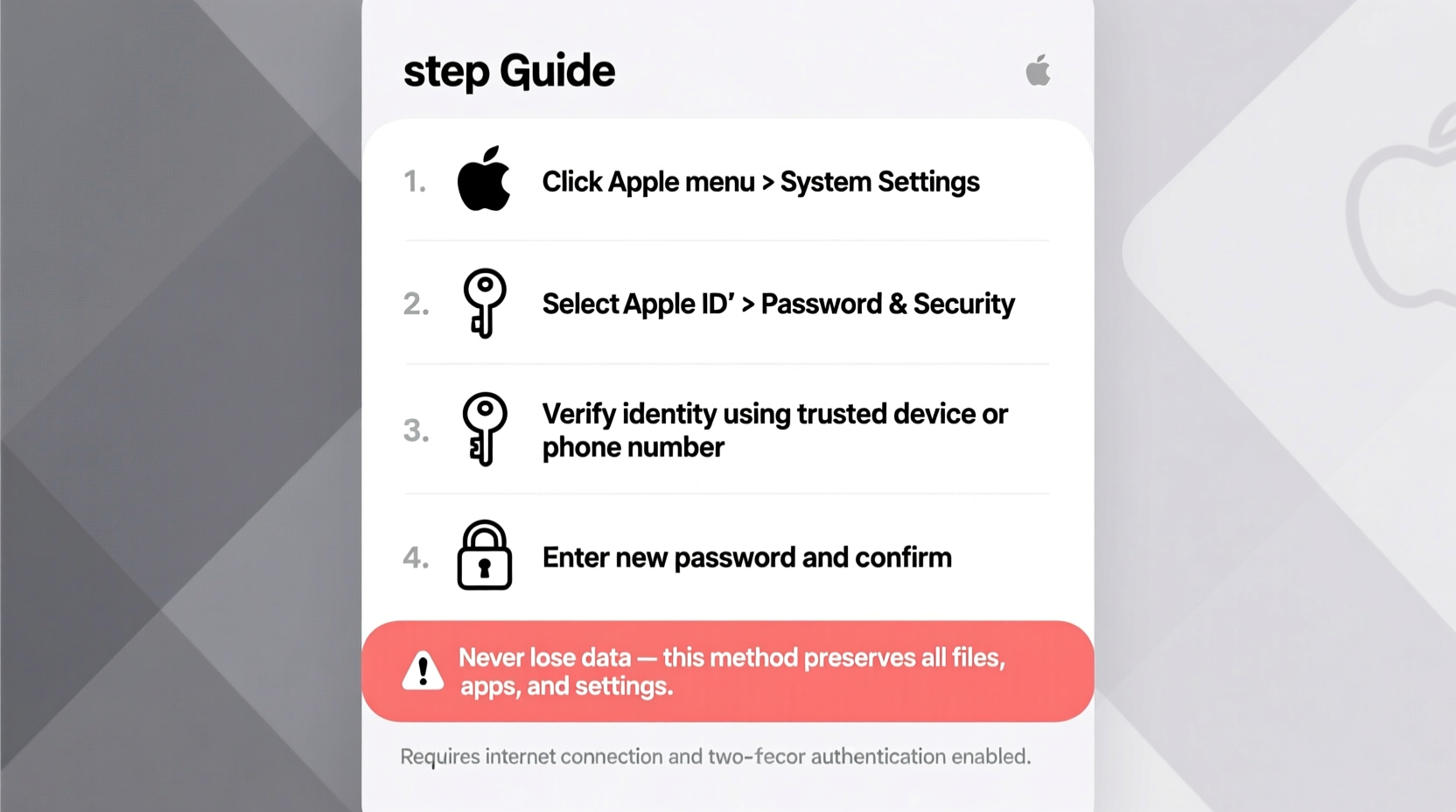
Apple provides multiple pathways to reset a forgotten password, depending on your Mac’s hardware, firmware settings, and whether you’ve enabled certain security features. The primary methods include:
- Using Apple ID to reset the password at login
- Resetting via Recovery Mode with administrator privileges
- Using another admin account (if available)
- Resetting FileVault recovery key (if enabled)
Not all options are available in every scenario. For example, if you never linked your Apple ID to your user account or disabled password reset at login, you’ll need to rely on Recovery Mode. Similarly, FileVault encryption adds a layer of complexity—but also security—if you have a recovery key.
“Never format a drive just to recover access. Modern macOS includes robust tools designed specifically for secure password resets without data loss.” — Jordan Lee, Apple Support Specialist with 12 years of experience
Prerequisites Before You Begin
Before attempting any reset procedure, ensure the following conditions are met:
- Power source: Plug in your MacBook to avoid battery drain during recovery.
- Internet connection: Most recovery functions require Wi-Fi or Ethernet access.
- Administrator knowledge: Know if you have another admin account or Apple ID linked to the system.
- FileVault status: If enabled, confirm whether you have the recovery key or iCloud recovery option set up.
- Recovery key or Apple ID: Have your credentials ready if prompted.
If you’re unsure about your FileVault status or Apple ID linkage, don’t worry—you’ll be able to check during the recovery process.
Step-by-Step Guide: Reset Password Using Recovery Mode
This method works on both Intel and Apple Silicon Macs and does not erase your data. It requires administrator-level access through Recovery Mode.
Step 1: Boot Into Recovery Mode
For Apple Silicon Macs (M1, M2, M3):
- Shut down your MacBook completely.
- Press and hold the power button until the startup options appear.
- Select \"Options,\" then click \"Continue.\"
For Intel Macs:
- Shut down your MacBook.
- Turn it on and immediately press and hold Command (⌘) + R until the Apple logo or spinning globe appears.
Step 2: Open Terminal from Utilities Menu
Once in Recovery Mode:
- Wait for the macOS Utilities window to load.
- From the top menu bar, click “Utilities,” then select “Terminal.”
Step 3: Reset Password Using resetpassword Command
In the Terminal window, type the following command and press Enter:
resetpassword
A graphical “Reset Password” utility will launch. This tool lets you change the password for any local user account on the Mac.
Step 4: Select Volume and User Account
- Choose the startup disk (usually named “Macintosh HD”).
- Select the user account whose password you want to reset.
- Enter a new password and verify it.
- Add a password hint (optional but helpful).
Step 5: Save and Restart
- Click “Next” or “Save.”
- Close the Reset Password window.
- Go back to the main Utilities screen and choose “Restart” from the Apple menu.
After rebooting, log in using your new password. All files, applications, and settings remain intact.
Alternative Method: Reset via Apple ID at Login Screen
If you previously enabled the option to allow Apple ID password reset, you can bypass Recovery Mode entirely.
When This Works:
- You’re running macOS Mojave or later.
- You logged in with your Apple ID on this Mac.
- The setting “Allow user to reset password using Apple ID” was enabled.
Steps:
- At the login screen, enter an incorrect password three times.
- A prompt will appear: “You can use your Apple ID to reset it.” Click “Reset it.”
- Enter your Apple ID and password.
- Create a new local password.
- Log in normally.
This method is the fastest and most user-friendly when available. However, if no prompt appears after repeated failed attempts, this feature was either disabled or not configured.
What If You Don’t Have Admin Access or Apple ID?
In rare cases, such as inherited or secondhand MacBooks without proper handover, you may lack administrative rights or recovery options. Here’s what you can do:
Use Another Admin Account
If there’s a second administrator account on the Mac:
- Log in to the other admin account.
- Open System Settings (or System Preferences).
- Navigate to Users & Groups.
- Select the locked account and click “Reset Password.”
FileVault Recovery Key
If FileVault is enabled and you have the 24-character recovery key:
- At the login screen, enter the wrong password.
- After a delay, a message will prompt: “Forgot password? Use your recovery key.”
- Enter the recovery key.
- Set a new password.
If you don’t have the recovery key and Apple ID reset isn’t enabled, you cannot legally bypass the encryption. Formatting becomes the only option—but results in data loss.
Mini Case Study: Recovering Access After a Family Handover
Sarah received her brother’s MacBook after he upgraded devices. He forgot to remove his account or provide login details. Initially locked out, Sarah tried guessing passwords but hit a wall. She followed the Recovery Mode steps outlined above, booted into macOS Utilities, opened Terminal, and launched the resetpassword tool. Since no FileVault key was required and she had physical access, she successfully reset the password for the primary account. All existing files—including school projects and personal photos—remained untouched. She then created a new user account and securely erased the old one via Disk Utility later, ensuring privacy.
This case illustrates why understanding recovery tools matters—not just for individual users, but in shared or transitional ownership scenarios.
Do’s and Don’ts When Resetting Your Password
| Do’s | Don’ts |
|---|---|
| Back up critical data regularly using Time Machine | Format the drive without exhausting recovery options |
| Link your Apple ID to your user account in System Settings | Use simple or reused passwords across devices |
| Write down your FileVault recovery key and store it safely | Leave guest accounts enabled with admin privileges |
| Keep your macOS updated to ensure recovery tools function properly | Ignore firmware password warnings if not needed |
Checklist: Securely Reset Your MacBook Password Without Data Loss
- ✅ Confirm your Mac is connected to power
- ✅ Ensure internet access is available (Wi-Fi/Ethernet)
- ✅ Attempt Apple ID reset at login (if prompt appears)
- ✅ Boot into Recovery Mode using correct key combination
- ✅ Open Terminal and run
resetpassword - ✅ Select correct startup volume and user account
- ✅ Set a strong new password and save changes
- ✅ Restart and log in normally
- ✅ Verify all files and apps are accessible
- ✅ Update password in your password manager
Frequently Asked Questions
Will resetting my password delete my files?
No. Using the built-in Reset Password utility in Recovery Mode does not erase any data. It only changes the login credentials for the selected user account. Your documents, photos, apps, and system settings remain fully intact.
What should I do if Recovery Mode doesn’t work?
If Recovery Mode fails to load, first verify you’re using the correct key combination for your Mac model. Try resetting the NVRAM (Intel Macs) or SMC if applicable. If issues persist, connect to the internet via Ethernet or Wi-Fi and attempt Internet Recovery by holding Option-Command-R on Intel Macs or selecting \"Options\" > \"Reinstall macOS\" on Apple Silicon. This downloads recovery tools directly from Apple’s servers.
Can I reset a password on a managed or supervised Mac?
On institution-managed Macs (e.g., school or company devices), password resets may be restricted. Mobile Device Management (MDM) profiles often override local recovery options. In such cases, contact your IT administrator for assistance. Unauthorized reset attempts may trigger lockout or remote wipe protocols.
Final Recommendations and Prevention Tips
Regaining access to your MacBook without losing data is entirely possible with the right knowledge. The resetpassword utility is one of macOS’s most underappreciated safety nets. But prevention is always better than recovery.
Going forward, take these proactive steps:
- Enable Apple ID password reset in Users & Groups settings.
- Store your FileVault recovery key in a secure location—preferably printed and kept offline.
- Use a password manager to remember complex passwords without writing them down insecurely.
- Maintain regular backups with Time Machine to protect against unforeseen failures.
Also consider creating a standard user account for daily use and reserving admin rights for installations and system changes. This reduces risk if someone gains temporary access to your machine.




 浙公网安备
33010002000092号
浙公网安备
33010002000092号 浙B2-20120091-4
Comments
No comments yet. Why don't you start the discussion?