
Slow internet can disrupt everything from remote work to streaming your favorite shows. While many assume the issue lies with their internet service provider or subscription plan, the real culprit is often closer to home: the router. Over time, routers accumulate data congestion, experience software glitches, or struggle under prolonged use without a break. The good news? A simple reset can dramatically improve speed, stability, and coverage—often restoring your connection to peak performance.
Unlike factory resets that erase all settings, a standard router reboot clears temporary memory, refreshes connections, and forces the device to re-establish communication with your modem and ISP (Internet Service Provider). This process takes less than five minutes and requires no technical expertise. Here’s exactly how to do it in three clear, effective steps—and why it works.
Step 1: Power Down Your Router Properly
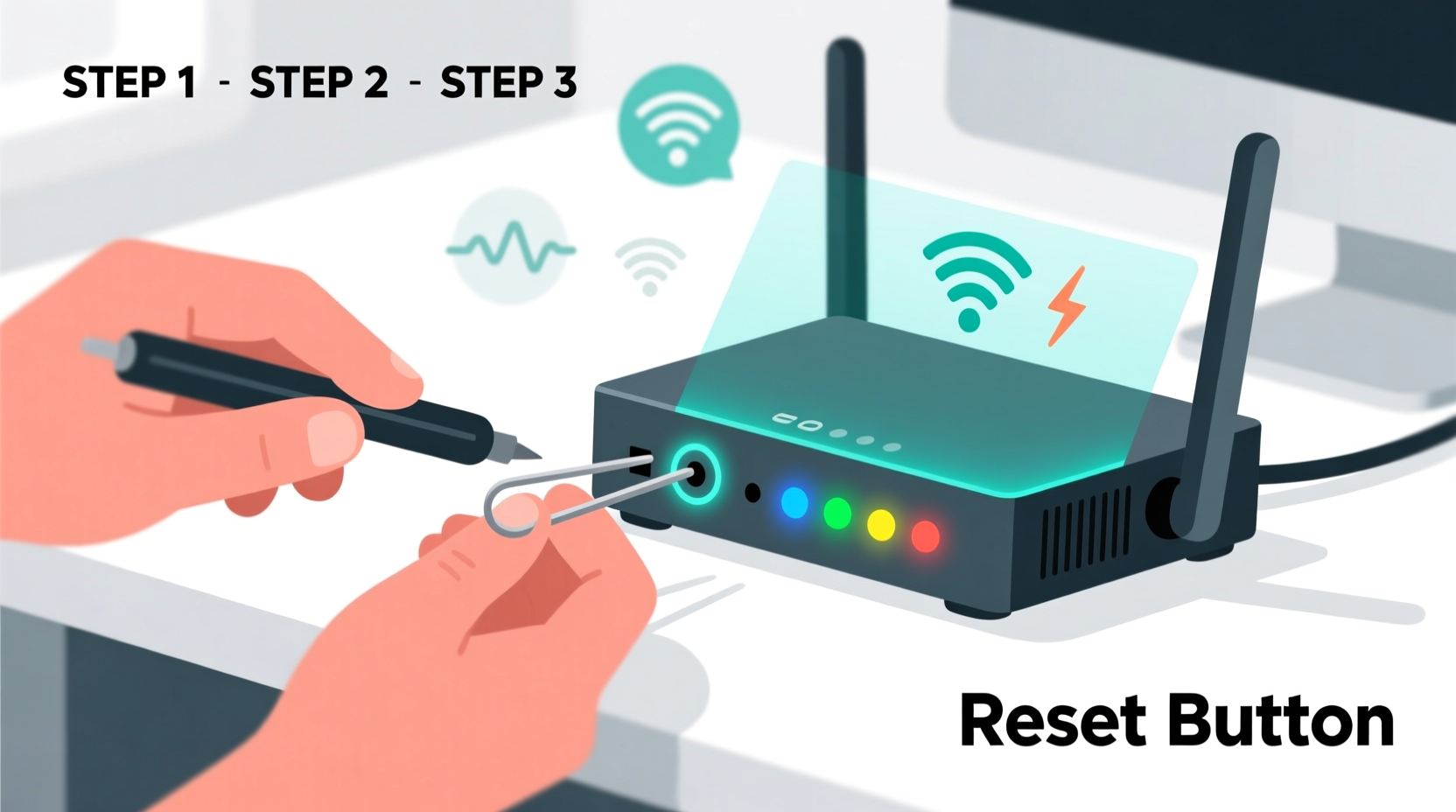
The first step in resetting your router isn’t pressing any buttons—it’s shutting it down correctly. Many users unplug the router immediately, but this can lead to incomplete cache clearing or firmware inconsistencies. Instead, begin by turning off all connected devices, especially those actively using bandwidth like laptops, smart TVs, or gaming consoles. This prevents abrupt disconnections that could affect downloads or updates.
Next, locate the power button on your router. If there isn’t one, you’ll need to unplug the power adapter from the wall outlet or the back of the device. Before doing so, wait until all status lights have stabilized—not blinking erratically—to ensure the system is in an idle state. Then disconnect the power source completely.
Leave the router unplugged for at least 30 seconds. This brief downtime allows capacitors inside the hardware to fully discharge, wiping volatile memory (RAM) where connection logs, IP tables, and temporary routing rules are stored. Skipping this wait period reduces effectiveness—think of it like giving your router a full night’s sleep instead of a quick nap.
Step 2: Restart in the Correct Order
How you restart your networking equipment matters just as much as turning it off. Most people plug everything back in at once, but this can cause synchronization issues between the modem and router. Follow this precise sequence for optimal results:
- Power on the modem first. Plug it in and wait until all primary lights (especially \"Power,\" \"Downstream,\" \"Upstream,\" and \"Online\") are solid. This may take two to three minutes as the modem reacquires signal from your ISP.
- Once the modem is stable, power on the router. Reconnect its power supply and wait another two minutes. Watch for the Wi-Fi indicator light to become steady—this means the wireless network is broadcasting again.
- Reconnect your devices. Start with one device, such as your smartphone or laptop, and test connectivity before bringing others online.
This staggered restart gives each component time to initialize properly. When the modem comes online first, it locks onto the strongest available signal from your ISP. The router then connects to a stable upstream source, which improves negotiation of bandwidth allocation and channel selection.
Why Sequence Matters
A misordered restart can result in what technicians call a “partial handshake.” In such cases, the router boots up before the modem has fully synchronized with the ISP, leading to suboptimal speeds or intermittent dropouts. By following the correct boot order, you eliminate this risk and set the foundation for improved performance.
“Over 60% of reported slow-speed issues are resolved simply by rebooting the router and modem in proper sequence.” — David Lin, Senior Network Engineer at NetSecure Solutions
Step 3: Optimize After the Reset
A reset clears the slate—but it doesn’t guarantee long-term improvement unless you follow up strategically. Use the post-reboot window to fine-tune your network environment. Here’s what to do:
- Check your internet speed. Visit a reputable speed test site (like fast.com or speedtest.net) and compare results before and after the reset. Look specifically at download rate, upload rate, and ping latency.
- Update firmware if prompted. Some routers automatically check for updates during startup. Access your admin dashboard (usually via 192.168.1.1 or 192.168.0.1 in a browser) and look for a system update option.
- Change Wi-Fi channels manually if needed. In dense neighborhoods, interference from nearby networks on the same channel can degrade performance. Choose channels 1, 6, or 11 on 2.4 GHz for minimal overlap; use auto-selection on 5 GHz unless experiencing specific conflicts.
- Reposition the router. Place it centrally in your home, elevated off the floor, and away from large metal objects, microwaves, or cordless phones that emit interfering signals.
Mini Case Study: Sarah’s Streaming Fix
Sarah, a freelance graphic designer living in a shared apartment in Austin, struggled with video calls freezing and 4K Netflix buffering despite paying for a 200 Mbps plan. She contacted her ISP twice, only to be told “everything looks fine on our end.” Frustrated, she tried resetting her router on a friend’s advice.
She powered down both modem and router, waited 45 seconds, then restarted them in order. After reconnecting her laptop, she ran a speed test: her download speed jumped from 48 Mbps to 192 Mbps. Video calls stabilized instantly, and streaming resumed without interruption. Later, she discovered her router had been running continuously for 78 days—an extreme case of memory bloat. Since then, she’s scheduled biweekly reboots using a smart plug timer.
Router Reset Checklist
Follow this checklist every time you reset your router to ensure maximum benefit:
✅ Router Reset Action Plan
- Turn off all active devices using the network
- Unplug the router (and modem if separate)
- Wait at least 30 seconds—up to 60 if possible
- Plug in the modem first; wait for full signal lights
- Plug in the router; wait for Wi-Fi light to stabilize
- Reconnect one device and test speed
- Log into router settings to check for firmware updates
- Confirm Wi-Fi channel isn’t congested (use analyzer app if unsure)
- Note performance changes for future reference
When to Avoid a Reset — And What to Do Instead
While rebooting is safe and beneficial in most cases, there are scenarios where it won’t help—or could even worsen the situation.
| Scenario | Should You Reset? | Better Alternative |
|---|---|---|
| Complete loss of internet after storm or outage | No — wait for ISP recovery | Contact ISP; check local service map |
| Firmware update in progress (flashing lights) | No — risk of bricking device | Wait 10+ minutes; only power cycle if frozen beyond 30 min |
| Router overheating (hot to touch) | Yes — but also improve ventilation | Clean vents, relocate to cooler area, consider fan assist |
| Forgotten admin password | Only as last resort | Try default credentials first; document before reset |
| Custom configurations (port forwarding, parental controls) | Proceed with caution | Backup settings before reset if possible |
In general, avoid frequent resets (more than once a week) unless part of a scheduled maintenance routine. Excessive cycling can shorten the router’s lifespan due to thermal stress on internal components.
FAQ: Common Questions About Router Resets
Will resetting my router change my Wi-Fi password?
No—a standard reboot does not alter your network name (SSID) or password. Only a factory reset (holding the reset button for 10+ seconds) erases custom settings. A regular power cycle preserves all configurations while refreshing system operations.
How often should I reset my router?
Every two to four weeks is ideal for maintaining performance. Heavy usage households (with multiple users, smart home devices, or constant streaming) may benefit from weekly reboots. Use a smart plug with a timer to automate the process during low-usage hours, such as 2:00 AM on Tuesdays.
Can a router reset improve Wi-Fi range?
Indirectly, yes. After a reset, the router scans for the clearest channel and strongest signal path, which can enhance coverage. However, physical limitations like walls or distance remain. For persistent dead zones, consider adding a mesh extender or upgrading to a more powerful model.
Final Thoughts: Small Action, Big Impact
Resetting your router is one of the most overlooked yet effective tools for improving internet performance. It costs nothing, takes little time, and often delivers dramatic results. Unlike complex troubleshooting or costly upgrades, this simple act addresses common root causes of slowdowns: memory leaks, signal interference, and outdated connection states.
The key is consistency. Just as you restart your computer to keep it running smoothly, your router deserves the same care. Incorporate periodic reboots into your digital hygiene routine, and stay proactive about monitoring your home network’s health.
“A router is a traffic cop for your data. When it gets overwhelmed, it needs a moment to catch its breath. A reset gives it exactly that.” — Maria Tran, Consumer Broadband Advocate
Take Control of Your Connection Today
You don’t need advanced tech skills or expensive equipment to enjoy faster internet. Start tonight: unplug your router, wait 30 seconds, and restart it using the correct sequence. Test your speed, observe the difference, and make note of improvements. Chances are, you’ll wonder why you didn’t try it sooner.




 浙公网安备
33010002000092号
浙公网安备
33010002000092号 浙B2-20120091-4
Comments
No comments yet. Why don't you start the discussion?