
Slow internet can be frustrating—especially when you're working from home, streaming high-definition video, or gaming online. While many turn to their ISP or consider upgrading plans, a simple router reset often restores performance without any cost. The good news? You don’t have to lose all your saved Wi-Fi passwords and custom settings to get your connection back on track.
A full factory reset wipes everything—including your network name (SSID), password, parental controls, and port forwarding rules. But if done correctly, a strategic reboot or partial reset can clear glitches, refresh IP assignments, and improve speeds while preserving your configurations. This guide walks through proven techniques to reset your router safely, maintain your saved credentials, and optimize your Wi-Fi performance long-term.
Understanding Router Resets: Soft vs. Hard
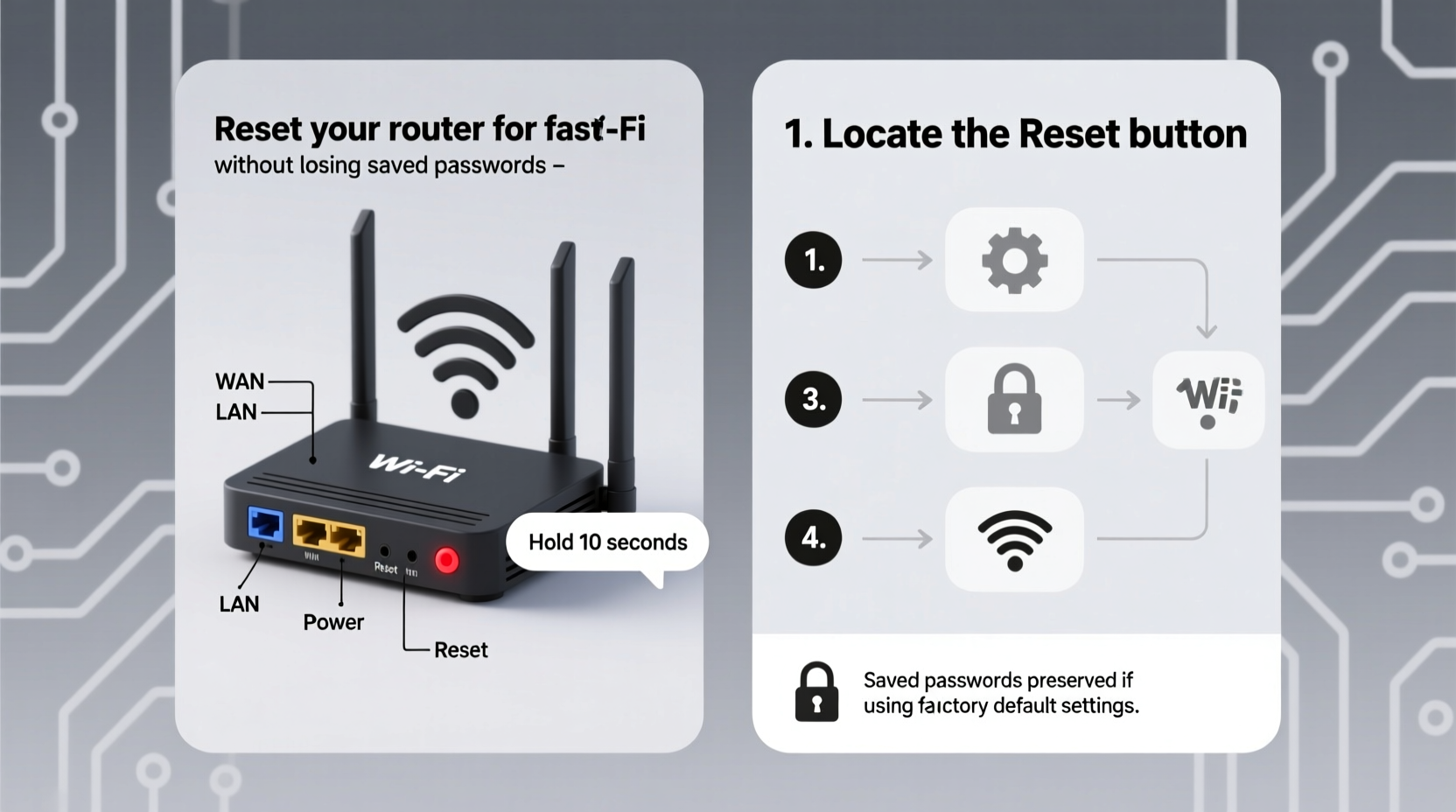
Not all resets are the same. Knowing the difference between a soft reboot and a hard factory reset is crucial to maintaining your network setup while improving speed.
- Soft Reset (Reboot): Turning your router off and on again. This clears temporary memory (RAM), renews DHCP leases, and forces a fresh connection with your ISP. It does not erase any saved settings or passwords.
- Hard Reset (Factory Reset): Restores the router to its original out-of-the-box state. All customized settings—including Wi-Fi names, passwords, security preferences, and firmware updates—are erased.
In most cases of sluggish Wi-Fi, a soft reset is sufficient. Only resort to a hard reset if you're troubleshooting persistent issues like login failures, configuration errors, or malware infiltration—and even then, there are ways to safeguard your data first.
Step-by-Step Guide: How to Reboot Your Router Safely
Follow this sequence to perform a clean restart that maximizes performance gains while keeping your network intact.
- Save current settings (optional but recommended): Log into your router’s admin panel (usually via
192.168.1.1or192.168.0.1) and navigate to the backup or administration section. Look for “Backup Settings” or “Save Configuration.” Download the file to your computer. - Disconnect devices: Pause large downloads, streaming sessions, or active calls to prevent data corruption during the reboot.
- Power down the router and modem: Unplug both devices from power. If they’re combined into one unit, just unplug that.
- Wait 30 seconds: This allows capacitors to discharge and clears residual memory. Skipping this step may result in incomplete refresh.
- Power up the modem first: Plug it back in and wait until all lights stabilize (typically 1–2 minutes).
- Reconnect the router: Plug it in and wait another 2–3 minutes for full initialization.
- Test your connection: Open a browser, run a speed test, and check latency-sensitive applications.
This process clears DNS caches, resets TCP/IP stacks, and prompts your ISP to assign a fresh public IP address—often resolving slowdowns caused by congestion or IP conflicts.
When You Might Need a Factory Reset (And How to Avoid Losing Passwords)
Sometimes, a soft reboot isn’t enough. If your router is unresponsive, stuck in a boot loop, or broadcasting incorrect SSIDs, a factory reset may be necessary. The key is preparation.
Before pressing the reset button, document or export your current configuration:
- Note down your Wi-Fi name (SSID) and password(s).
- Record any custom settings: guest network details, parental controls, port forwards, DMZ hosts, or QoS rules.
- Use the router’s built-in backup tool (if available) to save the configuration file to your local device.
Once backed up, proceed with the factory reset:
- Locate the recessed reset button (usually at the back).
- With the router powered on, press and hold the button for 10–15 seconds using a paperclip.
- Release when lights flash erratically—this indicates reset initiation.
- Wait 3–5 minutes for the router to reboot fully.
- Log in using default credentials (found on the label or manual).
- Restore settings manually or via uploaded configuration file.
By restoring from a backup, you regain your network identity—including saved passwords—without having to reconnect every smart device in your home.
| Action | Effect on Settings | Recommended For |
|---|---|---|
| Soft Reboot | No change to saved passwords or configurations | Slow speeds, intermittent drops, DNS issues |
| Firmware Update | Preserves settings; improves stability | Outdated routers, security patches |
| Factory Reset + Restore Backup | Temporary loss, then full recovery of settings | Severe malfunctions, forgotten admin passwords |
| Factory Reset (No Backup) | All settings permanently erased | Last resort only |
Expert Insight: Why Reboots Improve Speed
According to networking specialists, routers accumulate memory leaks and fragmented packet queues over time—especially budget models with limited RAM.
“Routers are small computers. Like any system running 24/7, they benefit from periodic restarts. A weekly reboot can prevent throttling due to resource exhaustion.” — Dr. Alan Reyes, Network Infrastructure Engineer at NetSecure Labs
Firmware bugs, overheating, and signal interference also degrade performance gradually. A reboot clears these transient issues, allowing the router to renegotiate optimal channels with connected devices and your ISP.
Mini Case Study: Sarah’s Lagging Home Office
Sarah, a freelance graphic designer in Portland, noticed her Zoom calls freezing and cloud uploads stalling—despite paying for a 200 Mbps plan. Her Wi-Fi showed full bars, yet real-world speeds tested below 30 Mbps.
She tried moving closer to the router, restarting her laptop, and disabling background apps—all with minimal improvement. Then she remembered reading about router reboots.
After unplugging both her modem and router for 30 seconds and powering them back in sequence, her connection rebounded. A follow-up speed test registered 192 Mbps download and stable ping. No settings were lost; all devices reconnected automatically.
The culprit? A memory leak in the router’s NAT table after 11 days of continuous uptime. The reboot cleared the backlog instantly.
Checklist: Safe Router Reset Without Losing Passwords
Use this checklist before resetting your router to ensure a smooth recovery:
- ✅ Confirm slow speeds aren't due to ISP outage (check status page)
- ✅ Write down current Wi-Fi name and password
- ✅ Access router admin panel (
192.168.1.1or similar) - ✅ Navigate to System Tools > Backup Settings
- ✅ Save configuration file to secure location
- ✅ Perform soft reboot (power cycle)
- ✅ Test speed and responsiveness
- ✅ If unresolved, perform factory reset and restore from backup
Additional Tips to Maintain Fast Wi-Fi Long-Term
Resetting helps short-term, but sustainable performance requires ongoing maintenance.
- Schedule monthly reboots: Set a calendar reminder to power-cycle your router every 30 days.
- Update firmware regularly: Check your router’s admin interface for updates under “Firmware” or “Router Update.”
- Optimize placement: Keep the router elevated, central, and away from microwaves, cordless phones, and thick walls.
- Use dual-band wisely: Connect high-bandwidth devices (laptops, TVs) to 5 GHz; use 2.4 GHz for smart home gadgets needing range over speed.
- Limit connected devices: Too many active connections strain processing power. Disconnect unused IoT devices.
Some modern routers support automatic reboots. If yours has this feature (often under “Maintenance” or “System Settings”), enable a weekly restart during low-usage hours.
FAQ
Will resetting my router change my Wi-Fi password?
A soft reboot will not change your Wi-Fi password. Only a factory reset erases it—but if you’ve backed up your settings, you can restore the password immediately after resetting.
How often should I reset my router?
There’s no fixed rule, but experts recommend a soft reboot every 1–2 months. If you experience frequent disconnections or slowdowns, monthly resets are advisable. Routers running outdated firmware may need more frequent attention.
Can I reset my router remotely?
Most standard routers don’t support remote resets unless managed through a provider app (like Xfinity or Google Nest Wi-Fi). Some advanced models allow SSH access or integration with smart plugs that can power-cycle the device on command.
Conclusion
Resetting your router doesn’t have to mean starting over. With the right approach, you can reclaim fast, reliable Wi-Fi without the hassle of reconfiguring every smart speaker, phone, and tablet in your home. Whether it's a quick power cycle or a full factory reset with backup restoration, the goal is stability—not disruption.
Start with a simple reboot. Document your settings. Embrace firmware updates. And treat your router like the critical piece of tech it is—because when it runs smoothly, so does your digital life.




 浙公网安备
33010002000092号
浙公网安备
33010002000092号 浙B2-20120091-4
Comments
No comments yet. Why don't you start the discussion?