
Slow internet can derail a workday, interrupt a movie night, or ruin an online gaming session. While many assume the issue lies with their internet service provider, the real culprit is often closer — right on the shelf or desk where the router sits. Over time, routers accumulate digital clutter, experience firmware glitches, or become overwhelmed by connected devices. The good news? A quick, proper reset can clear these issues and restore your connection to peak performance — often in less than five minutes.
This guide walks you through the why, when, and how of resetting your router effectively. You’ll learn not just the steps, but also how to avoid common mistakes, recognize when a reset is truly needed, and maintain optimal speeds long after the reboot.
Why Resetting Your Router Boosts Internet Speed
Routers are small computers managing data traffic between your devices and the internet. Like any computer, they can slow down when overloaded, overheated, or bogged down by outdated processes. Continuous operation without a restart leads to memory leaks, IP address conflicts, and firmware instability — all of which degrade performance.
Resetting your router clears temporary memory (RAM), refreshes network connections, renews IP assignments, and forces a fresh handshake with your ISP’s network. This process often resolves latency spikes, intermittent dropouts, and sluggish download speeds.
“Routers need periodic reboots just like smartphones or laptops. It’s one of the most effective troubleshooting tools users have.” — David Lin, Senior Network Engineer at NetSecure Systems
A hard reset doesn’t erase your Wi-Fi settings unless you perform a factory reset — which is different from a standard power cycle. What you’re aiming for is a soft reboot: a full shutdown and restart that clears system logs and resets active connections without wiping configurations.
When Should You Reset Your Router?
Not every slowdown requires a reset, but certain signs indicate it’s time:
- Web pages load slowly despite no changes in usage
- Video calls freeze or buffer frequently
- Multiple devices lose connection simultaneously
- Ping times increase during online gaming
- The router feels unusually hot to the touch
- Wi-Fi signal strength drops without explanation
Experts recommend rebooting your router every few weeks as preventive maintenance. However, if you're experiencing any of the above symptoms, don’t wait — act immediately.
Step-by-Step Guide: Resetting Your Router in Under Five Minutes
Follow this precise sequence to maximize the effectiveness of your router reset:
- Power down connected devices (optional): To avoid confusion, turn off key devices like laptops or smart TVs before starting. This ensures they reconnect cleanly after the reset.
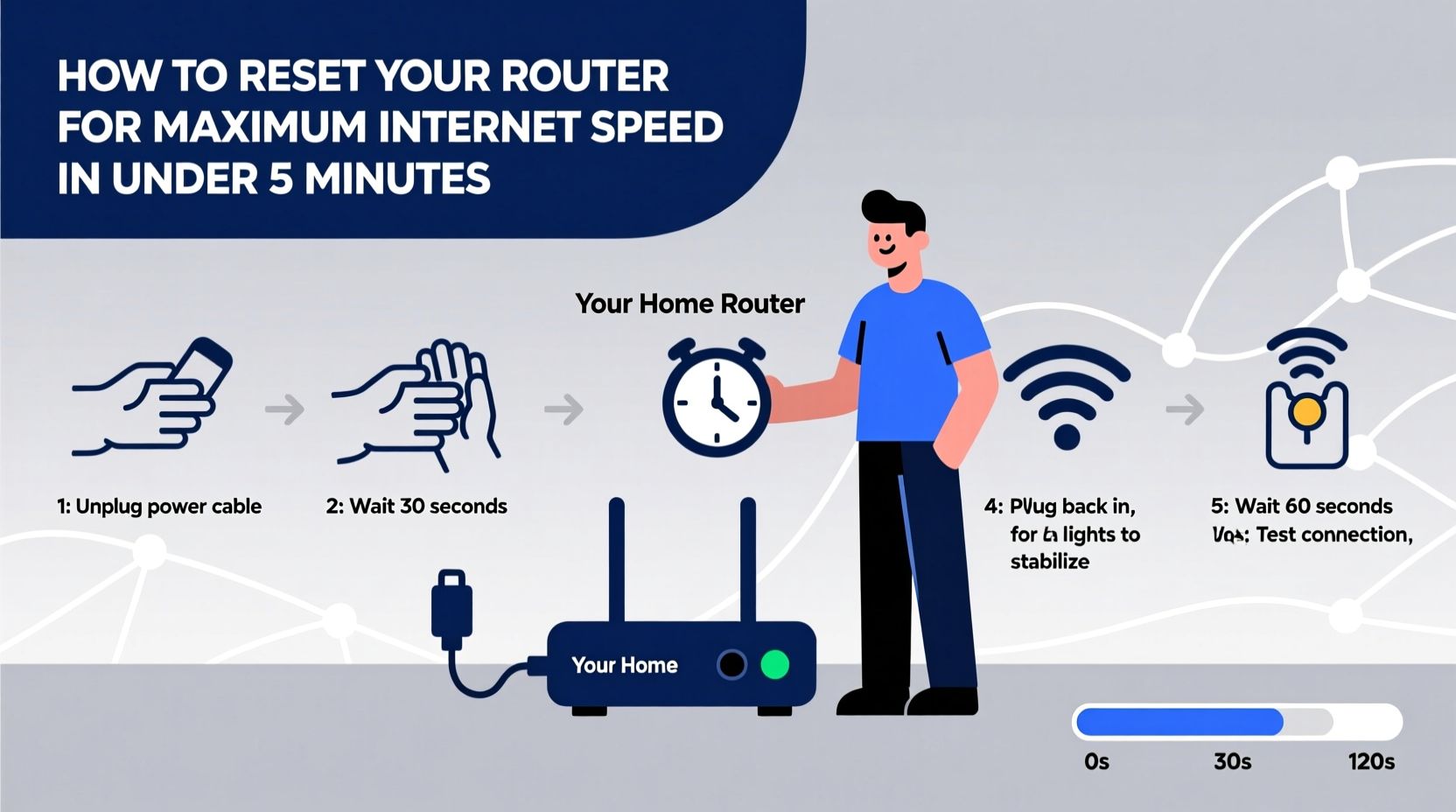
- Unplug the router’s power cable: Locate the power adapter and disconnect it from the wall outlet or power strip. Do not use the power button if available — physically cutting power ensures a complete reset.
- Wait 30 seconds: This critical step allows capacitors inside the router to discharge fully and clears residual memory. Skipping this reduces the reset’s effectiveness.
- Reconnect the power cable: Plug the router back in securely.
- Wait 2–3 minutes: Allow the router to boot up completely. Watch the status lights: once the “Power,” “Internet,” and “Wi-Fi” indicators stabilize (usually solid green or blue), the process is complete.
- Test your connection: Open a browser, run a speed test at speedtest.net, and compare results to pre-reset performance.
Most users see improvements within two minutes of the router powering back on. If speeds remain low, proceed to advanced troubleshooting.
Do’s and Don’ts of Router Resetting
| Do’s | Don’ts |
|---|---|
| Unplug the router completely instead of using the power switch | Press the reset button (usually recessed) unless you intend to factory reset |
| Wait at least 30 seconds before plugging back in | Turn the router back on too quickly — rushing prevents full memory flush |
| Check for firmware updates after rebooting | Ignore overheating signs — clean vents and ensure airflow |
| Use the official ISP-provided router if possible | Stack other electronics on or near the router |
| Label your router and cables for easy identification | Perform a factory reset without backing up custom settings |
Understanding the difference between a reboot and a factory reset is essential. Pressing the physical “Reset” button for 10+ seconds erases all custom configurations — including Wi-Fi name, password, and security settings — reverting the device to default. Only do this if you’ve forgotten login details or suspect deep-seated firmware corruption.
Real-World Example: How Sarah Fixed Her Streaming Issues
Sarah, a remote worker and mother of two, noticed her home internet slowing down every evening around 7 PM. Zoom meetings lagged, and her kids’ streaming shows constantly buffered. She contacted her ISP, who confirmed no outages and suggested upgrading her plan. Before spending more money, she decided to try a router reset.
One Saturday morning, she unplugged the router, waited 35 seconds, then plugged it back in. Within three minutes, all lights stabilized. She ran a speed test: from 18 Mbps down before, it jumped to 86 Mbps. The evening peak hours remained smooth for weeks afterward.
Later, she discovered her router had been running continuously for 47 days. Memory buildup and thermal throttling were silently degrading performance. A simple reboot resolved what seemed like a major infrastructure problem.
Advanced Tips for Sustained High Speeds
A reset provides immediate relief, but lasting performance depends on ongoing habits:
- Update firmware regularly: Log into your router’s admin panel (usually via 192.168.1.1 or 192.168.0.1) and check for updates under “Administration” or “Firmware.” Enable auto-updates if available.
- Optimize placement: Position the router centrally, elevated, and away from metal objects, microwaves, and cordless phones. Avoid basements or enclosed cabinets.
- Limit connected devices: Each active device consumes bandwidth. Disconnect unused gadgets like old smartphones or smart plugs.
- Switch Wi-Fi bands: If your router is dual-band (2.4 GHz and 5 GHz), connect high-bandwidth devices (laptops, TVs) to 5 GHz for faster speeds, and use 2.4 GHz for smart home gadgets needing range over speed.
- Use Quality of Service (QoS) settings: Prioritize traffic for video calls or gaming during peak hours via the router dashboard.
“Over 60% of support calls we receive are resolved with a simple reboot. Customers overlook the simplest fix because they assume it’s too basic to work.” — Tina Reyes, Customer Support Lead at ConnectAll ISP
Router Reset Checklist
Keep this checklist handy for fast, reliable resets:
- ✅ Confirm internet issues persist across multiple devices
- ✅ Locate the router and its power source
- ✅ Unplug the power cable (not just switch off)
- ✅ Wait 30 seconds (use a timer if needed)
- ✅ Reconnect the power cable firmly
- ✅ Wait 2–3 minutes for full startup (watch indicator lights)
- ✅ Test speed using a wired connection if possible
- ✅ Record post-reset speeds for comparison
If problems continue after three resets within a week, consider contacting your ISP or replacing aging hardware. Routers typically last 3–5 years before performance declines significantly.
Frequently Asked Questions
Will resetting my router delete my Wi-Fi password?
No — a simple power cycle (unplugging and replugging) does not erase your settings. Only pressing the physical reset button for 10+ seconds performs a factory reset, which wipes all configurations including SSID and password.
How often should I reset my router?
For optimal performance, reboot your router every 2–4 weeks. If you stream heavily or work from home, consider doing it weekly. Regular reboots prevent memory congestion and maintain stable throughput.
Can I reset my router remotely?
Some modern routers (like Google Nest Wi-Fi, ASUS with AiCloud, or TP-Link Deco) allow remote reboots via smartphone apps. Check your model’s companion app for a restart option under “System” or “Maintenance.”
Conclusion: Take Control of Your Internet Experience
You don’t need technical expertise or expensive upgrades to enjoy faster internet. Often, the solution is already in your home — a quick router reset can breathe new life into your network. By understanding when and how to reboot properly, you gain control over your digital environment, reduce frustration, and extend the lifespan of your equipment.
Take two minutes today to unplug, wait, and restart. Measure the difference. Then make it a habit. In a world where connectivity is everything, mastering this simple skill pays dividends every single day.




 浙公网安备
33010002000092号
浙公网安备
33010002000092号 浙B2-20120091-4
Comments
No comments yet. Why don't you start the discussion?