
Internet disruptions can be frustrating—especially when they happen repeatedly. If your video calls freeze, downloads stall, or web pages fail to load, the issue might not be your service provider. Often, the culprit is a misbehaving Wi-Fi router. Over time, routers accumulate temporary glitches, IP conflicts, and firmware hiccups that degrade performance. The good news? A proper router reset can resolve many of these issues without requiring technical expertise or costly repairs.
However, simply unplugging and replugging your router isn’t always enough. Done incorrectly, a reset may worsen connectivity problems or erase custom settings. This guide walks you through the right way to reset your Wi-Fi router to fix connection drops effectively, safely, and sustainably.
Why Connection Drops Happen
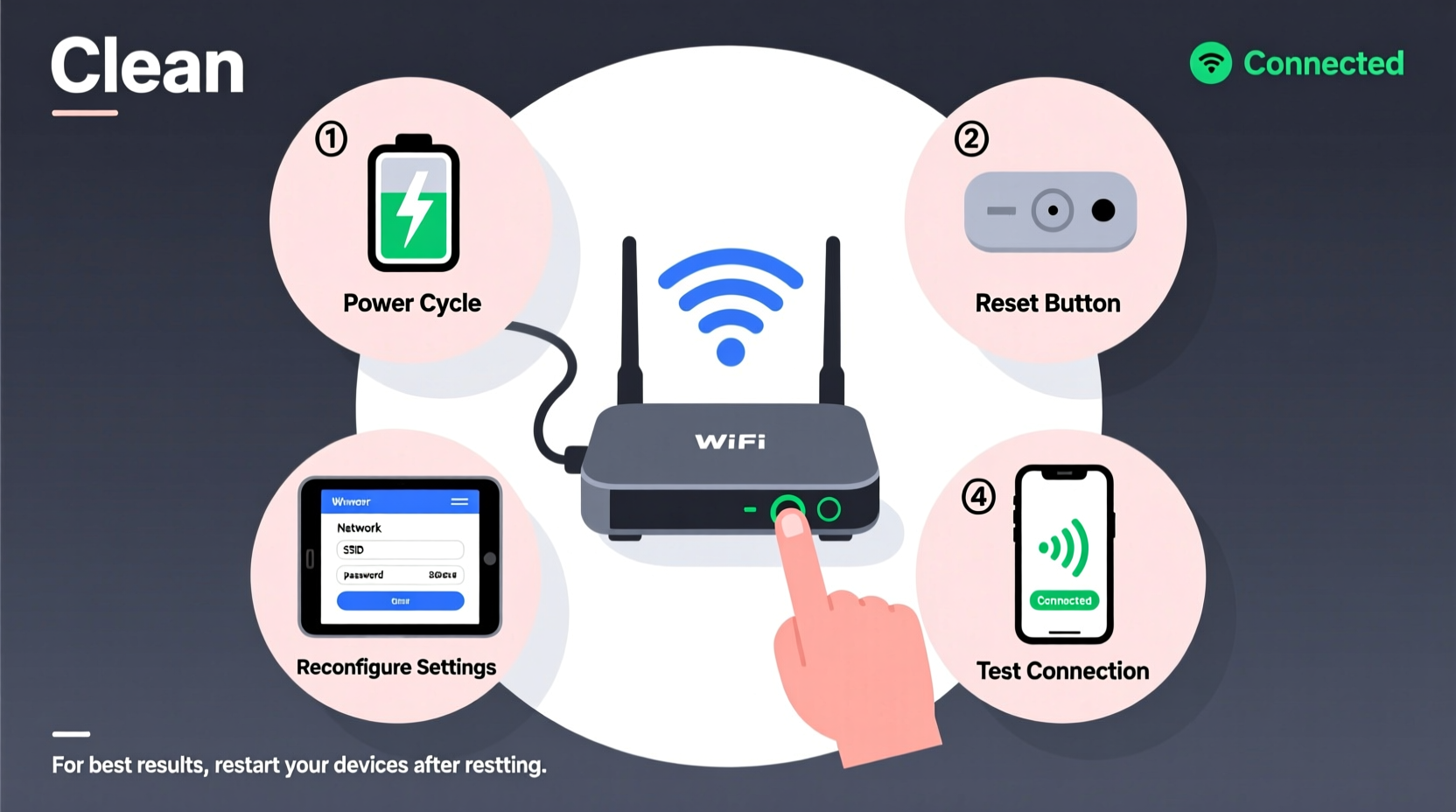
Before resetting your router, it helps to understand what causes intermittent connectivity. Common reasons include:
- Overheating: Routers generate heat during operation. Poor ventilation leads to thermal throttling or shutdowns.
- Firmware bugs: Outdated or corrupted firmware can cause instability in network management.
- IP address conflicts: Multiple devices receiving duplicate IPs disrupt data routing.
- Signal interference: Nearby electronics, walls, or other networks interfere with wireless signals.
- Memory leaks: Like computers, routers use RAM. Long uptimes lead to memory exhaustion.
- ISP configuration changes: Your internet provider may push updates incompatible with current router settings.
A well-executed reset clears temporary errors, refreshes network states, and forces a clean handshake with your ISP. But not all resets are equal—there’s a difference between a reboot, a soft reset, and a factory reset.
The Three Types of Router Resets (And When to Use Each)
Understanding the distinctions between reset types ensures you don’t accidentally wipe critical configurations.
| Reset Type | What It Does | When to Use | Risk Level |
|---|---|---|---|
| Reboot (Power Cycle) | Turns router off and on. Clears cache and re-establishes connection. | Daily glitches, slow speeds, minor disconnections | Low – No data loss |
| Soft Reset | Resets software settings via admin panel; retains most configurations. | After failed firmware update, DNS issues, login problems | Medium – May require reconfiguration |
| Factory Reset | Erases all settings, returns router to out-of-box state. | Severe instability, forgotten passwords, malware suspicion | High – Full setup required afterward |
For most users experiencing periodic dropouts, a simple reboot resolves the issue. Reserve factory resets for persistent problems after exhausting other options.
Step-by-Step Guide: How to Reboot Your Router Properly
A correct power cycle takes more than just yanking the plug. Follow this sequence to maximize effectiveness:
- Save active work. Ensure no large downloads, uploads, or video conferences are running.
- Shut down connected devices. Turn off computers, smart TVs, and phones using Wi-Fi to prevent abrupt disconnections from causing errors.
- Unplug the router’s power cable. Do not rely on the power button if present—physically disconnect electricity.
- Wait 30 seconds. This allows capacitors to discharge and clears residual memory. Skipping this reduces reset efficacy.
- Reconnect the power cable. Plug it securely into the outlet and router.
- Wait 2–3 minutes. Let the router fully boot. Watch for status lights: Power → WAN/DSL → Wi-Fi should illuminate sequentially.
- Reconnect devices. Restart one device at a time and test internet access.
If the problem persists after two reboots within 24 hours, consider a deeper intervention.
“Many so-called ‘outages’ are actually local router fatigue. A disciplined reboot every few weeks prevents 70% of home network issues.” — David Lin, Network Infrastructure Engineer at NetSecure Systems
How to Perform a Factory Reset Safely
Use this method only when standard troubleshooting fails. You’ll lose all custom settings—Wi-Fi names, passwords, port forwards, parental controls.
Preparation Steps
- Note down your current Wi-Fi SSID and password.
- Record any static IP assignments or port forwarding rules.
- Confirm your ISP login credentials (PPPoE, username/password) if applicable.
- Ensure you have physical access to both modem and router.
Execution
- Locate the reset button—usually a small pinhole on the back or bottom.
- Power on the router.
- Press and hold the reset button for 10–15 seconds using a paperclip.
- Release when all lights blink simultaneously or return to default pattern.
- Wait 3–5 minutes for full reset and restart.
Afterward, reconnect the router to your modem. Access the admin interface (typically via 192.168.1.1 or 192.168.0.1) using default credentials found on the router label. Reconfigure your network settings as needed.
Real-World Example: Fixing Chronic Dropouts in a Home Office
Mark, a freelance graphic designer in Portland, experienced daily midday disconnections lasting 5–10 minutes. His video client meetings were frequently interrupted, affecting his reputation. He contacted his ISP, who confirmed no outages in his area.
He tried restarting his laptop and phone—no improvement. Then he noticed his router’s overheating: it sat inside a closed entertainment cabinet, surrounded by speakers and game consoles.
Following the reboot procedure outlined here, Mark moved the router to an open shelf, performed a 30-second power cycle, and updated the firmware via the admin panel. The dropouts ceased entirely. Later, he scheduled monthly reboots and enabled automatic firmware updates.
This case illustrates that while resets help, environmental factors and maintenance habits play a crucial role in long-term stability.
Best Practices to Prevent Future Connection Issues
Resetting fixes immediate problems, but prevention keeps your network healthy long-term.
Keep Firmware Updated
Manufacturers release patches for security flaws and performance bugs. Log into your router monthly to check for updates under \"Administration\" or \"Firmware Update.\"
Optimize Router Placement
Place the router centrally, elevated, and away from metal objects, microwaves, and cordless phones. Avoid basements or closets unless using mesh extenders.
Schedule Regular Reboots
Set a biweekly reminder to reboot your router. Some models allow automated scheduling in settings.
Monitor Connected Devices
Too many devices strain bandwidth. Use the router dashboard to see active connections and limit unknown access.
Use Quality Equipment
If your router is over five years old, consider upgrading. Modern Wi-Fi 6 routers handle congestion better and support higher throughput.
“Think of your router like a car engine. Occasional tune-ups—reboots, updates, clean placement—keep it running smoothly.” — Lena Patel, Senior Support Analyst at BroadbandCare
Troubleshooting Checklist
Follow this checklist when facing connection drops:
- ✅ Check if multiple devices are affected (indicates router/network issue).
- ✅ Verify modem lights are stable (solid DSL/WAN, no blinking red).
- ✅ Reboot the router using the 30-second power-off method.
- ✅ Move closer to the router to test signal strength.
- ✅ Disconnect non-essential devices to reduce load.
- ✅ Log into router admin page and check for firmware updates.
- ✅ If unresolved, perform a factory reset and reconfigure.
- ✅ Contact ISP if no WAN light appears post-reset.
Frequently Asked Questions
Will resetting my router change my internet speed?
Not directly. Resetting won’t increase your subscribed bandwidth. However, clearing glitches often restores optimal performance, making your current speed feel faster due to reduced latency and packet loss.
How often should I reset my Wi-Fi router?
There’s no fixed rule, but a monthly reboot helps maintain stability. More frequent resets suggest underlying issues—such as faulty hardware, ISP problems, or interference—that need investigation.
Can a reset remove viruses from my router?
A factory reset removes malicious configurations potentially installed by attackers. However, if your network remains vulnerable (e.g., weak password), reinfection is possible. Always update firmware and use strong credentials post-reset.
Conclusion: Take Control of Your Home Network
Connection drops don’t have to be a daily annoyance. By understanding how to reset your Wi-Fi router properly, you gain a powerful tool to restore reliability and confidence in your internet service. Whether it’s a quick reboot or a full factory reset, doing it correctly makes all the difference.
Start with simple steps—reposition your router, schedule regular restarts, keep firmware current. These habits cost nothing but deliver significant improvements in uptime and performance. If problems persist, use the structured approach here to diagnose and act decisively.




 浙公网安备
33010002000092号
浙公网安备
33010002000092号 浙B2-20120091-4
Comments
No comments yet. Why don't you start the discussion?