
Over time, even the most powerful Android phones can begin to lag. Apps take longer to open, the home screen stutters, and simple tasks feel frustratingly slow. While upgrading to a new device might seem like the easiest solution, most slowdowns stem from software clutter, misconfigured settings, or inefficient app usage—not hardware failure. The good news? You can significantly improve your phone’s performance without resetting it or erasing your photos, messages, and installed apps. This guide walks through practical, data-safe strategies to breathe new life into your sluggish Android device.
Identify the Root Causes of Slowness
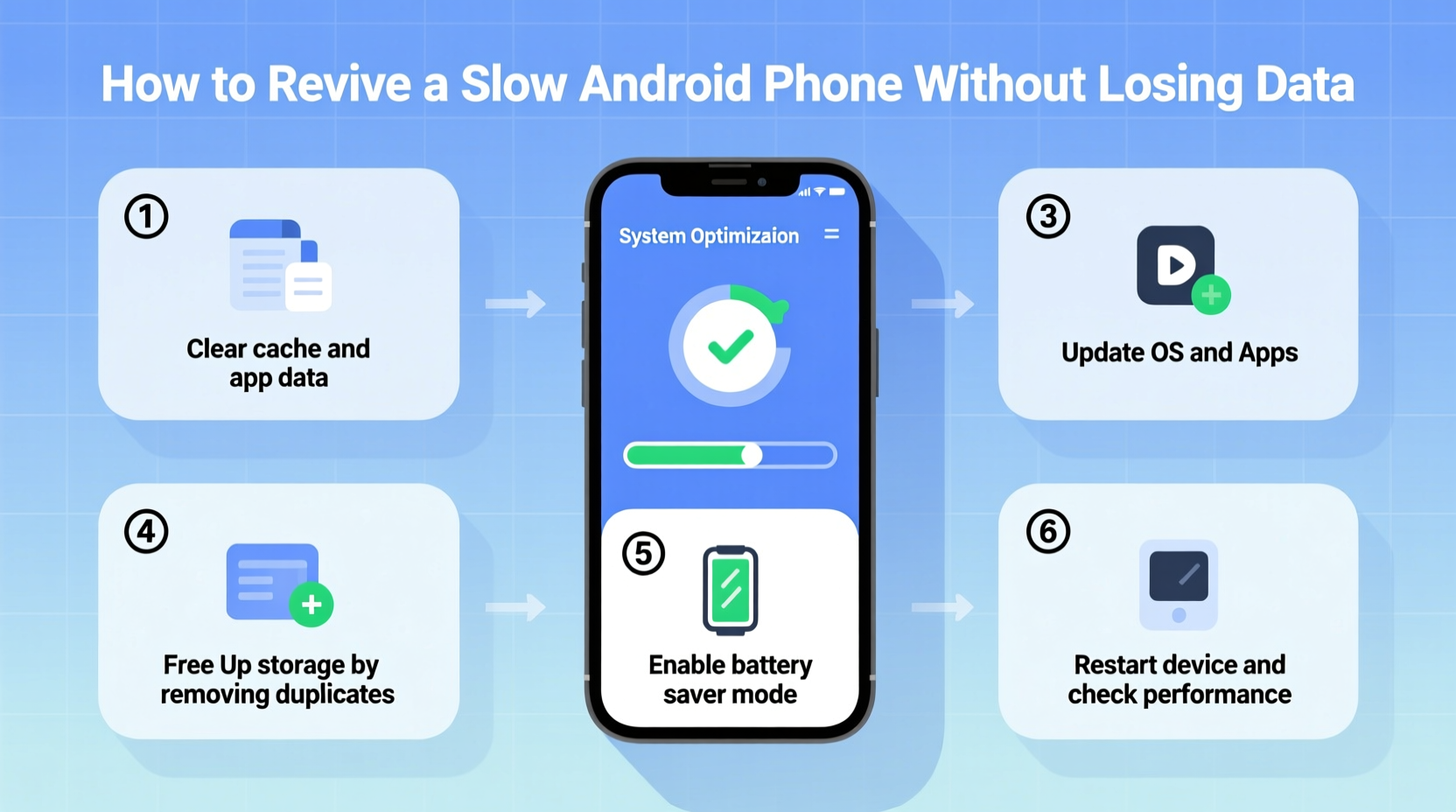
Before applying fixes, it helps to understand what’s dragging down your phone. Common culprits include:
- Background apps consuming resources: Many apps run in the background, syncing data or showing notifications even when you’re not using them.
- Full storage capacity: When your internal storage is over 85% full, the system struggles to manage temporary files and cache, leading to stuttering and delays.
- Bloatware and unused apps: Pre-installed apps (bloatware) and old downloads continue to occupy memory and sometimes auto-start at boot.
- Outdated software: Older versions of Android or unpatched apps may contain performance bugs that have since been fixed.
- Too many widgets and live wallpapers: These visual elements constantly refresh, draining CPU and battery.
Recognizing these issues allows for targeted solutions—ones that don’t require wiping your phone.
Step-by-Step Guide to Speed Up Your Android Phone
Follow this structured approach to systematically improve performance while preserving all personal data.
- Reboot your phone regularly. A simple restart clears temporary files, stops rogue processes, and resets network connections. Do this weekly as part of routine maintenance.
- Clear app caches selectively. Go to Settings > Apps > [App Name] > Storage > Clear Cache. This removes junk files without deleting login details or saved content. Focus on heavy users like Chrome, Facebook, and messaging apps.
- Uninstall or disable bloatware. Navigate to the same app settings menu and use “Disable” for pre-installed apps you don’t use (e.g., weather apps, trial games). This prevents them from launching automatically.
- Limit background activity. In Settings > Battery > Background Usage Limits, restrict apps from running in the background unless necessary. This reduces CPU load and improves responsiveness.
- Update your operating system and apps. Manufacturers often release performance patches. Ensure you're on the latest stable version via Settings > Software Update.
- Reduce animations. On developer-enabled devices, go to Developer Options and set Window Animation Scale, Transition Animation Scale, and Animator Duration Scale to “0.5x” or “Off.” This makes UI transitions snappier.
Free Up Internal Storage Safely
Storage pressure is one of the top causes of slowdowns. When internal memory is nearly full, Android can’t efficiently write temporary files, which affects multitasking and app loading times.
Start by identifying large files:
- Use Google’s Files by Google app to scan and categorize photos, videos, downloads, and app data.
- Delete duplicate photos and low-quality shots (often found in “Screenshots” or “Downloaded Images”).
- Move media to cloud storage (Google Photos, Dropbox) with high-quality compression enabled.
- Clear downloaded files from browsers and messaging apps like WhatsApp.
Aim to keep at least 15–20% of your storage free for optimal system operation.
| Storage Use | Action | Impact on Speed |
|---|---|---|
| Photos/Videos (over 5GB) | Back up to cloud, delete local copies | High – Frees space, improves file access speed |
| App Cache (Chrome, Social Media) | Clear cache only | Medium – Reduces lag in affected apps |
| Unused Apps (10+) | Uninstall or disable | Medium – Prevents background drain |
| Downloads Folder (unsorted files) | Review and delete | Low to Medium – Reduces clutter |
Optimize App Behavior and Startup Processes
Many apps launch automatically when you turn on your phone, consuming RAM and slowing boot time. Managing startup behavior is key to long-term performance.
On stock Android and many OEM skins (like Xiaomi MIUI or Samsung One UI), you can control autostart permissions:
- Go to Settings > Apps > Special Access > Autostart (varies by brand).
- Disable autostart for non-essential apps such as shopping platforms, streaming services, or utilities.
- Keep essential services like messaging, email, and security apps enabled.
This reduces initial load on the system and keeps more RAM available for active tasks.
“Modern Android systems are robust, but user habits—like installing too many apps or ignoring updates—are the real performance killers.” — Rajiv Mehta, Mobile Systems Engineer at Android Authority Labs
Real Example: Reviving a Two-Year-Old Pixel 4a
Consider the case of Maria, a freelance writer using a Pixel 4a purchased in 2021. By late 2023, her phone took 10 seconds to unlock, apps crashed frequently, and typing in documents lagged noticeably.
She followed these steps:
- Cleared over 3GB of cached data across social media and browser apps.
- Disabled autostart for Spotify, Amazon, and TikTok.
- Deleted 1,200 duplicate and blurry photos using Google Photos’ cleanup tool.
- Updated her OS to Android 14 and all apps via the Play Store.
- Switched from a live wallpaper to a static image.
Result: Boot time dropped from 45 seconds to under 20. App launches became near-instant, and overall responsiveness improved dramatically—all without losing a single document or chat log.
Prevent Future Slowdowns: Build Smart Habits
Maintaining speed requires ongoing care. Adopt these daily and weekly practices to keep your phone running smoothly:
- Install apps selectively. Only download apps you truly need. Each one adds background processes and potential security risks.
- Use lightweight alternatives. Replace heavy apps with optimized versions (e.g., use Firefox Lite instead of Chrome, or Messenger Lite instead of full Facebook).
- Turn off unnecessary sync. In Settings > Accounts, disable auto-sync for accounts you rarely use (e.g., secondary email or calendar).
- Limit widgets. Stick to one or two essential widgets (like weather or calendar) and avoid animated ones.
- Enable dark mode. On OLED screens, dark mode reduces power consumption and heat buildup, indirectly supporting sustained performance.
Comprehensive Checklist: How to Revive a Slow Android Phone
Use this checklist to ensure you’ve covered all critical areas:
- ✅ Reboot the phone to clear temporary processes.
- ✅ Check available storage; aim for 15%+ free space.
- ✅ Clear cache for top 5 heaviest apps (e.g., Chrome, Facebook, Instagram).
- ✅ Uninstall or disable unused and bloatware apps.
- ✅ Update Android OS and all installed apps.
- ✅ Disable autostart for non-essential apps.
- ✅ Remove duplicate photos and large video files.
- ✅ Switch to a static wallpaper and reduce widget count.
- ✅ Limit background data and sync for non-critical apps.
- ✅ Consider a factory reset only if all else fails—and back up first!
Frequently Asked Questions
Will clearing cache delete my photos or messages?
No. Clearing app cache only removes temporary files like thumbnails, search history, and session data. Your personal content—photos, messages, account logins—remains intact. However, some apps may take slightly longer to load the next time as they rebuild cached data.
Can I speed up my phone without rooting it?
Absolutely. Most performance improvements come from managing storage, apps, and settings—all accessible without root access. Rooting introduces security risks and may void warranties, so it’s unnecessary for basic optimization.
Is a factory reset the only way to fix a slow phone?
No. While a factory reset can provide a fresh start, it should be a last resort. Over 90% of slowdowns are resolvable through the methods outlined here. Reserve a reset for cases where malware, corrupted system files, or deep software conflicts persist after troubleshooting.
Conclusion: Take Control of Your Phone’s Performance
Your Android phone doesn’t have to slow down just because it’s aging. With thoughtful maintenance and smart usage habits, even a three-year-old device can perform reliably for everyday tasks. The key is consistency: regular cleanups, mindful app management, and staying current with updates. You don’t need technical expertise or risky modifications—just a few focused actions to reclaim speed and usability.




 浙公网安备
33010002000092号
浙公网安备
33010002000092号 浙B2-20120091-4
Comments
No comments yet. Why don't you start the discussion?