
Over time, Android smartphones accumulate apps that are no longer used—some installed by default, others downloaded in passing. These dormant apps consume storage, drain battery in the background, and may even pose privacy risks. While deleting them seems simple, doing so carelessly can lead to unintended consequences like data loss, broken app dependencies, or accidental removal of system-critical software. The key is knowing not just how to uninstall, but which apps to remove, when to do it, and what to back up first.
This guide walks through a thorough, safe process for identifying obsolete apps, reclaiming storage, and optimizing your device’s long-term performance—all while protecting your personal data.
Why Deleting Unused Apps Matters
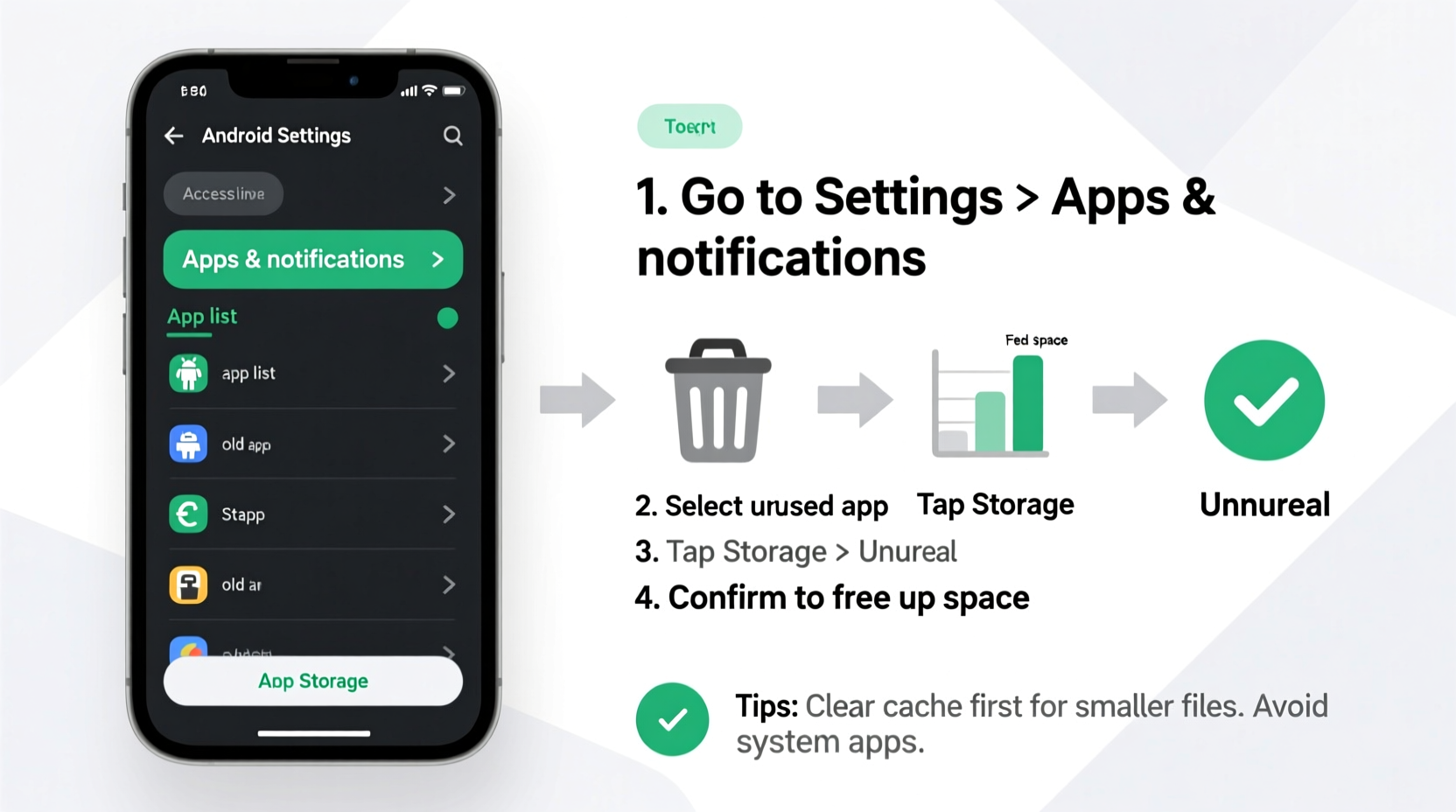
Storage isn’t the only reason to clean house. Old apps often continue running background processes: syncing data, sending notifications, or accessing location. Even if you don’t open them, they contribute to slower performance and reduced battery life. Google estimates that the average Android user has between 60 and 80 apps installed at any given time, yet actively uses fewer than 30.
Beyond clutter, outdated apps may contain unpatched security vulnerabilities. Developers who abandon their apps stop releasing updates, leaving known exploits unaddressed. Removing such apps reduces your digital attack surface.
Step-by-Step: How to Identify and Remove Old Apps Safely
Deleting apps haphazardly can cause issues. A systematic approach ensures you preserve essential tools while eliminating bloat. Follow this timeline to clean your device thoroughly.
- Review app usage over the past 90 days
Go to Settings > Battery > Battery Usage (or Digital Wellbeing) to see which apps run most frequently. Sort by “Last Used” to spot dormant ones. - Check storage consumption per app
Navigate to Settings > Storage > Apps. Tap each app to view its total size, including cache and data. Focus on large apps you no longer use. - Determine app type: User-installed vs. System
User apps can be freely uninstalled. System apps (often preloaded) require extra caution. Some can be disabled; others should never be removed without root access. - Back up critical data
If an app stores notes, login tokens, or settings you might need later (e.g., banking apps, password managers), export or sync that data before deletion. - Uninstall or disable
For user apps: long-press the app icon > Uninstall. For system apps: go to Settings > Apps > [App Name] > Disable (not Uninstall unless option is available). - Clear residual cache and data folders
After uninstalling, check Settings > Storage > Other Apps or use a file manager to delete leftover folders in/Android/data/.
When to Disable Instead of Uninstall
Some preinstalled apps—like carrier utilities or manufacturer skins—cannot be fully removed without rooting. Disabling them stops background activity and hides them from the app drawer, effectively neutralizing their impact. This is safer than attempting forced removal, which could destabilize the OS.
“Disabling unused system apps is one of the safest ways to reduce bloat without risking boot loops or update failures.” — Raj Mehta, Senior Android Engineer at LineageOS
What to Watch Out For: Common Pitfalls
Not all apps are safe to delete. Misidentifying a core service as bloatware can impair phone functionality. Here’s what to avoid.
| Do | Don’t |
|---|---|
| Remove duplicate apps (e.g., multiple camera or weather apps) | Delete apps named “Google Play Services,” “Device Health Services,” or “Carrier Services” |
| Uninstall third-party launchers you’re no longer using | Remove system UI components like “One UI Home” or “Pixel Launcher” unless you’ve replaced them |
| Disable bloatware from brands like Facebook, McAfee, or Amazon Shopping | Use third-party “bloatware removers” that require root or ADB commands unless you're technically experienced |
| Clear cache regularly after uninstalling | Assume all preloaded apps are unnecessary—some enable OTA updates or emergency features |
Real Example: Cleaning Up a Two-Year-Old Samsung Galaxy S21
Jamie, a freelance designer, noticed her Samsung Galaxy S21 was slowing down and frequently overheating. With only 15% free storage left on her 128GB device, she decided to audit her apps.
She started in Digital Wellbeing and discovered she hadn’t opened “Samsung Free,” “Bixby Routines,” or “Facebook” in over six months. She also found three different QR scanner apps—one from Samsung, one from Google, and another from a shopping site she visited once.
She uninstalled the shopping-site scanner and disabled Bixby and Samsung Free. She kept the Facebook app due to group memberships but logged out to reduce background sync. After clearing cache and rebooting, her phone gained 4.2GB of space and showed improved responsiveness in multitasking.
The biggest surprise? Her battery now lasted nearly two hours longer on a single charge—likely due to fewer background services polling for updates.
Advanced Space Recovery: Beyond Uninstalling Apps
Deleting apps frees space, but hidden data often remains. To maximize gains, follow these additional steps.
1. Clear App Cache Manually
Even after uninstalling, some apps leave behind cache files. Go to Settings > Storage > Clear Cache, or use a file manager to navigate to:
/Android/data/– Contains folders for each app/Android/obb/– Stores large game assets/Download/– May include APKs or installers
Delete folders corresponding to uninstalled apps. Be cautious not to remove directories for active apps.
2. Use Built-in Storage Booster Tools
Many Android OEMs include cleanup utilities:
- Samsung: Device Care > Storage > Clean Now
- Google Pixel: Settings > Storage > Free up space
- Xiaomi: Security app > Cleaner
3. Audit Auto-Start Permissions
Some apps relaunch themselves after being closed. Prevent this by restricting auto-start behavior:
- Go to Settings > Apps > Special Access > Battery Optimization
- Select “All Apps”
- Find apps you’ve uninstalled recently—if they reappear, block them permanently
Essential Checklist: Safe App Removal Protocol
Before deleting any app—especially system-level or infrequently used ones—follow this checklist to avoid problems.
- ✅ Confirm the app hasn’t been used in the last 60–90 days
- ✅ Check its storage footprint (Settings > Apps > [App Name] > Storage)
- ✅ Back up any data (export notes, save login details, sync cloud accounts)
- ✅ Verify it’s not a core Android service (e.g., “Android System,” “Telephony”)
- ✅ Search the app name online to confirm it's safe to remove
- ✅ Prefer disabling over uninstalling for preloaded apps
- ✅ Reboot after major deletions to ensure system stability
- ✅ Monitor device performance and battery usage post-removal
Frequently Asked Questions
Can deleting an old app remove my saved login information elsewhere?
No—app data is isolated. Deleting a social media app won’t log you out of that service on other devices. However, if you didn’t use two-factor authentication, you may need to re-authenticate when reinstalling. Always ensure your account recovery options (email, phone) are current.
Is it safe to remove system apps using ADB?
Possible—but risky. Using Android Debug Bridge (ADB) to uninstall system apps can improve performance, but mistakes can brick your device or prevent future OS updates. Only attempt this if you understand the consequences and have backed up your data. Never remove packages related to connectivity, security, or firmware.
Will uninstalling apps improve my phone’s speed?
Yes, indirectly. Fewer apps mean less background activity, reduced RAM pressure, and faster app switching. You’ll notice the biggest improvements if you remove resource-heavy apps like games, social platforms, or outdated antivirus tools. Pair deletion with regular cache clearing for sustained performance.
Final Thoughts: Make App Hygiene a Habit
Just as physical clutter affects mental clarity, digital clutter impacts your phone’s efficiency and your daily experience. Rather than waiting until your device runs out of space, build app hygiene into your routine. Every quarter, spend 15 minutes reviewing installed apps, checking usage stats, and removing what no longer serves you.
The goal isn’t minimalism for its own sake—it’s about creating a leaner, more secure, and responsive Android experience. By understanding the difference between bloat and necessity, backing up wisely, and proceeding methodically, you can reclaim gigabytes of space without sacrificing functionality.




 浙公网安备
33010002000092号
浙公网安备
33010002000092号 浙B2-20120091-4
Comments
No comments yet. Why don't you start the discussion?