
In an age where sharing memories happens in seconds, preserving the integrity of your digital photos is more important than ever. Whether you're sending family portraits to relatives or delivering high-resolution images to a client, every compression, upload, or email attachment risks degrading image quality. Many people unknowingly sacrifice detail, color accuracy, and resolution simply because they use convenience over control. Understanding the technical nuances behind file formats, compression, and transfer methods empowers you to maintain photo fidelity from capture to delivery.
This guide breaks down practical strategies to ensure your photos retain their original quality when shared across platforms, devices, and recipients—no matter their tech-savviness.
Understanding Image Quality and Compression
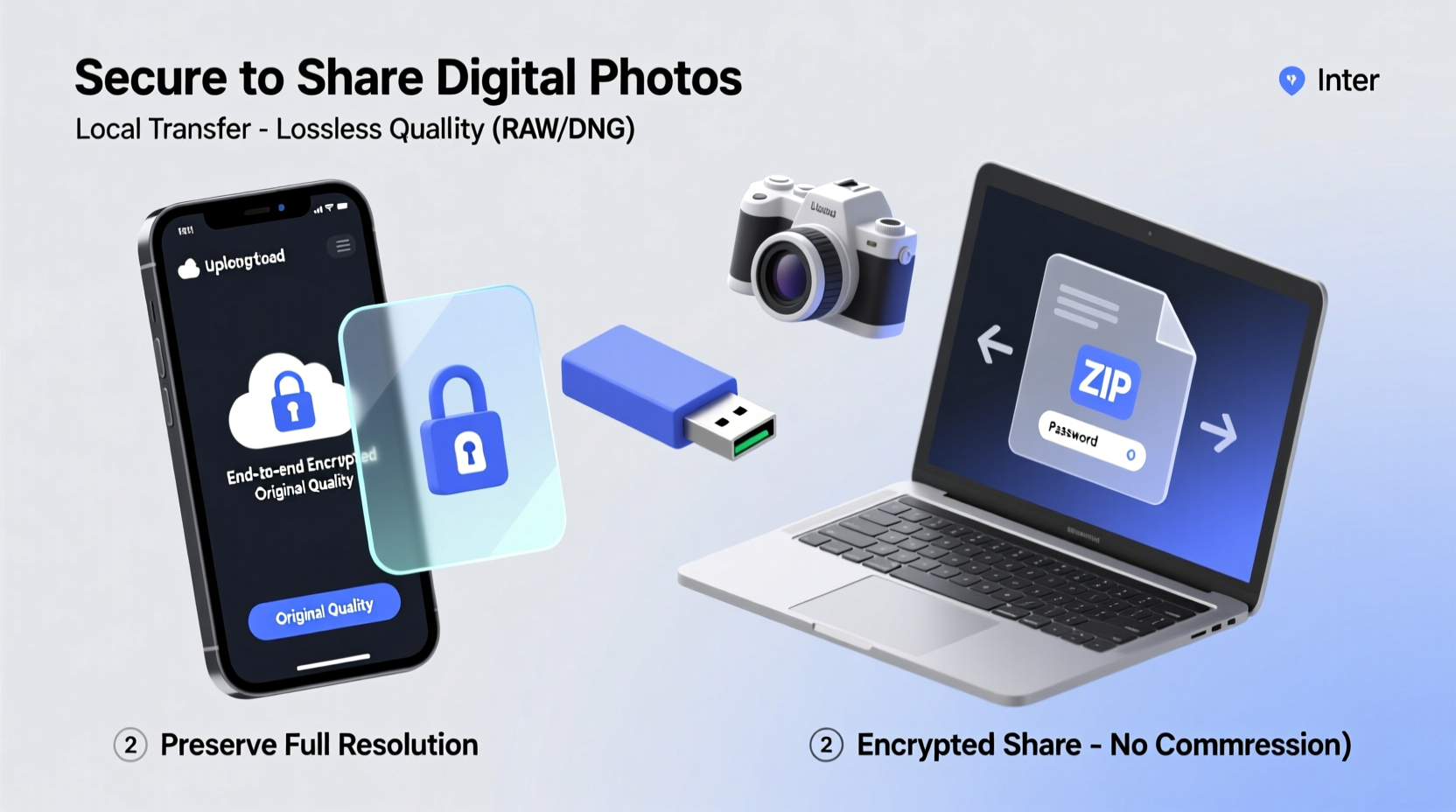
Digital photos are composed of pixels, metadata, and color information—all of which contribute to perceived quality. When you share a photo, especially online, many services automatically compress it to reduce bandwidth and storage demands. This compression often comes at a cost: loss of sharpness, color banding, noise, and artifacts that weren’t present in the original.
There are two primary types of image compression:
- Lossless Compression: Reduces file size without discarding any visual data. Formats like PNG and TIFF use this method, making them ideal for archival and professional use.
- Lossy Compression: Permanently removes some image data to shrink file size. JPEG is the most common example. While visually acceptable in many cases, repeated saving or high compression can degrade quality significantly.
The key to safe sharing lies in minimizing unnecessary recompression and choosing the right format for the context.
Choosing the Right File Format for Sharing
Not all image formats are created equal. Selecting the appropriate one depends on your purpose: social media, printing, client delivery, or long-term archiving.
| Format | Best For | Quality Risk | Notes |
|---|---|---|---|
| JPEG | Email, web, social media | Moderate to High (lossy) | Widely compatible; use high-quality settings (90–100%) when exporting. |
| PNG | Graphics, text overlays, transparency | Low (lossless) | Larger files but preserves full quality; not ideal for complex photos. |
| TIFF | Professional printing, archiving | Very Low (lossless) | Huge file sizes; excellent for master copies but impractical for casual sharing. |
| HEIC/HEIF | iOS devices, modern smartphones | Low to Moderate | Efficient compression with high quality; limited compatibility outside Apple ecosystem. |
| WebP | Web optimization | Variable (lossy or lossless) | Google-developed format; smaller than JPEG/PNG but not universally supported. |
For maximum quality retention, export your final version in a lossless format only if the recipient can handle large files. Otherwise, use high-bitrate JPEG with minimal compression.
Step-by-Step Guide to Safely Share High-Quality Photos
Follow this sequence to preserve image quality while ensuring successful delivery:
- Edit in a non-destructive workflow: Use software like Adobe Lightroom or Capture One that keeps original files intact and applies adjustments as metadata.
- Export at full resolution: When ready to share, export using the original sensor resolution or intended output size (e.g., 300 DPI for print).
- Select appropriate export settings: In your editor, choose sRGB color profile (for web), set JPEG quality to 90–100%, or use PNG/TIFF for critical applications.
- Avoid platform auto-compression: Don’t rely on social media or messaging apps to deliver full quality. Instead, use direct transfer methods.
- Use secure file-sharing services: Platforms like Google Drive, Dropbox, or WeTransfer allow high-fidelity transfers without forced downsizing.
- Verify receipt: Ask the recipient to confirm they received the file and can open it without degradation.
This process ensures that your creative intent remains intact—from lighting and contrast to fine details in shadows and highlights.
Recommended Tools and Platforms for High-Fidelity Sharing
Not all sharing channels treat images equally. Some reprocess uploads aggressively, while others offer clean pipelines.
Here are trusted options for maintaining photo quality:
- Google Drive / OneDrive / Dropbox: These cloud storage platforms preserve file integrity when shared via direct link. Files aren’t compressed unless viewed inline in the browser.
- WeTransfer Pro: Allows sending up to 20 GB per transfer with no compression. Free version limits to 2 GB but still avoids altering files.
- Flickr (Pro account): Uploads full-resolution originals and serves them accurately, even for large prints.
- SmugMug: A photographer-focused platform that guarantees no compression and supports RAW files.
- Signal / Telegram (with caveats): Unlike WhatsApp, Signal doesn’t auto-compress photos if sent as “documents.” Telegram allows high-quality uploads with manual size limits.
Avoid using WhatsApp, Instagram Direct, Facebook Messenger, or iMessage for critical photo sharing—they all apply aggressive compression by default.
“We’ve seen clients lose irreplaceable wedding shots just because they used standard messaging apps. A few extra steps in sharing can prevent permanent quality loss.” — Daniel Park, Professional Photographer & Digital Archivist
Real Example: Preserving Family Heirloom Photos Digitally
Sarah Thompson inherited a shoebox of 35mm slides from her grandmother. After scanning them at 4000 DPI using a dedicated film scanner, she had over 200 high-resolution TIFF files—each around 50 MB. She wanted to share them with cousins across three countries.
Instead of emailing or uploading to Facebook, Sarah created a private SmugMug gallery, uploaded the full-resolution scans, and invited family members via email. She also provided downloadable links so each relative could make prints or back up the images locally.
One cousin attempted to re-share a few photos through WhatsApp, only to notice visible blurring and color shifts. Sarah intervened, re-sent the originals via Google Drive, and educated the family on proper sharing etiquette. The result? Every photo remained pristine, and the collection became a shared digital heirloom preserved for future generations.
Checklist: How to Share Photos Without Quality Loss
Before sending any photo, run through this checklist:
- ✅ Edited using non-destructive software (Lightroom, DxO, etc.)
- ✅ Exported at full or intended resolution
- ✅ Saved in appropriate format (JPEG high quality, PNG, or TIFF)
- ✅ Color profile set to sRGB (unless recipient needs Adobe RGB)
- ✅ Shared via direct file transfer (cloud drive, WeTransfer, etc.)
- ✅ Not uploaded through social media or messaging apps unless necessary
- ✅ Recipient informed about file size and opening instructions
- ✅ Backup retained in original form
This simple routine prevents accidental degradation and builds trust when delivering professional work.
Common Myths About Photo Sharing Debunked
Misinformation often leads to poor decisions. Here are some widespread myths:
- Myth: “If it looks good on my screen, it’s fine.”
Reality: Screen previews can mask compression artifacts. Zoom in to 100% to inspect edges and gradients. - Myth: “Cloud storage compresses everything.”
Reality: Most major providers store files bit-for-bit unless you’re viewing thumbnails or previews. - Myth: “RAW files are always better for sharing.”
Reality: RAW files require special software to view. Share processed, high-quality JPEGs or TIFFs unless the recipient specifically requests RAW.
Understanding these distinctions helps avoid assumptions that compromise photo quality.
FAQ: Common Questions About Safe Photo Sharing
Can I send full-quality photos through email?
Yes, but with limitations. Most email providers cap attachments at 20–25 MB. For larger files, use cloud links (Google Drive, Dropbox) embedded in your email. Attachments themselves don’t degrade quality, but oversized files may be blocked or converted by the server.
Why do my photos look blurry after sharing on Instagram?
Instagram compresses all uploads—even from desktop—to optimize load times. To minimize damage, upload square images (1080x1080) at 72 DPI with sRGB color. Avoid excessive sharpening, as compression amplifies halos and noise.
Is there a way to share photos wirelessly without losing quality?
Yes. Use local transfer methods like Apple AirDrop (macOS/iOS), Samsung Quick Share, or FTP apps over Wi-Fi. These bypass internet compression and transfer files directly between devices in their original form.
Final Thoughts: Quality Is Worth the Extra Effort
Photos are more than data—they’re moments frozen in time, expressions captured, stories told. Treating them with care during sharing honors their value. While it’s tempting to tap “send” instantly through the nearest app, taking a few deliberate steps ensures that what you share reflects reality, not a degraded approximation.
Whether you're a professional photographer delivering client proofs or someone preserving generational memories, the principles remain the same: control the format, manage the pipeline, and verify the outcome. Technology should serve preservation, not undermine it.




 浙公网安备
33010002000092号
浙公网安备
33010002000092号 浙B2-20120091-4
Comments
No comments yet. Why don't you start the discussion?